
Muse does not have a separate Change login email button. Sign-in uses the email address or mobile number on your Meta account. To change the email, open contact info in your Meta account, add and verify a new address you can keep using, confirm that you can sign in with it, and only then delete the old email. Do not delete the only old address first.
The new inbox should receive mail reliably and should not already belong to another Meta account. When you add a new email, the confirmation code is sent to that new address; you generally do not need a code from the old inbox. Deleting the old email may still ask for your password or another security check. If the Muse account was purchased, change the email only when the order expressly allows you to edit account details.
Open contact info
These are different doors into the same Meta account center:
- On the web: in muse.ai, open Settings → General → Meta Account.
- In the official app: open Meta Account or Accounts Center from Settings. Follow the labels you actually see.
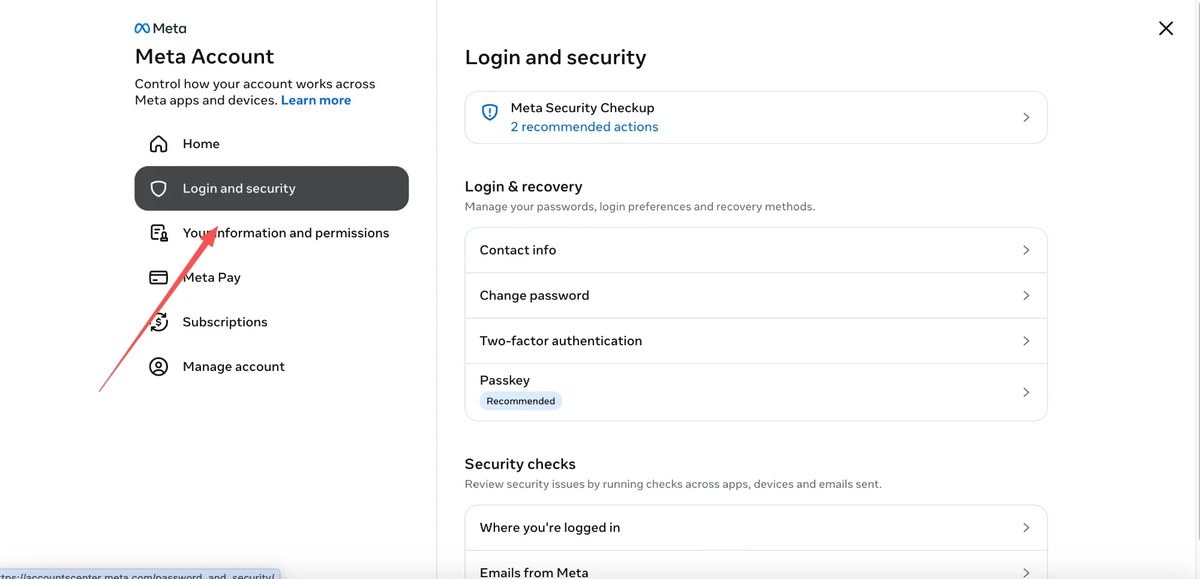
- Or go directly to accountscenter.meta.com, then Login and security → Contact info. You can also open Contact info from Personal details.
The screenshot below is an Accounts Center Login and security example, with Contact info on the right. It comes from a public tutorial. The arrow on the image has been left in place, and this is not a test we ran on this site.
Add and verify the new email
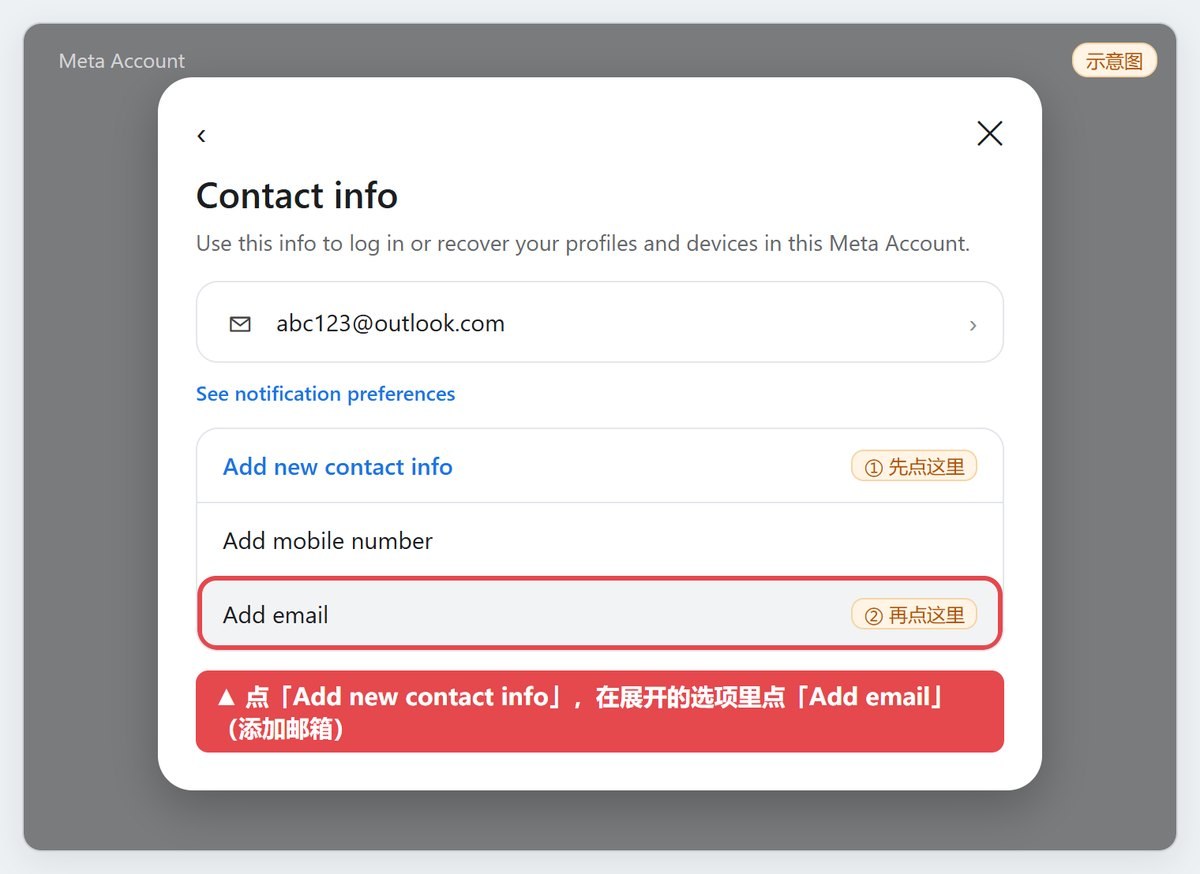
- Open Contact info, choose Add new contact info, then Add email.
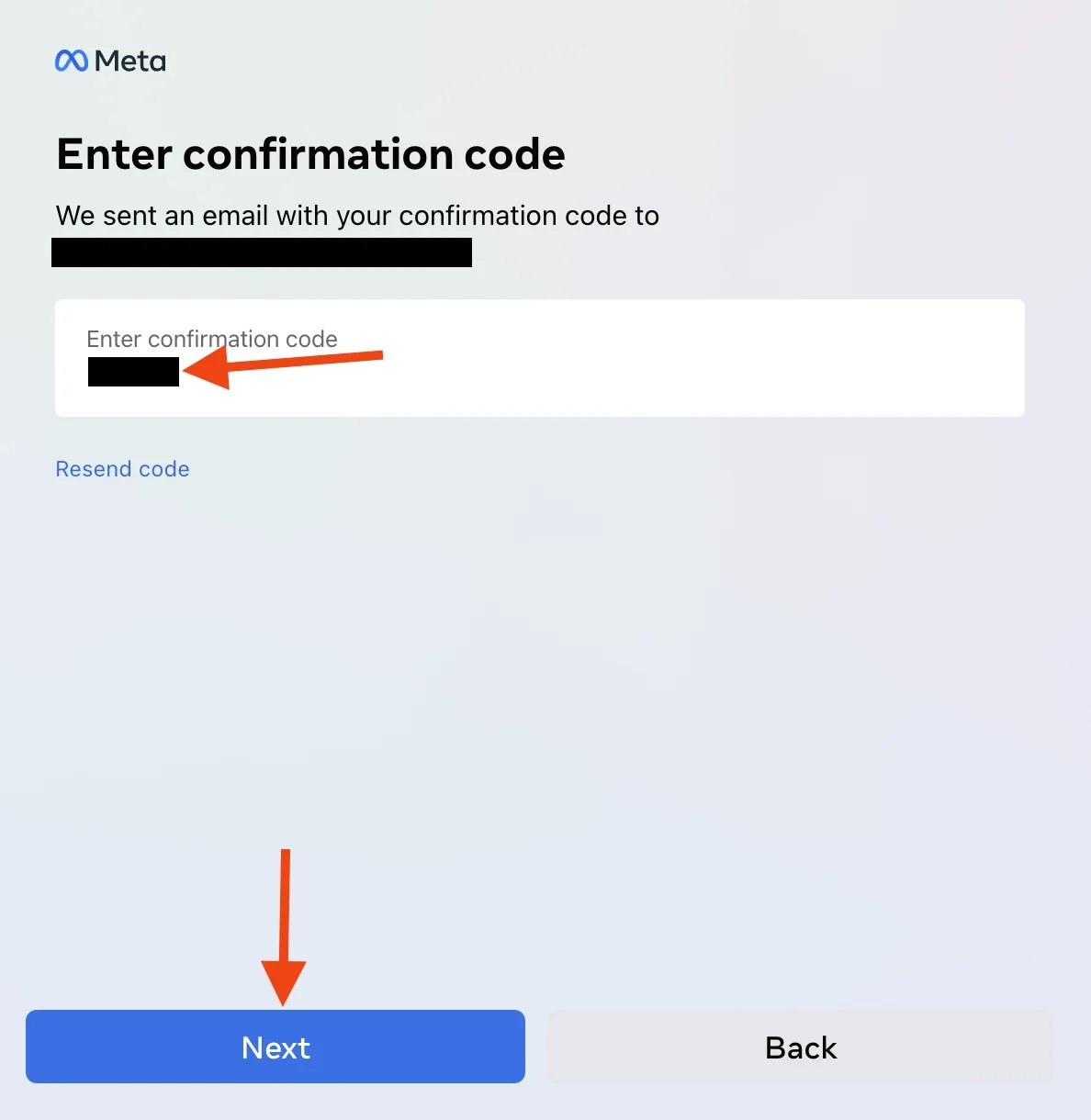
- Enter a new address you can keep using and send the confirmation code.
- Open the new inbox, check spam or promotions if needed, and look for mail from Meta or Facebook. Enter the code.
- Once the new email appears in the list, it is wise to sign out and sign back in with the new email once, then consider deleting the old one.
The contact info page states that this information can be used to log in or recover the profiles and devices in the Meta account. The next image is an example of the add-email entry. Labels such as 示意图 come from the source tutorial and have been kept as they appeared.
The confirmation code is sent to the new email. The following example shows the code screen; the original image already hides the address and the code.
Set a default, then delete the old email
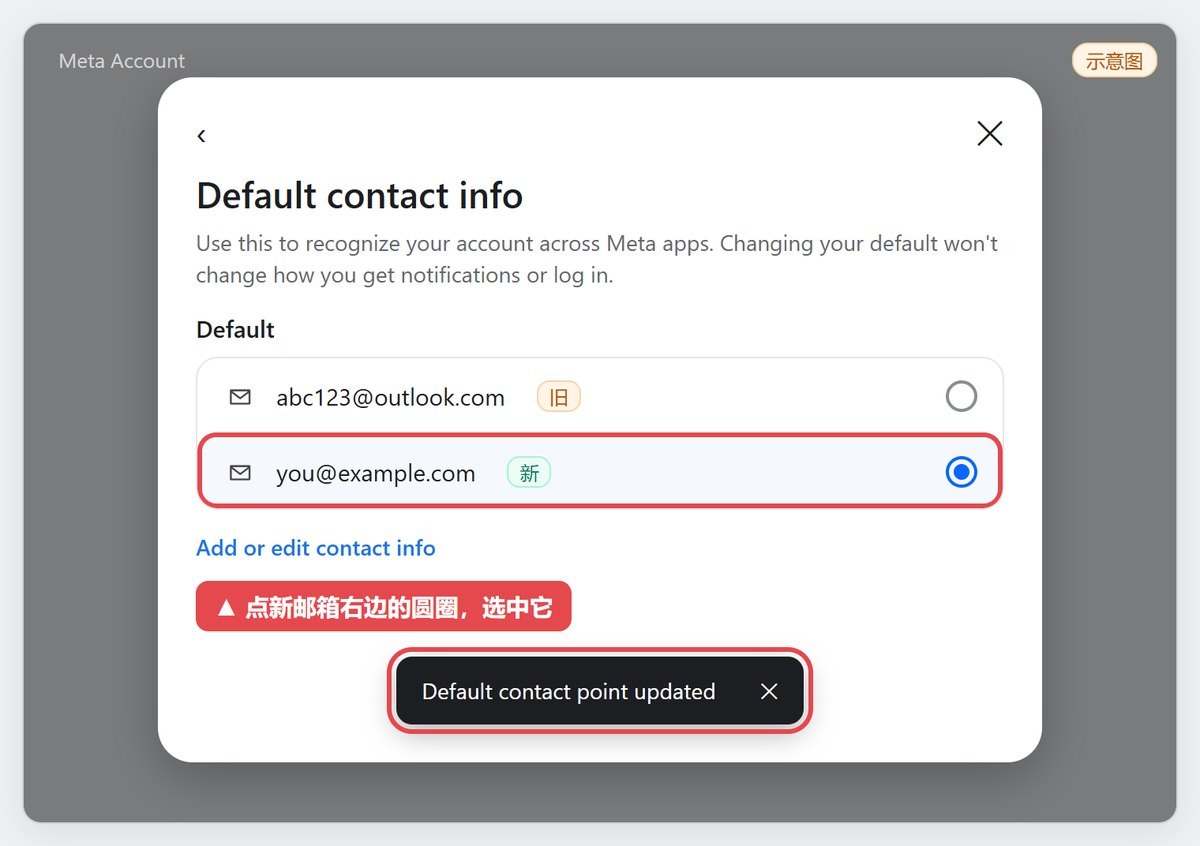
After the new email is added, return to Default contact info. The official text explains that changing the default does not change how you get notifications or log in; it is used to recognize your account across Meta apps. Even so, set the verified new email as the default before you delete the old one, so you are not left with a contact method you cannot use.
When you select the old email and choose Delete email, the confirmation explains that you will no longer be able to use that address to log in, reset your password or receive notifications, and that you may not be able to delete it if it is the only contact info on the Meta account. Confirm that the new email is verified and that you can sign in with it, then choose Delete.
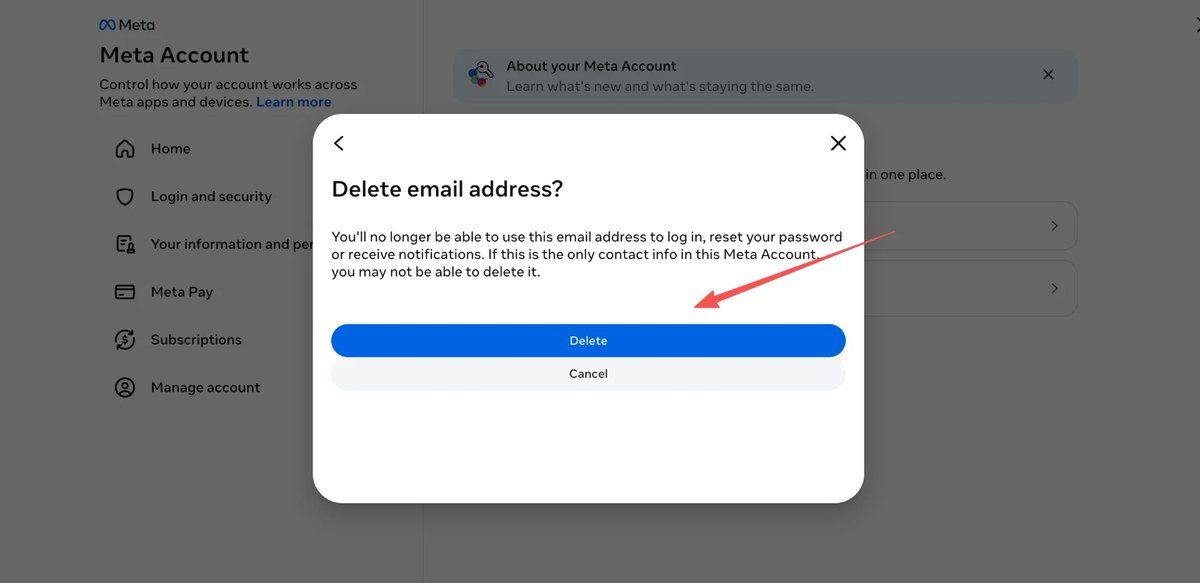
Do not reset Muse or permanently delete Muse data just to change an email. That clears chats, files and in-progress tasks, and it is not the same as editing contact info. Also do not confuse an external address used for Muse Mail with the login email; the former is covered in About Muse email addresses.
Common questions
- The new email is already in use: try an address that is not linked to another Meta account. If one of your older accounts is using it, remove it there first.
- No confirmation code: check the spelling, the spam folder and whether the sender is Meta or Facebook, then use Resend if the page offers it.
- The old email cannot be deleted: the new one may not be verified yet, or the old one may still be the only contact. Finish adding, verifying and setting the default first.
- A password is required to delete: complete the check on the official page. Do not turn off security settings or send the password to anyone else.
- The account later shows that Muse is unlinked: that is not the same as changing the email. Follow this site's unlinked-account guide and use official feedback. Changing the country of your IP address is not an official fix.
If you need a Muse account, or an inbox that can receive confirmation codes, see the product pages on this site.