Step 1: Open ChatGPT Settings
- Open your browser and go to https://chatgpt.com and log in to your account.
- In the bottom-left corner of the page, click your username/avatar, and select Settings。
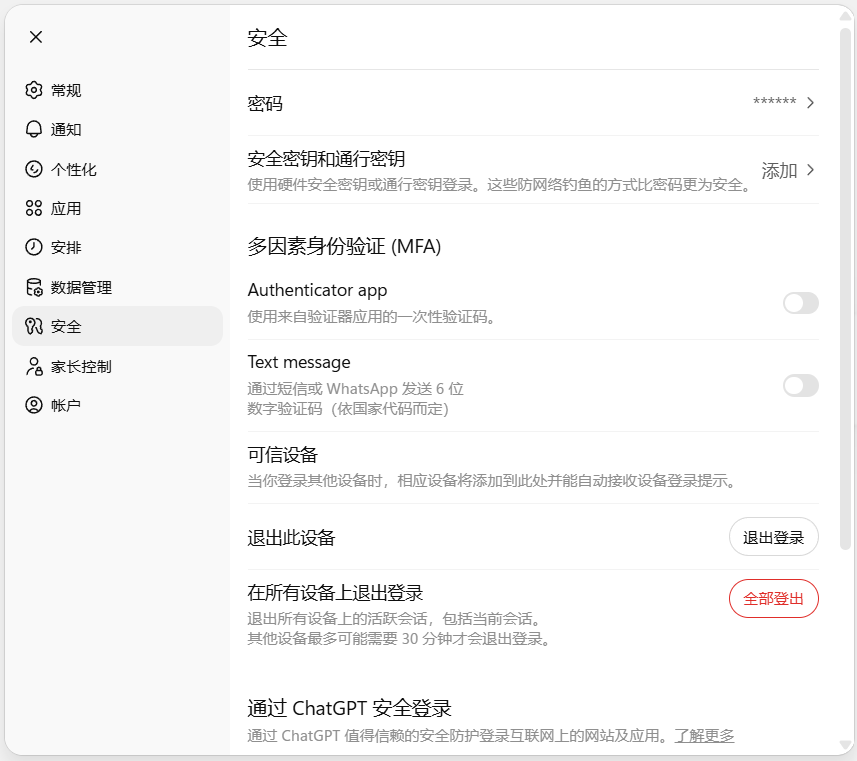
- In the left-hand menu of the Settings window, find and click the Security tab.
- In the Multi-factor authentication section, click Enable or Set up MFA button (if it shows “Set up MFA to continue”, just click it).
[Enabling Multi-Factor Authentication (MFA)]
- The system will display a QR code(QR Code)。
[Linking an Authenticator App]
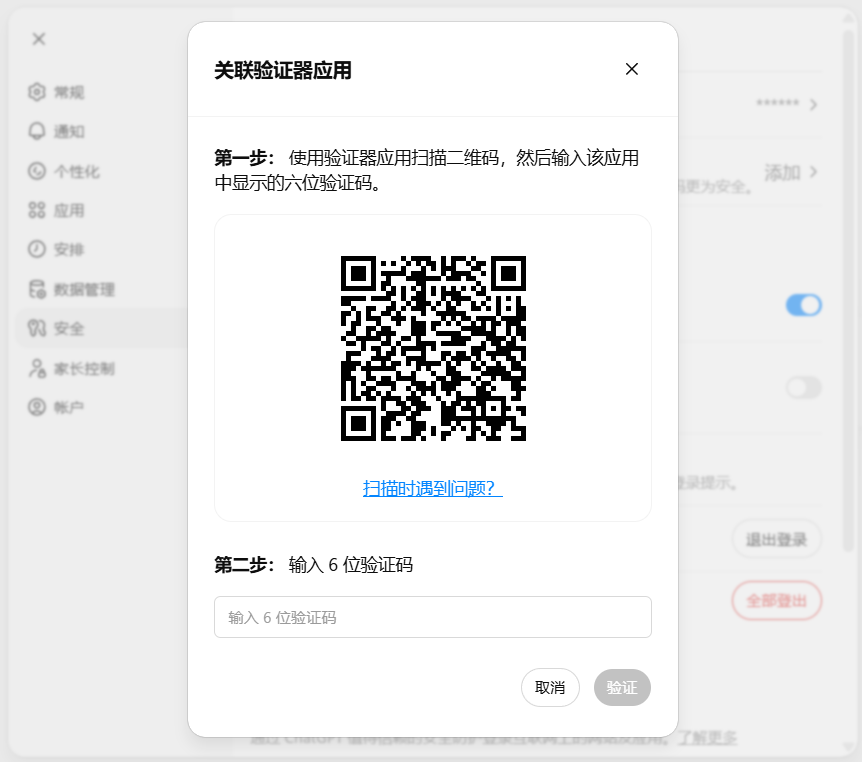
There are two methods:
1. Use the web-based authenticator (URL: https://aifuns.xyz/authenticatord) click to go directly, and upload a screenshot of the QR code to get the verification code.
2. Link using a mobile device App:
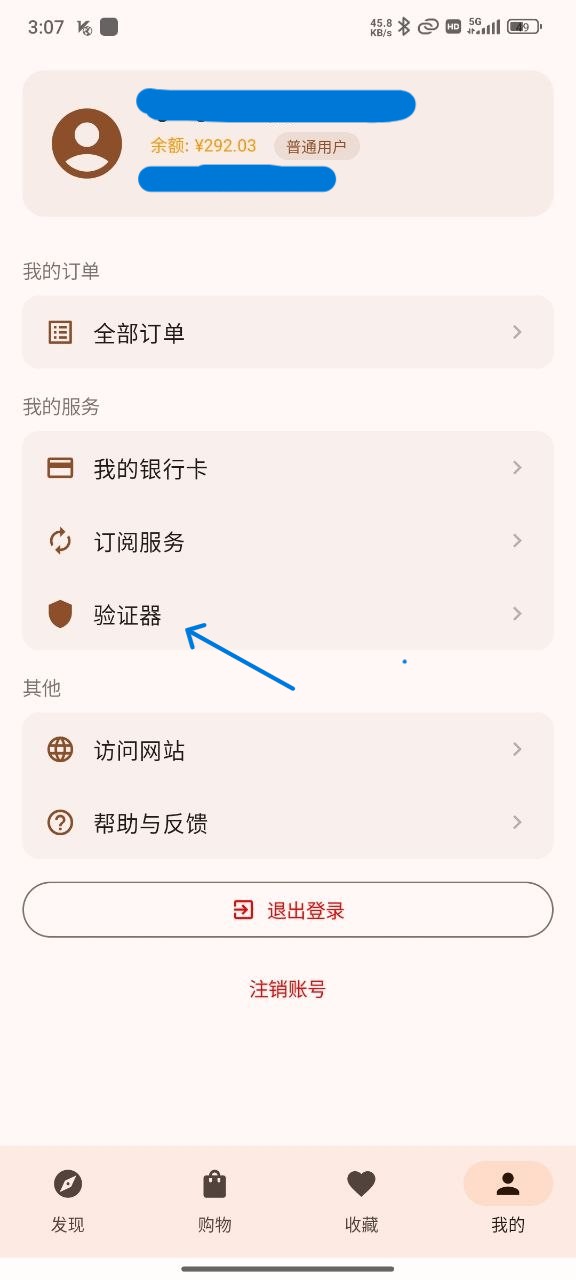
- Open your authenticator App (Register as a member of this site to download and use the AIFUNS APP (click to go directly)):
- Log in as a site member, tap My, then tap Authenticator.
[AIFUNS APP Authenticator]
-
- Tap the “+” in the top-right corner, tap Scan QR Code, and scan the QR code on the screen.
[AIFUNS APP Authenticator]
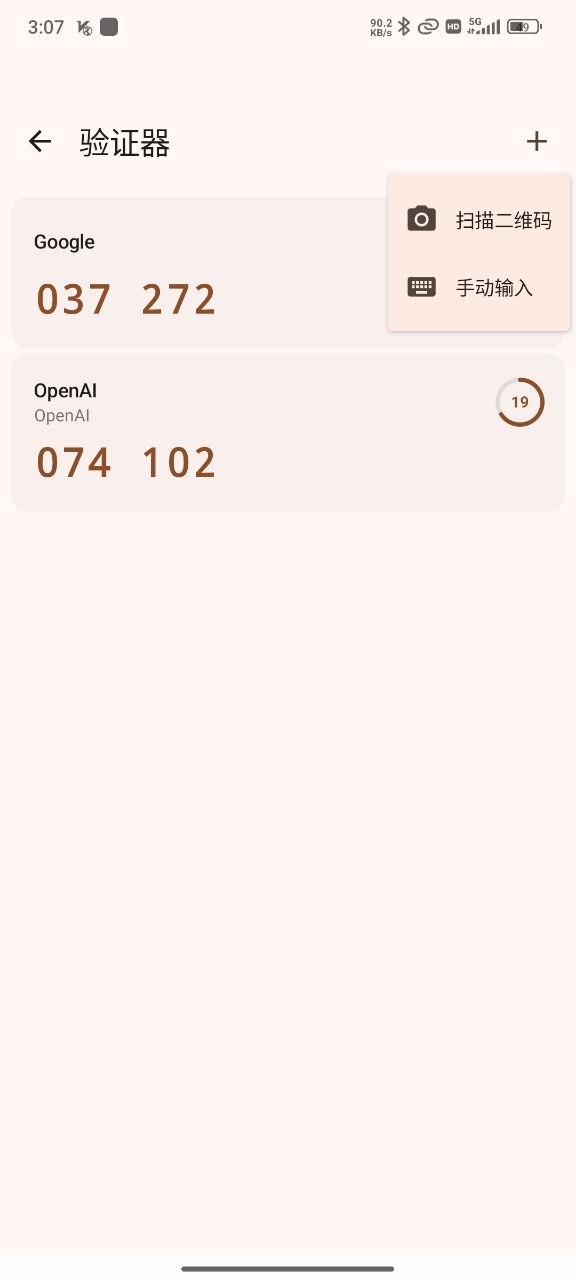
- The App will immediately generate a 6-digit dynamic verification code(updated every 30 seconds).
- On the ChatGPT MFA setup page, enter the verification code shown by the App.
- Click Verify or Enable。
Once enabled successfully, the page will indicate that MFA is on and may display Recovery codes. Please immediately copy and securely savethese recovery codes (for example, store them in a password manager or print them out). If you lose your phone or the App becomes unusable, the recovery codes are the only way to regain access to your account.Step 4: Verification and Ongoing Use
- After completing MFA setup, return to the Codex interface (the Codex option in the ChatGPT sidebar) or try using the Codex CLI.
- The system may ask you to log in again and enter your MFA verification code to confirm.
- If this is your first time accessing Codex, it may again prompt “Set up MFA to continue” — at this point MFA is already enabled, so you can continue with operations such as connecting GitHub. During the connection it may ask for MFA verification again; you can open the authenticator in the AIFUNS APP, find the 6-digit dynamic verification code for the corresponding account, and enter it.
- Verification code invalid: Check whether your phone's time is synchronized with network time (Settings > Time > Automatic sync). Or rescan the QR code.
- Cannot find the Security settings: Make sure you are using the web version of ChatGPT (chatgpt.com); some mobile Apps may not support setting up MFA directly.
- Pro account shows a workspace error: In a few cases, MFA may only be available for Team/Enterprise workspaces; we recommend trying it on a mobile device or contacting OpenAI support.
- Forgot MFA or lost recovery codes: You cannot reset it yourself; you need to contact OpenAI support (you may be required to provide proof related to the account).
- Codex CLI authentication failed: Confirm that MFA is enabled and that the authentication information (such as ~/.codex/auth.json) is valid. Authentication is usually valid for 30 days; once it expires you need to log in again.
- After MFA is enabled, logging in to ChatGPT, the API platform, or Codex will require an additional verification code, improving account security.
- It is recommended to also save the recovery codes and consider adding a backup verification method (such as a hardware security key, if the platform supports it).
- If you are an enterprise user, your administrator may need to configure a workspace MFA policy separately.