
For a second-hand Outlook mailbox, or an old account you haven't signed in to for years, the most likely place to get stuck is this page: the password is right, but Microsoft still wants to send a verification code to the recovery email — and you can't open that inbox at all. This guide doesn't cover the appeal form (when you know the password, that isn't the first choice). It covers the proper route Microsoft provides for exactly this situation: replace the account's “security info” as a whole with your own new email. There is only one cost: a 30-day wait. Every bit of page wording below is checked against Microsoft's current interface and official support documentation; the two key screenshots were taken during our own account's real request. Facts checked on November 28, 2026 (Singapore time); entry points and wording follow what Microsoft's site shows on the day.
Before you start: rule out 3 false alarms
- The code may be in the spam folder. Microsoft's verification codes come from accountprotection.microsoft.com — check the recovery inbox's spam folder and “Other” folder before talking about a replacement.
- Don't keep tapping “Resend”. Requesting codes repeatedly in a short time can get you temporarily rate-limited by Microsoft, and the more you tap, the less you receive. Stop and try again in a few hours.
- Tap “Show more verification methods” first. Check whether the verification page lists a phone number or another email you can still use — if any method can receive a code, you can sign in and change the details directly, with no 30-day replacement.
What “security info” means, in one sentence
Security info is the list of backup contact methods Microsoft uses to confirm it is really you: a recovery email, a phone number, the Microsoft Authenticator app. Sensitive actions such as password changes and sign-ins from new locations send their codes here. If the recovery email is inaccessible, that item on the list is dead. Replacing it as a whole means voiding the entire list and putting your own new email on it — no code from the old email is needed, only the account password, plus a 30-day wait.
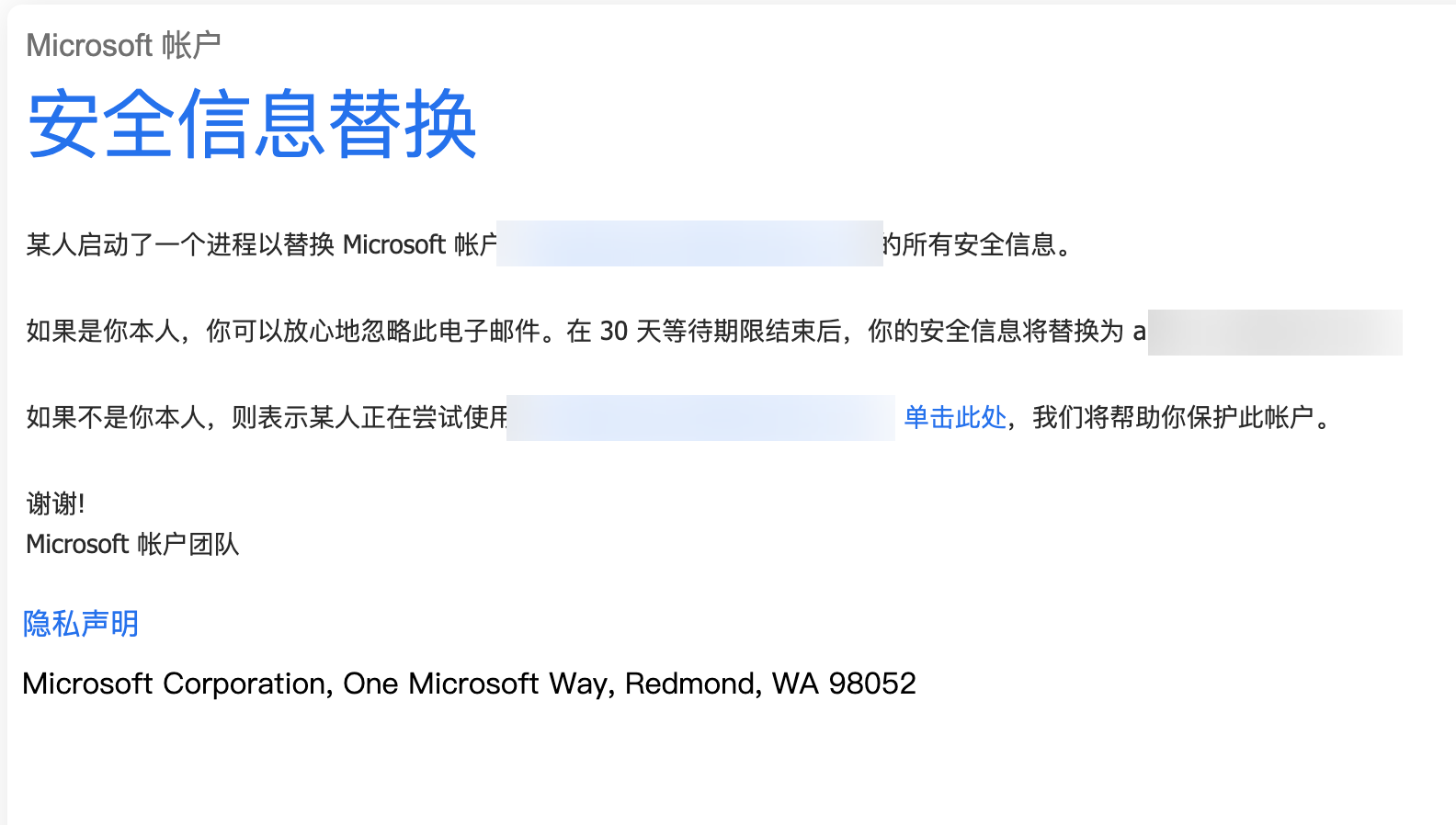
Caption: The notice email the old inbox receives after you submit a replacement — this is how Microsoft gives the real owner a chance to stop it. Source: screenshot from the author's real request, email addresses masked.
The replacement steps, word for word
Caption: The Outlook on the web inbox after signing in (reference image). Source: Wikimedia Commons.
- Open login.live.com and sign in with the account email and password.
- On the “Verify your identity” page, it will ask to send a code to the old recovery email (shown masked on the page). Don't tap send — look for the small link at the bottom of the page and tap “I don't have any of these”.
- In the replacement flow, enter the new email you have ready — it must be an inbox you can open and read right now.
- Microsoft first sends a code to the new email; enter it to prove the new inbox is yours.
- Done. When you sign in again, the page title reads “Your security info change is still pending”, showing the current security info, the new security info, and the completion date side by side; the old inbox also receives a “Security info replacement” notice.
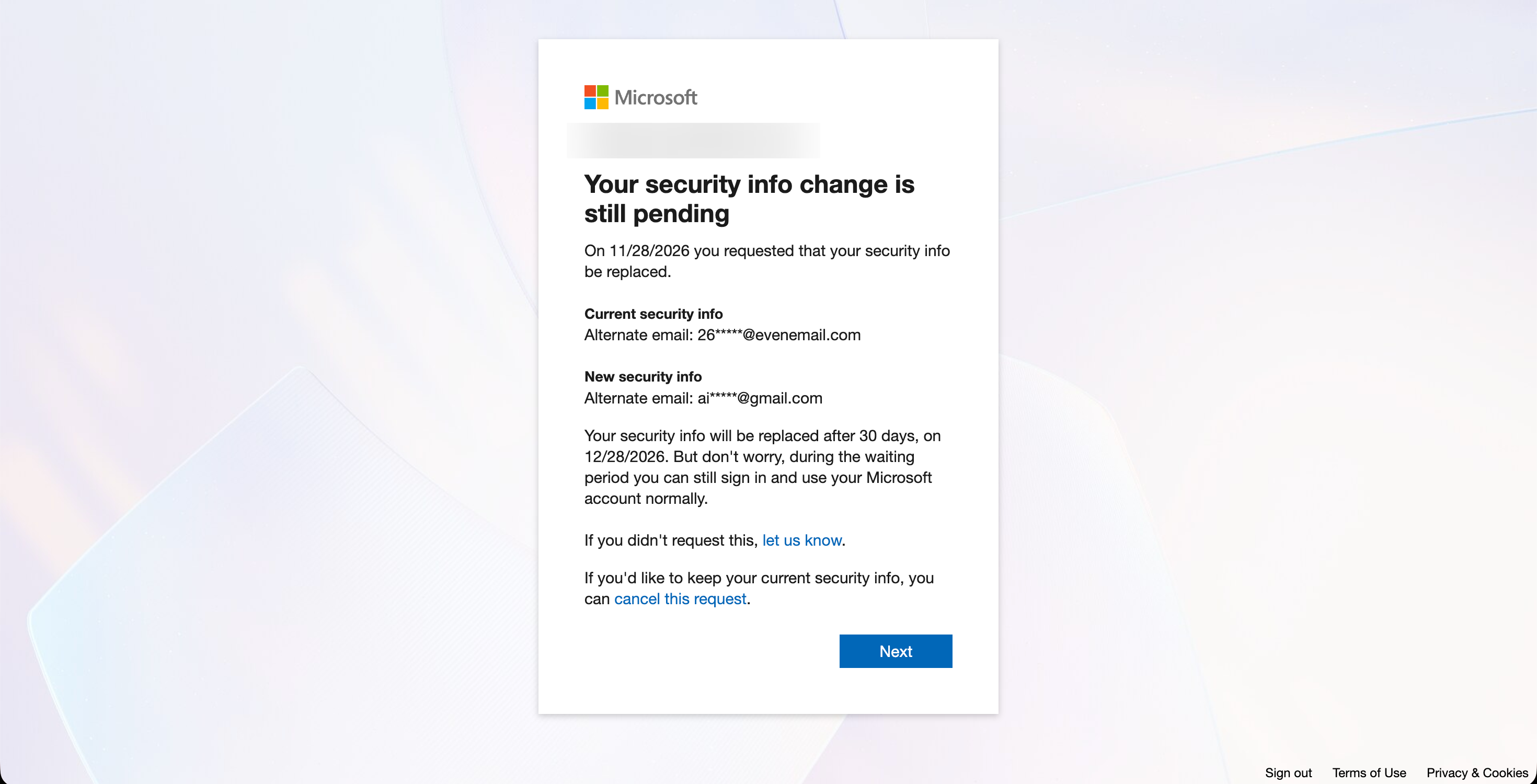
Caption: The pending page from a real request: submitted on 11/28/2026, and the page states the replacement completes on 12/28/2026. Source: screenshot from the author's real request.
Three routes compared
| Your situation | Which route | How soon it takes effect | Cost |
|---|---|---|---|
| You remember the password, but none of your security info works | Replace everything (the method in this guide) | 30 days | No password changes or other sensitive actions during the wait |
| You remember the password, and one method can still receive a code | Add the new email first, verify it, then remove the old one | Immediately | None |
| You forgot the password too | Account recovery form: account.live.com/acsr | Reviewed case by case | Rejected outright if two-step verification is on |
The entry point for the second route is the “Advanced security options” page (account.live.com/proofs/manage): add first, then remove — reverse the order and you will fall into the 30-day full replacement.
What happens during the 30 days, in order
- Day 0: The old inbox receives the “Security info replacement” notice (that's Figure 1). This is deliberate on Microsoft's part: time for the real owner to speak up.
- During the wait: Sending and receiving mail, shopping and payments, and changing billing info all work as usual; anything that needs a security code — changing your password or account email, for example — is frozen.
- One counterintuitive trap: If you recover the old inbox during the wait and complete one verification with it, the replacement request is cancelled immediately, and the 30 days are wasted. Only do that if you genuinely want to cancel.
- Day 30: The old security info is removed automatically and the new email takes effect (for example: requested on November 28, completed on December 28).
- There is no way to speed it up: Neither support, nor agents, nor so-called internal channels can shorten the 30 days — Microsoft's official documentation is explicit about this, so don't pay anyone for it.
If the account has two-step verification turned on and you have neither a pre-configured Authenticator nor access to the old info during the wait, you may not even be able to sign in. Before submitting a replacement for such an account, make sure you still have at least one usable verification method.
Got the notice but didn't request it?
The notice email contains a “click here” link to report it, and the pending page has two entries at the bottom — don't tap the wrong one: “let us know” means “I didn't do this”; “cancel this request” means “I submitted it myself, but I've changed my mind.” After reporting, change your password as soon as possible and review your account activity.
On the day it takes effect, do these 3 things
Caption: Screenshot of the Microsoft Authenticator app. Source: Wikimedia Commons.
- Change your password once, and don't reuse a password from any other website.
- Add one more backup verification method (a second email or Microsoft Authenticator) to reach 2–3 in total — Microsoft officially recommends the same, so you won't have to wait 30 days next time.
- Check account.live.com/proofs/manage: the old email should no longer be on the list.
If the account is tied to an important subscription that can't wait 30 days, take a look at the Outlook mailbox (also known as Microsoft email) product on this site and get an account that can receive codes normally to tide you over.