
If Muse says it has been unlinked, first save the exact message, the time and the device you were using. This is not the same as changing a login email, and the message alone does not prove that the account has been banned or that a service-wide event is happening. Use official feedback. Whether access is restored, what verification is required and how long it takes all depend on the official reply; there is no fixed rule that recovery takes one or two days. Changing the country of your IP address is not an official fix.
Submit official feedback first
If the unlinked screen offers Submit a ticket, start there. The image below is an example of that screen. The 示意图 label comes from a public tutorial and has been left in place. This is not a test we ran on this site.
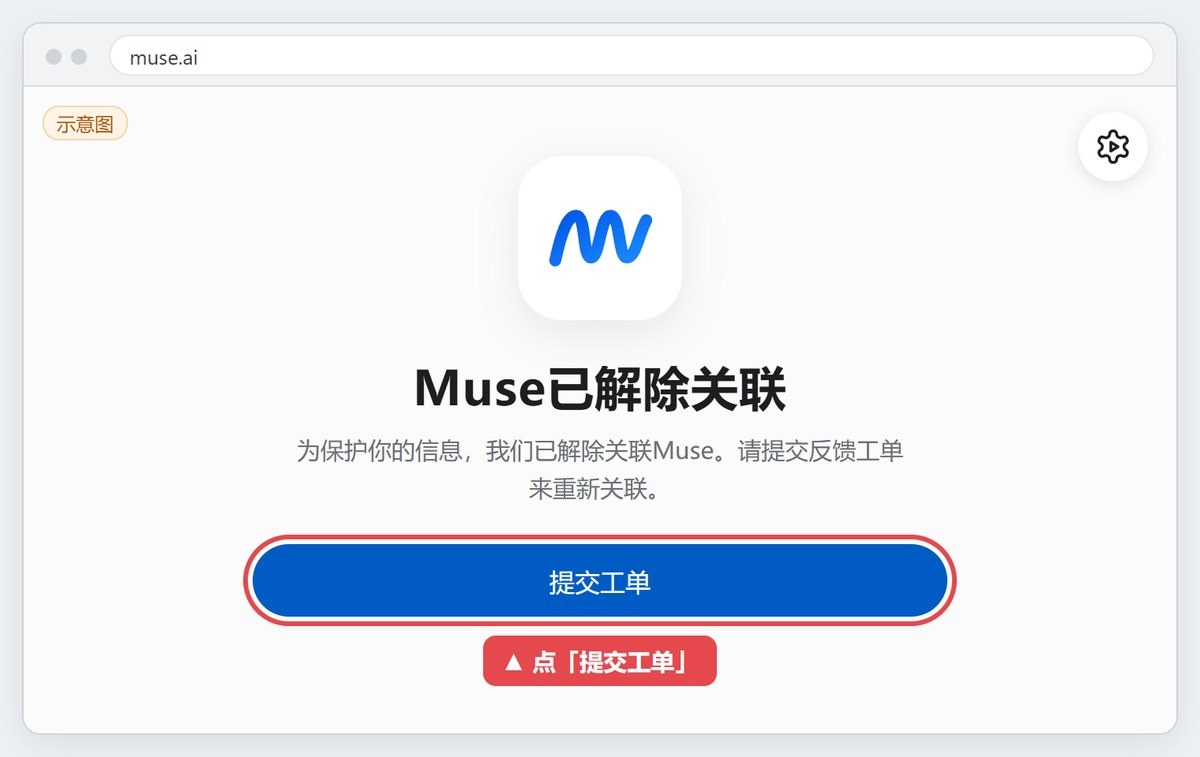
- Save the exact message and a screenshot, and hide personal email addresses or other private details in the image.
- Open Submit a ticket on that screen, or use the official Report an issue entry.
- If the form asks for a contact email, enter an inbox you can keep checking, including the spam folder. That address is for support replies; it does not replace a change to the login email.
- If Topic includes Account access and sign-in, choose it. Otherwise choose the closest account-access or sign-in option.
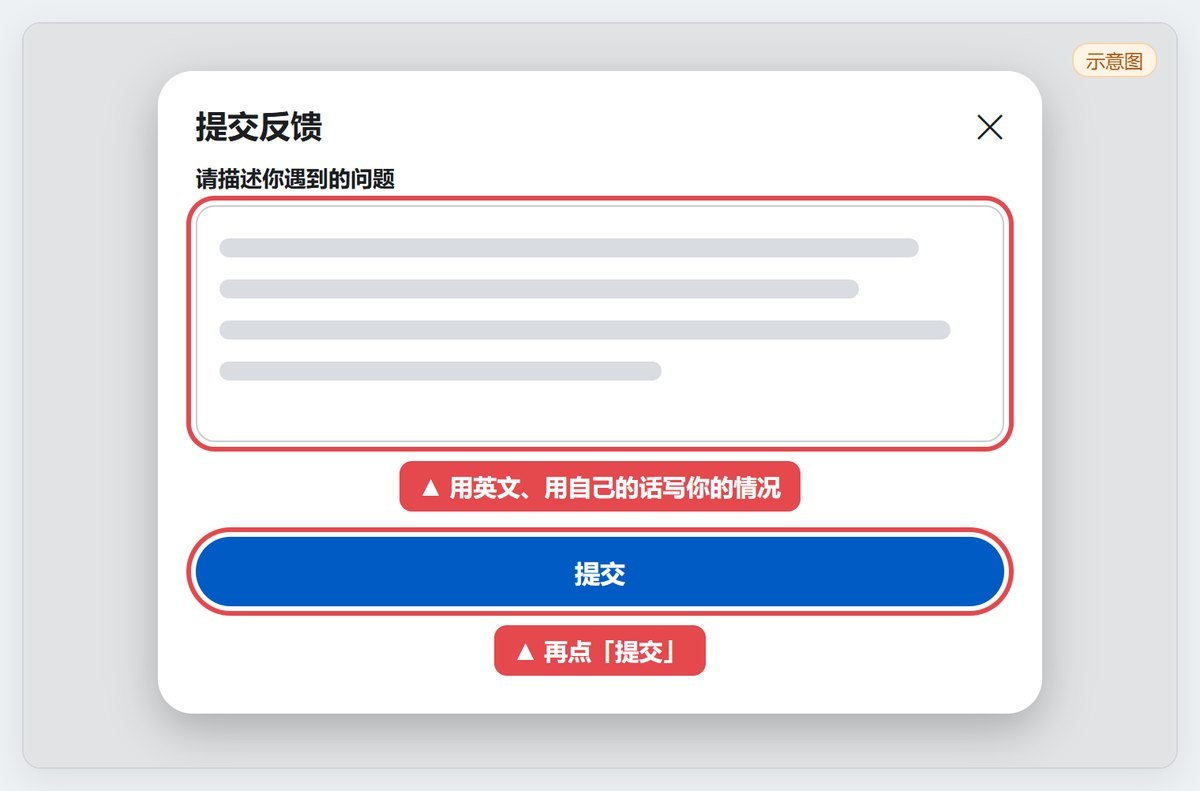
- Describe the facts in English: the exact message, when it started, the device, what you had just done, and your real relationship to the account. Do not say you are the original registrant unless that is true. You may mention important data that is actually in the account, and that you are willing to complete official verification.
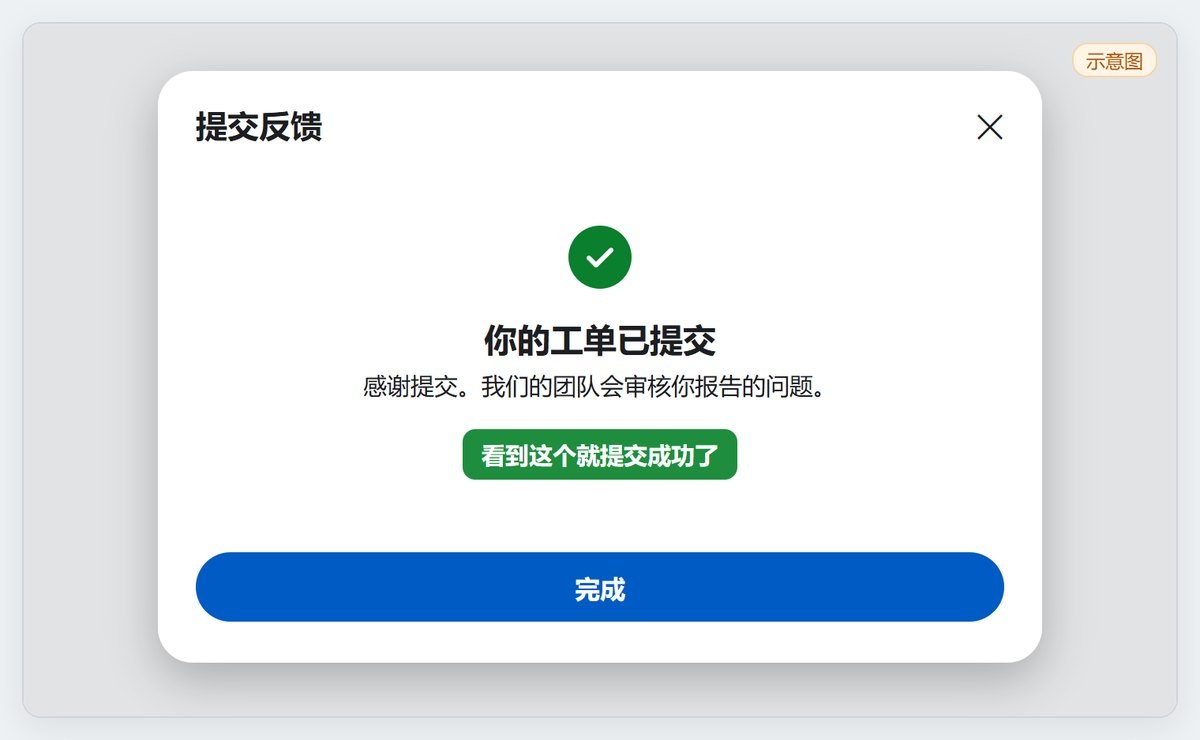
- Leave the page only after you see a submission confirmation or a ticket number, and follow up in that same ticket.
The next image is an example of the feedback form. The text area is drawn as placeholder lines; use the fields on the official form you see. If it asks for a contact email, enter one you can actually receive mail at.
A successful submission should look similar to the confirmation below.
Meta's help also documents a regular Report an issue path: on the web, open Settings in the lower left and choose Report an issue; in the app, open Settings and choose Report an issue, and on some devices you can shake the phone to open the report sheet. If the website returns 403, save the error, avoid repeated clicks, and use the official in-app report entry. A submitted report does not mean access has been restored. Do not give passwords or verification codes to anyone offering to recover the account for you. If the official process asks for a photo, submit a real photo of yourself only on the official site or app; do not use someone else's photo or a generated image.
Review signed-in devices
If you can still open Settings, go to your Meta account and check where you are logged in. This is a security review, not a condition that official support has promised will restore access. Before you continue, make sure you can still receive sign-in verification, and do not sign out of the only session that still works.
- Open Settings → General → Meta Account.
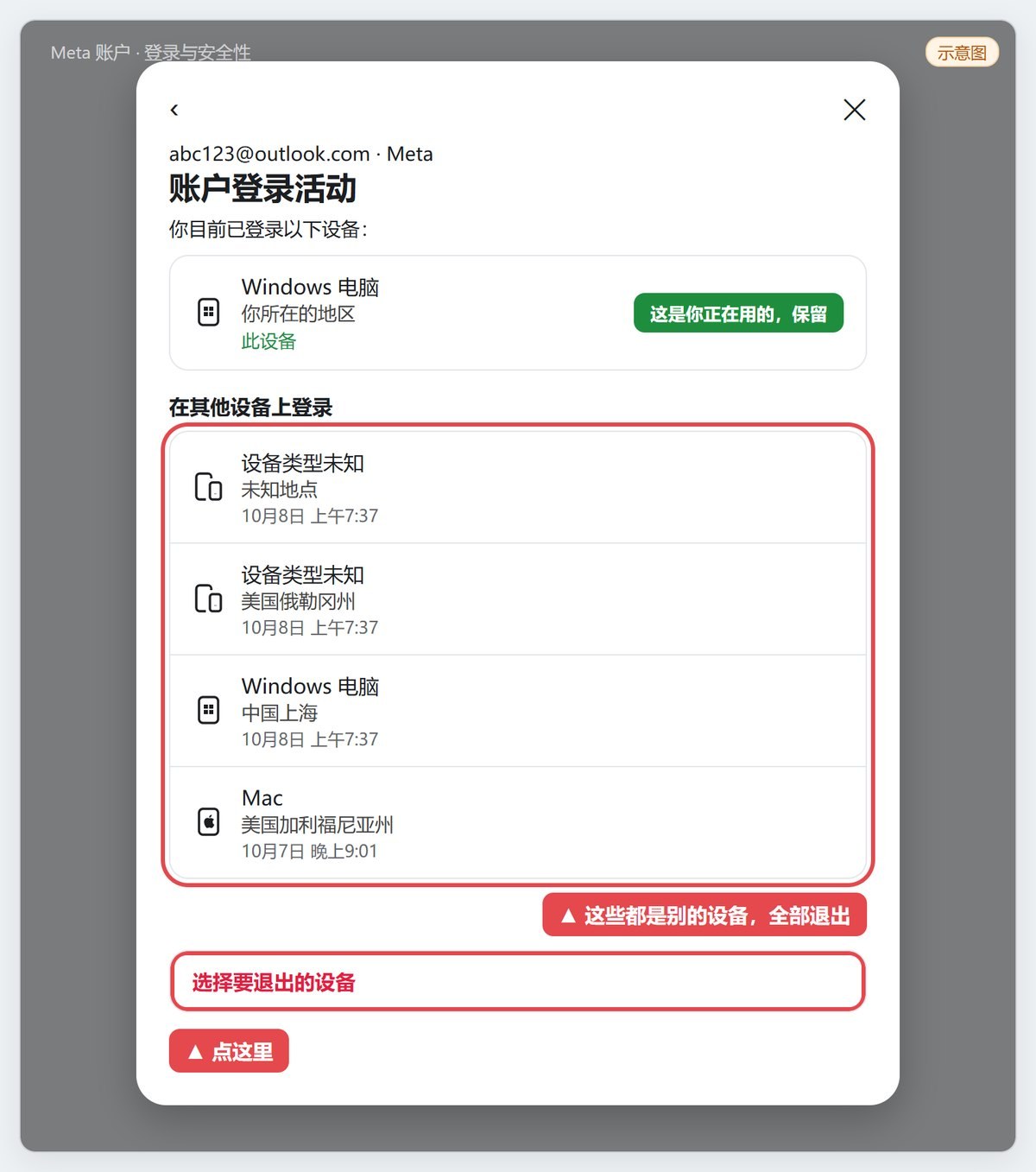
- Choose Login and security, then Where you're logged in.
- Keep the session marked as this device if it is one you control.
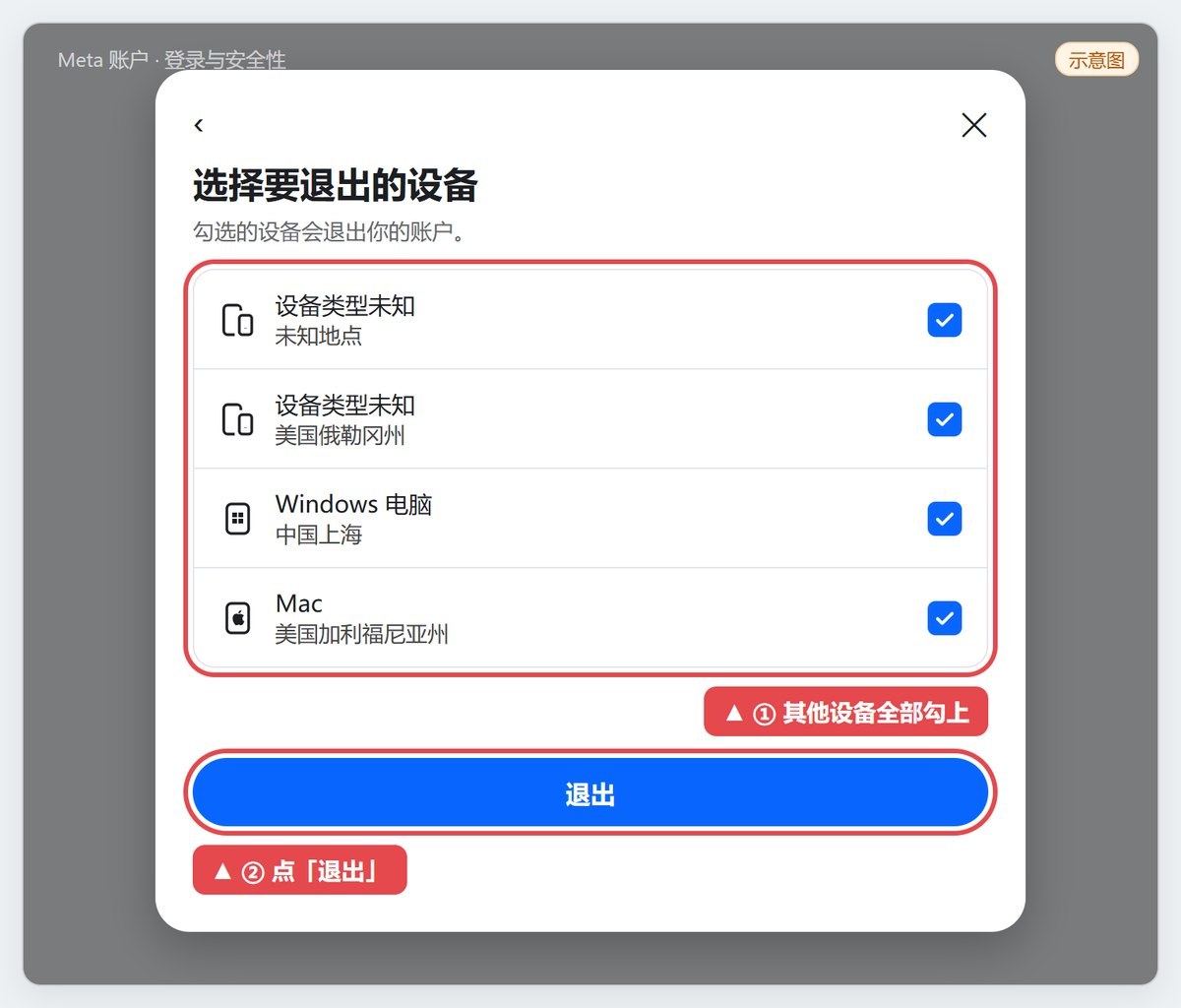
- For devices you do not recognize or no longer use, choose the devices to sign out and confirm.
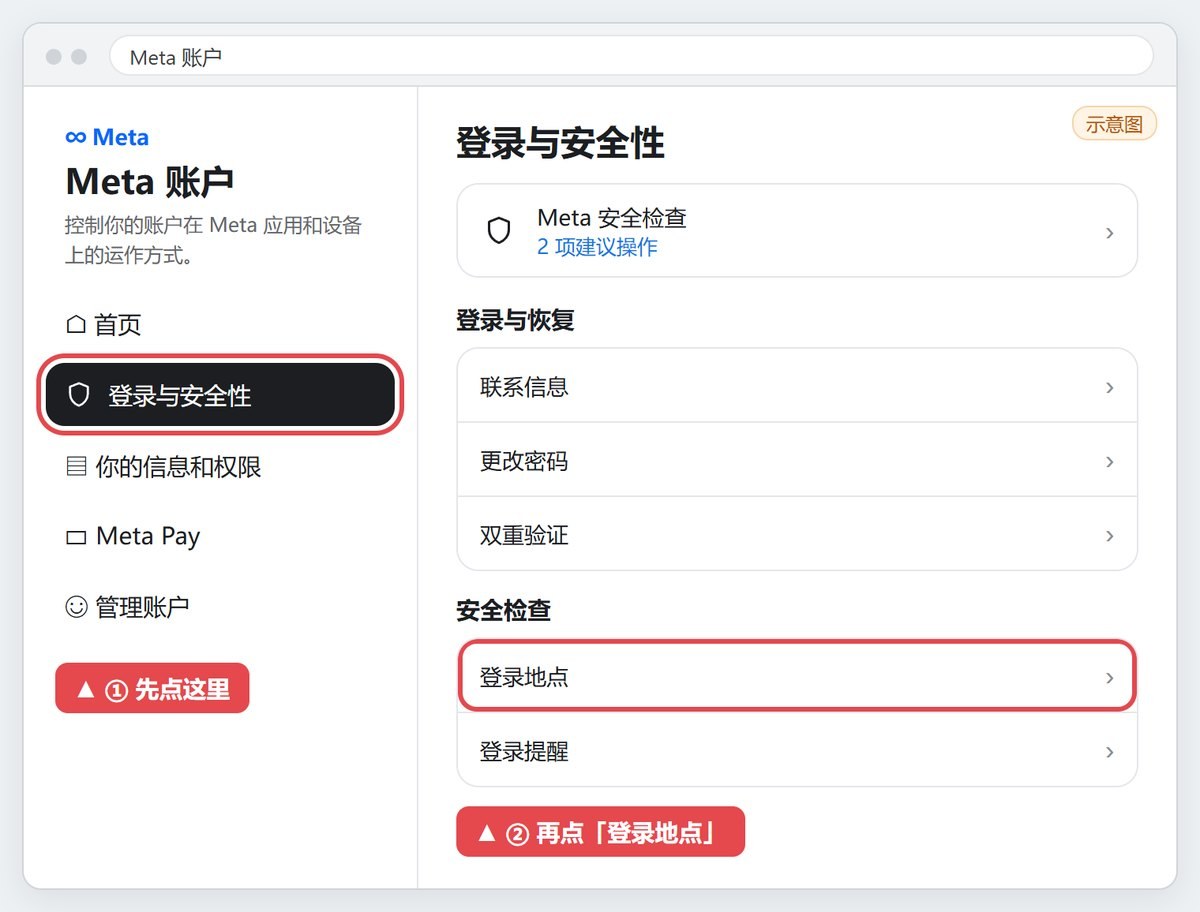
Account login activity usually separates this device from sessions on other devices. The image below is an example of that list.
Select the devices to sign out, then confirm. Do not sign out of the device you are using and still need just to clear every session.
What to do after you submit
A submitted ticket only means the request was sent. Check the contact inbox and spam, provide anything official support asks for, and follow up in the original ticket. Do not open many of the same requests in a short time, and do not create a new account just to test access.
Purchase and delivery issues go to the shop's after-sales channel. Whether Muse access is restored is decided by official review; do not mix the two. Muse is not available in every region, and official documentation plus your account page are the sources to follow. Switching to an IP address in a particular country does not replace that review and should not be treated as a repair step.
Common questions
- Does unlinked mean the login email was removed? Not automatically. To change a login email, use this site's email guide. If you cannot get in now, start with an official ticket.
- No reply yet: check that the contact email was typed correctly, then look in spam and at the submission receipt. If there is no receipt, do not assume the ticket was filed.
- The website keeps returning 403: use Report an issue in the official app, and keep the error time and a screenshot.
If you need a Muse account or a subscription, see the product page on this site. Plans and after-sales terms follow the product page and the order.