
Before you start
Once MFA is enabled, signing in to ChatGPT, the API platform or Codex will require an extra 6-digit rotating code. The whole process takes about 3 minutes. You need a browser that can open chatgpt.com, and an authenticator (either this site's web authenticator or the AIFUNS APP).
Step 1: Open ChatGPT Settings
- Open your browser, go to chatgpt.com and log in to your account.
- In the bottom-left corner of the page, click your username/avatar and choose Settings.
Step 2: Go to the Security tab
- In the left-hand menu of the Settings window, find and click the Security tab.
- Under Multi-factor authentication (MFA), click the button next to Authenticator app and switch it on.
[Enabling Multi-Factor Authentication (MFA)]
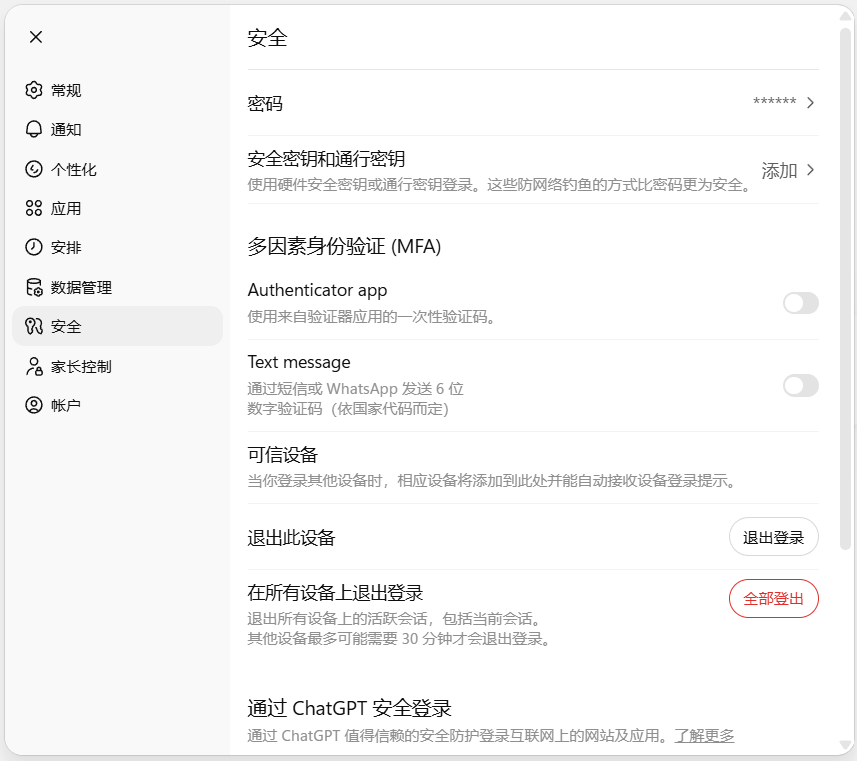
Step 3: Configure MFA
- The system displays a QR code, which you will now link to an authenticator.
[Linking an Authenticator App]
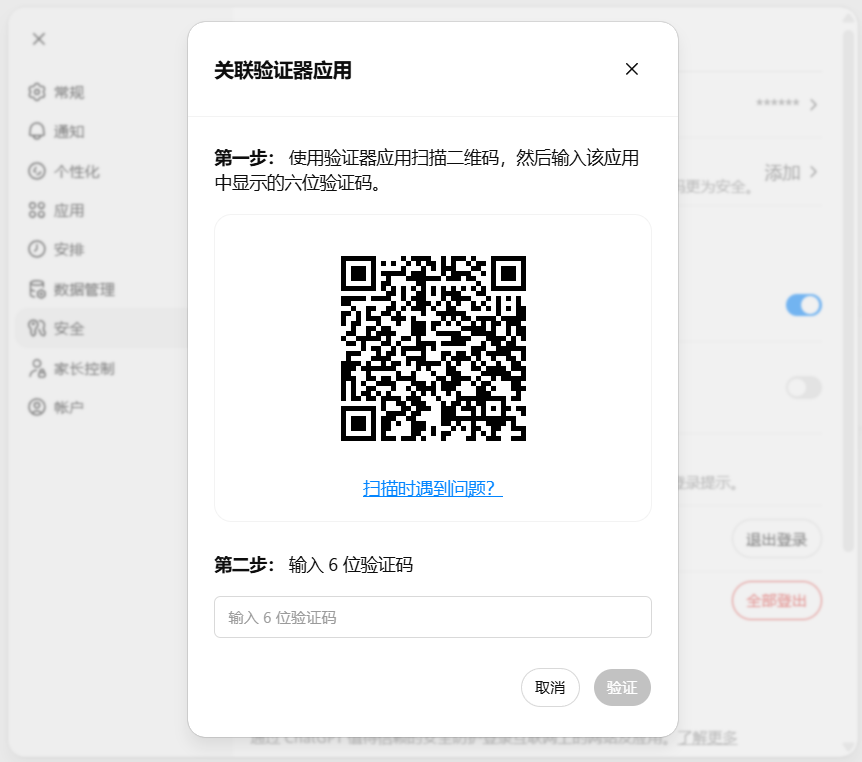
Linking an authenticator: choose either method
Method 1: Web authenticator
Open this site's web authenticator and upload a screenshot of the QR code to get a 6-digit rotating code (it refreshes every 30 seconds). You can also enter the MFA secret (provided by this site) and a service name (for example ChatGPT) by hand to get the same code.
Method 2: AIFUNS APP authenticator
- Register as a member of this site, download the AIFUNS APP, log in and tap My → Authenticator.
- Tap the “+” in the top-right corner, choose Scan QR Code, and scan the QR code on your screen.
[AIFUNS APP Authenticator]
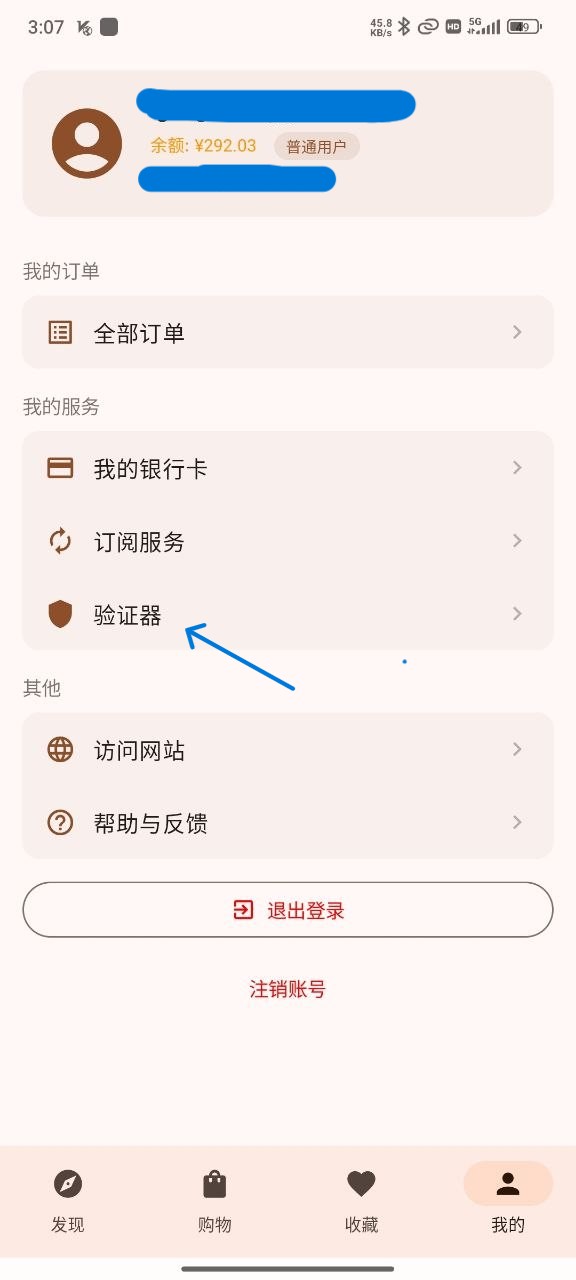
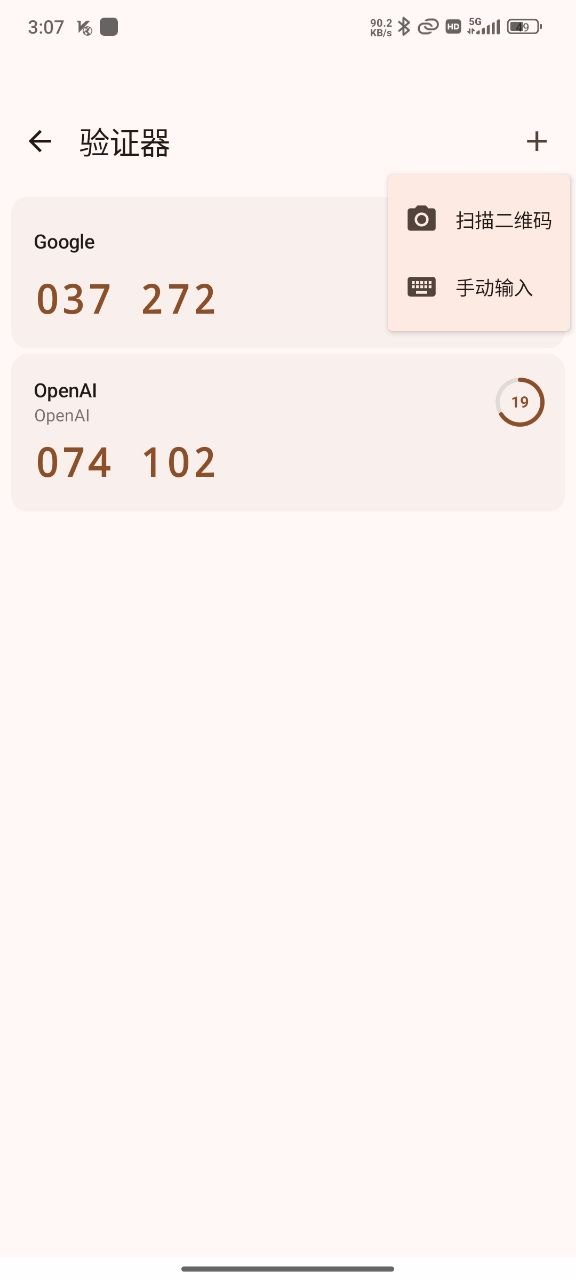
Step 4: Enter the code to finish enabling MFA
- The App immediately generates a 6-digit rotating code (it refreshes every 30 seconds).
- On the ChatGPT MFA setup page, enter the code shown by the App.
- Click Verify or Enable.
Save your recovery codes straight away: once MFA is on, the page displays your recovery codes. Copy them immediately and store them safely (for example in a password manager, or printed out). If you lose your phone or the App stops working, those recovery codes are the only way back into your account.
Step 5: Verification and ongoing use
- After finishing MFA setup, return to the Codex interface (the Codex option in the ChatGPT sidebar), or try the Codex CLI.
- The system may ask you to sign in again and enter an MFA code to confirm. On the ChatGPT sign-in page, enter your username and password; a verification prompt then appears asking for your authenticator app, or offering to try another method. Enter the 6-digit rotating code from the previous step to complete the sign-in.
[ChatGPT sign-in verification page]
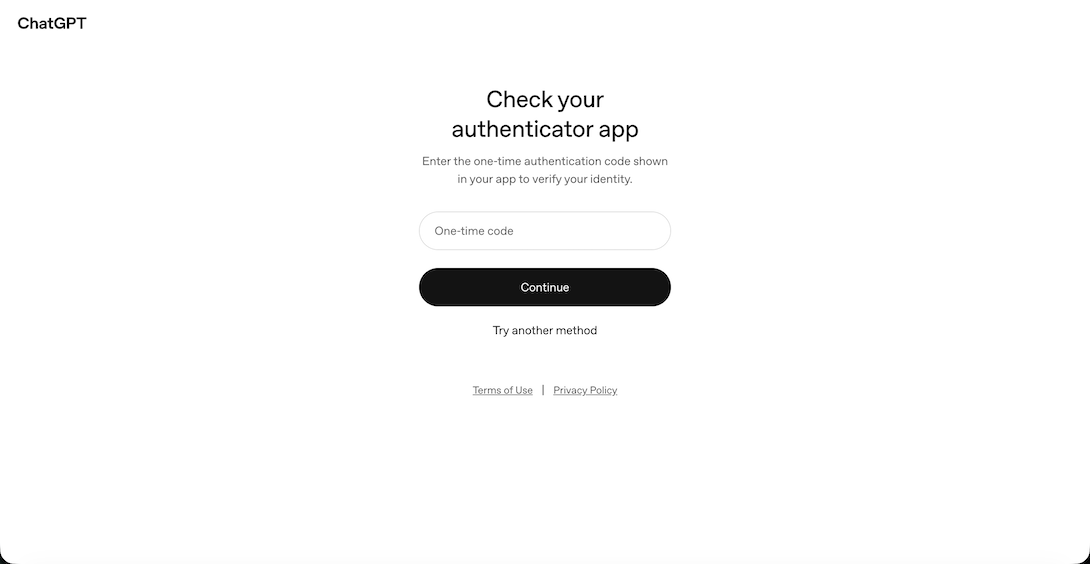
If this is your first time opening Codex, it may prompt “Set up MFA to continue” again — MFA is in fact already enabled, so you can carry on with tasks such as connecting GitHub. If it asks for MFA verification again during that connection, open the authenticator in the AIFUNS APP, find the 6-digit code for that account and enter it.
Common issues and solutions
- Code rejected: check that your phone's clock is synced with network time (Settings > Time > Automatic sync), or rescan the QR code.
- Cannot find the Security settings: make sure you are using the web version of ChatGPT (chatgpt.com); some mobile Apps do not support setting up MFA directly.
- Pro account shows a workspace error: in a few cases MFA is only available for Team/Enterprise workspaces. Try it on a mobile device, or contact OpenAI support.
- Forgot MFA or lost your recovery codes: you cannot reset this yourself; contact OpenAI support (they may ask for proof related to the account).
- Codex CLI authentication fails: confirm MFA is enabled and that your credentials (such as
~/.codex/auth.json) are still valid. Authentication usually lasts 30 days; once it expires you have to sign in again.
Notes
- With MFA on, signing in to ChatGPT, the API platform or Codex always asks for an extra code, which markedly improves account security.
- Save the recovery codes as well, and consider adding a backup method such as a hardware security key.
- If you are an enterprise user, your administrator may need to configure a workspace MFA policy separately.
Once you have finished these steps, Codex's coding assistance will work as normal. Enjoy a more secure AI programming experience!