
There are two ways to log in: username & password login and token login
1. Username & password login
① On a phone, computer or other device you can log in via the Twitter web version (click here to go there)! You can also use the APP. The mobile APP needs to be downloaded: Apple users should switch the country in the App Store to the US region or another region to download it (if you do not have a US Apple account, please click here to purchase one); Android users can purchase the modded APP on this site and download and install it directly, click here to purchase!
② Enter the username and password to log in
If you run into a problem during login (you are asked for a verification code from an authenticator/code generator app), such as the situation below:
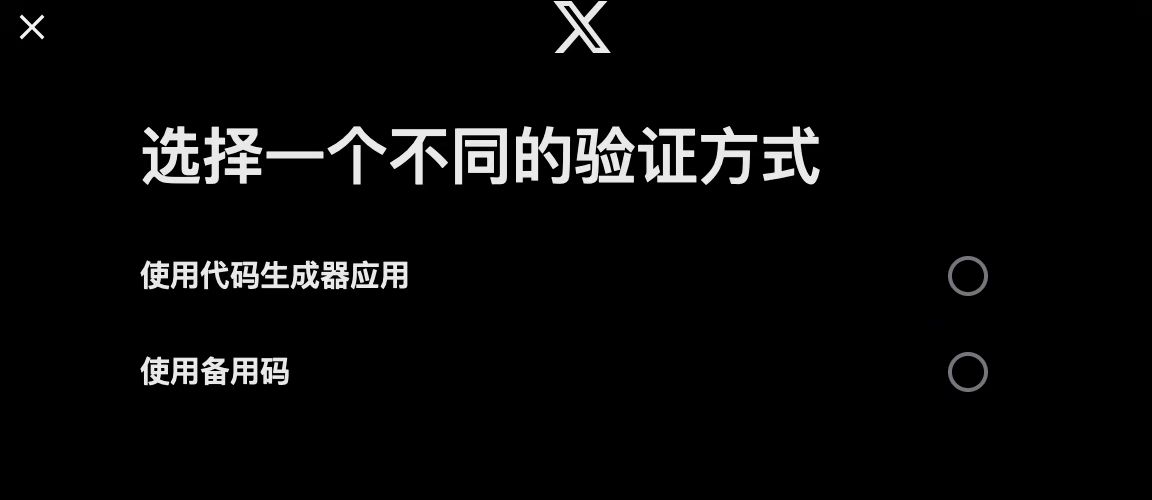
Before you encounter the issue above, you need to purchase an account! Account details purchased on this site are provided in the following format:
Format: username——password——verification email——email password——2FA——token
Here the “——” is only a separator, not part of the account information! The 2FA segment is the secret you will paste into the authenticator in the next step
Now open the authenticator (click to open)
Paste the secret key (Base32) into the input box, then click Add.
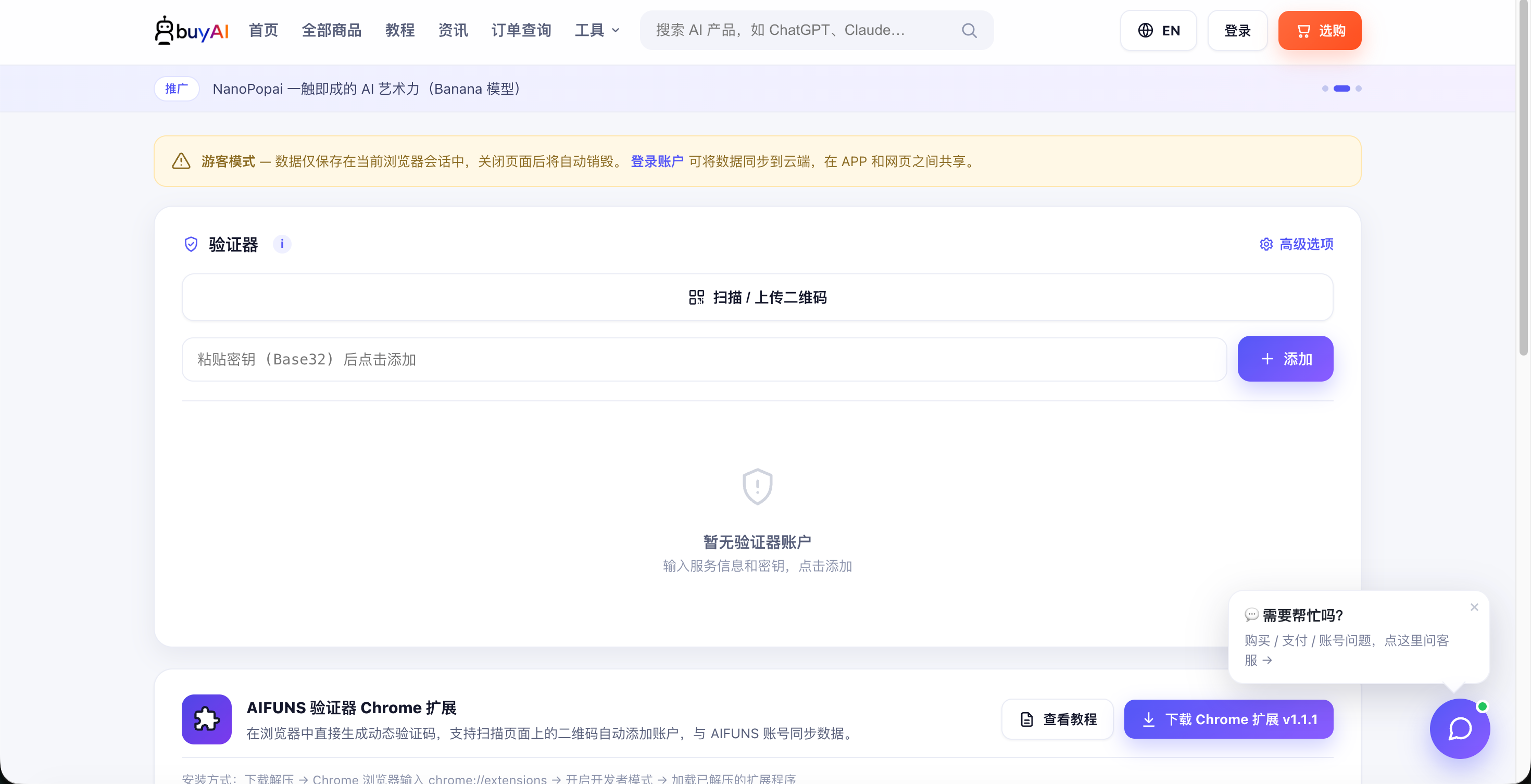
034401 is the verification code; enter it into the authenticator/code generator app to log in, but be mindful of the time!
2. Token login
Logging out of the account and changing the password will both change the token, so do not log out; if you need to exit, clear the cache
1. Download the extension. The extension has passed Google review, so use it with confidence
Twitter Token Login extension (click to open)
2. Open the official Twitter site, and use the extension to enter the auth_token to complete the login
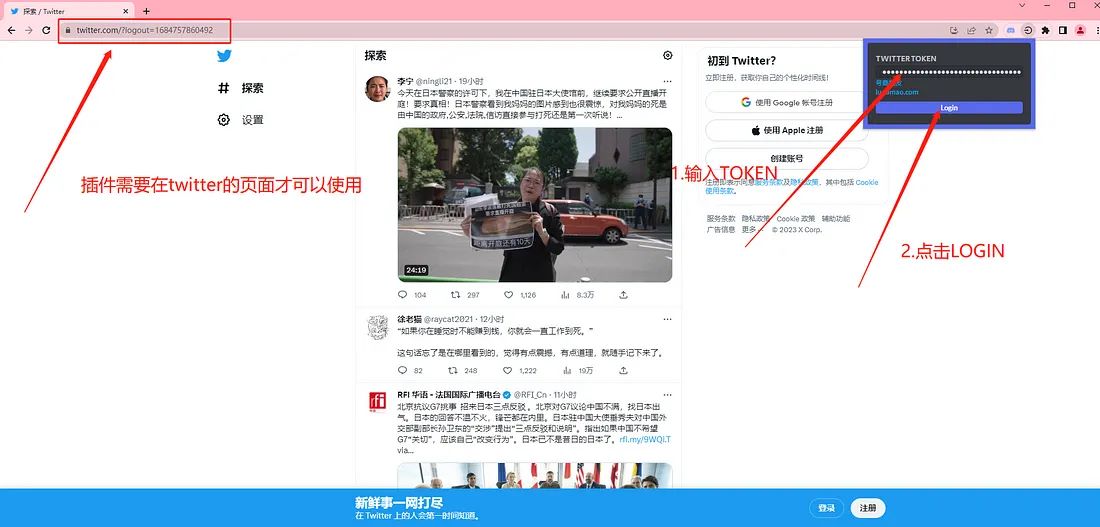
In the delivered account information, the token is the last segment.
Some accounts include both a 2fa and a token, so make sure to tell them apart.
3. The redirect succeeds and the login is complete
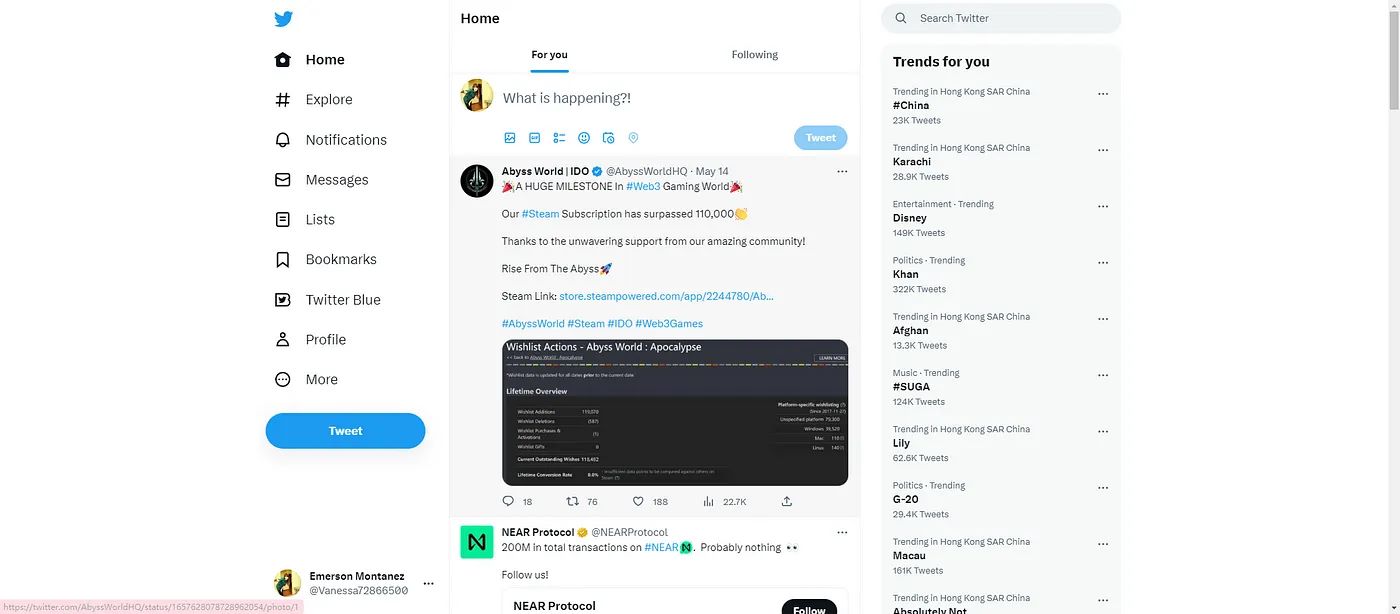
If the redirect fails, clear the cache first and then repeat the tutorial. The address for clearing the cache is below
chrome://settings/clearBrowserData
Note: Email login address: https://firstmail.ltd/webmail can be used to receive official emails and reset the password