
This article is reprinted from Tencent's "Useful Reviews"
Speaking of 2025, the event that stunned the tech world has to be DeepSeek, this homegrown AI bursting onto the scene. To put it in novelistic terms: while all the big shots were busy bragging about how powerful their AI was, this homegrown underdog leapt over the dragon gate and swept everything away. It turns out AI isn't that expensive after all. DeepSeek caused NVIDIA's stock to plunge 17% on January 28, wiping out 589 billion dollars in one go. Finally someone is putting the capital markets in their place.
Today is the first day of the Lunar New Year. In the new year, let's show some support for homegrown products, and in keeping with the freeloader spirit, deploy DeepSeek to a local machine so it can be happily used even without a network connection. Of course, if you know anything about AI, the more computing power and the more parameters such a large model uses, the better the results will be. So local deployment is just a fun self-entertainment exercise; truly demonstrating the capabilities of a large AI model still requires more parameters and more computing power.
1. First install the basic environment for running the large AI model
A large model is not an exe executable program; you need to configure the runtime environment for the large model. There are many easy-to-use open-source tools of this kind, and a fairly well-known one is Ollama. Its installation is fairly simple: just go to the official website, download the program for your system, and install it: https://www.ollama.com/
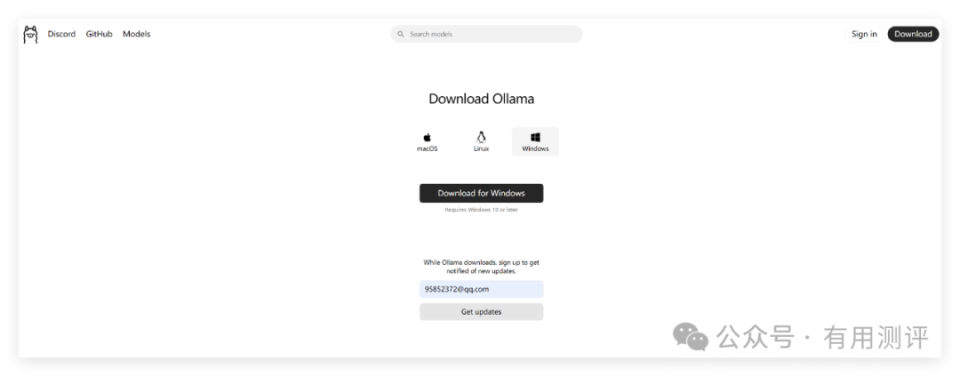
The currently supported systems are macOS, Linux and Windows. We just choose the version that matches our device; here I chose the Windows version.
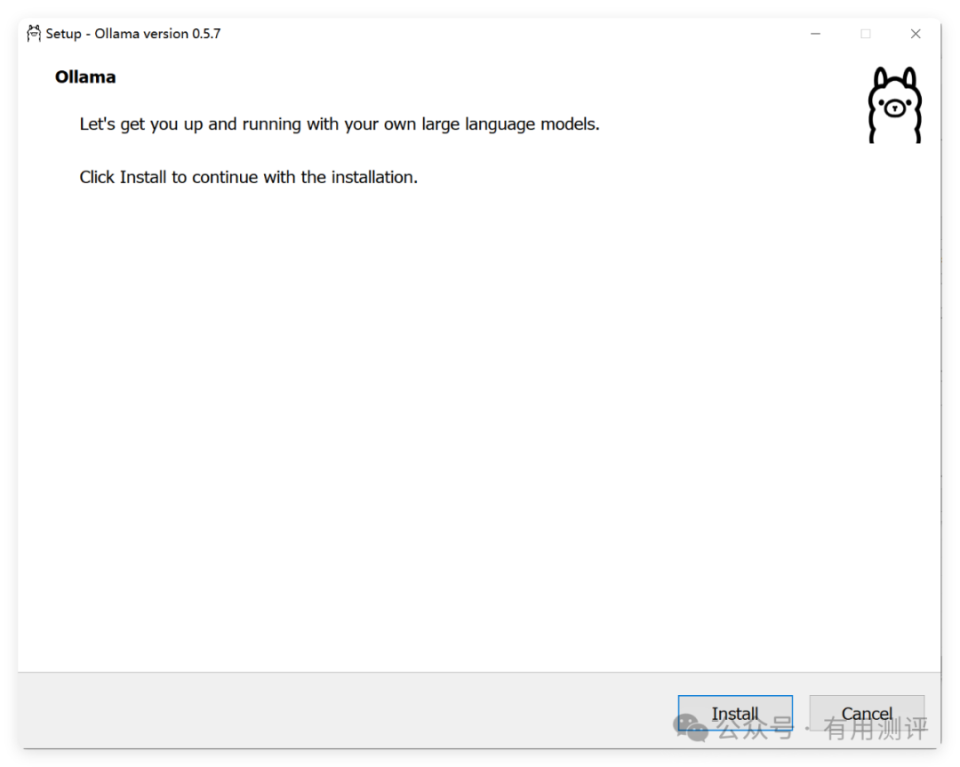
The installation process is nothing special; one click of Install completes the installation. Once installed, Ollama will run in the background.
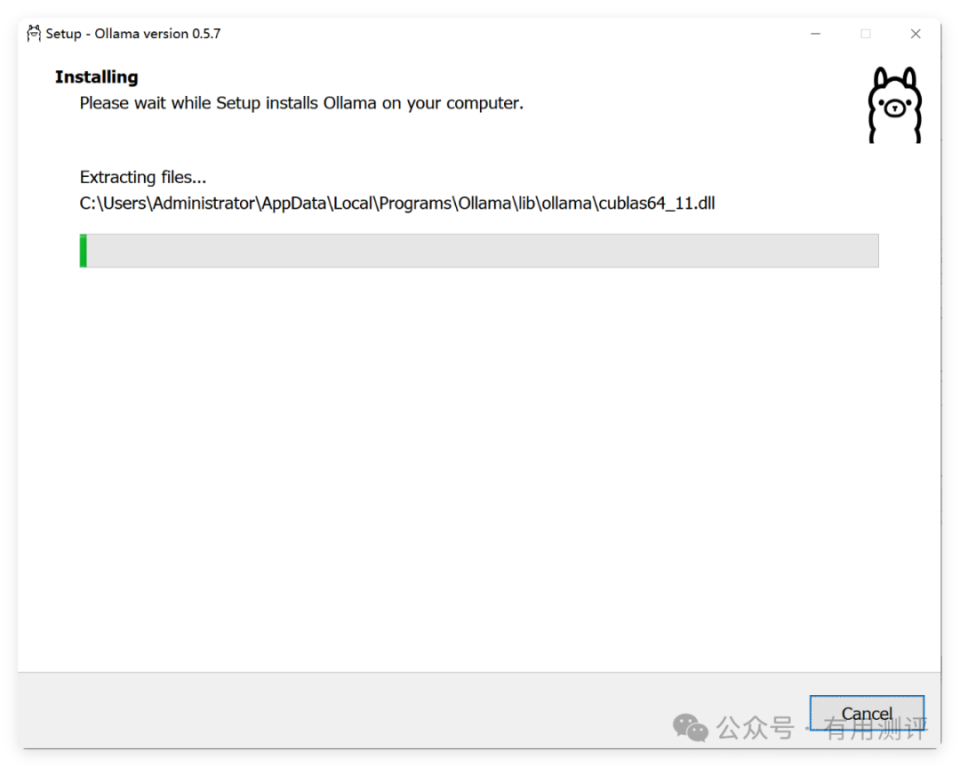
Click Install and then just wait for the program to finish installing.
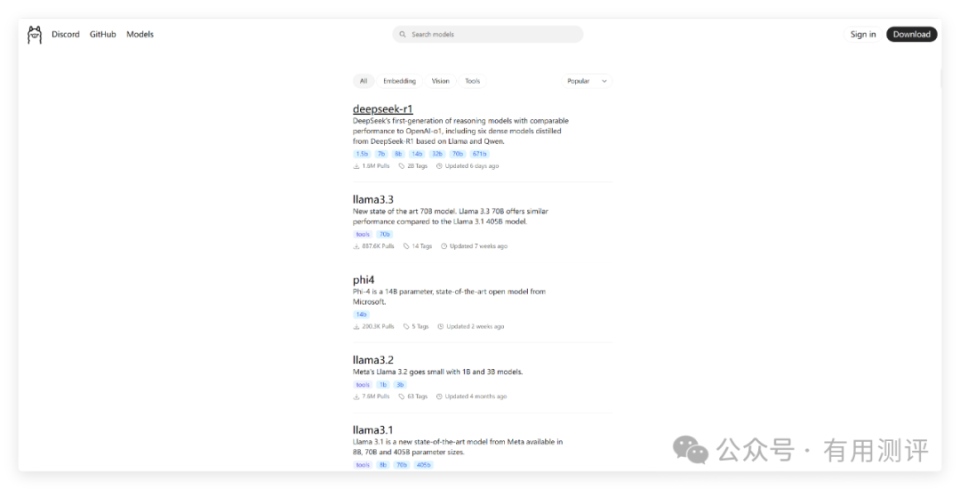
Ollama is only an environment for running the AI large model, so if we want to run DeepSeek, we still need to, on top of the Ollama environment, additionally install DeepSeek.
Ollama's official website offers a variety of runnable AI large models. The hottest one right now is DeepSeek: r1, so there's no need to look elsewhere; just go to the Ollama official website and install DeepSeek.
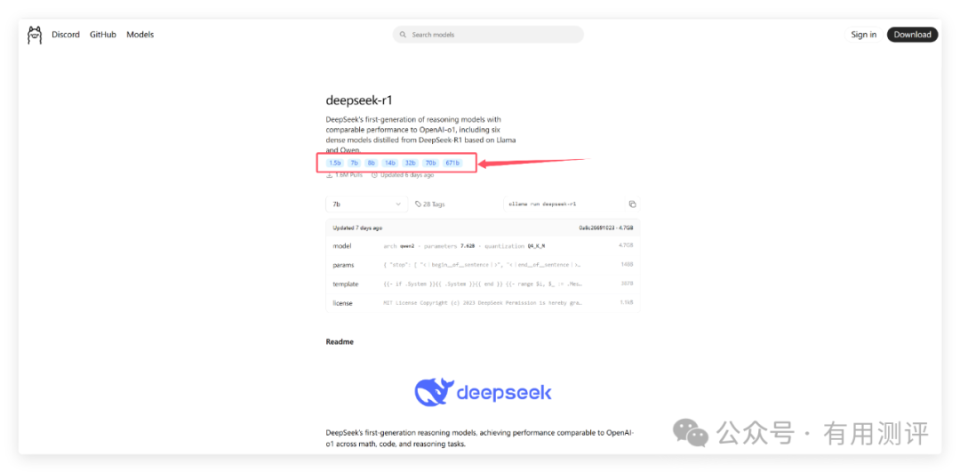
As is well known, AI large models are an application scenario of deep learning. The more parameters, the more computing resources required, and the better the results. The DeepSeek: r1 version offers models with various parameter sizes, and we can choose based on the configuration of our running device.
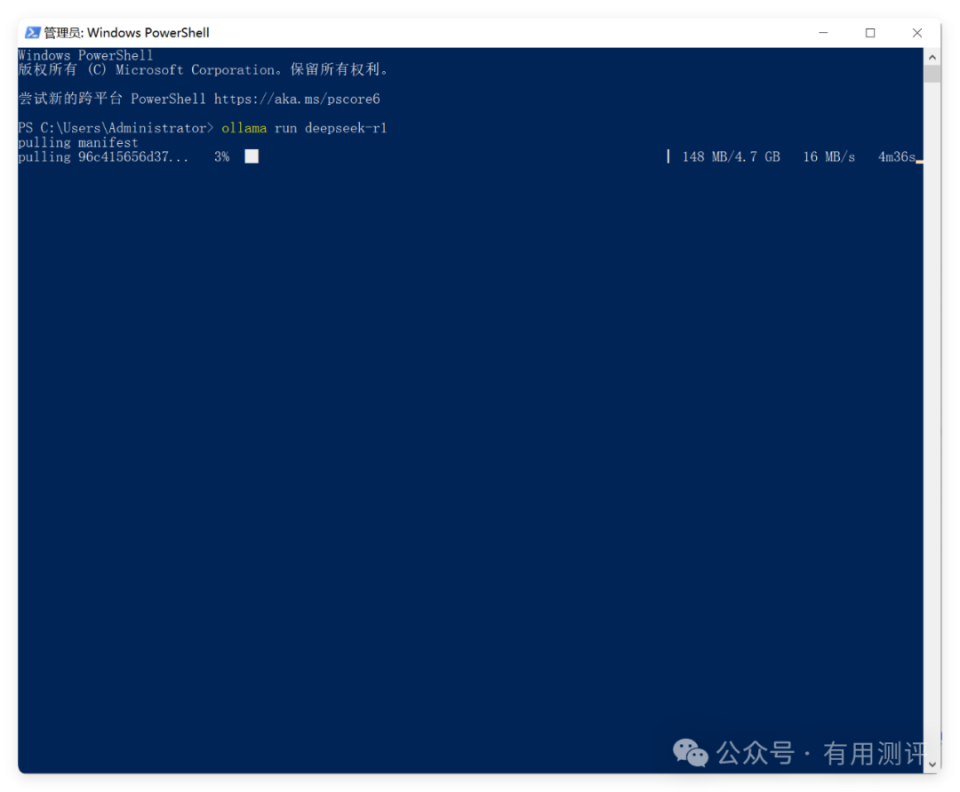
Here I chose the default 7b-parameter version. Through Windows's command-line tool or PowerShell, just run the corresponding install command.
ollama run deepseek-r1To install a version with a different number of parameters, just add a colon and the corresponding parameter count after the above command, for example:
ollama run deepseek-r1: 671b
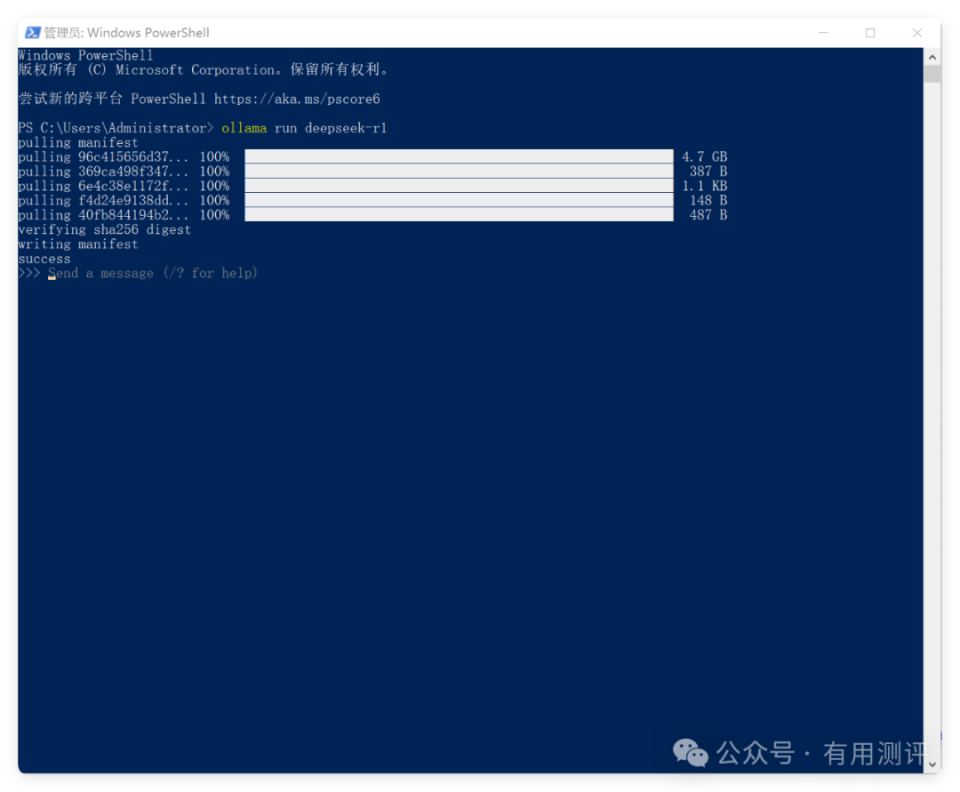
Likewise, after entering the above command and pressing Enter, just wait for the system to finish installing. There will be a prompt once installation succeeds. The system defaults to an English interface, and you can later configure the language through different interfaces. From this point, the Ollama environment-based DeepSeek:R1 large model has been successfully installed—couldn't be simpler, right?

From now on we can, in PowerShell, happily use the DeepSeek:R1 model. However, the command line is always a bit awkward to use, isn't it? We can use some tools to improve the interaction, for example by installing a Chrome extension for graphical interaction.
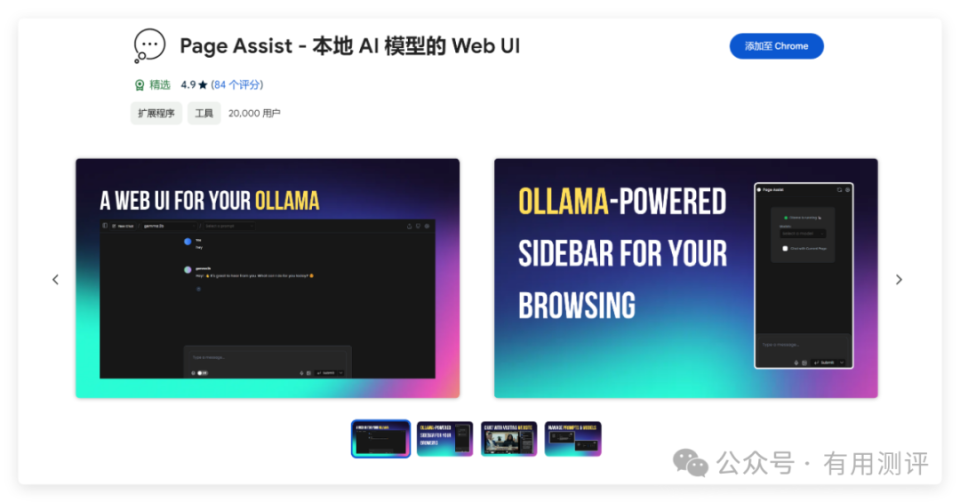
Here I just grabbed one, Page Assist - a local AI model Web UI, which lets you access locally deployed AI large models through the web, not limited to the DeepSeek:R1 covered in this article. Of course, installing Google extensions requires some special means—everyone figure it out on your own, and feel free to discuss in the comments if you have issues.
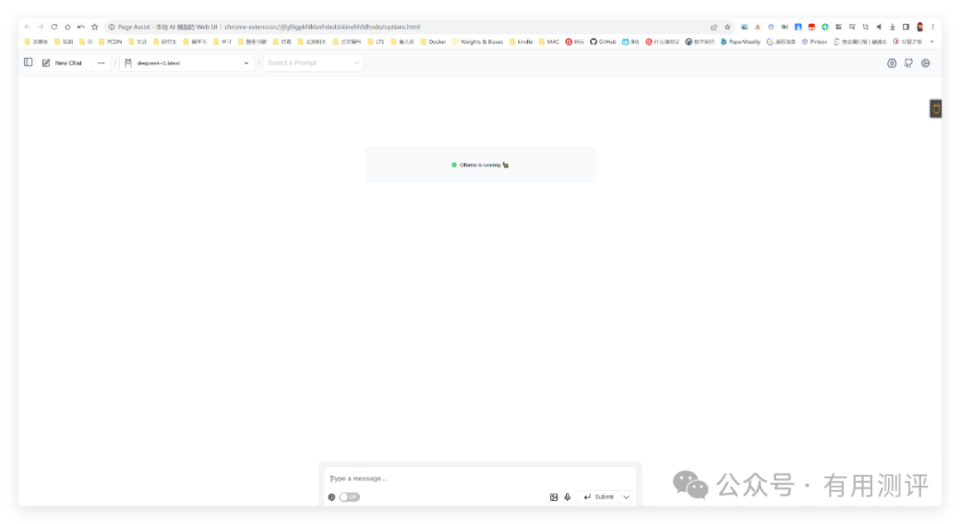
After installing Page Assist, you can click the icon in the browser extensions to enter the web-based graphical interface.
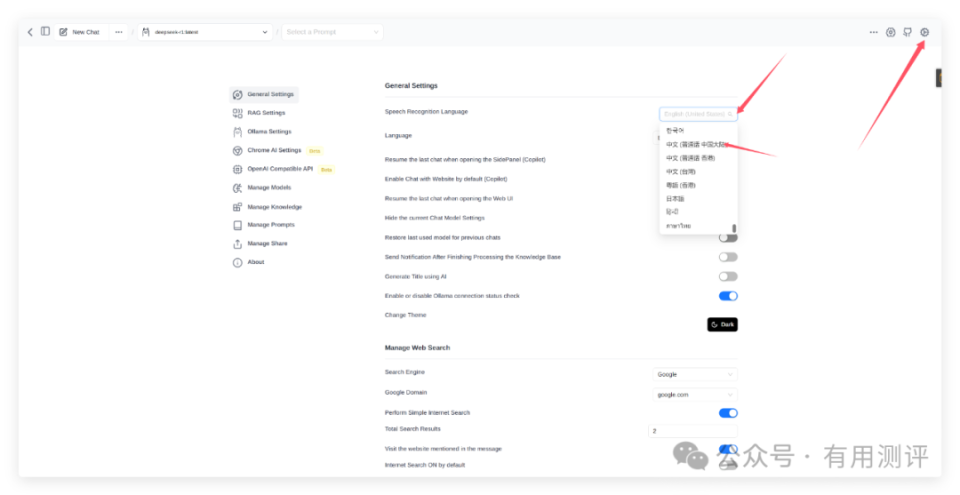
The initial interface is in English. If you're not used to it, you can configure it accordingly. Click the settings icon in the top-right corner of the interface, and in the General settings change both the speech recognition language and the language to Chinese, and you're good to go.
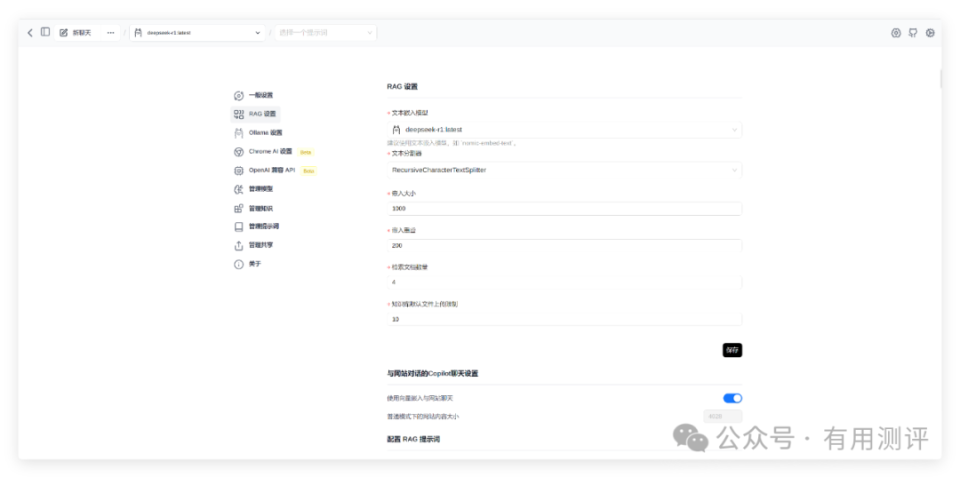
However, you still need to do some further configuration here to make DeepSeek work properly. In the second item, RAG settings, select the DeepSeek:R1 large model we installed; the other parameters can be left at their defaults.
At this point, the installation and configuration of running the DeepSeek:R1 large model locally is complete, and we can happily use this large model.
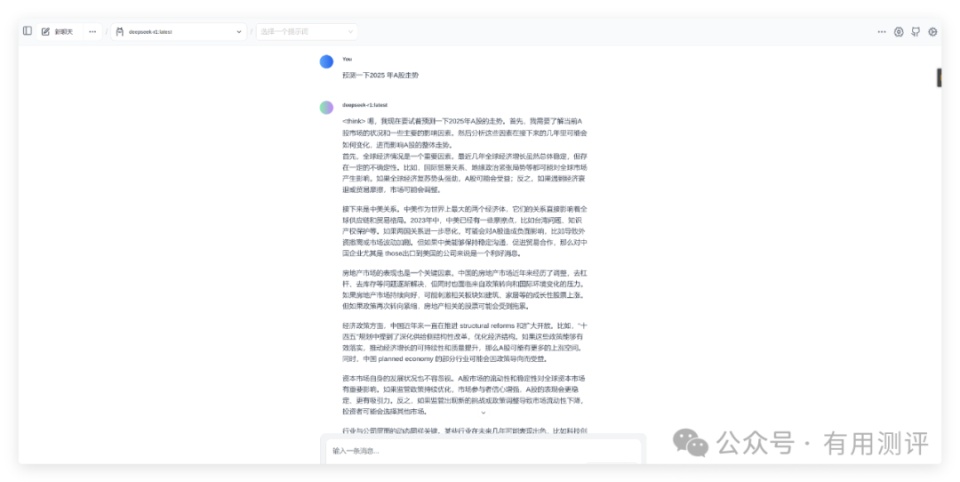
Enter your question in the dialog box and you'll get the corresponding result. As for the actual quality, this article won't go into too much detail—try it out for yourself first. Currently the DeepSeek version with the strongest capabilities being promoted is R3—give it a try if you have the setup?
Of course, you can also simply log into the DeepSeek web version to try it out.
On the first day of the Lunar New Year, if you don't feel like going out to chitchat with relatives, have a chat with DeepSeek instead—you might gain something unexpected.
Or you could feed your relatives' chatter into DeepSeek and let it do the chatting for you—not a bad idea at all. What a clever little trickster I am.