
Verified on 2026-11-05: Based on two Instagram Help Center articles: two-factor authentication and backup codes. Meta is gradually moving people to Meta Accounts, so your settings entry may be called Accounts Center or Meta Account settings.
With two-factor authentication (2FA) on, any login from a device Instagram doesn't recognise needs a login code or a confirmed login request. This guide covers choosing between the three methods, turning 2FA on, entering codes at login, and the step most people skip: saving backup codes in advance.
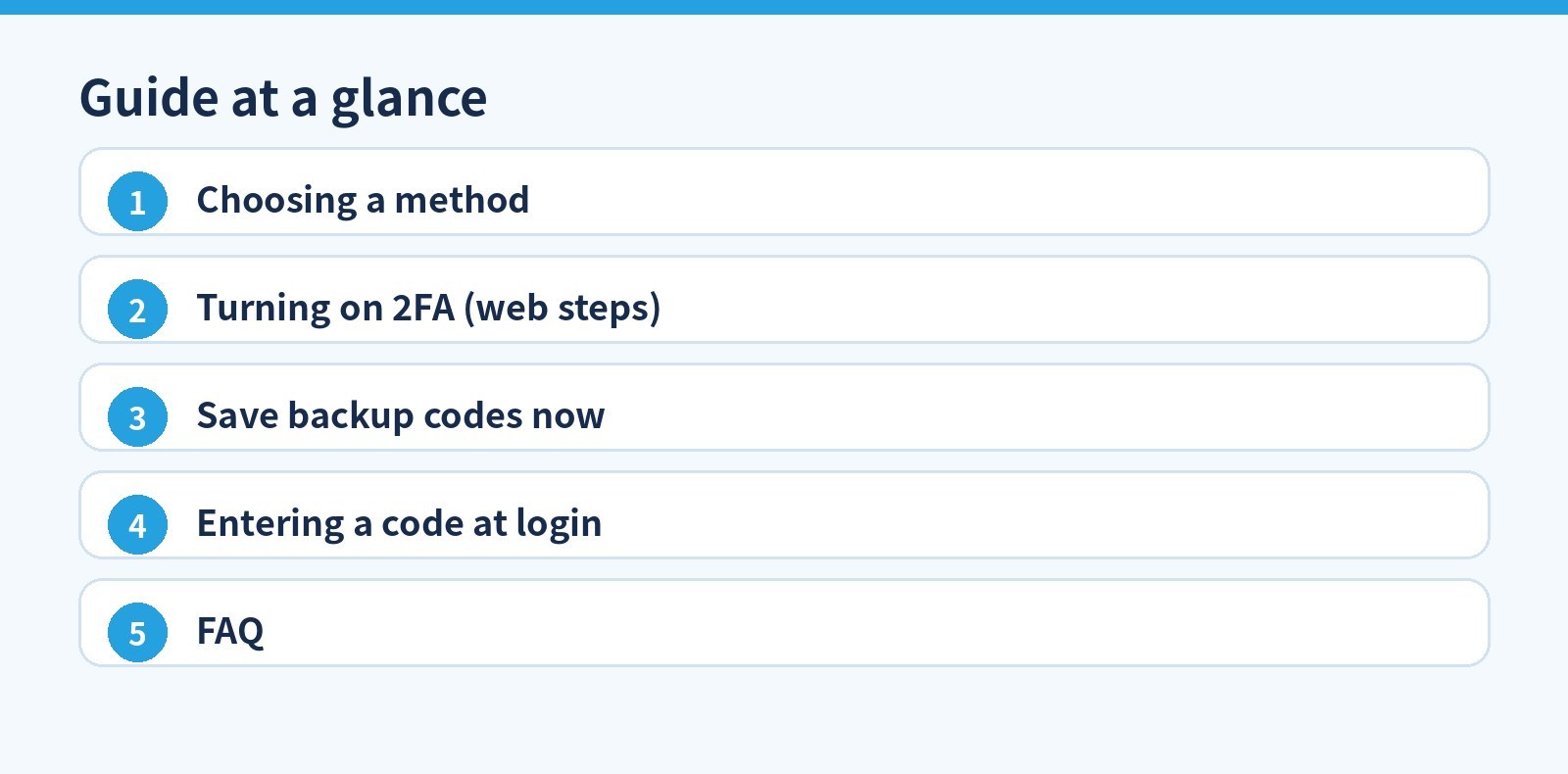
1. Choosing a method
| Method | How it works | Note |
|---|---|---|
| Authentication app (recommended) | Apps such as Google Authenticator or Duo Mobile generate codes; you can add the account on several devices | Can only be turned on in the Instagram app for Android or iPhone |
| Text message | Code sent to your mobile number, existing or newly added | Depends on carrier delivery |
| Code sent via WhatsApp | Text-message method must be on first |
You need at least one method to use 2FA.
2. Turning on 2FA (web steps)
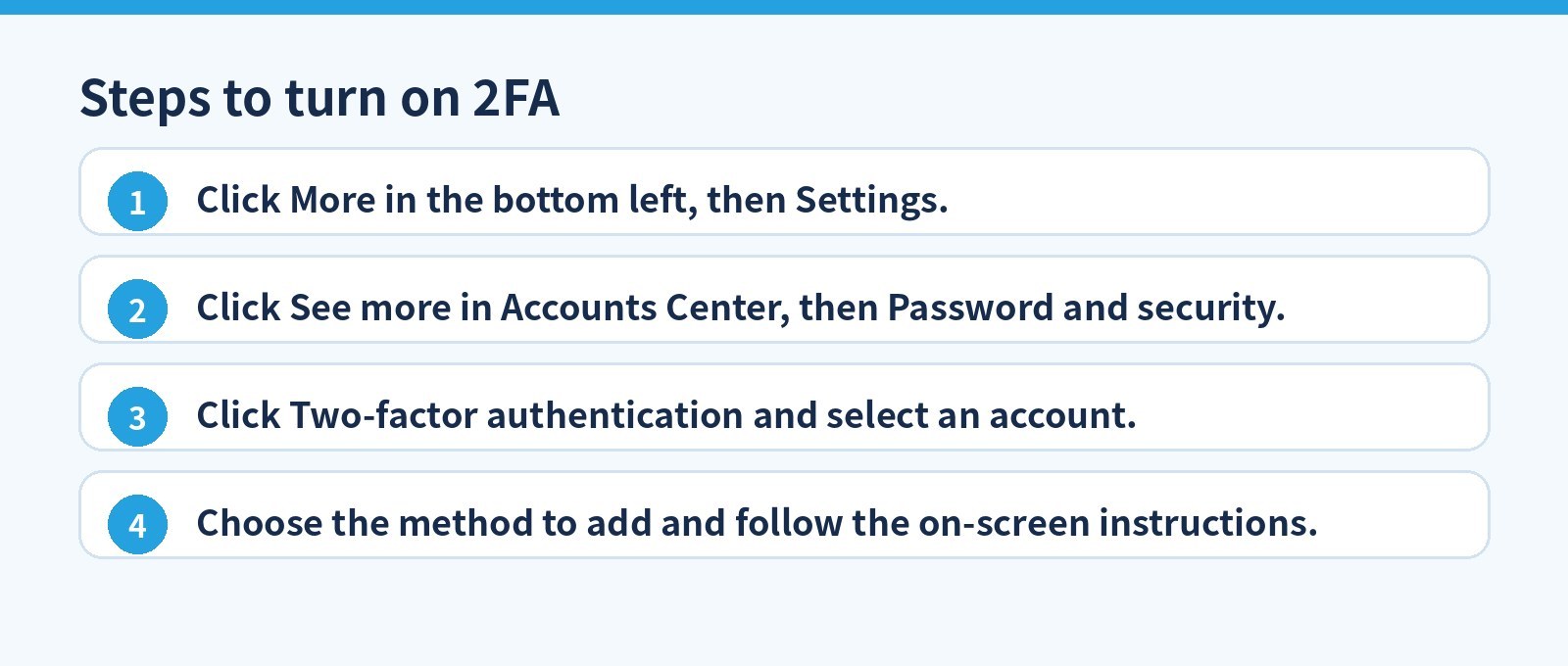
- Click More in the bottom left, then Settings.
- Click See more in Accounts Center, then Password and security.
- Click Two-factor authentication and select an account.
- Choose the method to add and follow the on-screen instructions.
To turn 2FA or a method off, follow the same path and choose the method to turn off.
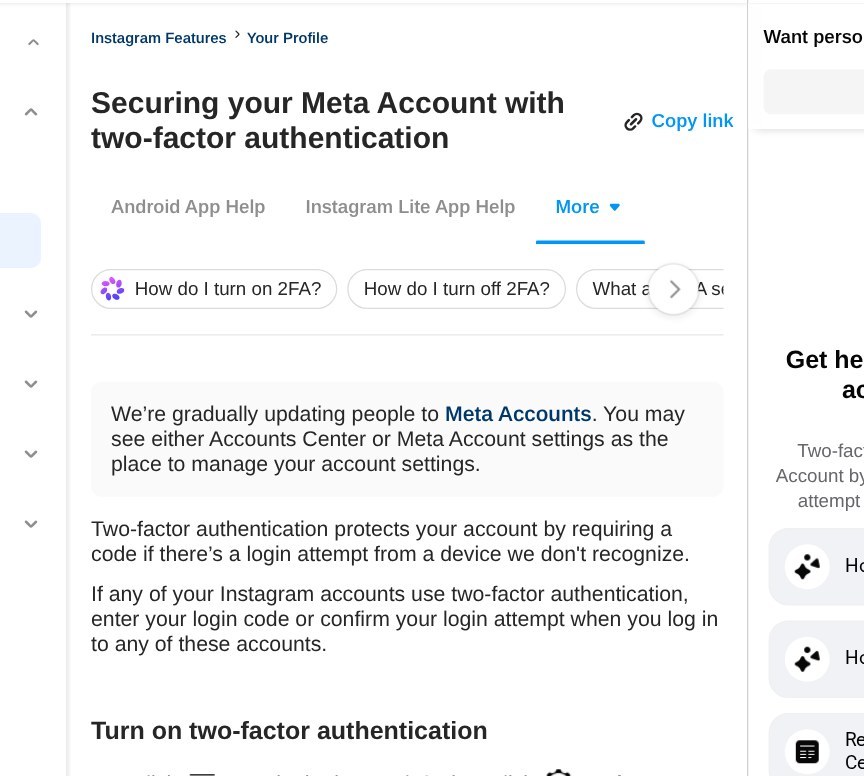
Instagram Help Center official steps.
3. Save backup codes now
If a code can't be delivered because of connectivity or delivery issues, a backup code completes the login. To get them:
- More → Settings → Accounts Center → Password and security.
- Two-factor authentication → select the account → Additional methods.
- Click Backup codes and copy, screenshot or otherwise save them.
- If you think they leaked, click Get new codes on the same page to replace them.
You can only view or regenerate backup codes while logged in. If you wait until your phone is lost, it's too late. Store backup codes separately from your password and never share them.
4. Entering a code at login
- After entering your password on a new device, Instagram asks for a login code or a confirmation on a logged-in device.
- Authenticator app: open it, find the Instagram entry and type the current code before it expires.
- No code arriving: choose to use a backup code.
- On your own device you can tap Trust this device to skip codes next time. Don't do this on public or shared devices.
With 2FA on, you can also review login requests and remove trusted devices in settings.
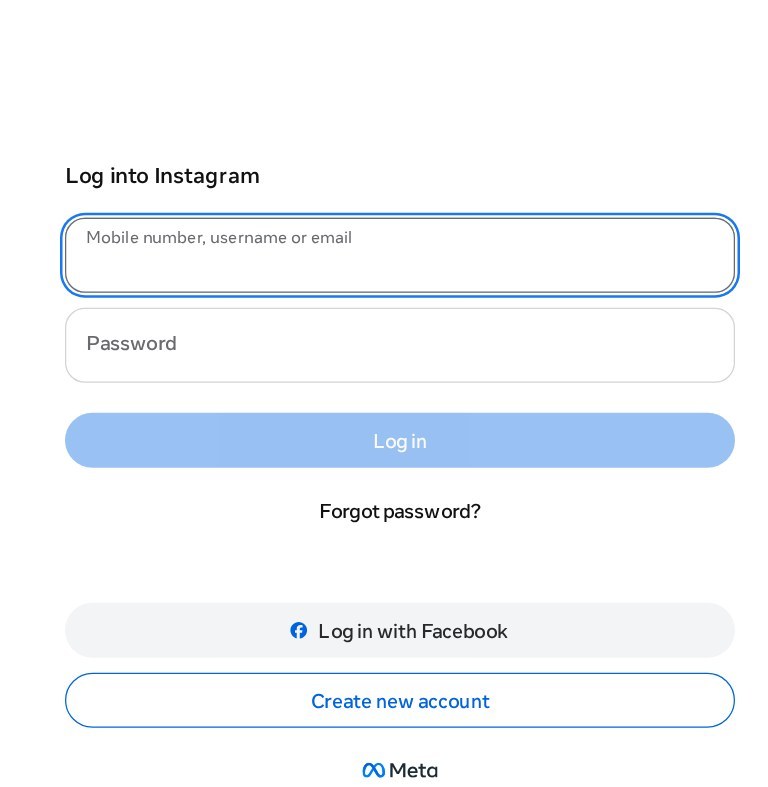
Instagram web login; with 2FA on you will also enter a login code.
5. FAQ
I changed my number and SMS codes stopped.
Log in with a backup code or your authenticator app, then update the number under Password and security → Two-factor authentication.
No authenticator, no SMS, no backup codes?
Use Instagram's official hacked/can't-log-in flow at instagram.com/hacked. You may be asked to verify through a secure email and a video selfie; see our Instagram video selfie guide.
Official sources (verified 2026-11-05): Instagram Help: two-factor authentication, Instagram Help: backup codes. In-app menu names may differ slightly by version and region.
Need an Instagram account? 5buyai.com offers Instagram accounts. After delivery, change the password, turn on authenticator-app 2FA and save your backup codes. See the product page for current prices.