
A Google Family Group can share membership allowances, which is especially useful for Google AI Ultra members, since family group members can enjoy the membership features. However, you may run into a situation where you cannot join the family group, and in that case closing your Google payments profile can resolve the problem.

Friendly reminder: Before closing your payments profile, make sure there are no outstanding payments, subscriptions, refunds, or billing issues under this profile. After closing it, some Google paid services may be affected.
Confirm the Google account you are signed in to
First, sign in to the Google account you want to work with. Thenopen the Google Payments settings page (click to go directly)
Use your browser to sign in to the Google account whose payments profile you need to close. We recommend confirming that the current account is correct to avoid accidentally operating on a different account.
Open the Payments settings page
Open the Google Payments settings page. If the page asks for verification, follow the prompts to enter your password or complete two-step verification.
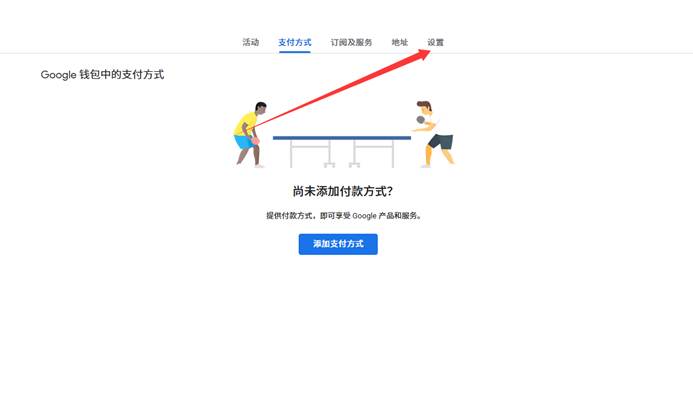
Switch to the“Settings”area
After entering the page, click the“Settings”option at the top or on the side, then scroll down to the bottom of the page.
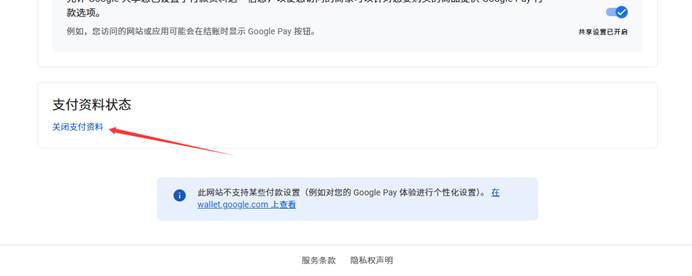
Click“Close payments profile”
Find the“Close payments profile”button at the bottom of the page. After you click it, the system will pop up an identity verification window.
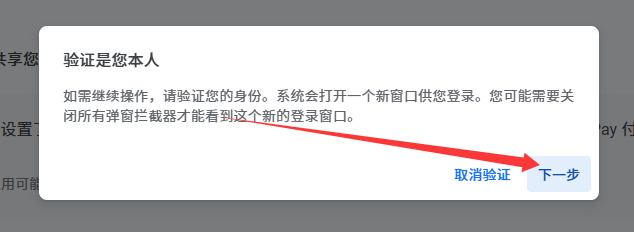
Complete identity verification
Click“Next”and enter your account password as prompted. Some accounts also require you to complete TOTP or other verification.
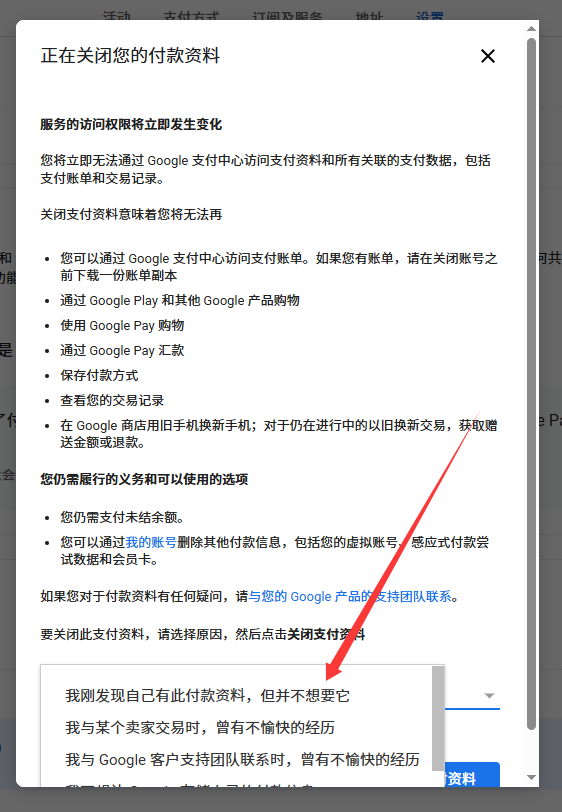
Choose a reason for closing and confirm
The system will ask you to choose a reason for closing. You can pick a suitable option, such as“No longer want to use this service”. After selecting, click“Close payments profile”to complete the operation.
Successfully closed
The payments profile has been closed successfully.
Frequently asked questions
-
- Can I add a payment method again after closing my payments profile?
In most cases you can re-create or add a new payments profile, but the actual availability depends on your account status and Google 's on-page prompts.
-
- What should I do if the page doesn't show“Close payments profile”?
Please confirm that you have entered the Payments settings page for the correct account, and scroll to the bottom of the page. If it still doesn't appear, it may be caused by the account, region, service status, or unpaid bills.
-
- What should I pay attention to before closing?
We recommend first checking your subscriptions, unpaid orders, refunds,Google Cloud or other paid services, to avoid affecting normal use after closing.