
This article compiles several common types of issues encountered while using Cursor, including overly long context, improper Rules configuration, login problems, checking your quota, and network connection settings. The content is broken down by real-world usage scenarios as much as possible, so you can troubleshoot quickly.
1. The conclusion first: many issues are not caused by the account itself
In actual use, when Cursor responds slowly, stutters, gives nonsensical answers, makes a model unavailable, or the client fails to log in properly, in many cases the problem is not the account itself, but rather overly long context, too many references to irrelevant files, an overloaded rules configuration, or abnormal local network and proxy settings.
So when you run into a problem, we recommend not rushing to conclude that the “account is broken” or the “service is down.” Instead, prioritize checking the following: the current session context, Rules configuration, leftover plugins, proxy protocol, port configuration, and whether the system proxy is actually in effect. :contentReference[oaicite:0]{index=0}
2. Why Cursor slows down, stutters, and even seems to “get dumber” the more you use it
If you tend to ask many rounds of questions in a row within the same session and reference a large number of files all at once, the context the model has to process will balloon quickly. Once the context gets too long, it not only consumes more tokens but also makes response times noticeably slower, and in severe cases leads to irrelevant answers, sluggish reactions, and unstable results. :contentReference[oaicite:1]{index=1}
A more reliable approach is:
- One task, one session. Don't use the same chat window from start to finish.
- Only reference files that are truly relevant to the current question, and avoid “select-all” referencing.
- Don't stuff Rules with overly long prompts. Just enough is enough.
- When you notice a clear slowdown, simply start a new session. This is usually more effective than continuing to push through.
3. Can't log in or the client is acting up? Check your local environment first
If the web version opens but the client login fails, or the software itself isn't running properly, first review whether you've installed any related plugins or enhancement tools, or made extra modifications to the client. In some cases, this kind of leftover configuration can interfere with Cursor connecting or starting up normally. :contentReference[oaicite:2]{index=2}
This type of problem is better handled in the order of “clean up the environment → reinstall the client → reconfigure the network,” rather than repeatedly switching accounts or changing devices right away.
4. How to check your current Cursor usage quota
If you want to confirm your account's current usage, you can go to the Billing & Invoices page in the dashboard. This usually shows a usage overview for the current period, along with billing-related information. :contentReference[oaicite:3]{index=3}
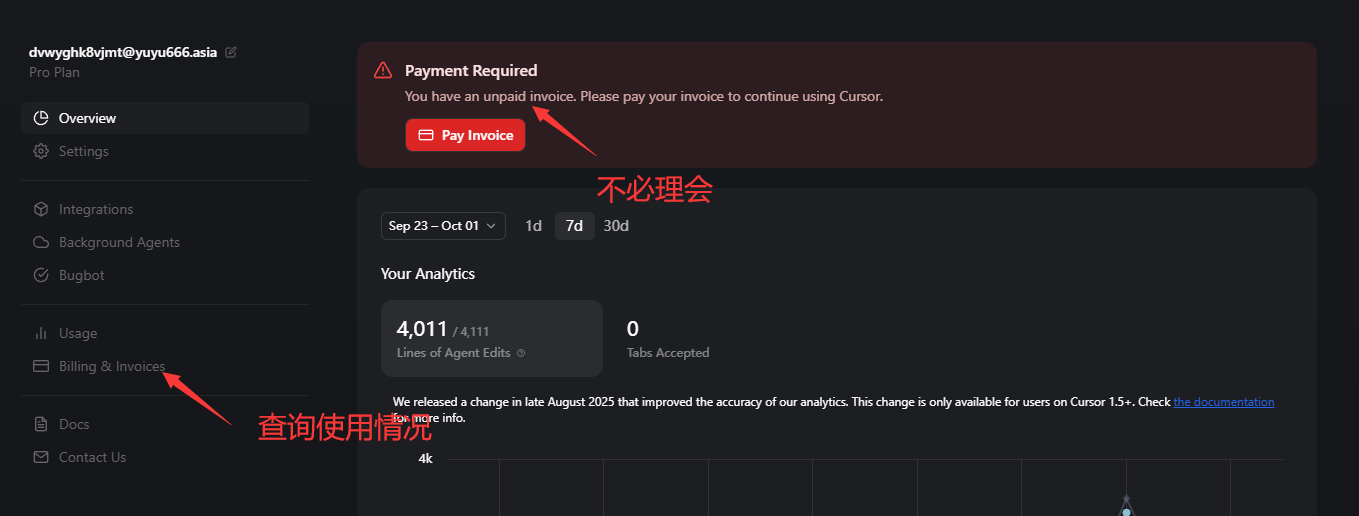
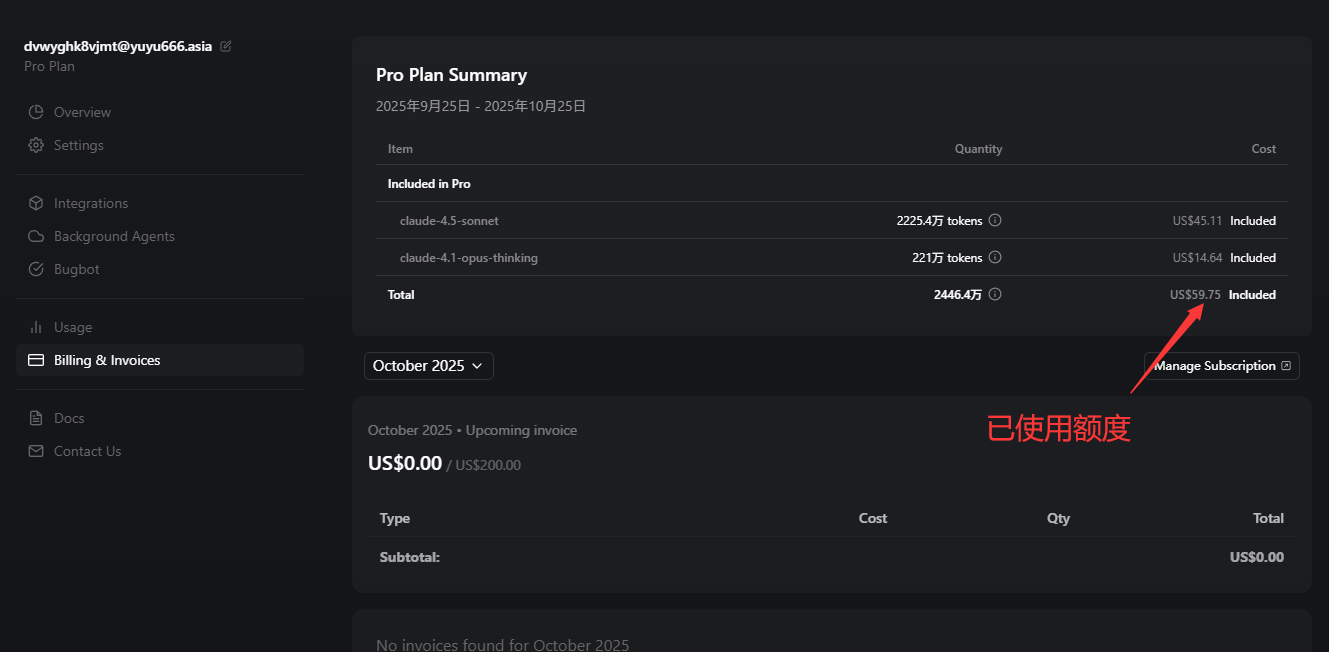
5. What to do when you see “Model not available”
If the client shows Model not available, you should usually first check the current network environment, whether the proxy is working, whether the node status is normal, and whether the client is actually routing through the proxy. Simply refreshing over and over often won't solve the problem. :contentReference[oaicite:4]{index=4}

6. When the network connection is abnormal, check the proxy protocol and port first
If your current environment needs to access Cursor through a proxy, the key thing is not “whether the proxy is turned on,” but whether the client is actually routing through the correct proxy path. According to the instructions on the page, one common method is to use an HTTP proxy and confirm at the system level or client level that the proxy is in effect. :contentReference[oaicite:5]{index=5}
When troubleshooting, focus on three things:
- Whether the proxy software is turned on and the node is available.
- Whether you're using an HTTP proxy, not the wrong proxy protocol.
- Whether the port in the client configuration matches the actual port of the proxy software.
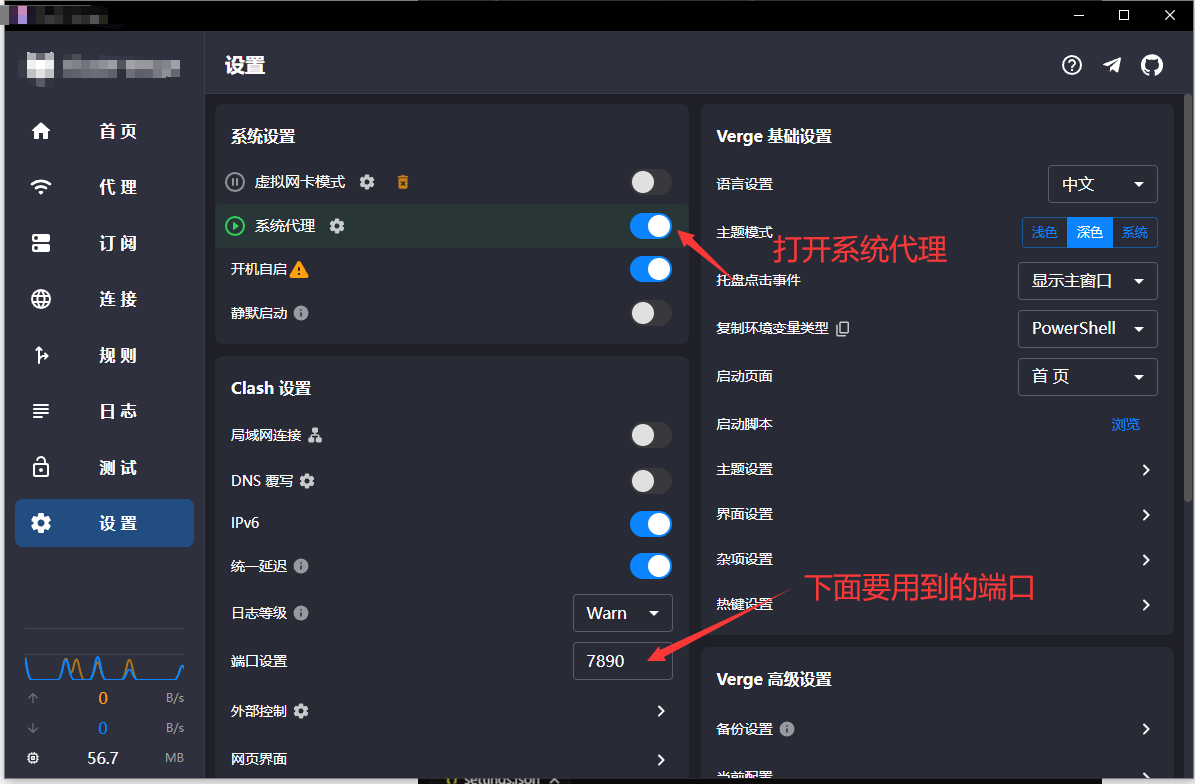
7. How to change the proxy configuration in Cursor
If you need to adjust the configuration manually, you can first open the user settings JSON via the quick search, then check whether the proxy-related fields have already been written in. The example configuration on the page includes two items: one for disabling HTTP/2, and another for specifying the local HTTP proxy address. :contentReference[oaicite:6]{index=6}
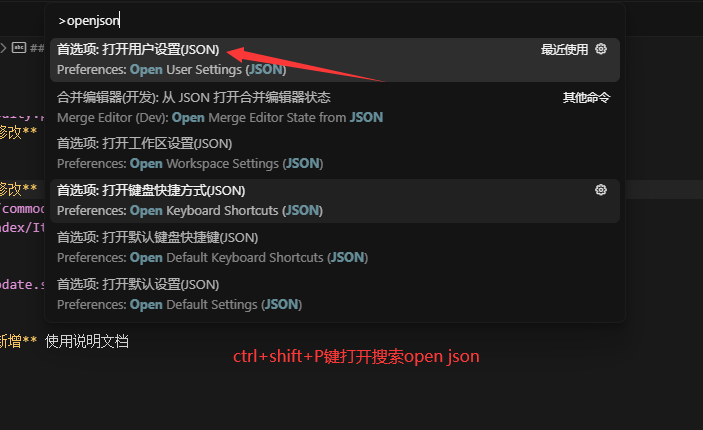
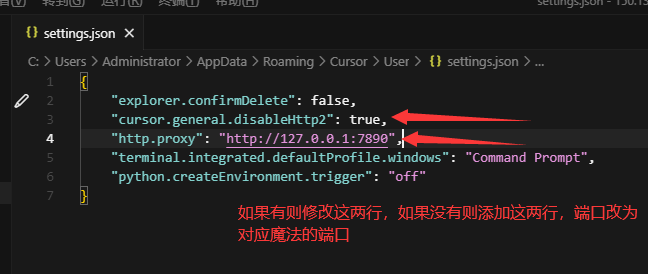
{
  "cursor.general.disableHttp2": true,
  "http.proxy": "http://127.0.0.1:7890"
}
Note: the 7890 above is just an example port. You need to change it to the port your local proxy software actually uses. Even if the configuration is written correctly, it still won't take effect if the port doesn't match. :contentReference[oaicite:7]{index=7}
8. Another approach: use TUN mode
Besides manually writing in the HTTP proxy configuration, the page also mentions that you can handle connection issues through the TUN mode of your proxy software. This approach essentially takes over traffic through a virtual network adapter, which suits users who don't want to change client settings item by item. However, whether it's ultimately stable still depends on your local network environment and node quality. :contentReference[oaicite:8]{index=8}
9. The most practical troubleshooting order
If you just want to solve the problem quickly, we suggest following this order:
- First start a new session to reduce the context and references to irrelevant files.
- Temporarily disable overly long Rules to rule out the prompt burden.
- Check whether you've installed any related plugins or tools, and clean up and reinstall if necessary.
- Confirm the system proxy is turned on and the port is correct.
- Check whether Cursor's settings.json has the proxy address written in correctly.
- If it's still abnormal, then consider switching nodes or using TUN mode.
10. Summary
Many of Cursor's common problems can essentially be boiled down to two categories: one is improper context management, and the other is abnormal local connection configuration. The former makes answers slower and messier; the latter directly causes models to be unavailable, login to fail, or the client to malfunction.
The truly efficient way to use it is not to blindly pile on context, nor to suspect the account the moment a problem arises, but to handle session control, file referencing, Rules length, and network configuration each separately. This usually makes the overall experience much more stable.