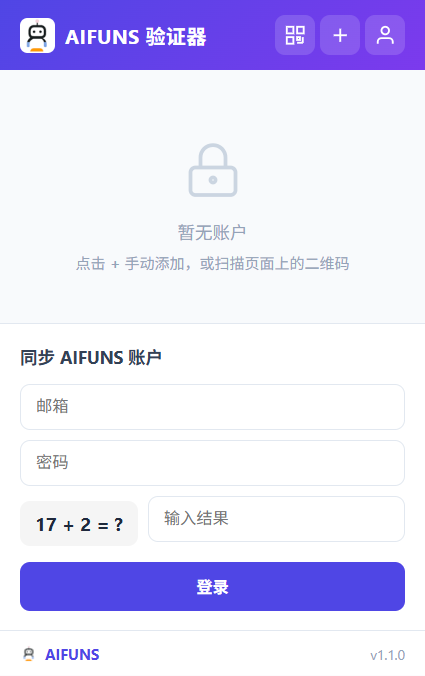
The AIFUNS Authenticator Chrome Extension works the same way as the Authenticator (click to go directly); it can sync your verification codes and works offline as well. For how to use the authenticator (2FA codes), please see the article «About Binding Email, Backup Email, and 2FA Codes» (click to go directly). Below is a detailed introduction to this article:
1. How to add it?
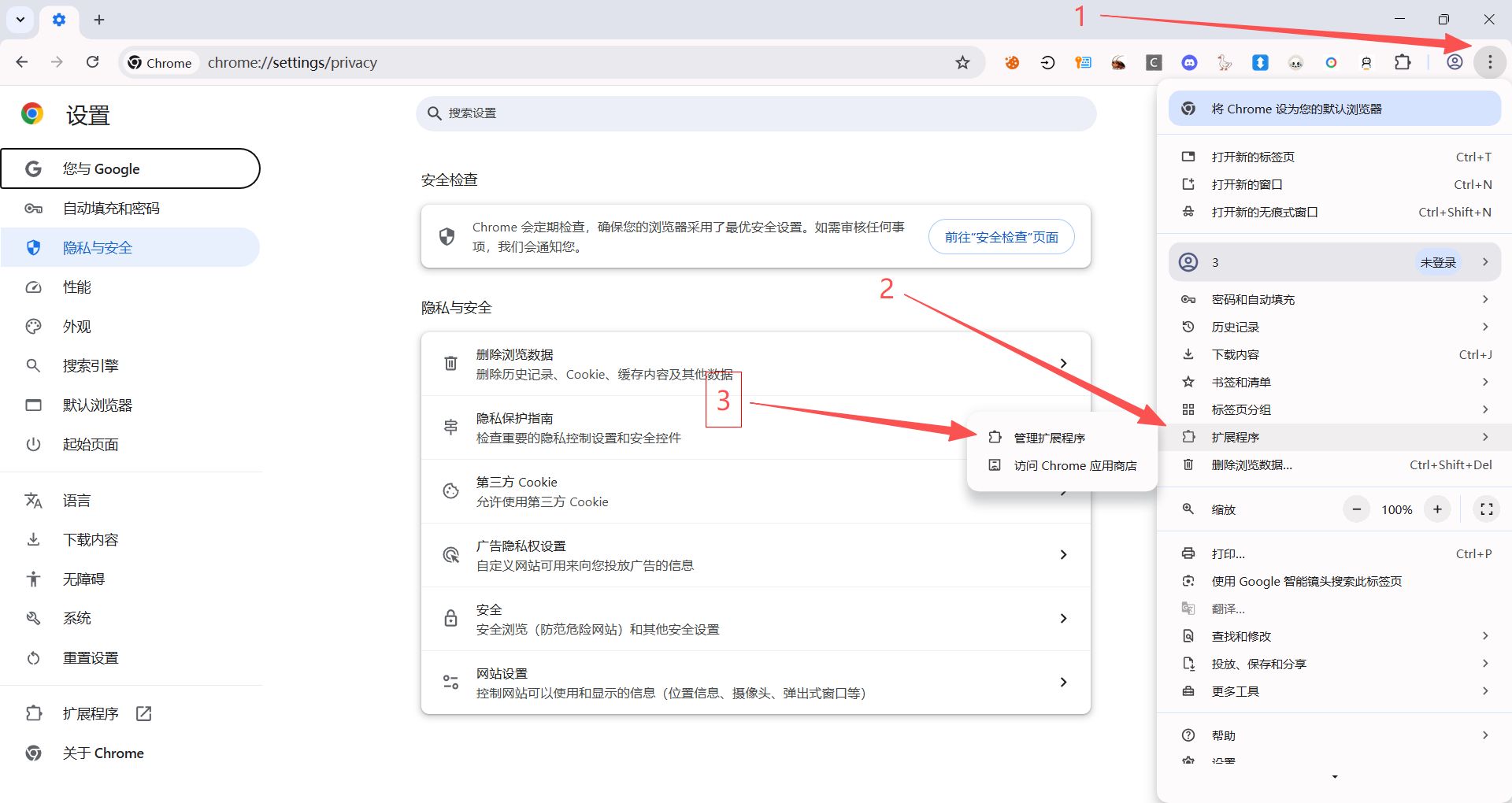
(1) Following the order shown in the image below, open the Extensions page (URL: chrome://extensions/ (click to go directly)).
[Opening the Extensions page]
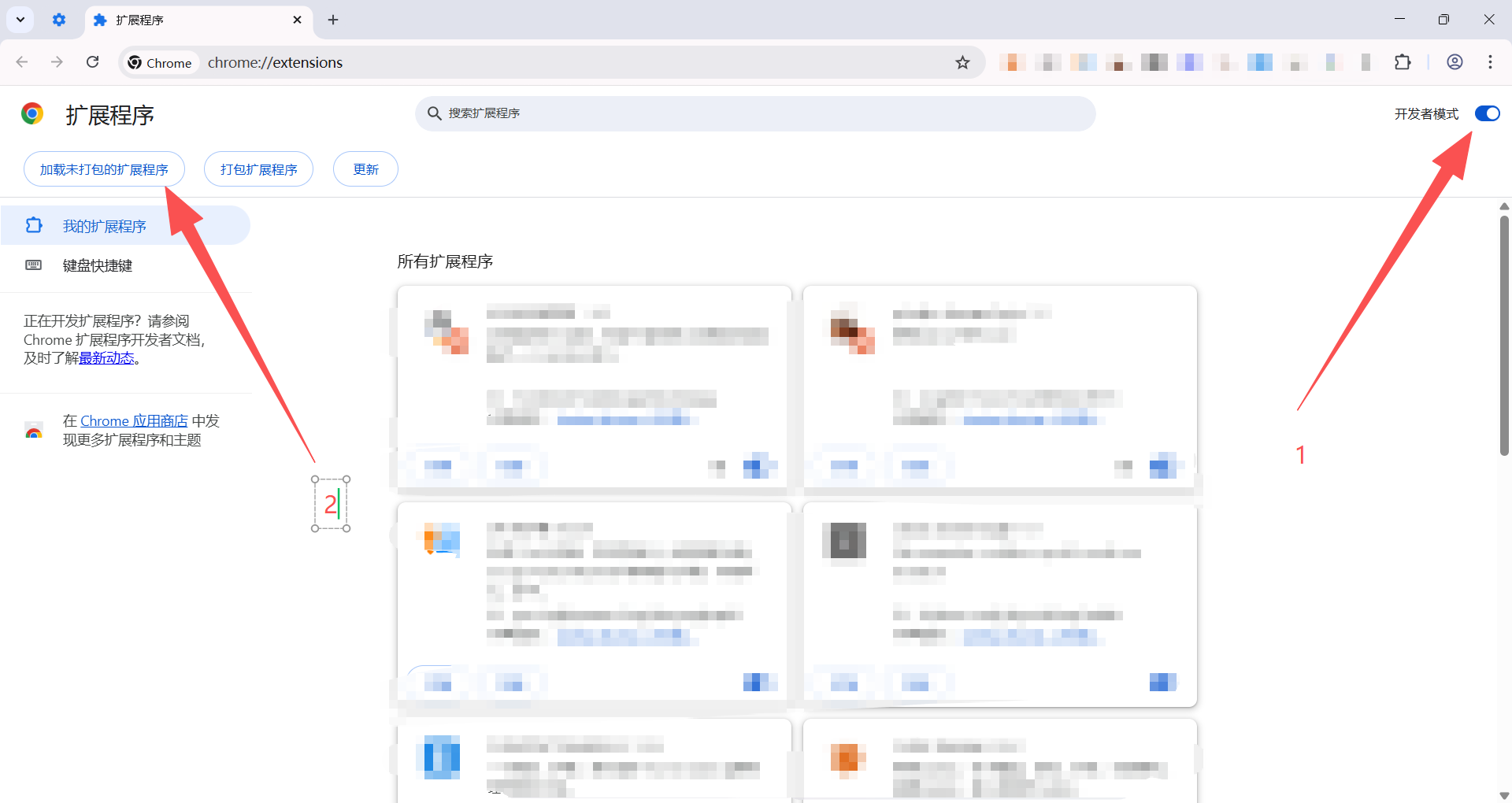
(2) Following the order shown in the image below, turn on Developer mode and load the unpacked extension!
[Enabling Developer mode]
(3) Load the AIFUNS AIFUNS Authenticator Chrome Extension installation package; the downloaded package needs to be unzipped.
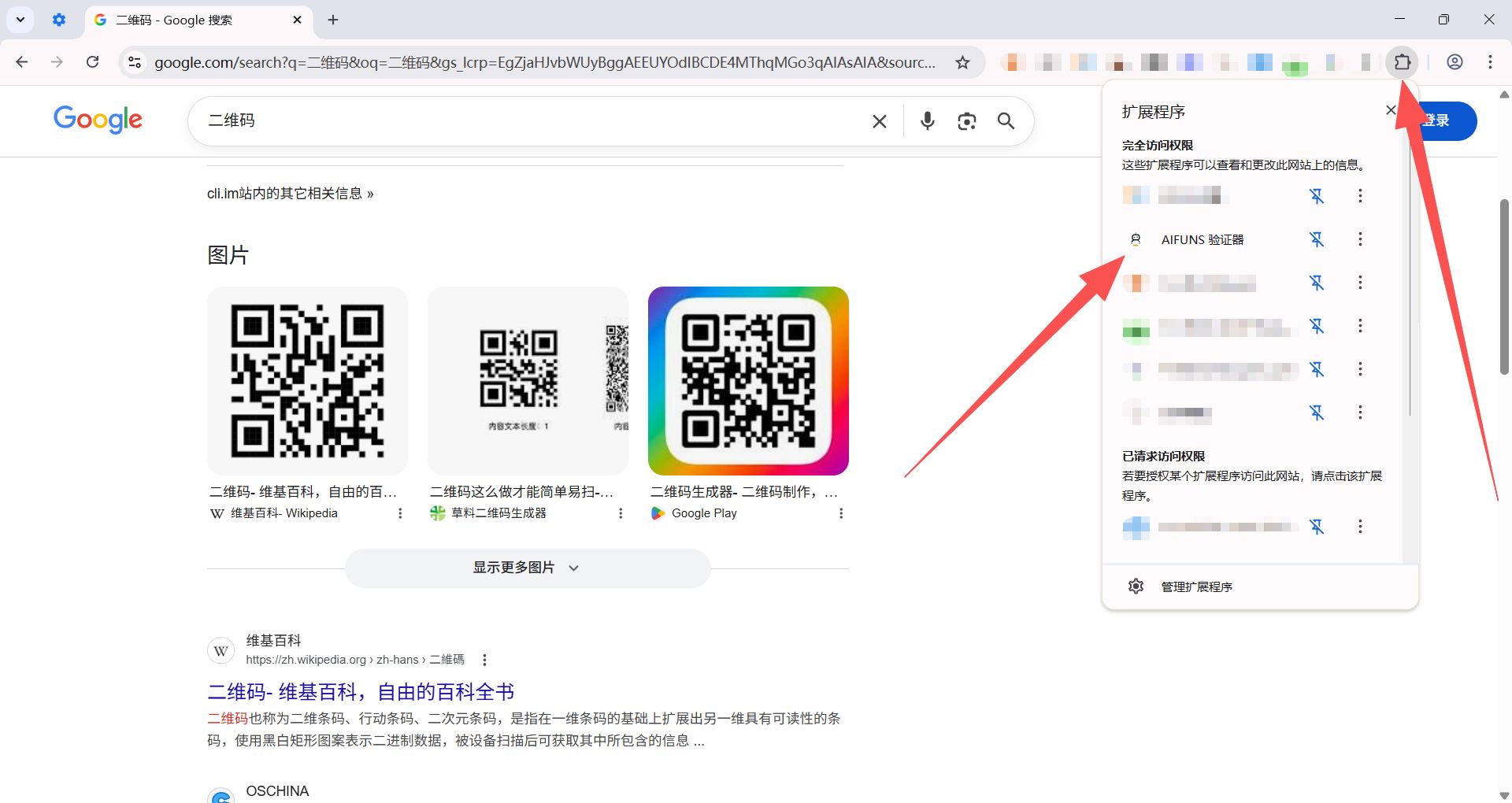
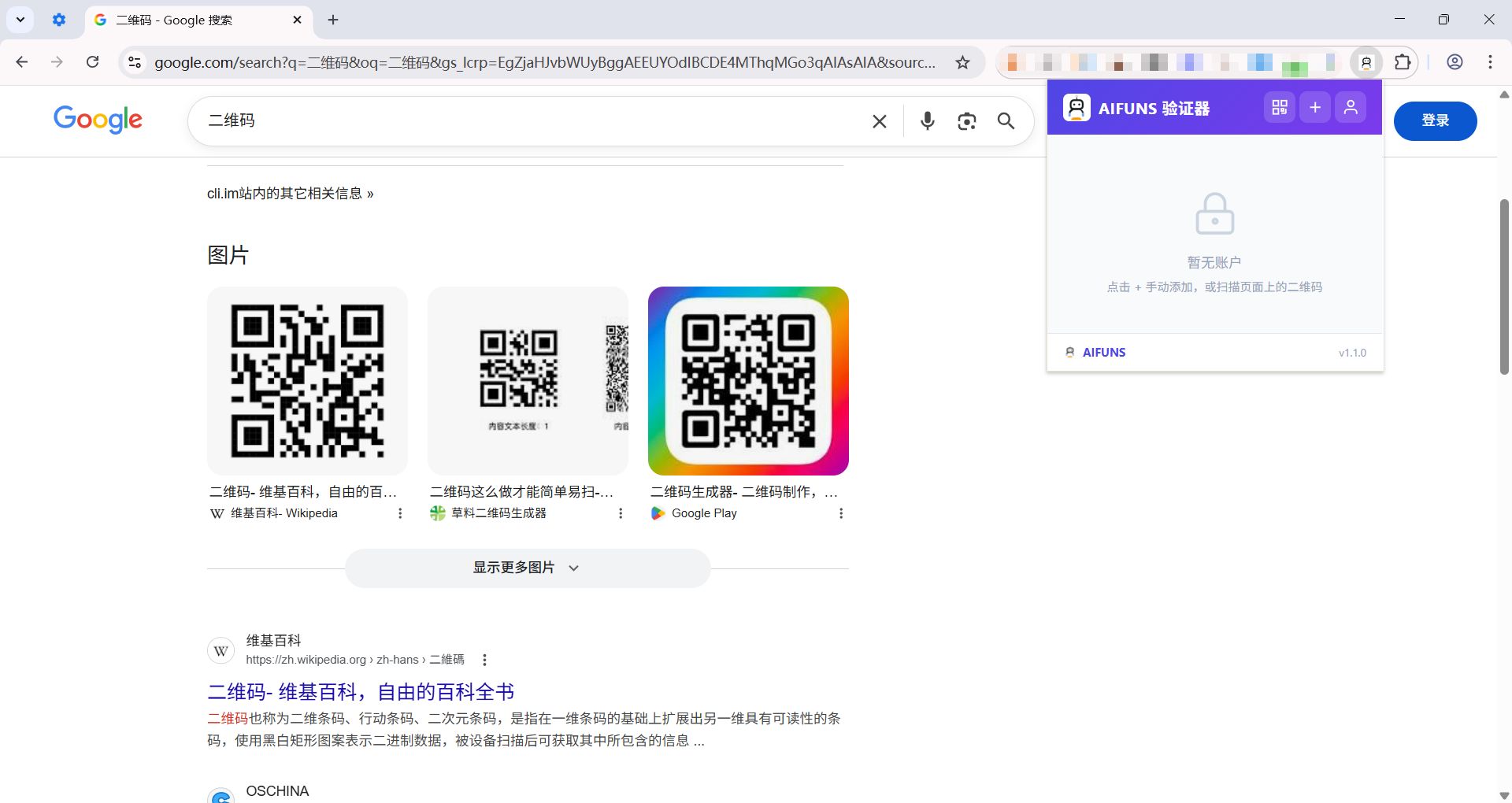
2. The AIFUNS Authenticator Chrome Extension appears in the Chrome extensions bar
[Extensions bar status]
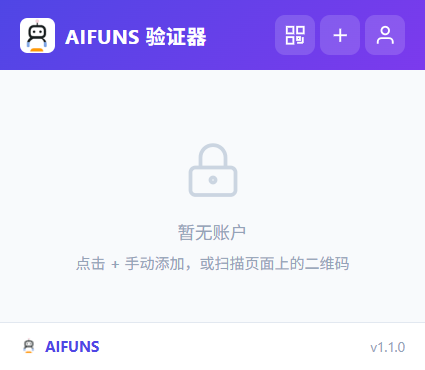
3. After clicking the AIFUNS Authenticator Chrome Extension, the feature interface is displayed
[Feature interface]
3. Introduction to basic features:
[Scan QR code]
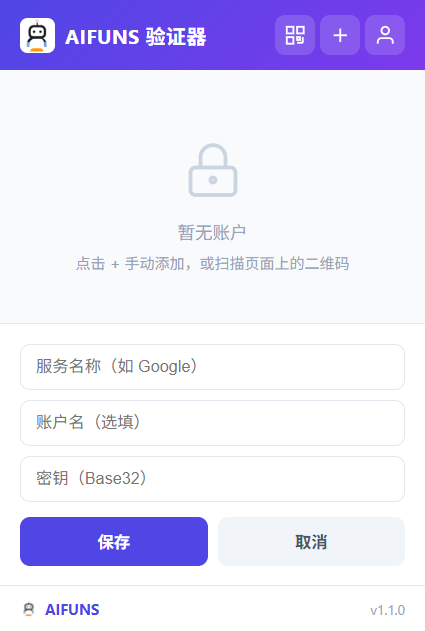
[Add 2FA code (secret key)]
[Log in to AIFUNS account]