
Opening:
There's a saying in the TV world: all the TVs in the world can be divided into Sony TVs and everything else. Whether you're a gaming enthusiast or a movie lover, there are many reasons to choose a Sony TV — a pure system interface with no ad pop-ups, dual support for Dolby Vision and Dolby Audio, the black-tech XR cognitive chip on board, plus native PS5 pairing. More importantly, the Sony TV is also one of the few devices you can buy in China that support the NetflixTV certification program. In other words, you only need to prepare a U drive and an APK file, and on the Sony TV install Netflix, and you can 4K watch in dual Dolby, and you no longer need to buy an extra set-top box. So I’m bringing everyone this guide to watching Netflix on a Sony TV, to help you unlock the full viewing experience of the big Sony TV in your hands.
(1)
Installation:
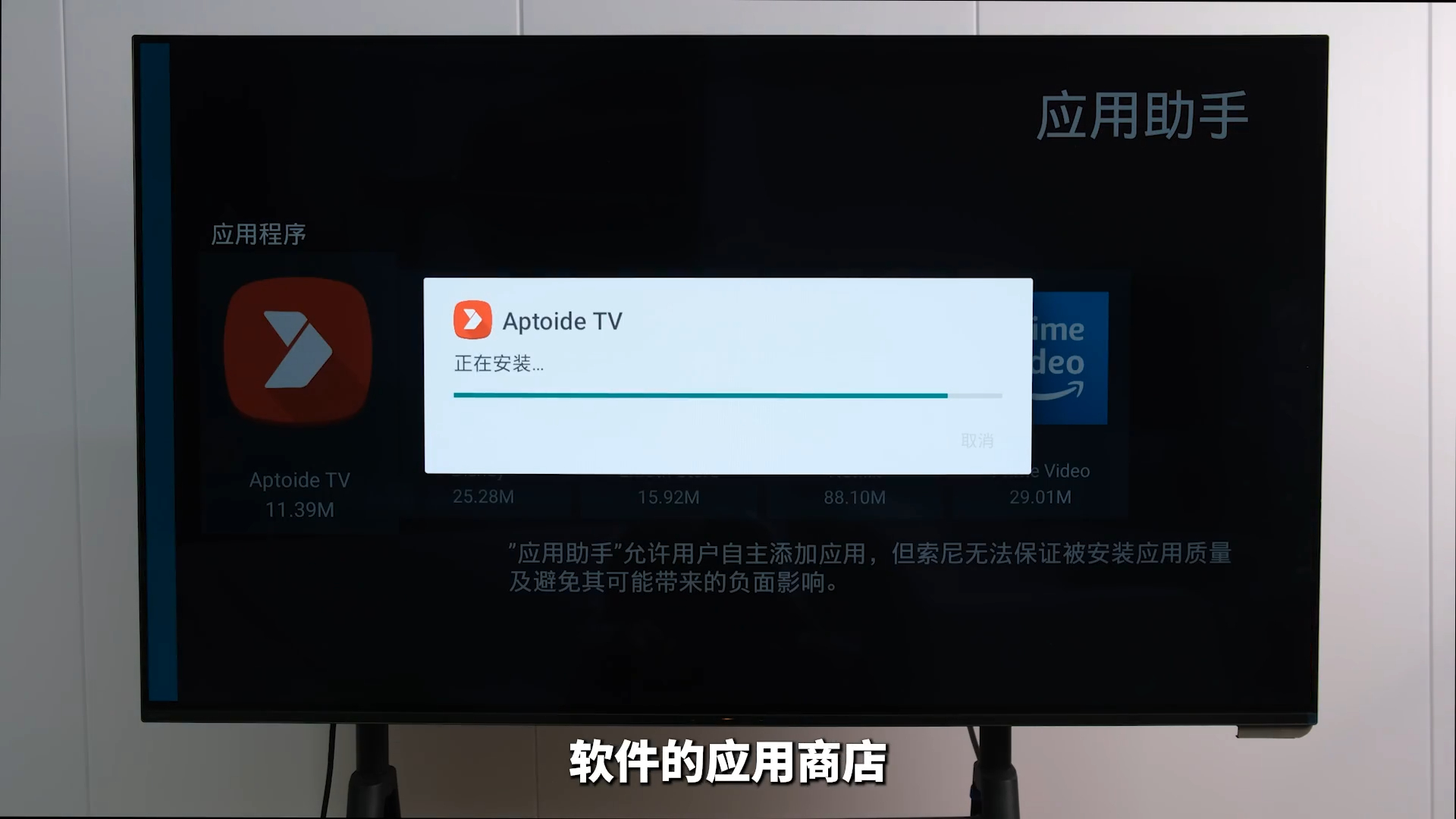
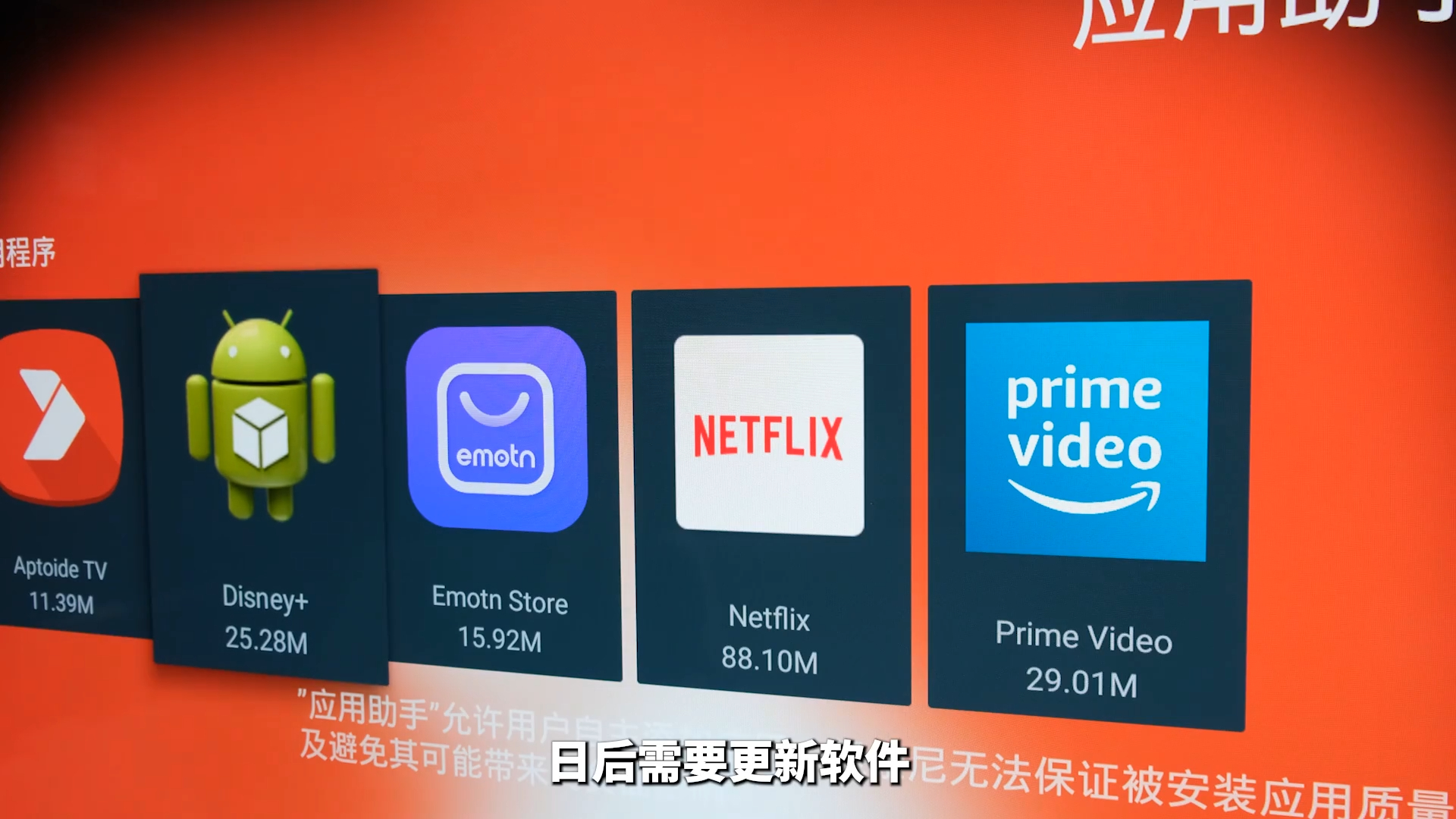
Because the Sony TV natively supports the NetflixTV certification program, when installing apps you only need to prepare a U drive and an APK file. The relevant APK files mentioned in the video have all been packaged and placed in the comments section; viewers who need them only have to download them and put them on your U drive. Then plug the U drive into the TV. On the home screen, press the settings button on the remote and enable the “install unknown apps” feature in App Assistant. App Assistant is the app on the TV that helps us use a U drive to install software. Go back to the home page, open App Assistant under My > App History, and first install AptoideTV software, which is an app store dedicated to installing Google-framework software on TVs. Next, install EmotnStore, which is likewise an app store aimed at users worldwide. With these two apps working together, you can download most streaming apps in one go.
(2)
After installation, open the app store. When downloading software from the store, be sure to pay attention to the version and give priority to the forTV version, otherwise you may end up downloading the iPad, phone and other versions, which will have all sorts of BUG. Likewise, I’ve put together the installation packages for the three major streaming apps here — Netflix, Disney and AmozonPrime. After testing, these three versions all work flawlessly for viewing on the Sony TV. Likewise, download them on a computer to a U drive and install them via App Assistant. When you need to update the software later, you can simply open ApoideTV or Emotn Store to update。
(3)
How to use it:
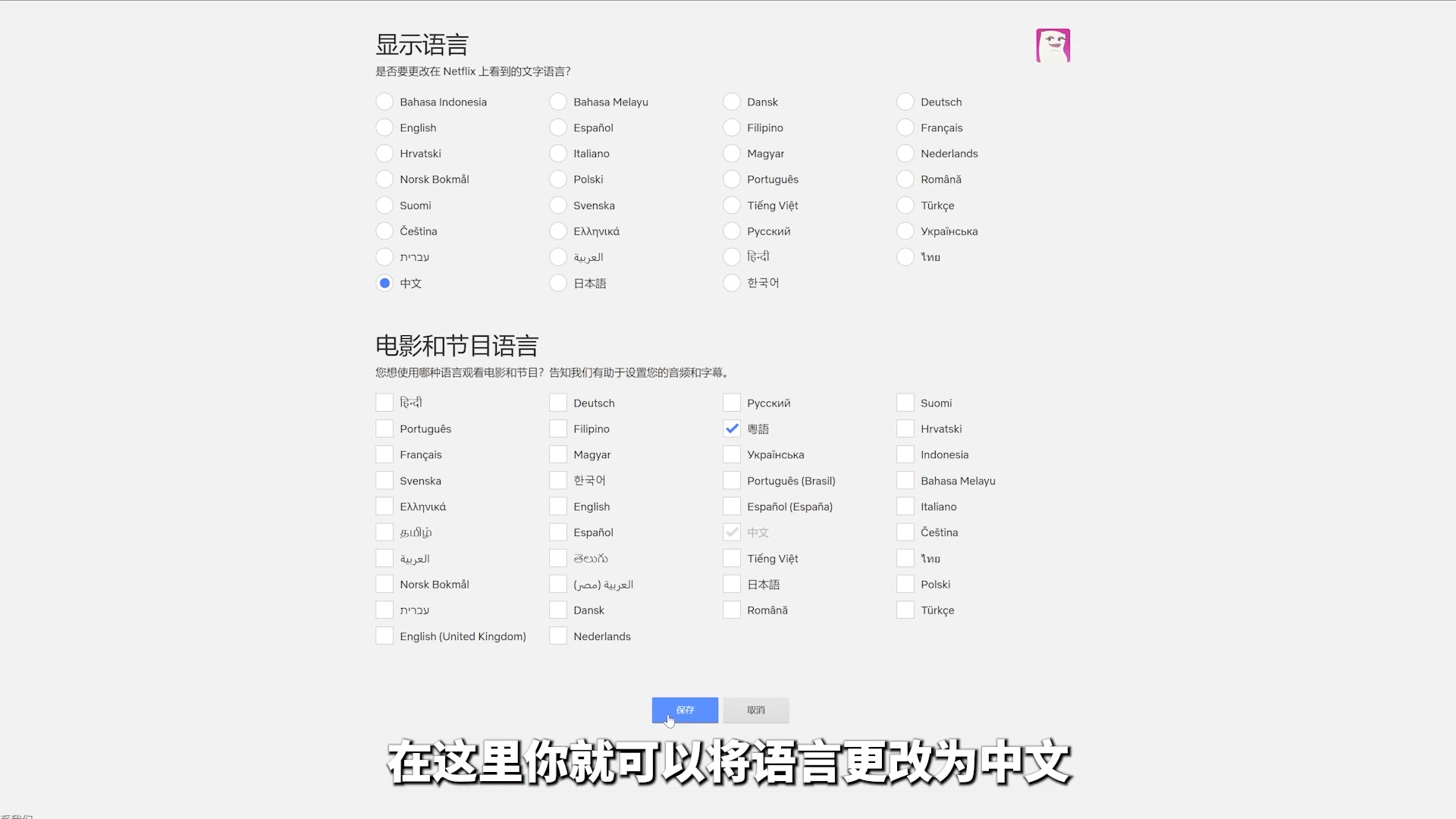
After installation, tap to open Netflix, enter your account and password, and select your slot number to enter the home screen. If it isn’t in Chinese the first time you use it, you can go to the PC web version: click your avatar in the top-right corner, scroll down and click the little-person icon, find your slot number below, click the small triangle on the right, then click the subtitle option on the right of the second row. Here you can change the language to Chinese. Click the blue button below to save and you’ll return to the home screen. On a phone, after logging in, tap the avatar in the top-right corner, tap the pencil-shaped icon, tap your personal account, scroll down and tap the third row, change it to Chinese and save, and you’ll return to the familiar Chinese interface.
(4)
Over the past couple of years, with Netflix’s major updates, you can now not only enjoy a Chinese UI interface and native Chinese subtitles — some shows even have Mandarin and Cantonese dubbing that you can switch between at any time while watching. When searching for shows, Netflix has also optimized initial-letter search for the TV. For example, if you want to watch Breaking Bad, you don’t need to laboriously type out every letter on the remote — just enter jmds. Of course, all of the above only proves that Netflix currently works very well in China; it hasn’t yet touched on the synergy between the Sony TV and Netflix. Below, I’ll introduce some operations for watching Netflix that are exclusive to the Sony TV.

(5)
Advanced operations:
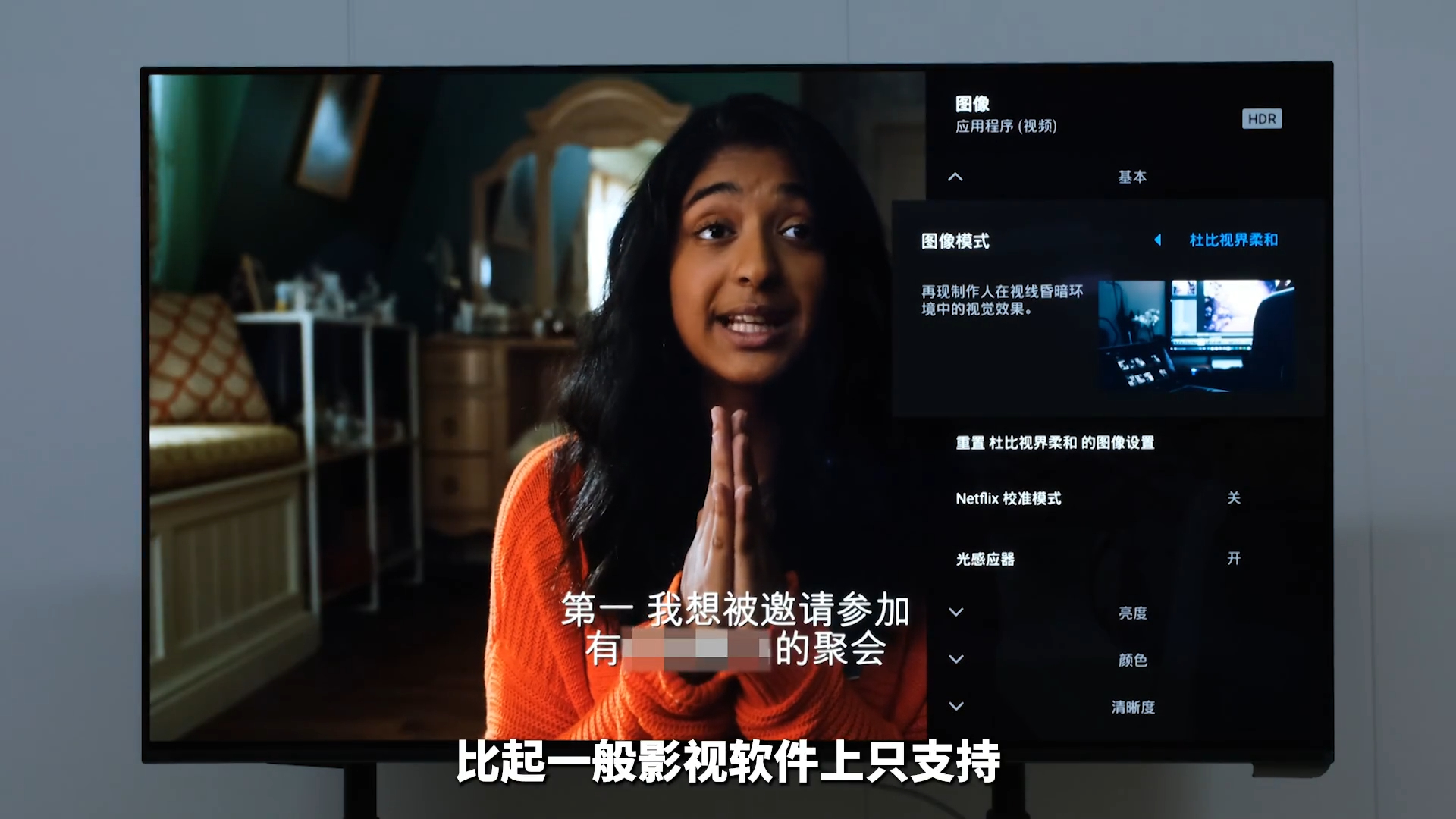
Open a Netflix title, press the settings button on the remote, and open the picture calibration feature. You’ll find that, unlike ordinary video apps that only support modes like Standard, Bright and Cinema, on Netflix the Sony TV has an extra Netflix Calibrated Mode. This was, back in 18, jointly developed by Netflix and Sony — a new feature specially designed by color experts. When it first launched, it was only adapted for flagship models such as the Sony Master Series and the A9F, Z9F and other flagship models, but it has now been adapted to Sony’s entire TV lineup. On Netflix, no matter the type of title and whether or not it supports 4K, HDR, or Dolby Vision, you can use this Netflix Calibrated Mode to experience the most authentic colors, the most accurate motion and the most realistic action, reproduced to the extreme in every detail.
(6)
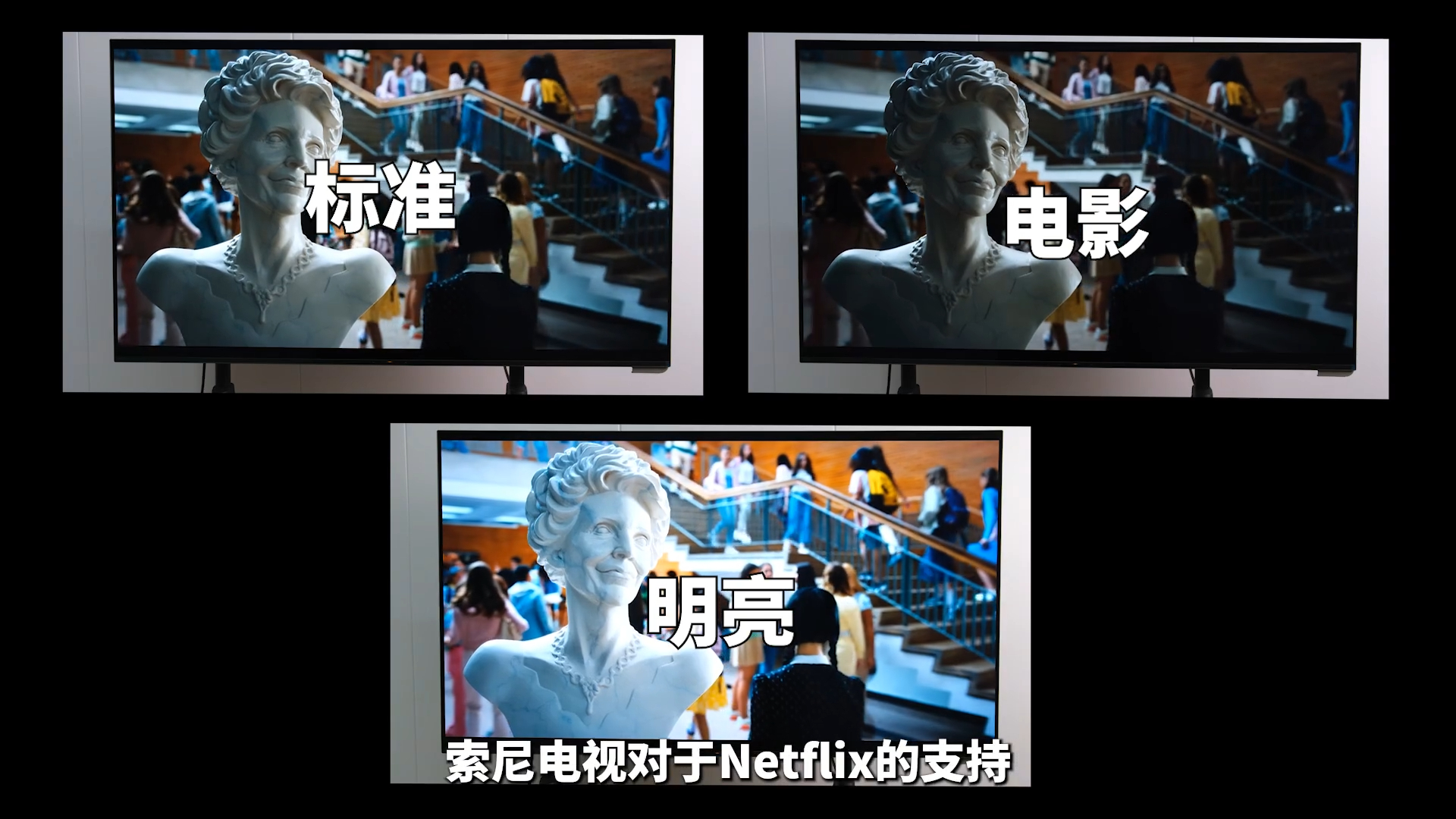
In my own experience, for titles that support Dolby Vision, enabling the Netflix Calibrated Mode brings only a small improvement. In vividly colored titles, the Netflix Calibrated Mode looks similar to Dolby Vision Bright; in softly colored titles, the Netflix Calibrated Mode looks similar to Dolby Soft. The biggest improvement comes with titles that don’t support Dolby Vision: you can clearly see that, compared with the so-called Standard, Cinema and Bright modes, the Netflix Calibrated Mode produces far more realistic colors.
(7)
The Sony TV’s support for Netflix’s also extends to a native bitrate display. While watching a title, press the on-screen display button on the remote and you can see the current bitrate of the title you’re playing. As you can see, here it easily reaches a 4K 18Mbps bitrate. Because Netflix, Disney and other overseas streaming services adjust the picture quality automatically according to your network speed, the quality may be poor when you first open a title; as it plays on, the bitrate gradually climbs and the picture becomes clearer. If you prefer the playback mode used by China’s iQiyi, Youku and Tencent Video, where you set a fixed quality and wait for buffering, you can also log in to your Netflix account on the web: click your avatar in the top-right corner, click Account, scroll down to find the account used for your slot number, open the settings list, and click Change in the Playback Settings row. Here you can choose whether to adjust the quality automatically according to your network speed, or to use a fixed quality and wait for buffering.

(8)
Conclusion:
And that’s it — this guide to using Netflix on a Sony TV ends here. If you also have a big Sony TV at home, why not try and see4K Netflix what the experience of watching on a big TV is like.