
Two methods for mobile and desktop, with detailed steps — easy to get done
Binding a phone number to your Apple ID account is meant to keep the account secure. When you change your phone number, you also need to update the number bound to your Apple ID accordingly, otherwise it leaves a security risk. This article explains in detail the complete process for changing the phone number using two methods: mobile and desktop.
Method 1: Mobile workflow
1. Open "Settings" on your phone, tap the Apple ID avatar at the top, then select "Password & Security" to see the currently bound phone number.

2. Tap "Edit" in the upper-right corner of the number, then tap "Add a Trusted Phone Number". The system will ask you to enter your iPhone unlock passcode to verify.
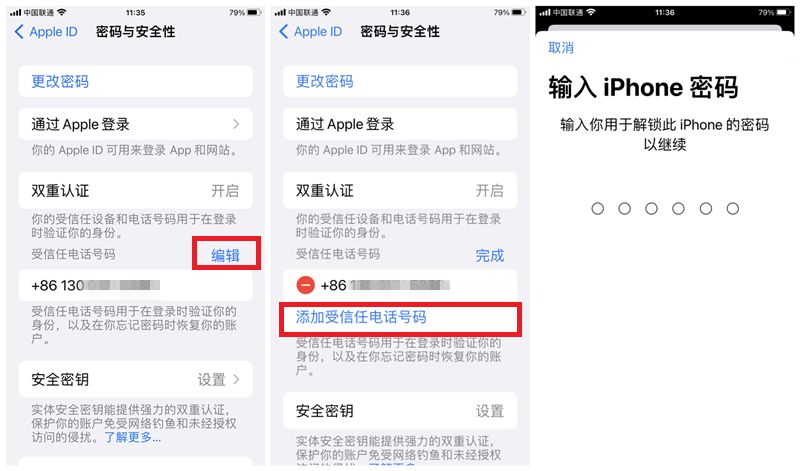
3. Enter the new phone number you want to bind. After tapping "Continue", the system will send a verification code to the new number. Enter the code you receive into the field to complete the addition.

4. Once the new number is added successfully, tap "Edit" again, tap the "−" sign in front of the old number, and choose "Delete" → "Remove" to complete the replacement.
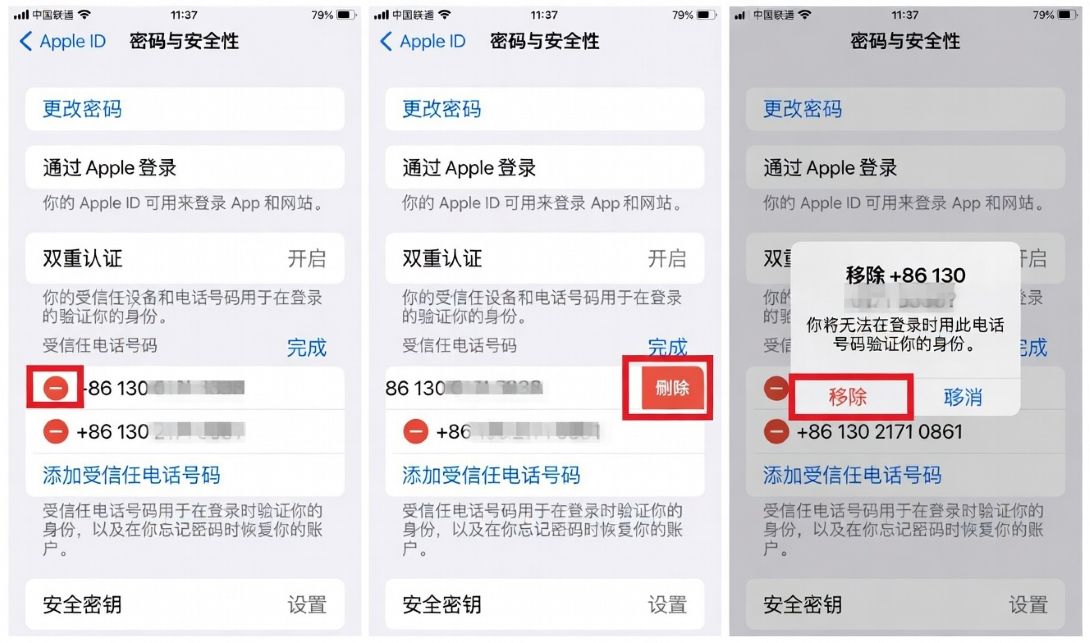
Adding and verifying the new number first, then deleting the old one, avoids the situation where the account cannot be verified.
Method 2: Desktop workflow
1. Open a browser and visit Apple's official site: appleid.apple.com. Enter your Apple ID account and password, then click the arrow button to sign in.

2. When signing in, the system will send a verification code to your bound phone. Enter the code you receive on your phone into the page to complete two-factor authentication.

3. After signing in successfully, find the "Account Security" section on the account page and click to enter it.

4. Click the "+" sign to the right of the number list to start adding a new phone number.

5. Enter the new phone number in the input field, then click "Continue".

6. The system will send a verification text to the new number. Enter the code you receive into the field and click "Continue" to complete verification.

7. After the new number has been added and verified successfully, click the "−" sign after the old number to prepare to delete it.

8. In the confirmation window that pops up, click the "Remove" button. The old phone number is then successfully removed, and the number change is fully complete!

After finishing, we recommend going back to the "Password & Security" page to confirm that the number has been updated to the new one.
? Summary
That covers the complete process for changing the phone number on your Apple ID account. Whether through the "Settings" page on mobile or through appleid.apple.com on desktop, the steps are very simple——add and verify the new number first, then delete the old one. Updating your bound phone number promptly is an important step in protecting your account's security, so we recommend doing it as soon as you change phone numbers.