
In the field of AI-assisted programming, Claude Code (the command-line Agent tool released by Anthropic) is rapidly becoming a developer favorite. Beyond its powerful code comprehension, its most “killer” feature is undoubtedly Skills.
If you feel like you have to repeatedly type long Prompts to get Claude to follow specific coding conventions, or if you wish it could automatically run a series of complex local scripts, then Skill is the feature tailor-made for you.
This article will give you an in-depth look at what Skills do, how they work, and walk you through creating your own custom skill step by step.
?️ What is a Claude Code "Skill"?
Simply put, a Skill is a combination of the “short-term memory” and “toolbox” that you plug into Claude.
In Claude Code (CLI), a Skill is essentially a folder containing a specific instruction file (SKILL.md) and related resources (such as scripts and templates).
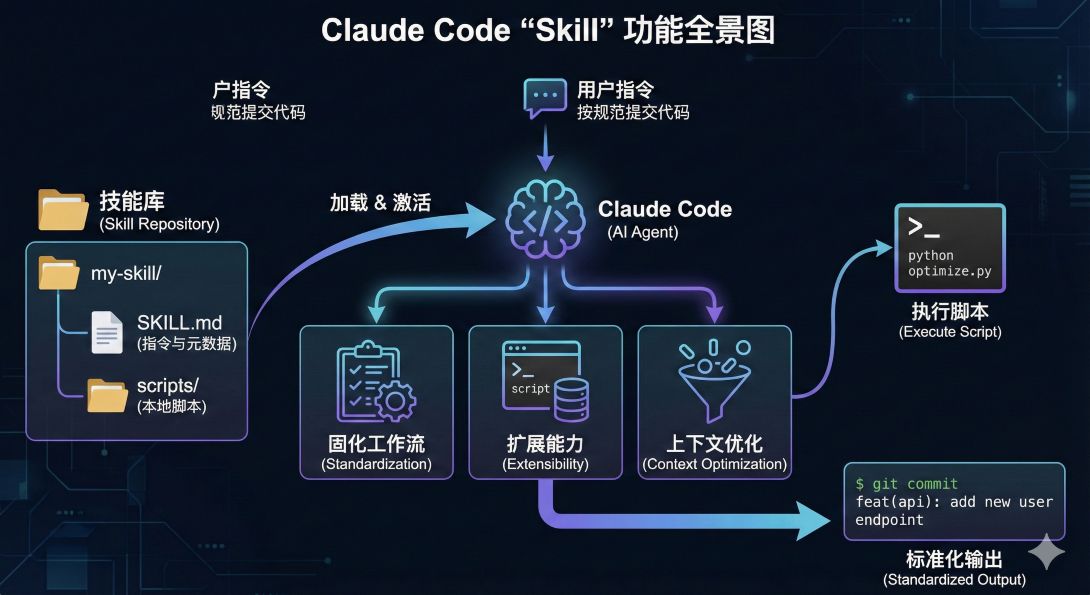
Its core functions:
-
Standardization: Turn complex Prompts into reusable, callable “skills.” For example: “Generate API documentation following the company's V2 architecture.”
-
Extensibility: Allow Claude to call local scripts (Python, Bash, etc.) to do things it cannot do on its own (such as operating a database or generating binary files in a specific format).
-
Context Optimization: It adopts the principle of Progressive Disclosure. Claude does not load the full details of every skill at once; instead, it first reads the “summary,” and only loads the detailed instructions when it decides they are needed, thereby saving Tokens and keeping the context clean.
? The Structure and Principles of a Skill
A standard Skill is just a folder placed in a specific directory.
A typical file structure looks like this:
Plaintext
my-skill/                  <-- Skill folder
├── SKILL.md               <-- Core: contains metadata and detailed instructions
├── scripts/               <-- Optional: stores Python/Bash scripts
│   └── optimize_img.py
└── assets/                <-- Optional: stores templates or reference files
    └── template.json
The core file: SKILL.md
This is Claude's “instruction manual.” It must include Frontmatter (a metadata header) that tells Claude what the skill is called and when to use it.
---
name: image-optimizer              # Skill name (unique ID)
description: Use this skill when the user wants to compress or optimize PNG/JPG images in the project.  # Trigger condition
---

# Image Optimizer Guide

When the user asks to optimize images, follow these steps:
1. Confirm the target folder the user wants to optimize.
2. Use the `scripts/optimize_img.py` script to process them.
3. Report how many images were optimized and how much space was saved.
⚡️ Hands-On Tutorial: How to Set Up Your First Skill
Suppose we want to create a "Git Commit Convention Assistant" that makes Claude strictly follow the Angular Commit Message convention (such as feat:, fix:, etc.) every time it commits code.
Step 1: Find the skills directory
The Claude Code CLI automatically scans the following two locations:
-
Global skills:
~/.claude/skills/(applies to all projects) -
Project skills:
.claude/skills/in the project root (applies only to the current project)
Beginners are advised to start with the global directory.
Step 2: Create the folder
Open a terminal and run:
mkdir -p ~/.claude/skills/conventional-commitStep 3: Write SKILL.md
Create a SKILL.md file in the folder and fill in the following content:
---
name: conventional-commit
description: This skill must be used whenever the user asks to commit code (git commit) or generate a commit message. It ensures that all commits comply with the Conventional Commits specification.
---

# Conventional Commits Guide

You are a Git commit expert. When the user asks to commit code, **strictly** follow the rules below. Do not ask the user for preferences; just execute.

## 1. Commit format
The format must be: `(): `

### Type list:
- `feat`: New feature
- `fix`: Bug fix
- `docs`: Documentation change
- `style`: Code formatting adjustment (does not affect logic)
- `refactor`: Refactoring (no bug fix, no new feature)
- `test`: Test cases
- `chore`: Changes to the build process or auxiliary tools

## 2. Execution steps
1. Analyze `git status` and `git diff` to understand the changes.
2. Generate a commit message that conforms to the format above.
3. **Show the generated commit message to the user** and briefly explain why you chose that type.
4. Only run `git commit -m "..."` after the user confirms.

## 3. Prohibitions
- Do not use vague commit messages such as "update code" or "fixed bug".
- The description must be written in English (unless the user specifically requests Chinese).
Step 4: Test that it works
-
Restart or open a new Claude Code terminal session.
-
Make a change to any file.
-
Enter the command:
commit these changes. -
Observe: Claude will show "Activating skill: conventional-commit" during its thinking process, and then generate a properly formatted commit message according to your Markdown rules.
? Advanced Tips: Skills with Scripts
The power of Skills lies in the fact that they can contain executable code.
For example, you can build a "Database Seeder" skill:
-
Put a Python script
seed_users.pyunderscripts/. -
In
SKILL.mdwrite: "When the user needs test data, runpython {skill_dir}/scripts/seed_users.py". -
Claude will automatically recognize the path and run the script, without you having to type the command manually.
Setup Tips (Best Practices)
-
The Description is key: Claude decides whether to load a skill based on the
descriptionfield. The description should contain “trigger words,” for example “When the user mentions X...”. -
Do not hardcode secrets: Never write an API Key inside a Skill file. The script should read it from an environment variable.
-
Keep it atomic: A Skill should ideally do only one kind of thing (the Unix philosophy). Don't mix “writing code” and “deploying a server” into a single Skill.
Conclusion
By configuring Skills, you are essentially “programming” your AI assistant. You are no longer a commander shouting orders at the AI every time, but an architect who has designed a precise SOP (Standard Operating Procedure).
Today's Claude Code is not just a chat box; it is an intelligent terminal that can be infinitely extended through the file system.
Next step: Go check your ~/.claude/ directory right now and try creating a simple readme-generator skill that teaches Claude to generate documentation in your team's specific style!
This video is highly relevant because it walks through in detail how to create Claude Code Agent Skills in 2026 (i.e., the current latest-version environment), covering the complete process from creating the folder structure to writing SKILL.md and testing.