
I. Login Tutorial:
(1) First open the Google official site (click to jump)
(2) Click “Sign in” or “Log in” in the top-right corner
(3) After entering your “account” and “password”, you may encounter the following identity verification:
1. Requires a recovery email
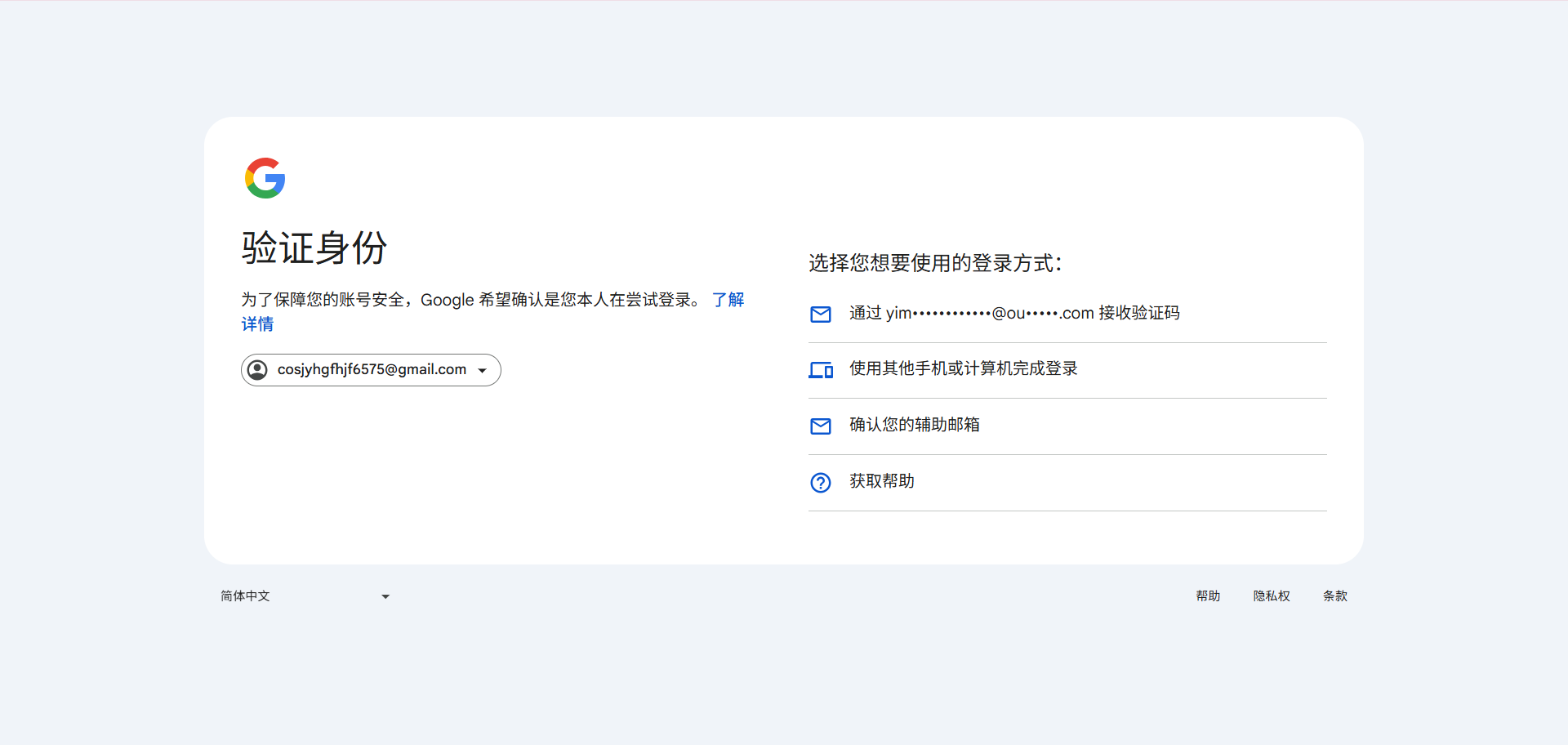
Method one (recommended: this is the fastest verification method): Confirm your recovery email by directly entering the account's recovery email. By using the “Confirm your recovery email” method, simply entering the recovery email lets you log in. However, to prevent the account from being banned later, please refer to Part Two of this article «II. Usage Recommendations» to add a real recovery email.
Method two: Receive the verification code through the recovery email. You need to log in to the recovery email, receive the Google login verification code, and then enter the verification code. (Note: some of the Google accounts sold on this site come with fake recovery emails, so they cannot receive the verification code. Please use this method with caution!)
2. Requires a Google Authenticator verification code (also known as 2FA verification)
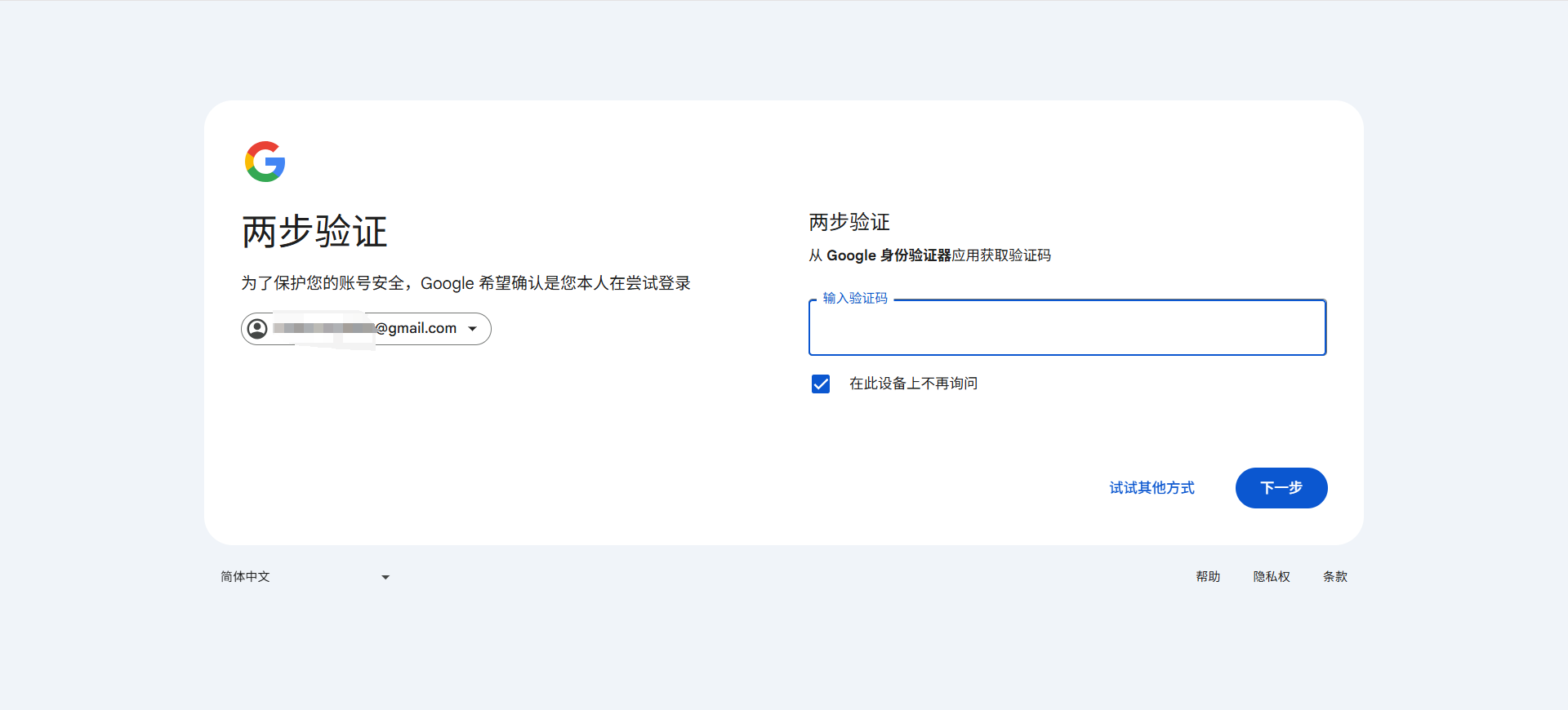
Method one: You can open this website: https://aifuns.xyz/authenticator (click to jump), and in the Secret key (Base32) input box enter the 2FA code to calculate the verification code.
Method two: If you have already bound Google Authenticator before logging in, then simply open Google Authenticator, find the corresponding account, and enter the verification code. (Please refer to Part Three of this article «III. ...Identity Verification», under “3. Additional measures include”, the content of ”(3) Google Authenticator“)
3. Requires phone number verification
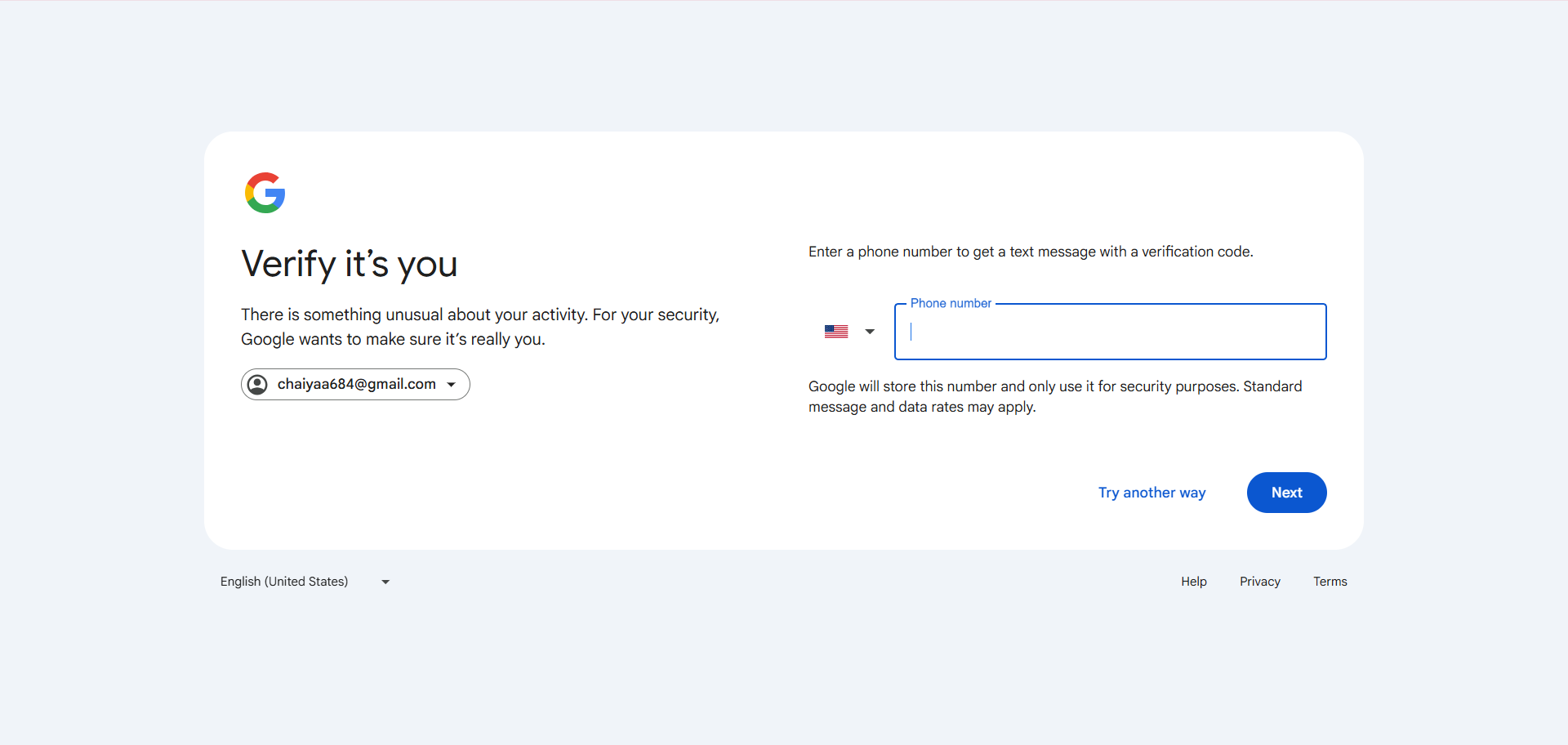
Method one: Please use your own phone number to receive the verification code. (Note: please pay attention to the country code, for example a Chinese phone number needs “+86” added before the number, and a US phone number needs “+1” added before the number)
Method two: If your own phone number cannot receive the verification code or for other reasons, please ask this site for help! (Note: every Google account sold on this site comes with one free phone number verification)
Method three: Applicable to some of the accounts provided by this site (including a phone number and a verification-code receiving URL). Enter that phone number, go to the verification-code receiving URL to receive the verification code, and enter it to verify!
4. The account has been disabled!
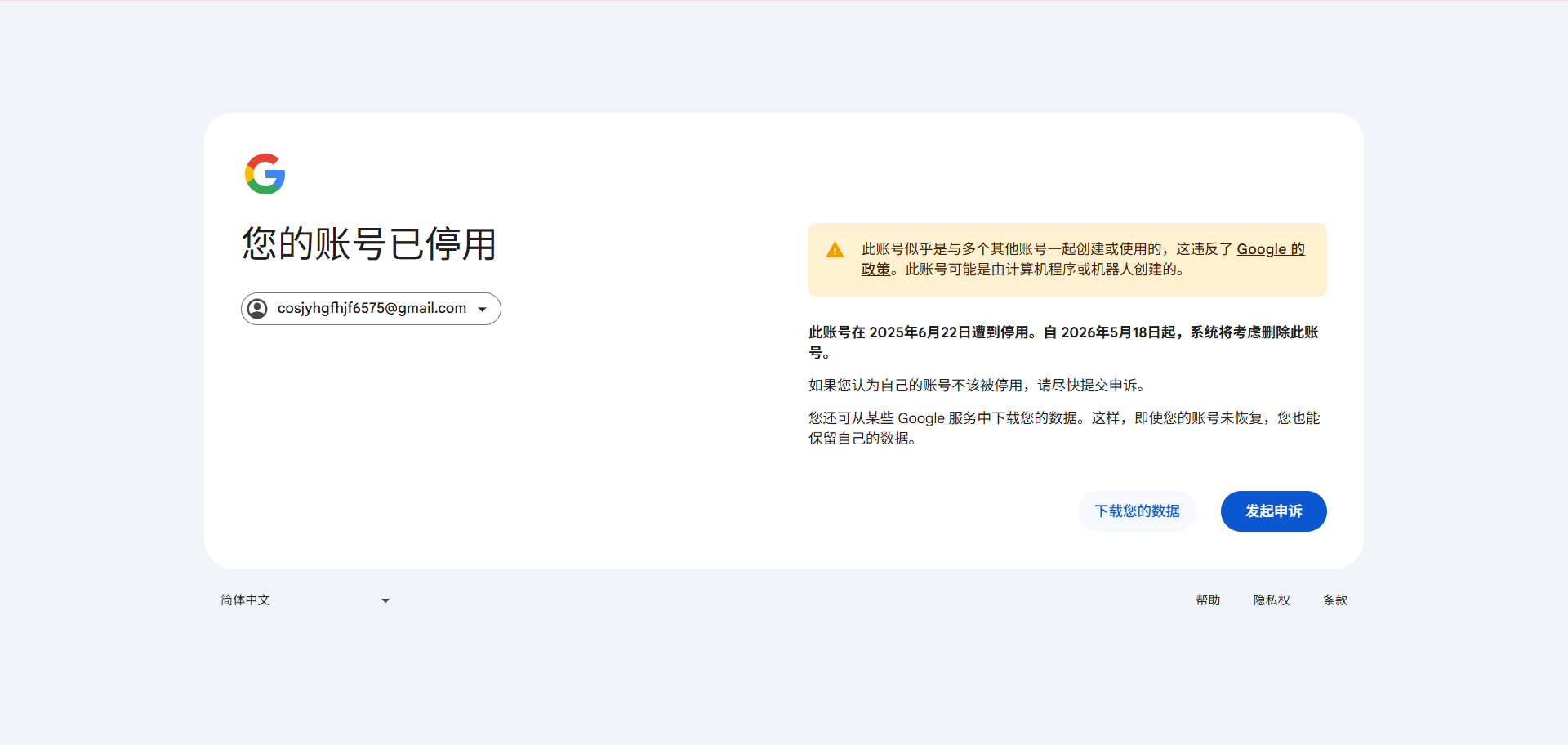
Method: Don't worry, please file an “appeal” and complete the appeal by following the prompted steps. Note: the last step requires you to enter your real email; Google will tell you when you can log in. If you do not log in within one day of receiving the email, the appeal may become invalid and you will need to appeal again!
II. Safety Recommendations (to prevent banning):
(1) For a Gmail account logged in for the first time for <30 days, you should add a real recovery email, add a phone, or add Google Authenticator as soon as possible (for how to add them, please see the explanation at the end) to prevent the account from being banned.
(2) Do not log in to Gmail on emulator devices or untrusted devices. No more than 5 accounts logged in per device.
(3) Alternatively, when logging in to an account, you should open the browser in incognito mode.
(4) Also, do not log in to so many accounts from a single IP.
(5) During the first <30 days after logging in to Gmail, do not sign up for Google services such as Google Ads…
III. To prevent the account from being disabled or frequent phone number verification, please add a real recovery email, phone, Google Authenticator and other identity verification:
1. First go to “Manage your Google Account”
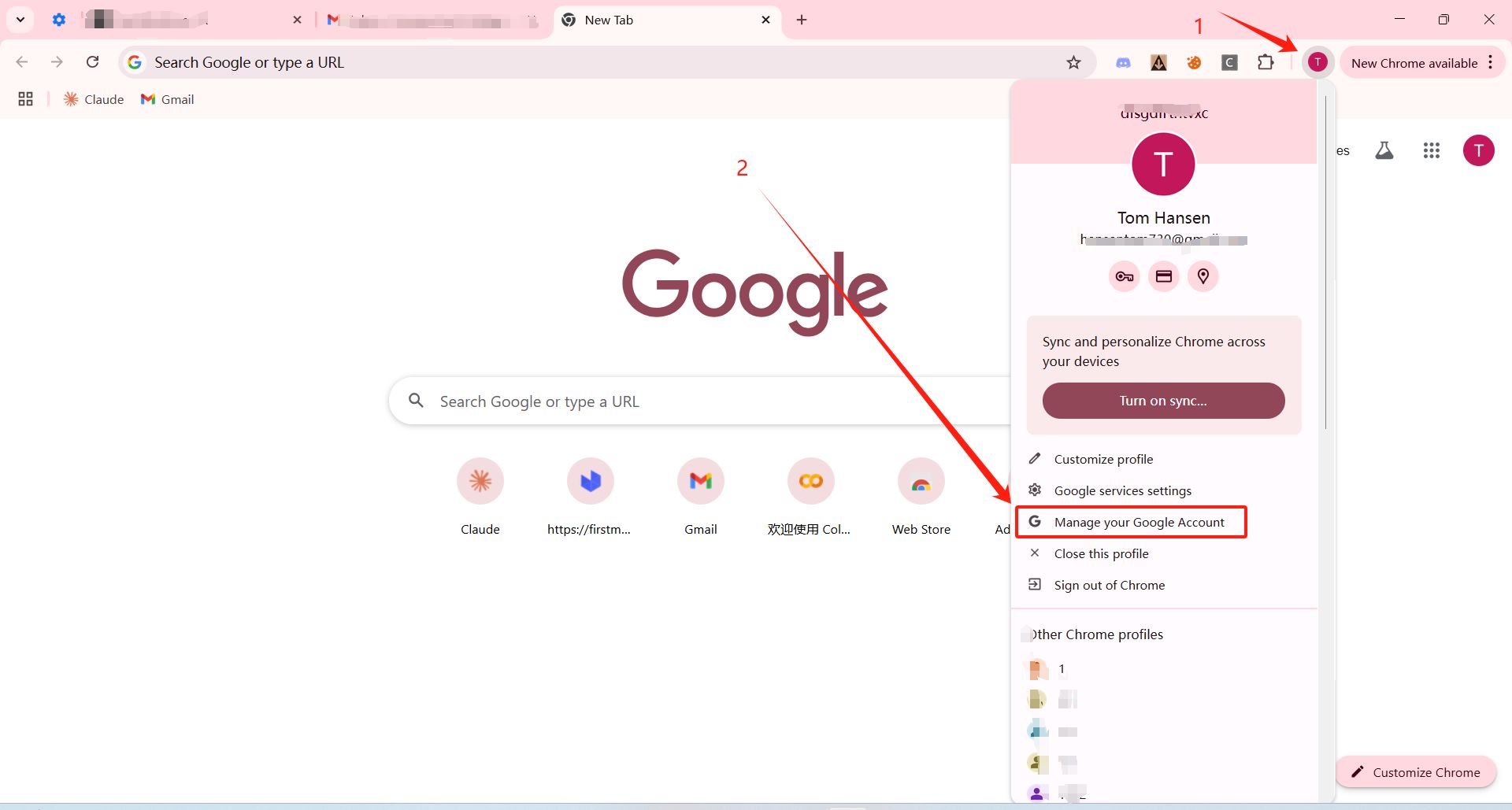
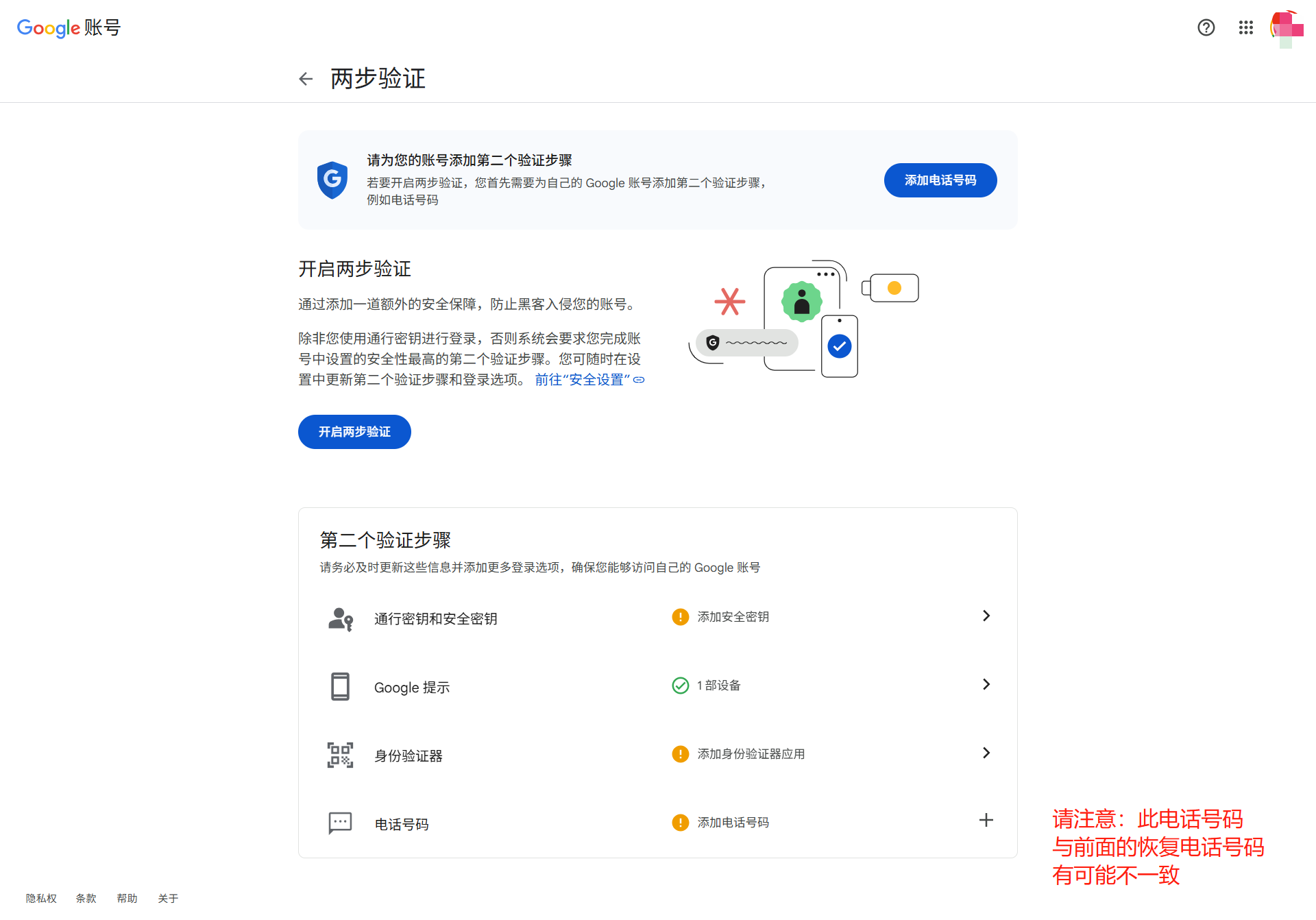
2. Go to the security settings to add a recovery email, a recovery phone number (also called a secondary phone number), and Google Authenticator (also called 2FA verification), and enable two-step verification;
3. Additional measures include:
(1) Passkeys and security keys (Chinese name ”通行密钥和安全密钥“); this method works by adding a fingerprint, Face ID (Apple devices), USB keys, etc. (this method is currently the most effective measure to prevent account banning).
(2) Backup Codes (Chinese name ”备用代码“); with this method Google provides 9 one-time codes (usually letters and numbers). When you log in to Google, if you choose this method to verify, you will consume one of the codes, which means that the next time you log in and choose this method to verify, that same code will be invalid.
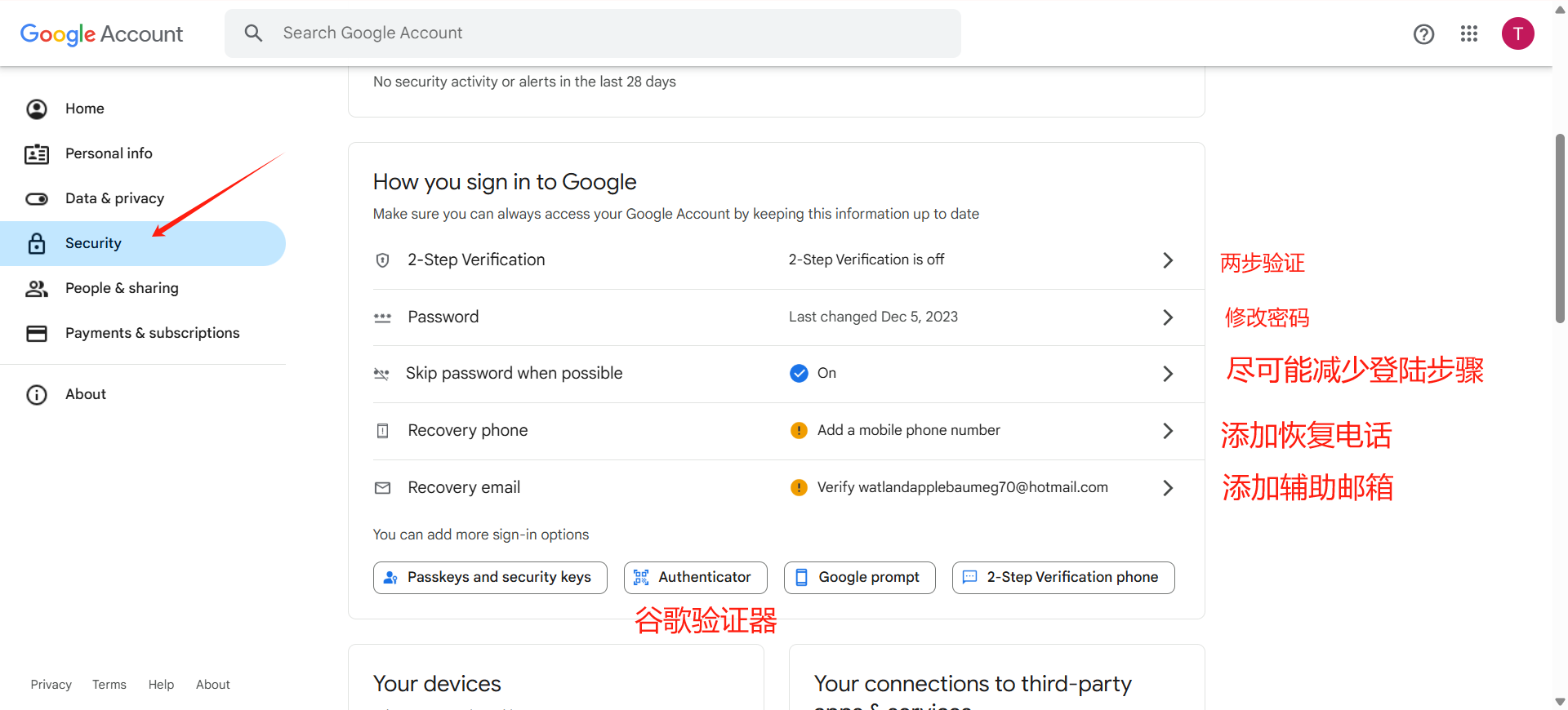
(3) Google Authenticator (also called 2FA verification) is an APP installed on a mobile device (such as a phone, tablet and other devices). You can download it from Google Play (click to jump) and the Apple Store (click to jump). You can also register as one of our users and then download the Android version of the AIFUNS APP from the user center to use! You can also open this website: https://aifuns.xyz/authenticator (click to jump), and in the Secret key (Base32) input box enter the 2FA code to calculate the verification code. (Note: the 2FA code we provide is the authenticator code; you can keep using it or delete and set a new one according to your own needs! (Please refer to method one of “2. Requires a Google Authenticator verification code” in Part One of this article «I. Login Tutorial»)
3. About two-step verification: you only need to enable two-step verification, but please note that the phone number for two-step verification and the recovery phone number can be different; however, please note that you need a phone number that can receive verification code text messages.
Tutorials related to Google also include: Overview of the Google Chrome multi-user feature (click to go directly)
[Condensed Version]
1. Log in: https://gemini.google.com
2. After entering the password, a secondary verification is required. Put the 2FA code into https://aifuns.xyz/authenticator to get a temporary verification code. Note: the 2FA code can be understood as a "phone number" used to receive verification codes
3. Change the language: https://myaccount.google.com/language
4. Important!!! Log out of all devices that are not yours to prevent theft https://myaccount.google.com/device-activity ([after logging in and nurturing the account for 7 days] at this point your device is already a frequently used login device, and you can perform more sensitive operations such as changing the password)
5. Add a recovery email: https://myaccount.google.com/recovery/email
6. Change the 2FA code: https://myaccount.google.com/two-step-verification/authenticator
7. Add a verification phone number: https://myaccount.google.com/two-step-verification/phone-numbers
8. Change the password, important!!!: https://myaccount.google.com/signinoptions/password
9. If you want to change the country, log in to the Google account with an IP from the country or region you want to change to, preferably logging in continuously from that IP for about a week.
https://policies.google.com/country-association-form
After about 2-3 days the system will notify that email of the result of the application; it may fail or it may succeed. The reason for failure is roughly that the time spent logging in to the Google account with the target IP was too short, and you can follow the above steps again.