
Claude Sessionkey code login, convenient, simple, and more stable!Before you start, please first read"Overview of Google Chrome's Multi-User Feature" (click to go directly). If you have multiple Claude accounts, we recommend you read that article!
Claude Sessionkey code logincan be done in two ways: the first is through a Chrome browser (also known as Google Chrome)extensionlogin, and the second is through the browser console! (Do not enable the browser's incognito mode, as it may cause the login to fail!)
Do not click "Log out", otherwise it will cause the Sessionkey code to become invalid!
1. Logging in to Claude through a Chrome browser extension
① First, open the Chrome browser and create a new user browser profile!
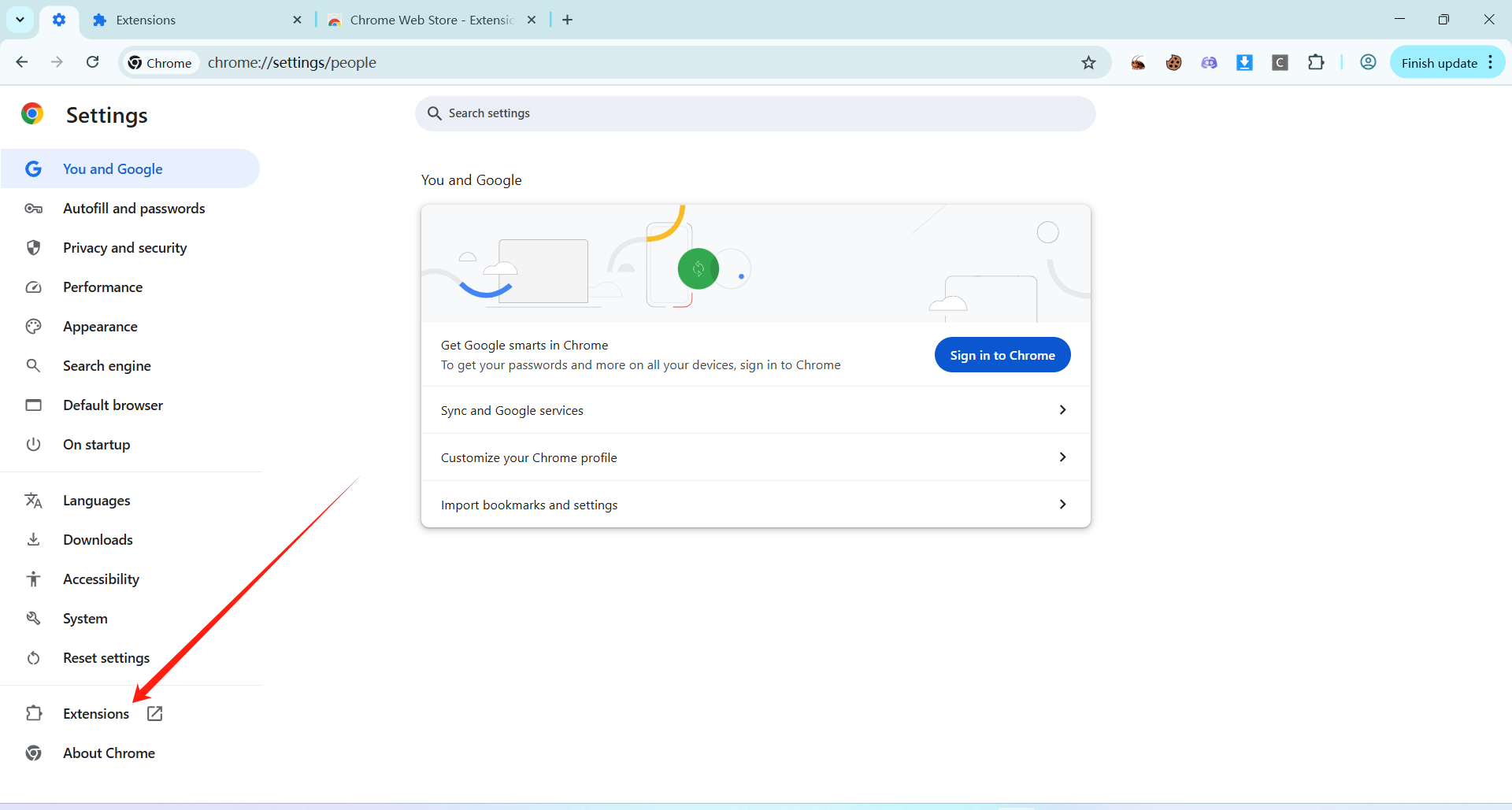
② Click the settings in the top-right corner to enter the Google Chrome settings page, then click Extensions, as shown below:
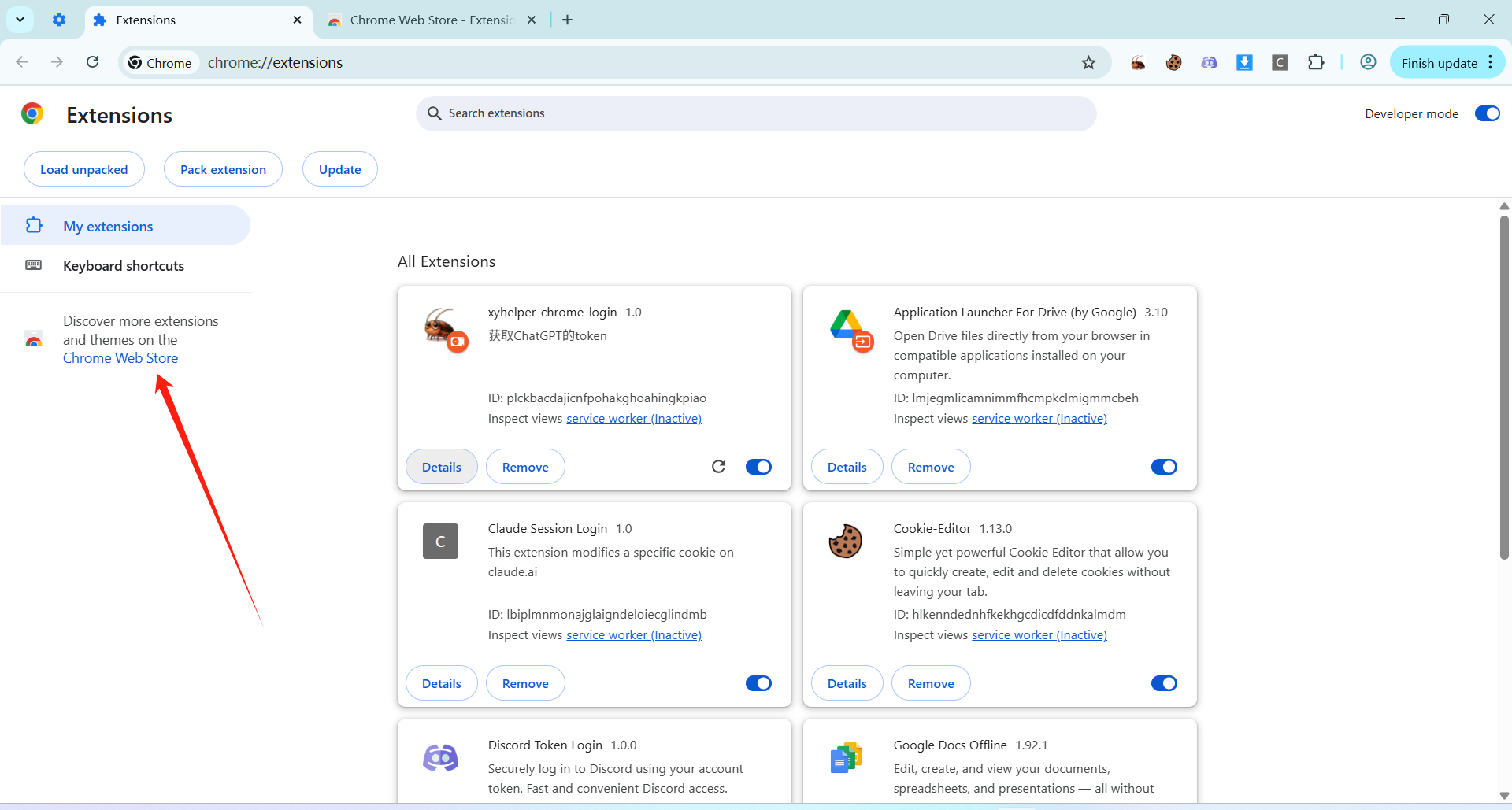
On the Extensions page, click Chrome Web Store to enter the extension store.
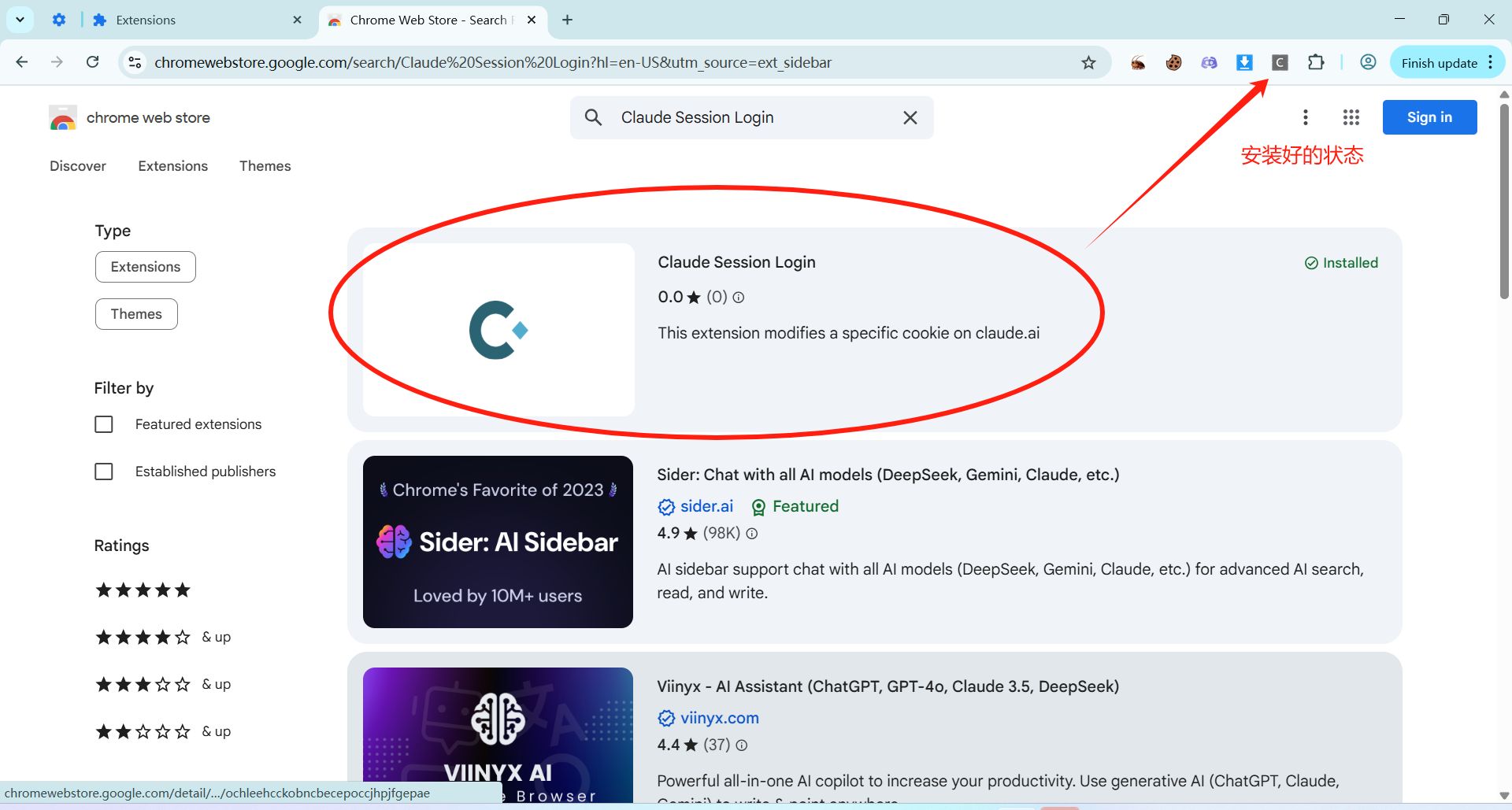
③ Once in the extension store, search for "Claude Session Login" (click to go directly to the installation page), then click install.
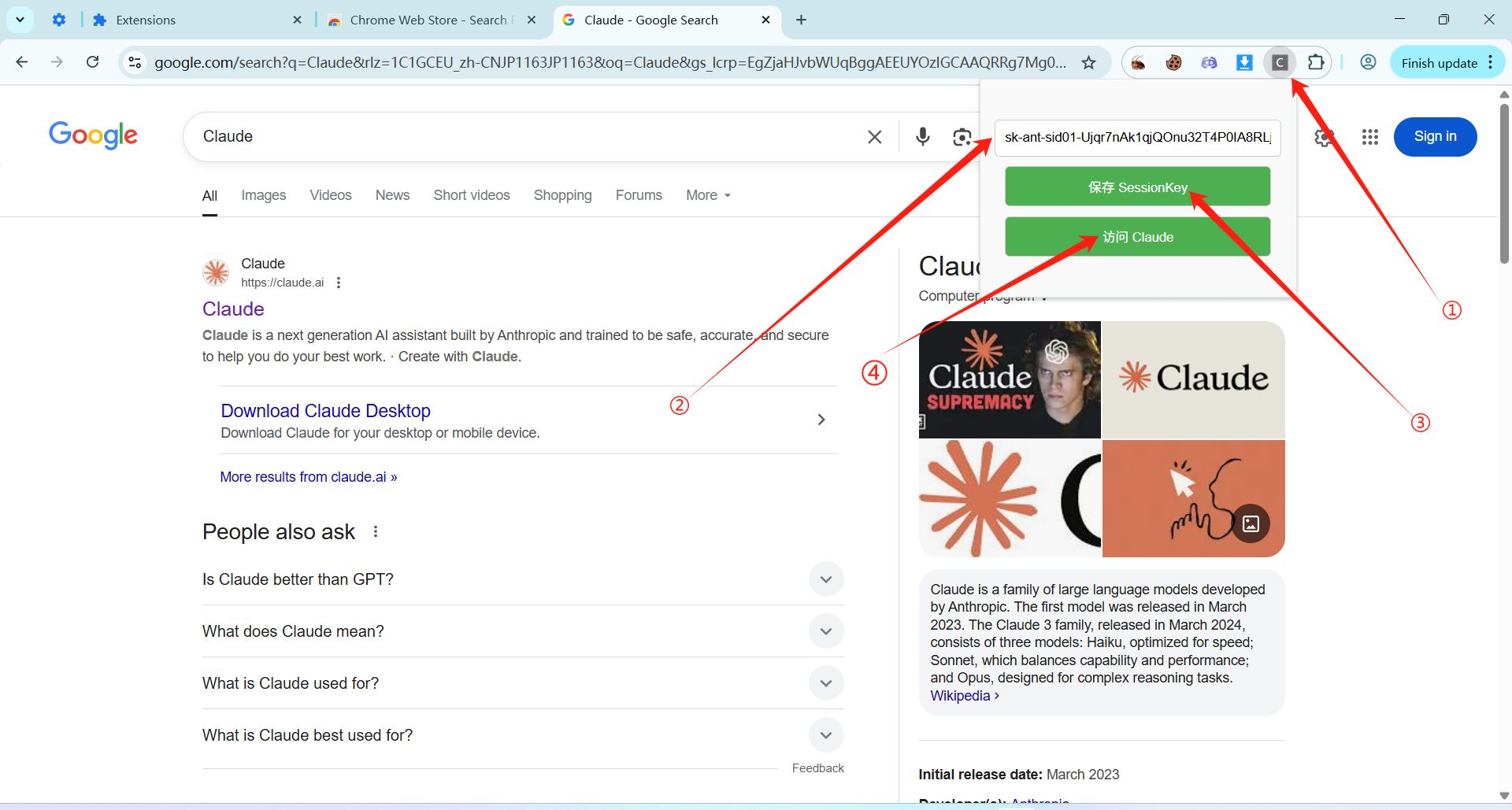
④ Click the "Claude Session Login" icon, enter the Sessionkey code provided by this site, click save, then click to visit the official Claude website, as shown below. You can then log in to Claude without an account or email verification!
2. Logging in to Claude through the browser console
① First, open the official Claude website (click to go directly) in your browser
② Different browsers differ slightly, so please proceed as needed.
- In the Chrome or Edge browser, right-click and select Inspect to open the developer tools! You can also press F12 (on Windows) to open the developer tools!
- In the Safari browser's menu bar settings (shortcut"⌘ (Command) + `` (comma)"), click Advanced and check "Show features for web developers" at the bottom! Finally, click Develop ➡ Show JavaScript Console in the Safari menu bar (shortcut "⌥ (Option) + ⌘ + C")
③ Enter the following code in the console (remember to replace it with your own Sessionkey code) and press Enter to complete the login! (For the first login, you need to type allow pasting to permit pasting; on Mac, it will prompt you (please click "Allow Paste"))
var sessionKeyValue = "Replace with your Sessionkey code";
document.cookie = "sessionKey=" + sessionKeyValue + "; domain=.claude.ai; path=/; Secure";
window.location.reload(true);
[Page including the console]
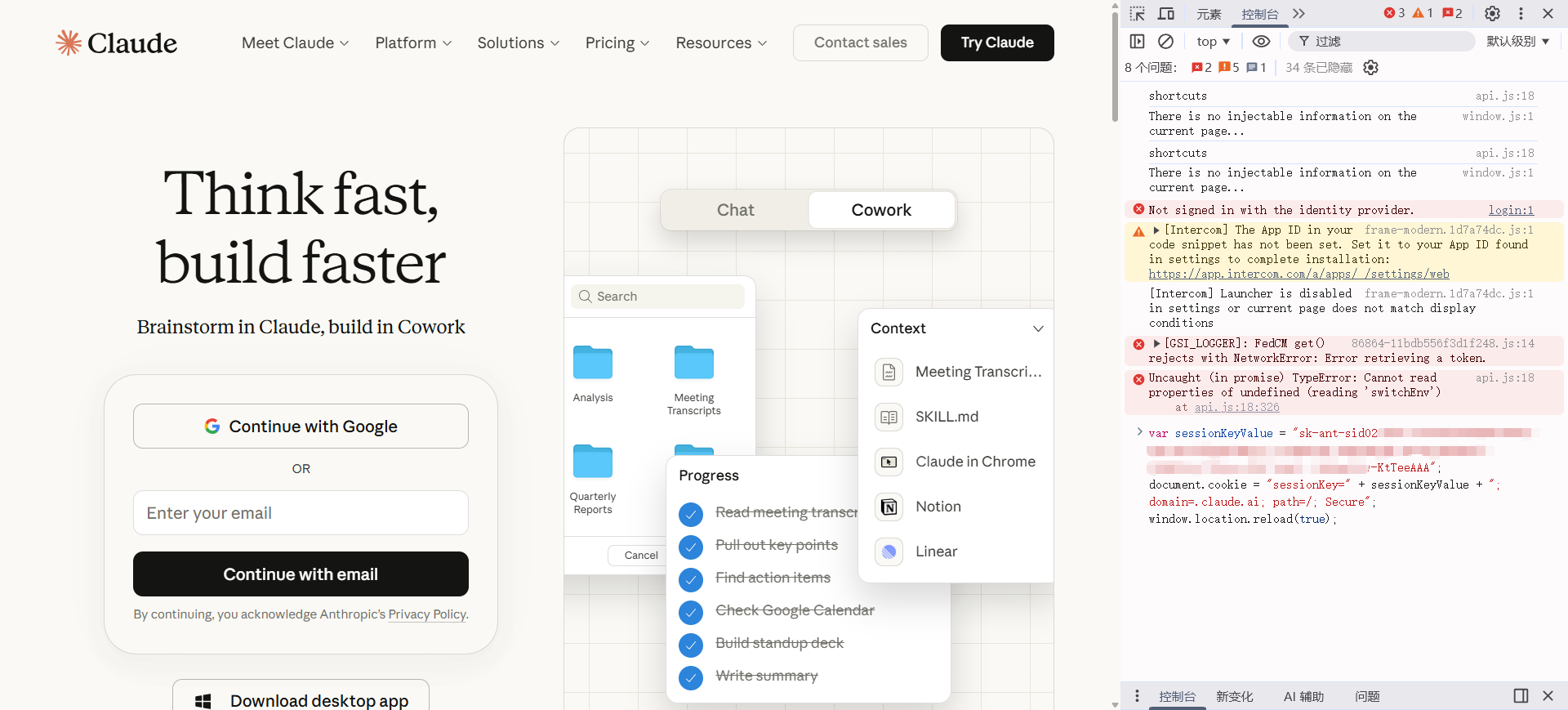
[Note] If your account is not fully logged out, you need to log out of the original account first.
Even if the account is already banned, you can enter the code below in the console to fully log out of the old account (even if it is banned) and log in with the new account!
// 1. Define your Key
var sessionKeyValue = "Replace with your Sessionkey code";

// 2. [Key step] Clear all old local cache and session storage
// This solves the "organization_uuid" error
localStorage.clear();
sessionStorage.clear();

// 3. Clear potentially conflicting old Cookies (tentative clearing to ensure a clean state)
var cookies = document.cookie.split(";");
for (var i = 0; i < cookies.length; i++) {
    var cookie = cookies[i];
    var eqPos = cookie.indexOf("=");
    var name = eqPos > -1 ? cookie.substr(0, eqPos) : cookie;
    document.cookie = name + "=;expires=Thu, 01 Jan 1970 00:00:00 GMT; path=/; domain=.claude.ai";
    document.cookie = name + "=;expires=Thu, 01 Jan 1970 00:00:00 GMT; path=/";
}

// 4. Write the new SessionKey
// Add max-age to ensure it does not become a temporary session, and add the SameSite attribute
document.cookie = "sessionKey=" + sessionKeyValue + "; domain=.claude.ai; path=/; max-age=31536000; Secure; SameSite=Lax";

// 5. Force a redirect back to the chat list page (instead of a simple reload, to avoid interference from old parameters in the URL)
window.location.href = "https://claude.ai/chats";
Although the above steps can achieve a logout, we still recommend that you clean up your browser thoroughly and switch your VPN!