
? First-Time Login & Duo Mobile Binding Tutorial (for SJSU and similar school Gmail Workspace accounts)
? This guide is for users logging in to their school email for the first time and binding Duo Mobile two-step verification. Please use a computer, or enable desktop mode in your phone's browser, to complete these steps.
Video:
? Step-by-Step Process
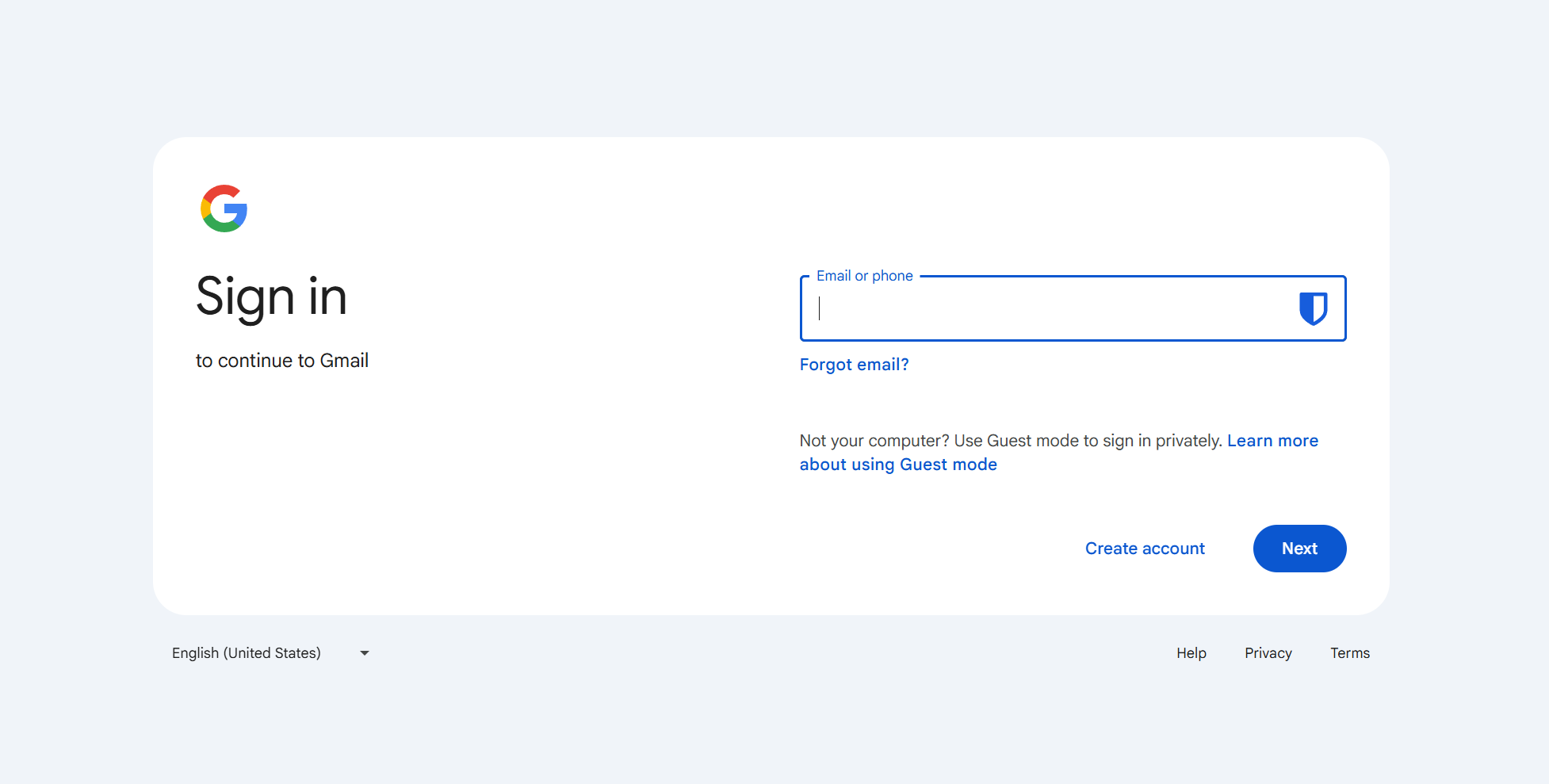
? Step 1: Open the Gmail login page in an incognito window
- Open an incognito window in your browser and go to:https://mail.google.com
- Enter your school email address and click "Next"
? Step 2: Redirect to the Student Center authentication
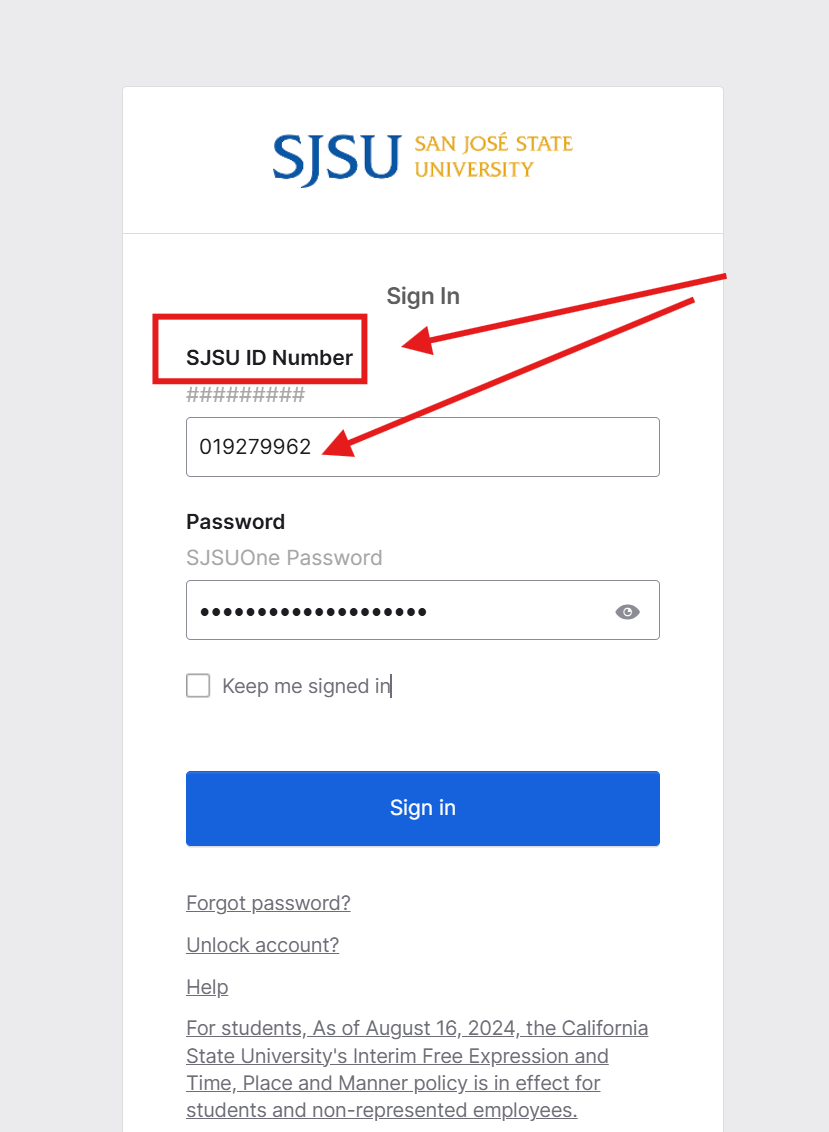
- The system will redirect you to the Student Center login screen
- Enter your student ID and password (⚠️ not your email)
? Student ID ≠ email — be sure to tell the formats apart
? Step 3: Enter the two-step verification settings page
- After logging in successfully, the following page appears with two buttons:
- Duo setup
- Security question setup
If this is not the screen you see, please take a screenshot and contact me, and I will replace it for you.
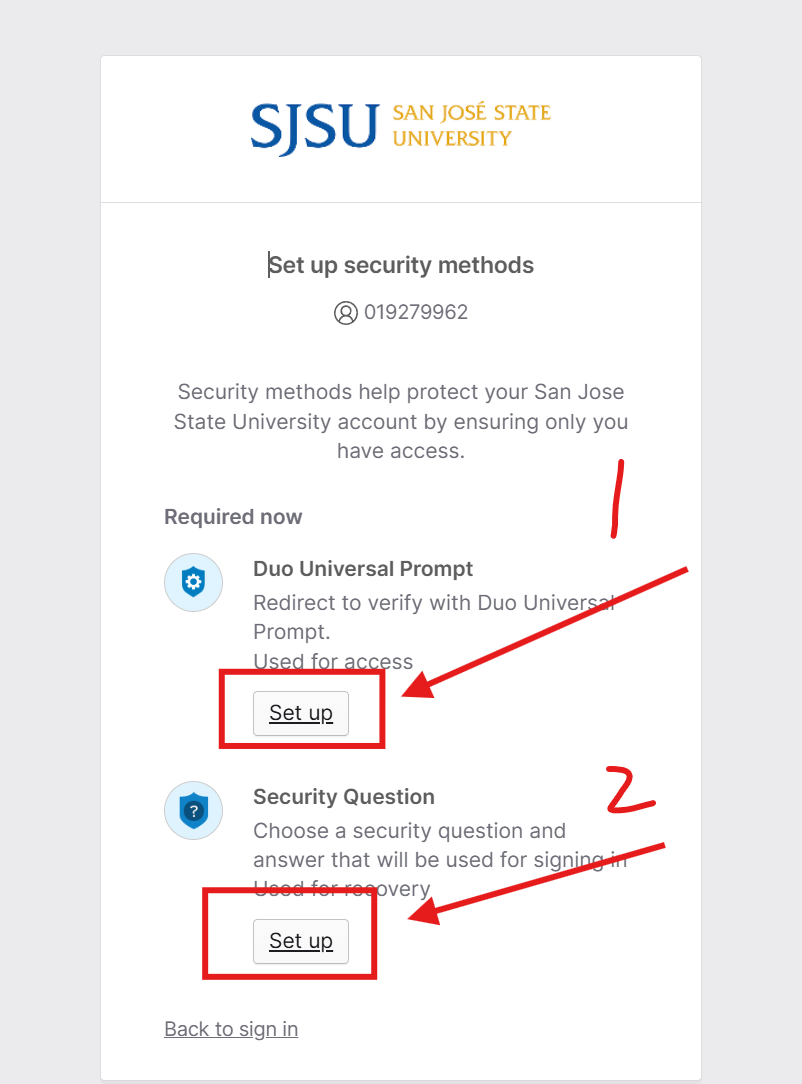
Click the first button, "Set up Duo".
? Step 4: Enter the Duo Mobile setup
If the redirect doesn't succeed, please:
- Switch network or browser
- Make sure you have a working VPN connection
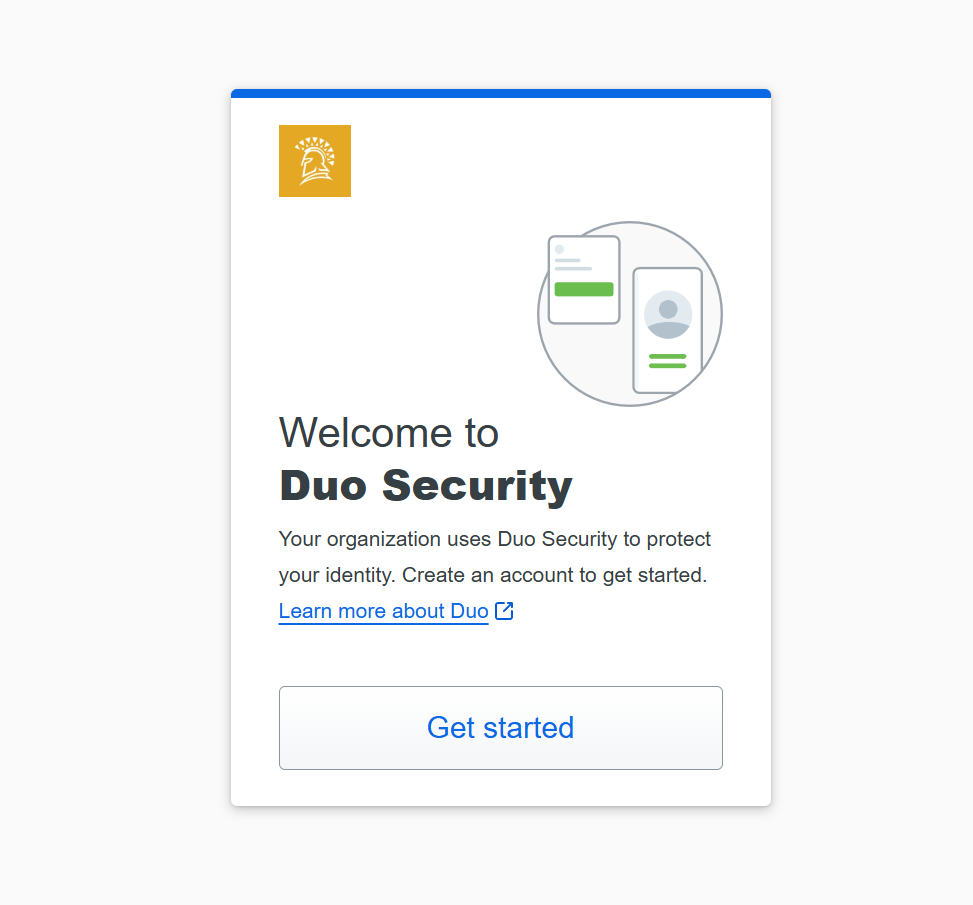
Once successful you will reach the following page; click [Start setup]:
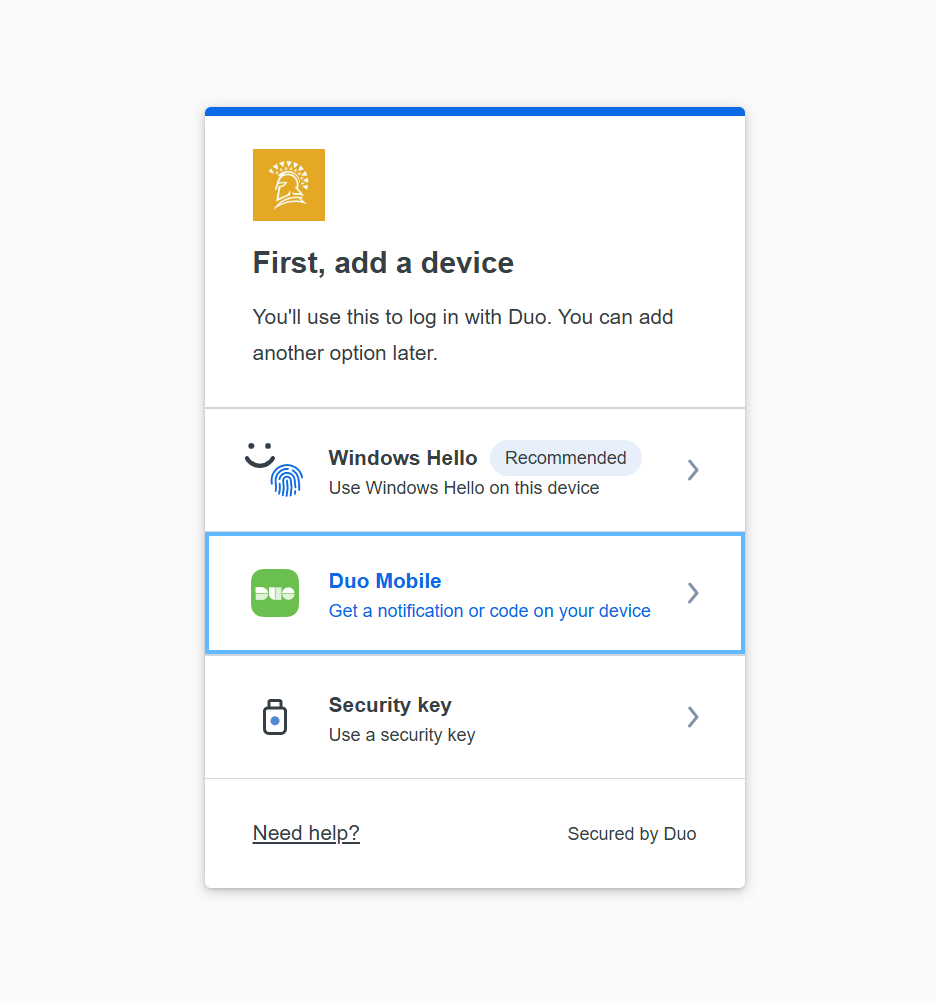
? Step 5: Choose a verification method
Three verification methods appear:
| Method | Description |
|---|---|
| Windows Hello | Fingerprint, face, etc. |
| Duo Mobile ✅ | Recommended method |
| Security key | For example bitwarden, USB key |
Click "Duo Mobile".
? Step 6: Skip binding a phone number (optional)
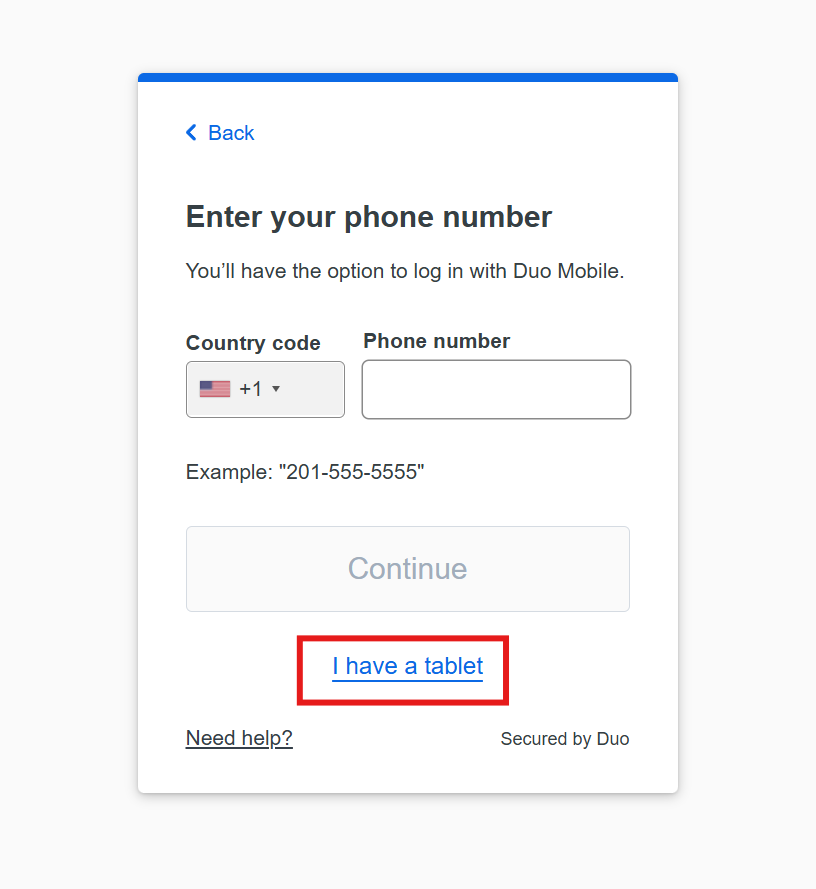
When the screen prompting you to bind a phone appears, you can click "I have a tablet" to skip it (sometimes shown in Chinese as "我有一个平板").
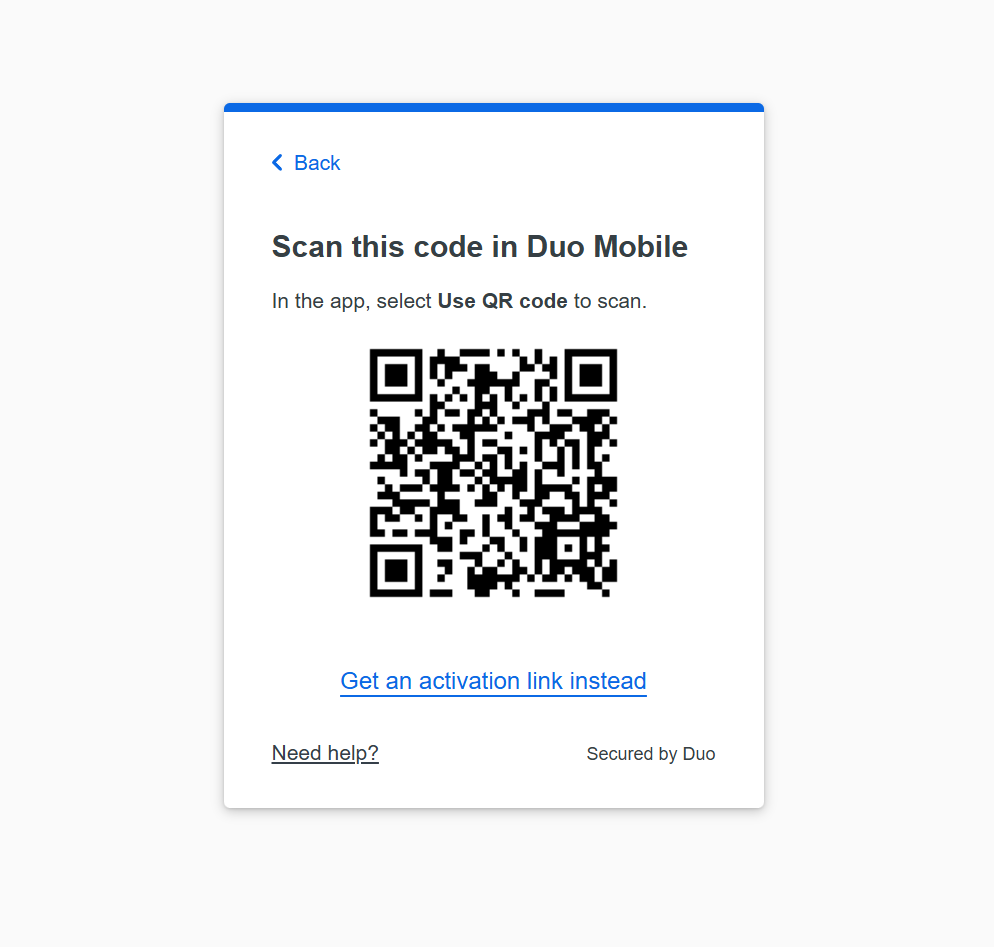
Continue by clicking "Next" and a QR code will appear:
? Step 7: Bind Duo Mobile on your phone
- On your phone, download Duo Mobile (Google Play / App Store)
- Open the app, tap "Add", and scan the QR code on your computer
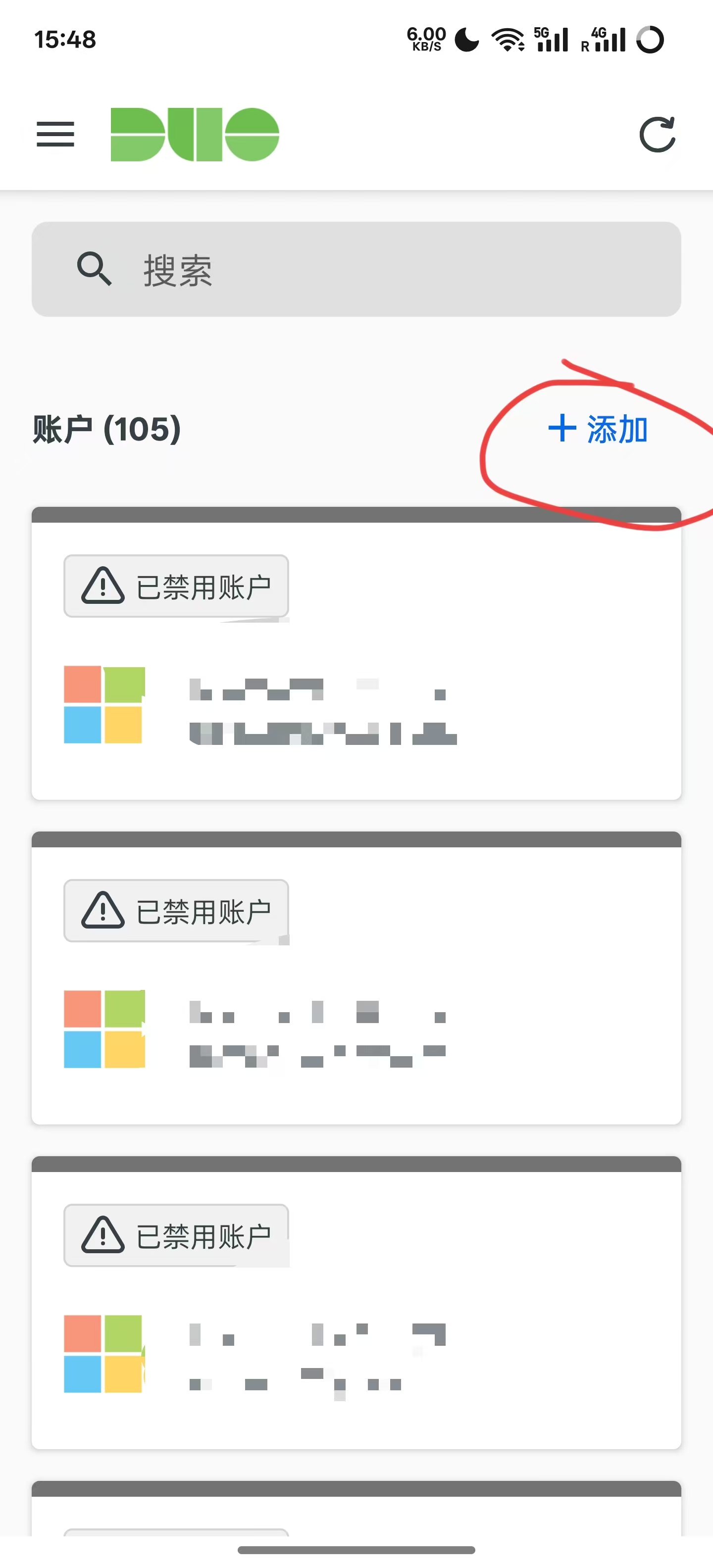
- After binding successfully, click "Continue"
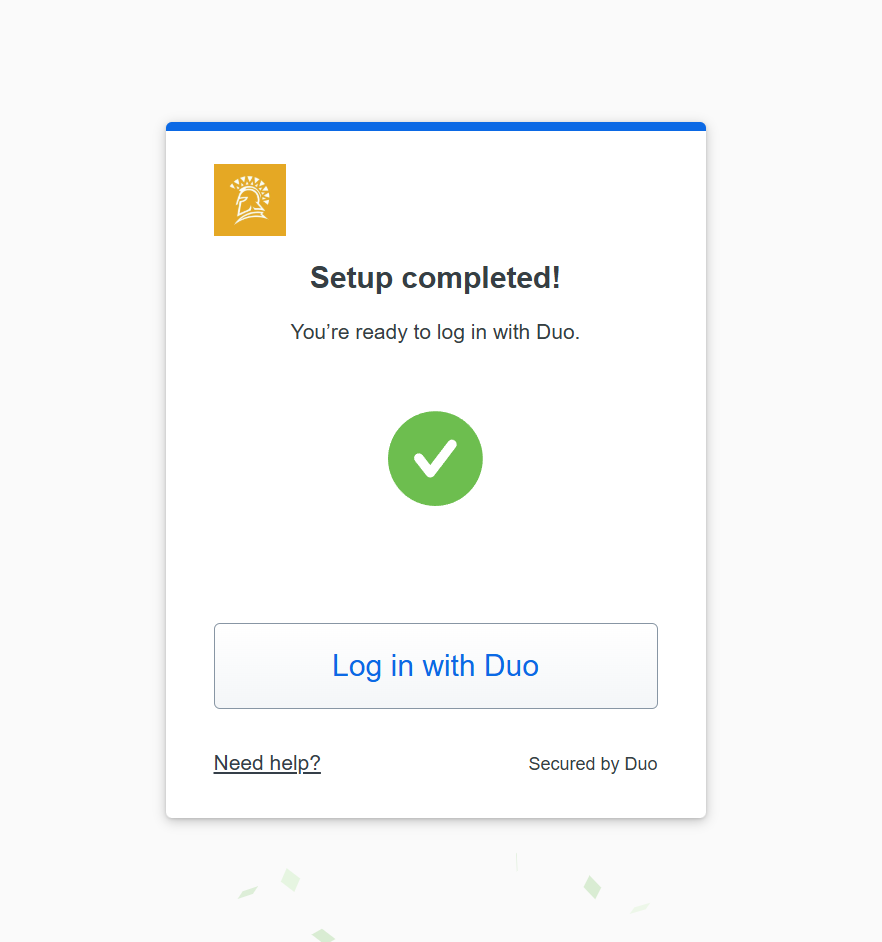
? Step 8: Complete the binding and verification
-
On success you will see the following prompt:
-
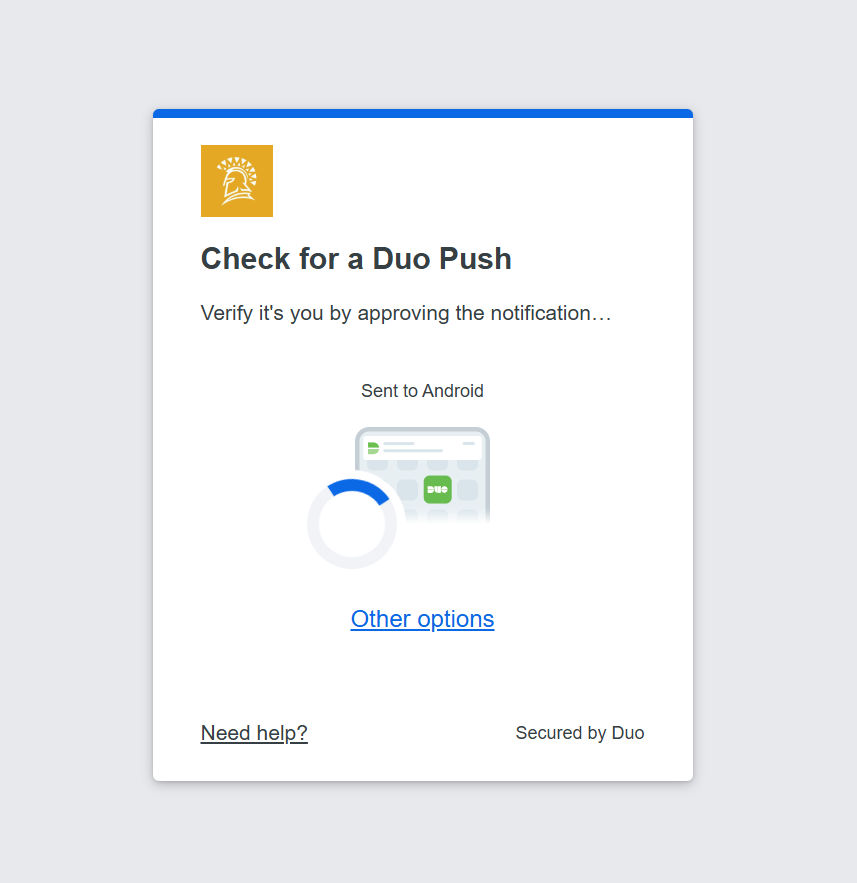
The Duo Push verification screen appears:
- Recommended method: Duo Push (your phone must be connected to a VPN)
- If it doesn't pop up, click Other options → Duo Mobile passcode and enter the code from the app

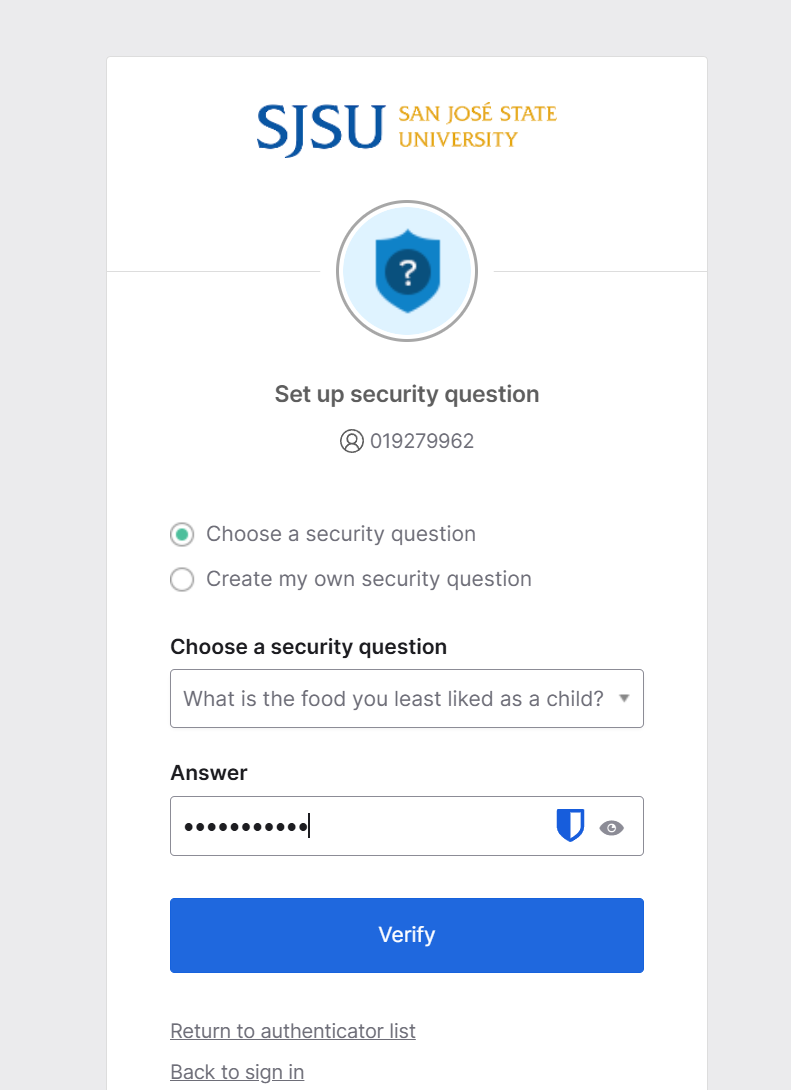
? Step 9: Set up security questions (you can fill these in however you like)
After binding successfully, the system will redirect you to the security question setup:
- Set any question and answer you like
- Click confirm and you're done
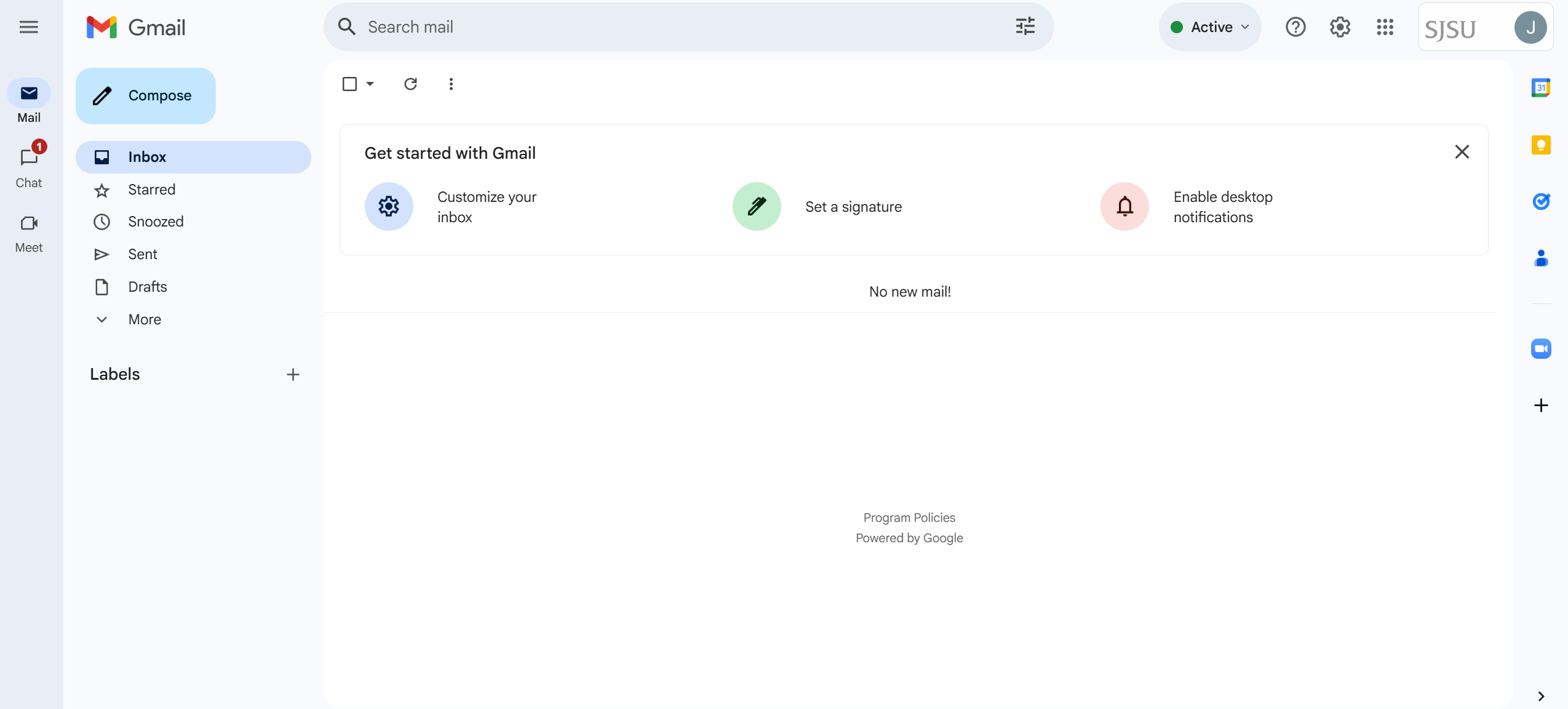
? Step 10: Accept Google's terms and enter your inbox
❓ Frequently Asked Questions (FAQ)
? What is Duo Mobile?
A common two-factor authentication (2FA) tool, widely used at U.S. universities.
? Is it a dedicated account?
Yes. After the first verification it is bound to a single device.
? How do I change the email password?
Go to:https://sjsuone.sjsu.edu/sjsuone/resetpassword
Note: changing the password requires extra registration information; go to https://info.g6j.me to look it up
? Why do I have to use a computer?
Some screens don't display correctly on a phone, so it's best to always use a computer or enable desktop mode in your phone's browser.