
In Gemini Apps, you can turn off the visible watermark on images, videos, and music, following Google’s official steps. This setting applies only to media you create afterward. Images you have already downloaded are not updated automatically. The steps and the scope of the setting follow Google’s official documentation.
Turn off the visible watermark on new media
- On a computer, go to gemini.google.com.
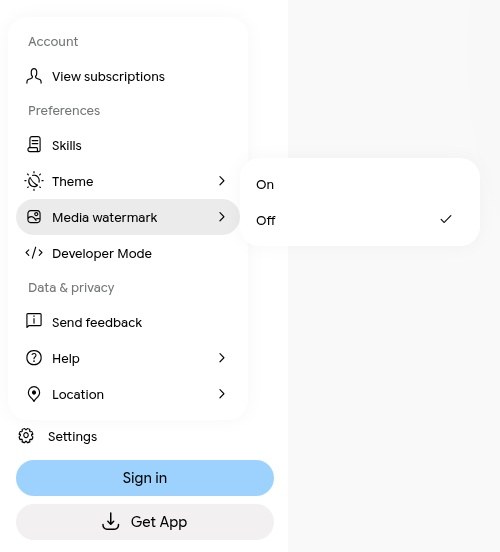
- At the bottom left, click Settings, then Media watermark.
- Set the switch to Off.
The image below is an example of the Settings menu on the web. The interface is in English: Media watermark opens to On or Off, and Off is selected in this example. In the Chinese interface, the official names are 设置 and 媒体水印. On a phone, open the Gemini app or the same site, tap Menu on the left, open Settings, and use the Media watermark switch.
According to Google, turning the setting off only affects images, videos, and music you generate afterward. If it stays on, new images get a visible watermark, videos get a persistent visible overlay, and a watermark may also appear on the video or visual player created with your music. If you are in India, South Korea, or Vietnam, Google says you will only see this setting with an AI Ultra subscription; otherwise a visible watermark is applied automatically to all visual media you create in Gemini Apps. Use the setting that actually appears on your account. These settings apply only to Gemini Apps (web and mobile), not to AI features in other Google products.
What to do with images you already downloaded
Turning the setting off does not change files you have already saved. If the picture is one you generated in Gemini and saved yourself, you can handle the visible badge in 3 steps:
- Open the image in your phone or computer’s built-in Photos app.
- Use Crop and cut out only the small area with the visible badge.
- Save a new copy. Cropping removes a small edge of the picture. Do not alter someone else’s work, and do not present the result as if it were not AI-generated.
A visible watermark is not the same as SynthID
Turning off or cropping a visible badge does not remove the content’s origin. Google still adds an invisible SynthID watermark, plus Content Credentials (C2PA) provenance information, to media created or edited with Gemini Apps.
If you need a Gemini account or want to add a plan, see the product page on this site. Plan options and prices are those shown at the time you order.