
Introduction
There's a saying in the TV world: every television in the world can be divided into Sony TVs and all other TVs. Whether you're a gaming enthusiast or a movie lover, there are plenty of reasons to choose a Sony TV — a clean system interface with no ad pop-ups, dual support for Dolby Vision and Dolby Atmos, the cutting-edge XR cognitive processor, and native pairing with the PS5. More importantly, Sony TVs are among the very few devices available in mainland China that support Netflix's TV certification program. That means all you need is a USB drive and the APK file to install Netflix directly on your Sony TV and start watching in 4K with dual Dolby support — no extra set-top box required. Here's our full guide to watching Netflix on a Sony TV, so you can unlock the complete viewing experience your big Sony screen is capable of.
Installation
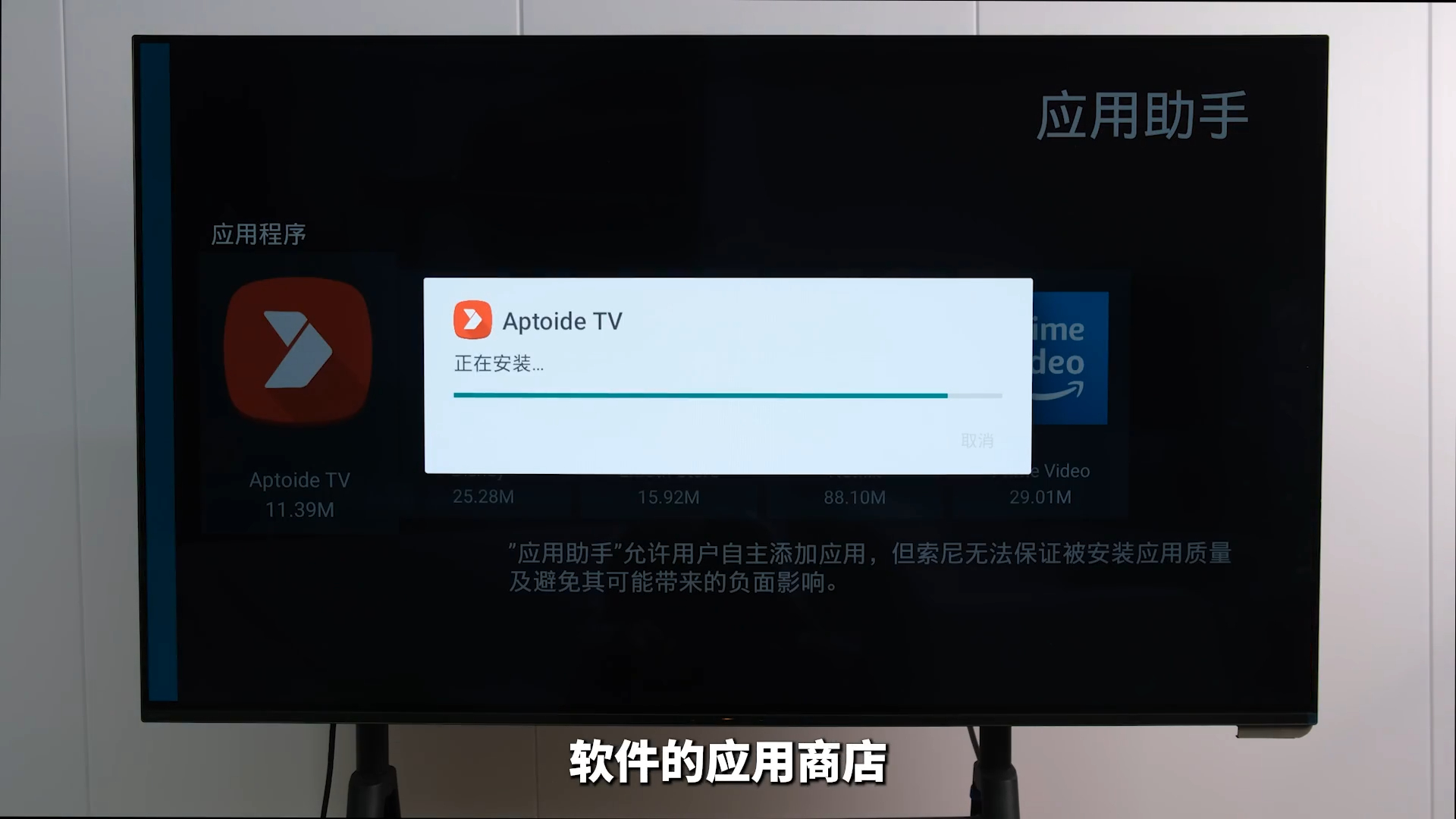
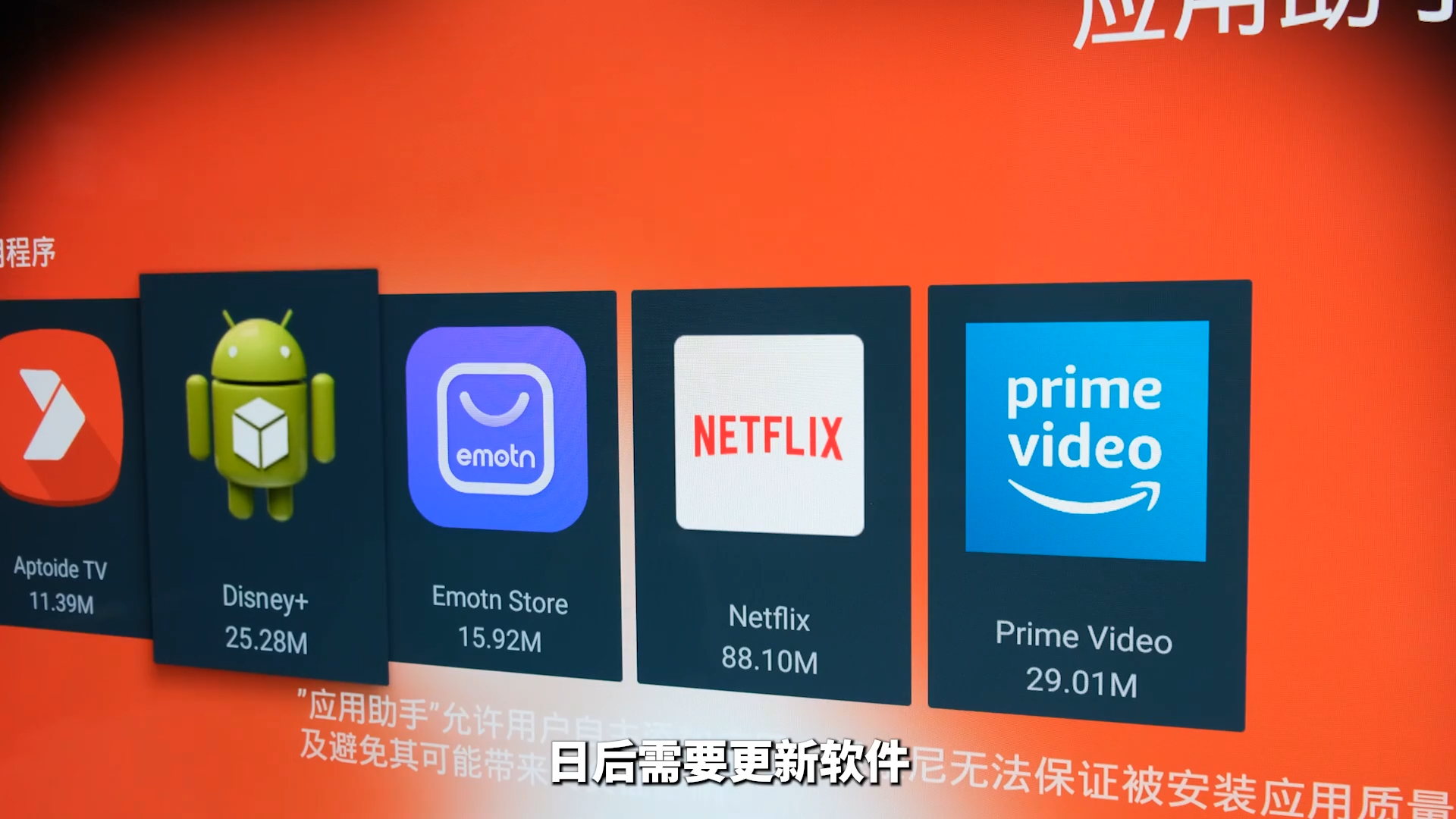
Because Sony TVs natively support Netflix's TV certification program, installing the app only requires a USB drive and the APK file. I've packaged all the APK files mentioned in the video and posted them in the comments — just download them onto your USB drive. Plug the drive into the TV, press the Settings button on the remote from the home screen, and turn on the "Install unknown apps" option inside App Assistant (the built-in tool that lets you install software from a USB drive on the TV). Back on the home screen, open App Assistant from My Apps, and first install AptoideTV, an app store built specifically for installing Google-framework software on TVs. Next, install Emotn Store, another app store aimed at users worldwide. Together, these two stores are enough to download the vast majority of streaming apps.
Once installed, open the app store. When downloading software, pay close attention to the version — always choose the "for TV" version, otherwise you may end up with an iPad or phone version instead, which can cause all kinds of bugs. I've also put together installation packages for the three major streaming apps — Netflix, Disney+, and Amazon Prime — and tested that all three work flawlessly on a Sony TV. Download them to a USB drive from your computer the same way, then install them through App Assistant. Whenever you need to update the apps later, just open AptoideTV or Emotn Store to update them.
How to Use It
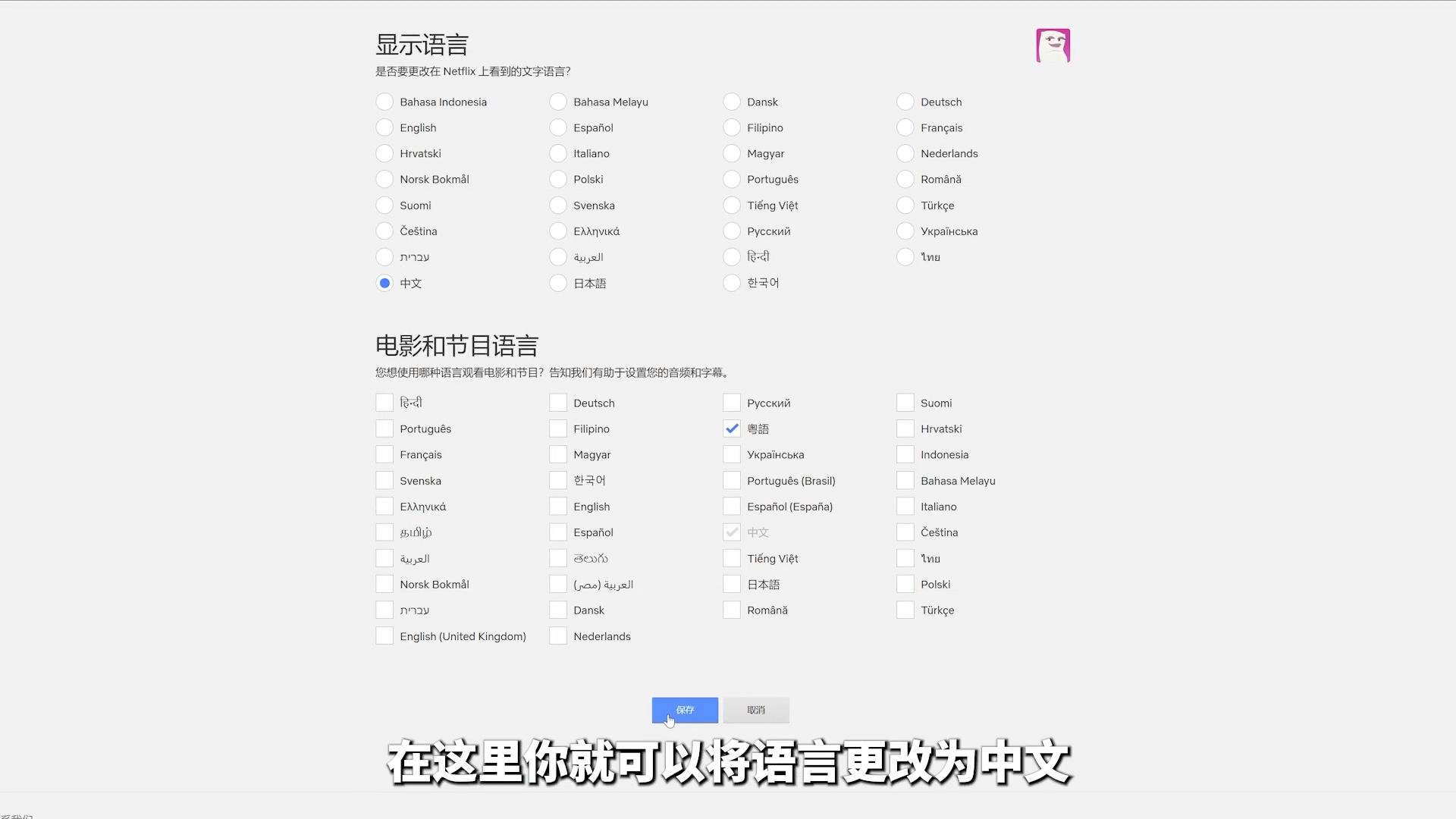
After installation, open Netflix, enter your account and password, and select your profile to get to the home screen. If the interface isn't in Chinese the first time you use it, you can switch it on the PC web version: click your avatar in the top right, click the profile icon in the dropdown, find your profile further down, click the small triangle on the right, then click the subtitle/language option on the second line — that's where you can change the language to Chinese. Click the blue save button below to return to the main screen. On mobile, log in, tap your avatar in the top right, tap the pencil icon, tap your profile, scroll down to the third line, switch it to Chinese, and save to return to the familiar Chinese interface.
Thanks to Netflix's major updates over the past couple of years, you now get not just a Chinese UI but native Chinese subtitles — and some shows even have Mandarin or Cantonese dubbing that you can switch to at any time while watching. Netflix has also optimized search on TV with first-letter input: to find Breaking Bad, for example, you don't need to painstakingly type out the full title on the remote — just enter "jmds" (the pinyin initials) and it comes right up. All of this just shows that Netflix currently works great in mainland China — it doesn't yet touch on the special integration between Sony TVs and Netflix. Below, I'll walk you through some Sony-exclusive Netflix features.

Advanced Features
Open a title on Netflix, press the Settings button on the remote, and open the picture calibration menu. You'll notice that, unlike most streaming apps which only offer modes like Standard, Vivid, or Cinema, Sony TVs have an extra "Netflix Calibrated Mode." This feature was jointly developed by Netflix and Sony in 2018, designed by color experts specifically for this purpose. When it first launched, it was only available on Sony's Master Series and flagship models like the A9F and Z9F, but it's now rolled out across Sony's entire TV lineup. On Netflix, regardless of the type of content — whether or not it supports 4K, HDR, or Dolby Vision — you can turn on Netflix Calibrated Mode to experience the most accurate colors, the most precise motion, and the truest-to-life action, reproduced down to the finest detail.
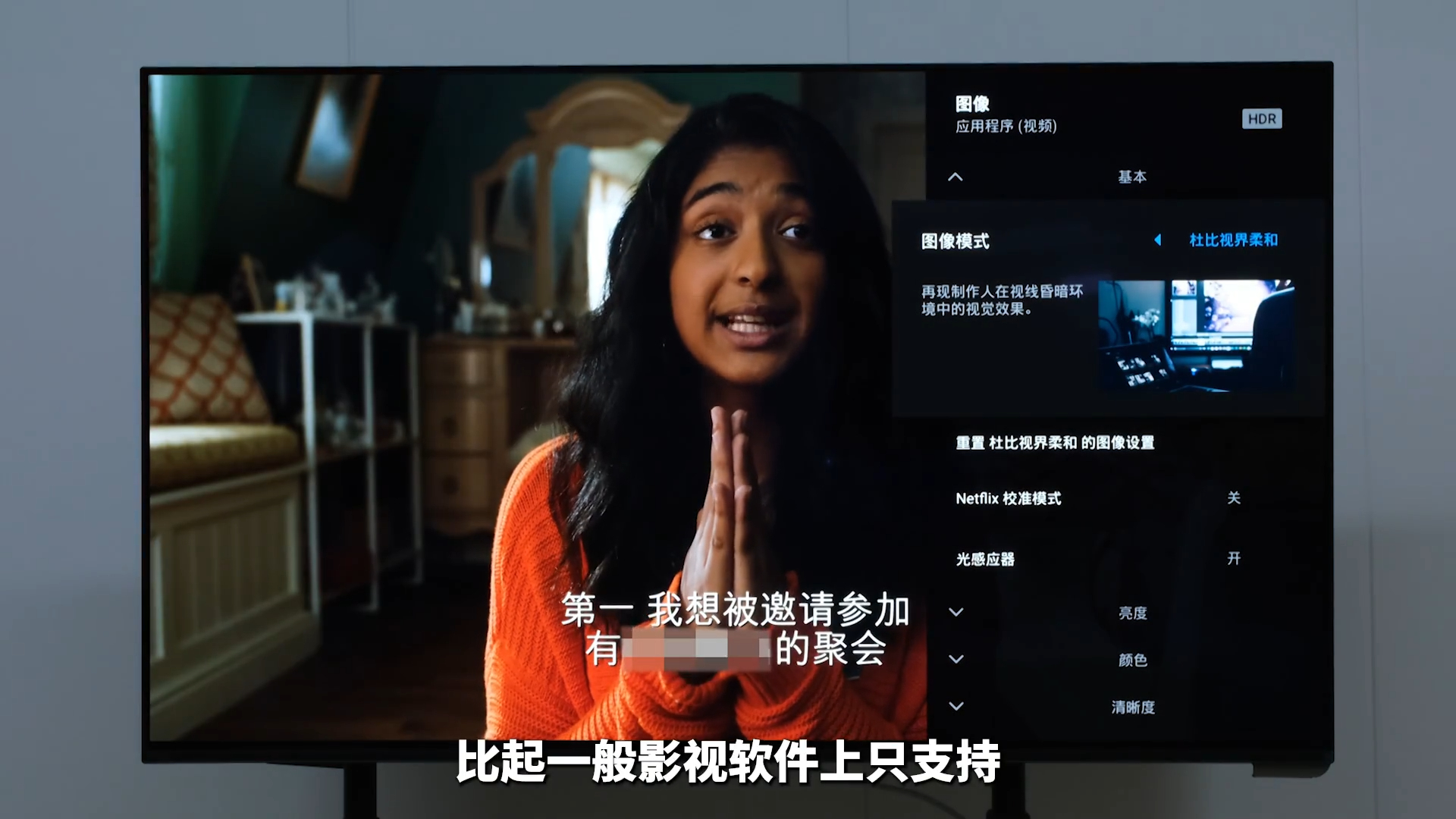
In my own experience, the improvement from Netflix Calibrated Mode is relatively small for titles that already support Dolby Vision — for vibrant, colorful content it looks similar to Dolby Vision Vivid, and for content with softer tones it looks similar to Dolby Vision Dark/Soft. The biggest improvement shows up on titles that don't support Dolby Vision at all: compared to the so-called Standard, Cinema, or Vivid modes, Netflix Calibrated Mode delivers noticeably more accurate, true-to-life colors.

Sony TVs' Netflix support also includes a native bitrate display. While watching a title, press the on-screen display button on the remote to see the current playback bitrate — in my case, it easily reached 4K at 18Mbps. Because overseas streaming services like Netflix and Disney+ automatically adjust picture quality based on your network speed, the picture may look quite poor the first time you open a title, then gradually get sharper as the bitrate climbs during playback. If you prefer the fixed-quality, buffer-then-play approach used by domestic services like iQiyi, Youku, or Tencent Video, you can also set that up: log into your Netflix account on the website, click your avatar in the top right, click Account, scroll down to find the profile you use, open the settings list, and click Change next to the playback settings row. There you can choose between automatically adjusting quality based on your network speed or using a fixed quality with buffering.

Conclusion
That wraps up this guide to using Netflix on a Sony TV. If you've also got a big Sony TV at home, why not give it a try and see what 4K Netflix looks like on the big screen.