
HeyGen can make a talking avatar video from a photo, and it can also generate B-roll from a text prompt or reference. This article follows the official help center along two starter paths: Photo to Video with Avatar IV, and Creative Studio in Apps. It is a how-to, not a plan-comparison guide. Verified on 22 Nov 2026 (Singapore time). The interface and credit rates can change; use the estimate next to Generate in your account.
Turn a photo into a talking video
Official help says Photo to Video turns a photo plus a script (or audio) into an avatar video. It works well for non-human, cartoon, or 3D faces, as well as real photos. You’ll find it as Photo to Video on the home page, or under Tools / All Apps. The steps are: upload your photo or pick one from the library; write a script or upload audio; if you used a written script, choose a voice; then click Generate.
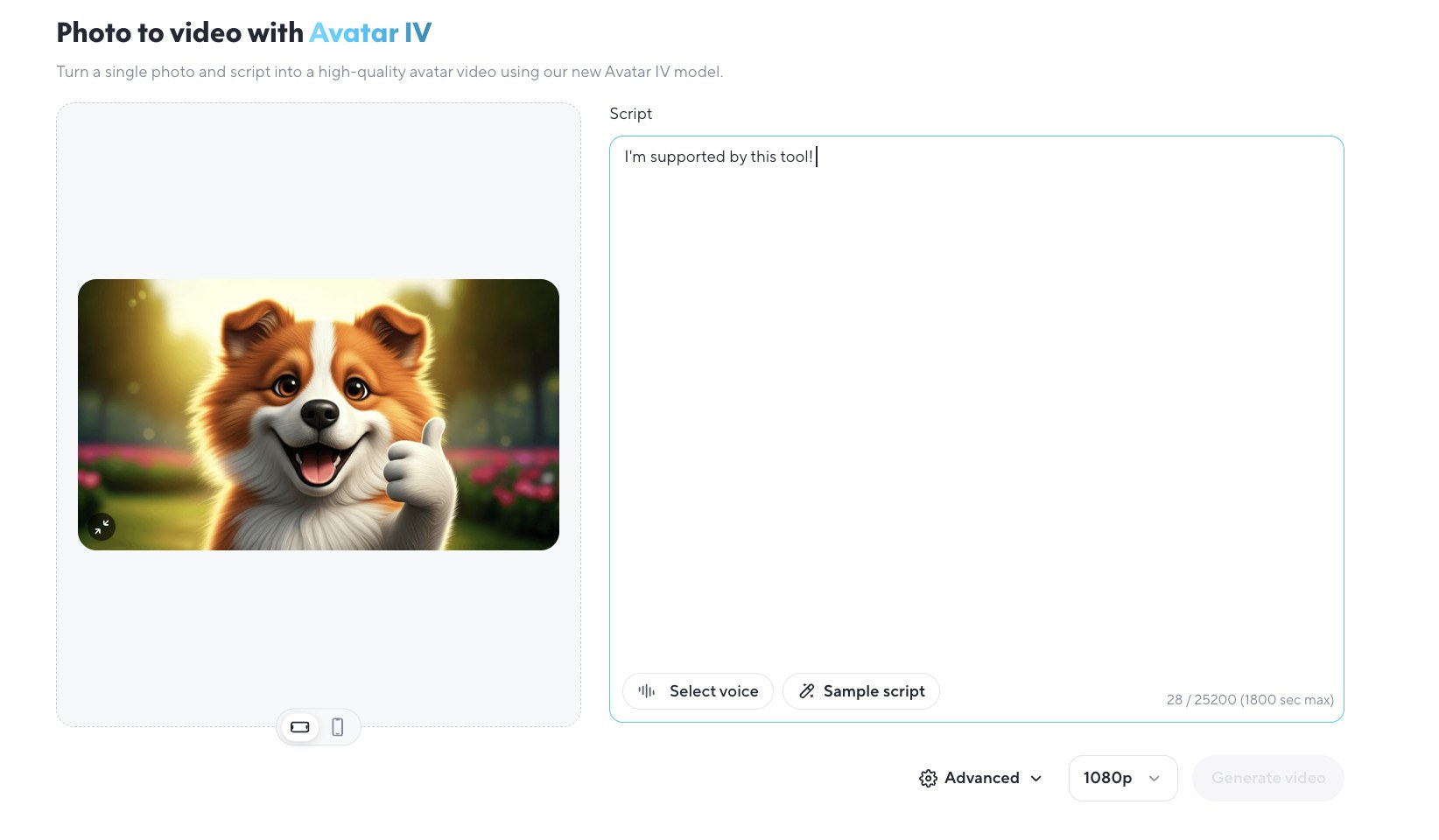
Screenshot from the help article “HeyGen Avatar IV Complete Guide!”, labeled as captured on 13 Mar 2026. Source: official help. The page shows Script, Select voice, Sample script, plus 1080p and Advanced options.
The same article states that Avatar IV spends credits by Look type: in Studio, a Photo Look costs 16 credits per minute and a Video Look costs 31 credits per minute. HeyGen bills only the seconds of avatar generation, not the wall-clock length of the whole video. Photo to Video also uses the same credit pool. Legacy unlimited plans follow a different rule; if your account is still on a legacy plan, follow the help for that plan.
Generate a shot in Creative Studio
For B-roll, product shots, or clips without an on-camera person, official help points to HeyGen Creative Studio. It puts video, image, and voice generation in one app and is gradually replacing the older AI Video Generator and Generate Images apps. Official steps: open Apps in the left sidebar, then open the HeyGen Creative Studio card (it starts in Video mode). Use the Video, Image, and Voice tabs at the top; each tab keeps its own prompt and settings.
Creative Studio is rolling out gradually. If you still only see AI Video Generator and Generate Images in Apps, your account has not been switched yet. Enterprise accounts keep the classic apps for now.
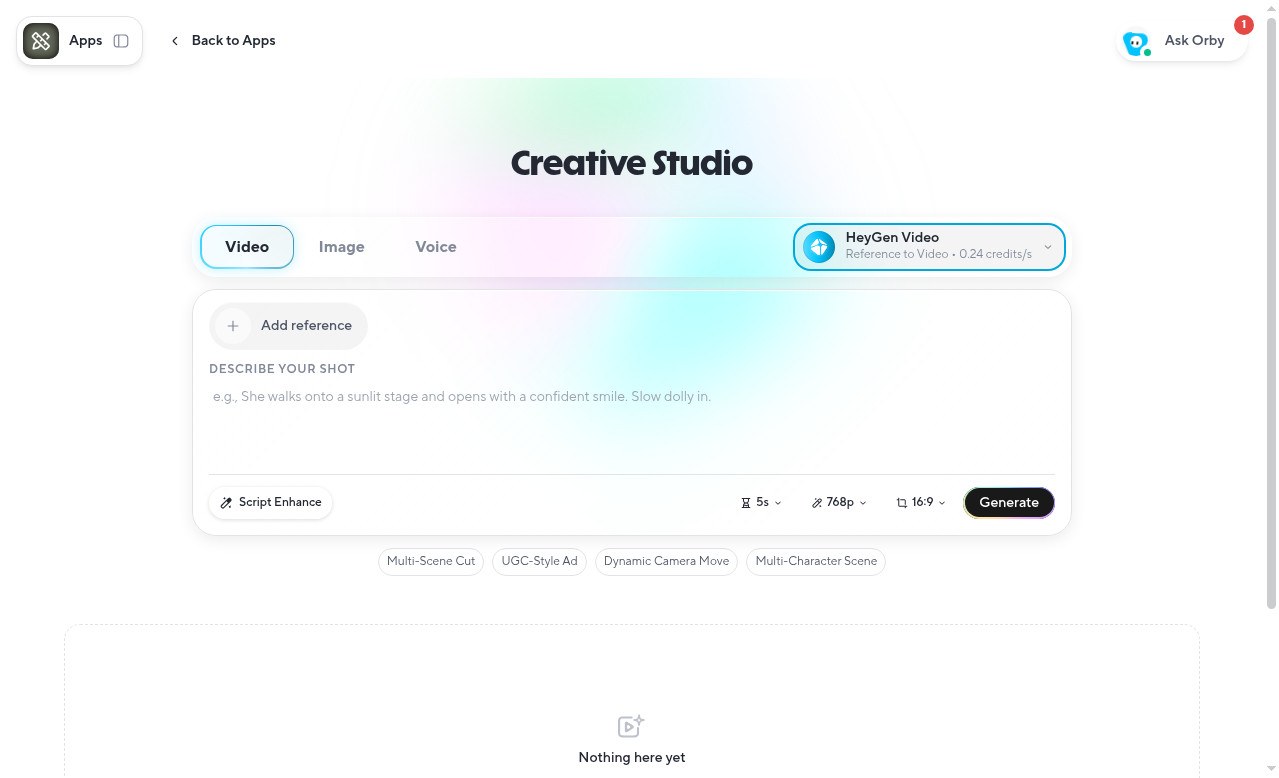
Screenshot from “How to Create B-Roll with HeyGen Creative Studio” (help center last updated 21 Oct 2026). Source: official help.
To generate a shot, official help says: stay on the Video tab; choose a model in the picker at the top right; describe the subject, camera move, lighting, and mood in Describe your shot, and use Script Enhance if you want the brief rewritten; optionally click Add reference to attach an avatar, a first frame, or reference images, video, or audio, depending on the model; set length, resolution, and aspect ratio (only values the model supports are shown); check the credit estimate and click Generate. Inspiration tiles such as Multi-Scene Cut or UGC-Style Ad can fill in a prompt and settings for you.
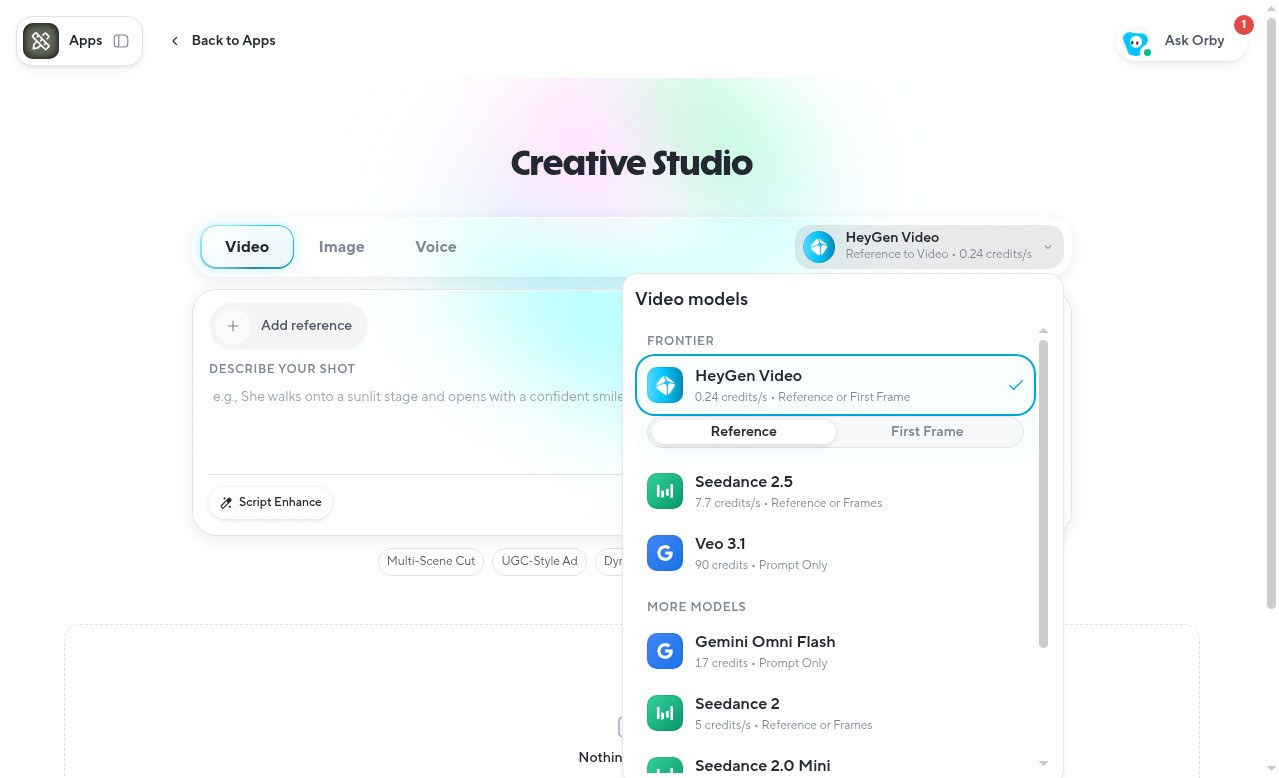
Screenshot of the official model picker in the same article. Models are grouped under Frontier and More models, and each row shows the credit rate and accepted inputs. Examples from the help article: HeyGen Video is 0.24 credits/sec at 768p (0.2 at 480p, 0.67 at 1080p and 2K); Seedance 2.5 is 7.7 credits/sec at 720p, so a 10-second clip costs 77 credits; Veo 3.1 is a flat 90 credits per video. Per-second models multiply the rate by the length you choose; Veo, Gemini Omni Flash, and some Wan, Hailuo, and LTX models charge a flat amount per video. Failed generations are refunded automatically. These rates apply to Creative Studio only and can change; trust the on-screen estimate.
Plan locks, from the same article: on Free, every video model is locked and Generate opens an upgrade prompt without charging credits. Creator cannot use Seedance 2 or Seedance 2.5 (those are Pro only), but can use HeyGen Video, Seedance 2.0 Mini, Veo, Wan, Gemini, Hailuo, LTX, and others. Pro and above can use every model. Frames and references cannot be used together.
If you run out of credits, official help says a top-up option appears. For plan and rollover rules, see the official credit-plan article; this piece does not compare membership tiers.
If you plan to start or renew HeyGen, you can review the product page on this site. API credits are separate from plan credits, and are not the same as the HeyGen API product.