
The first time you sign in to iCloud on a new Apple Account, a lot of questions come up at once: should you turn on two-factor authentication? Where do you change your security questions? What is a rescue email, and what do you do if the account suddenly gets locked? This guide walks through all of it with real screenshots.
The guide has four parts: signing in to iCloud on the web, getting into your Apple Account settings, changing your security questions and adding a rescue email, and safely unlocking a locked account. Following along takes about five minutes.
1. Sign in to iCloud on the web
1.1 Enter your email and password
Open icloud.com in a desktop browser and click Sign In. Enter your Apple Account email under “Email or Phone Number,” type your password, then click the blue Sign In button.
On a shared computer, leave “Keep me signed in” unchecked so the next person can’t walk straight into your account.
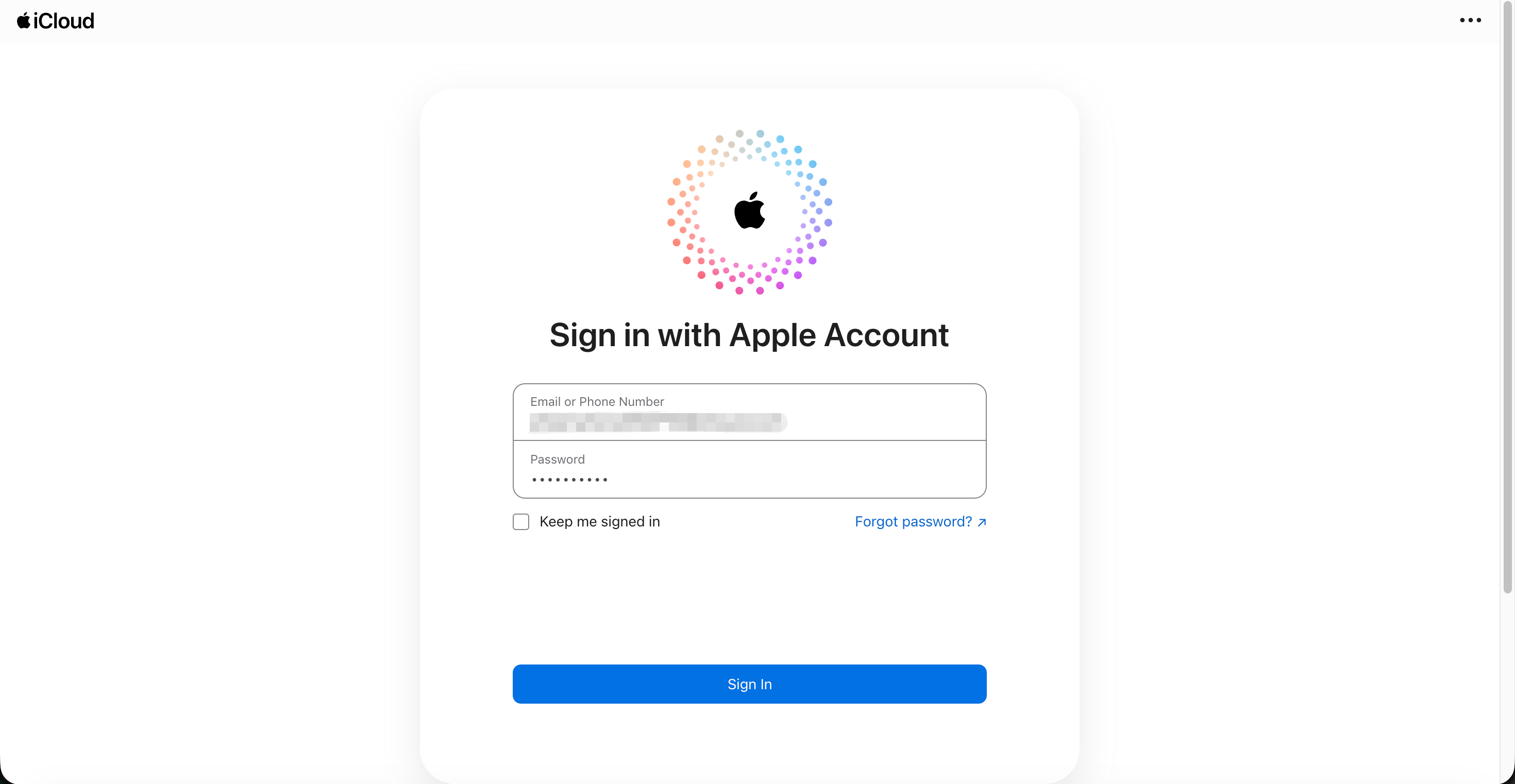
Image: The iCloud sign-in page
1.2 Accept the iCloud terms
The first time a new account signs in, iCloud shows its Terms and Conditions. Review them and click Agree in the bottom-right corner. Choosing Disagree means you can’t use iCloud.
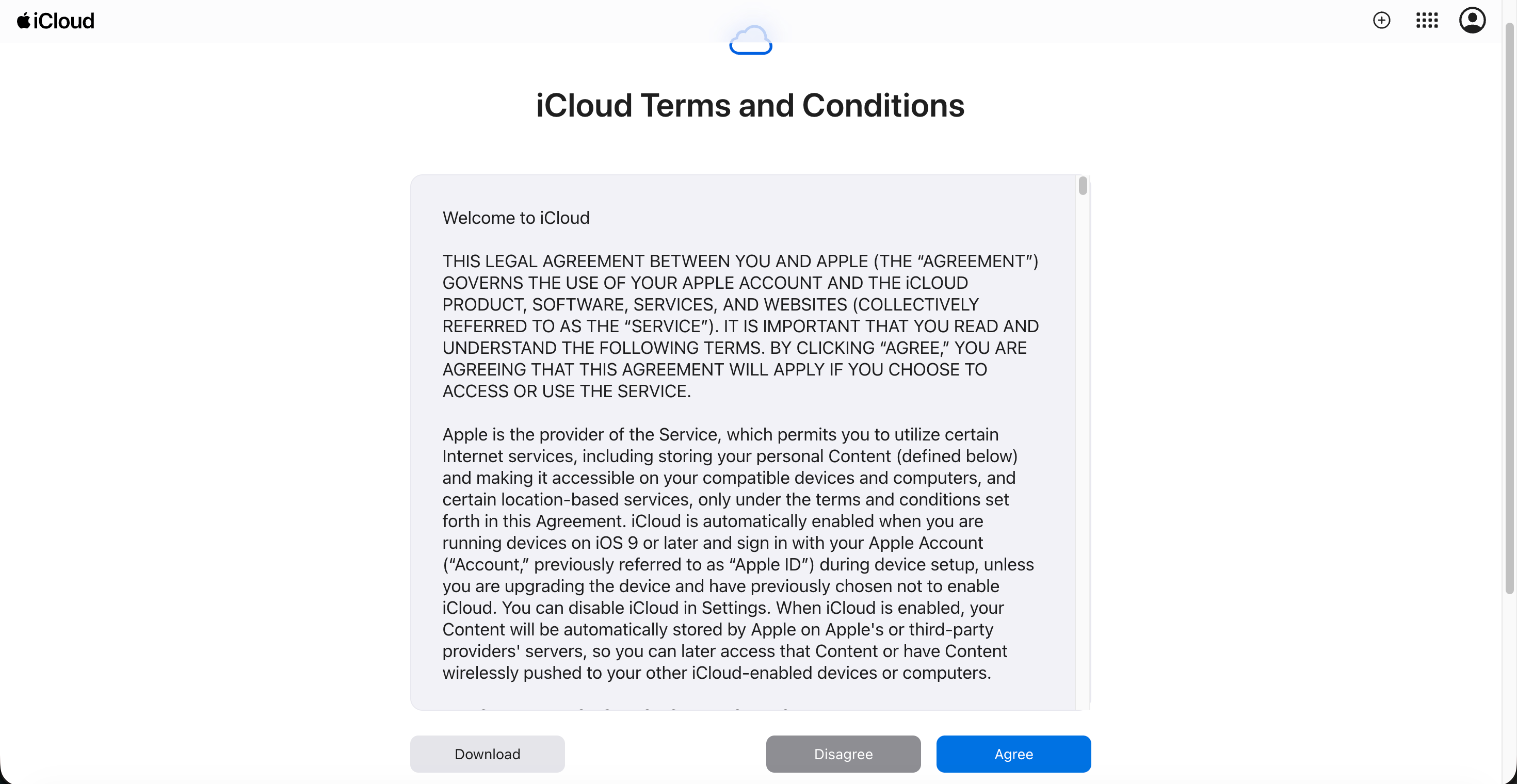
Image: Accepting the iCloud terms on first sign-in
1.3 Two-factor authentication: upgrade or not?
Next comes the Apple Account Security screen recommending two-factor authentication. Continue starts the setup right away; Other Options lets you see your choices first.
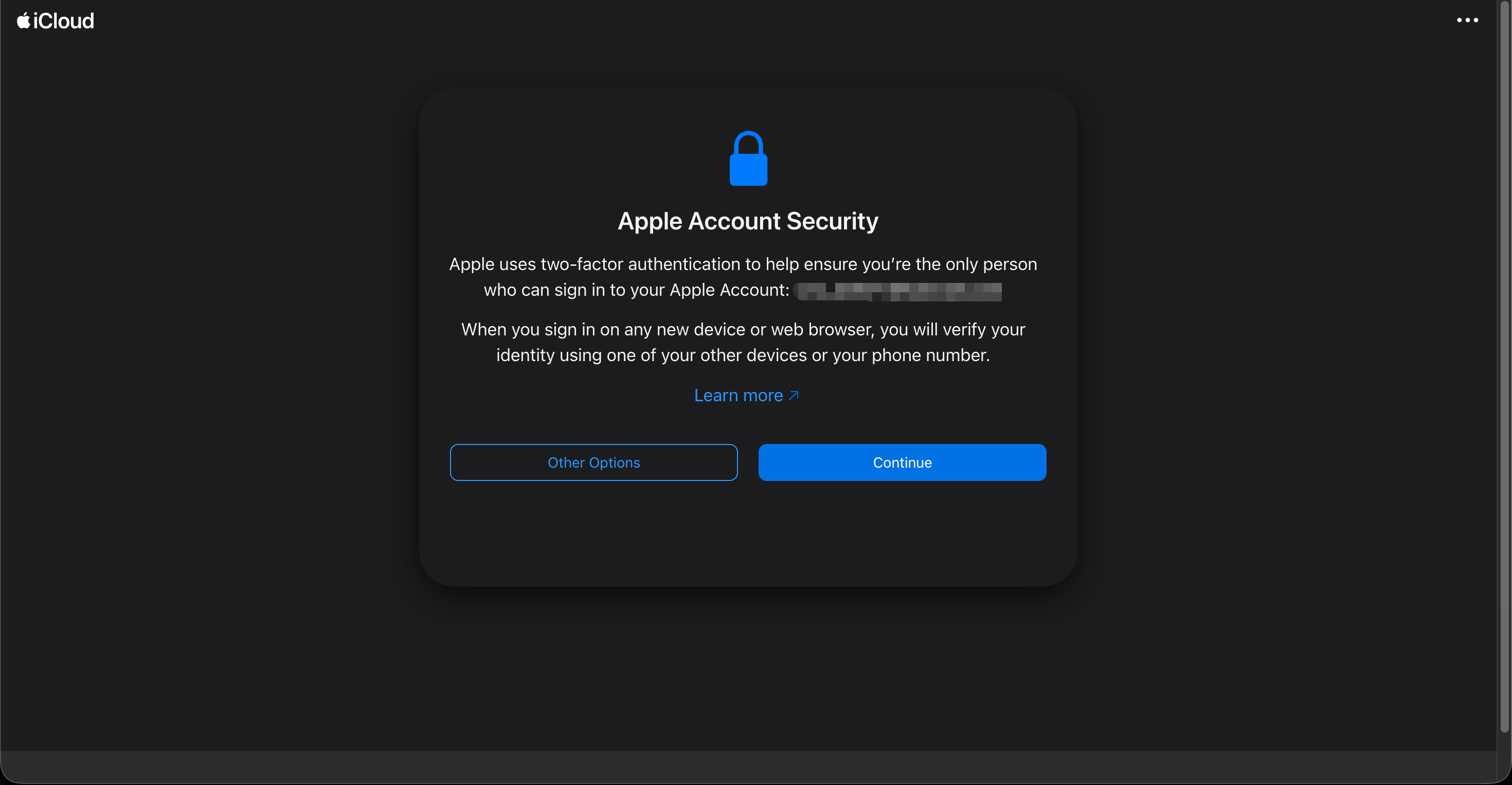
Image: The Apple Account Security prompt
Other Options opens the “Protect your account” screen:
- Upgrade Account Security turns on two-factor authentication. New devices will need a code from your trusted phone number or device. This is the most secure option.
- Don’t Upgrade skips it for now, and the account keeps using security questions to verify you.
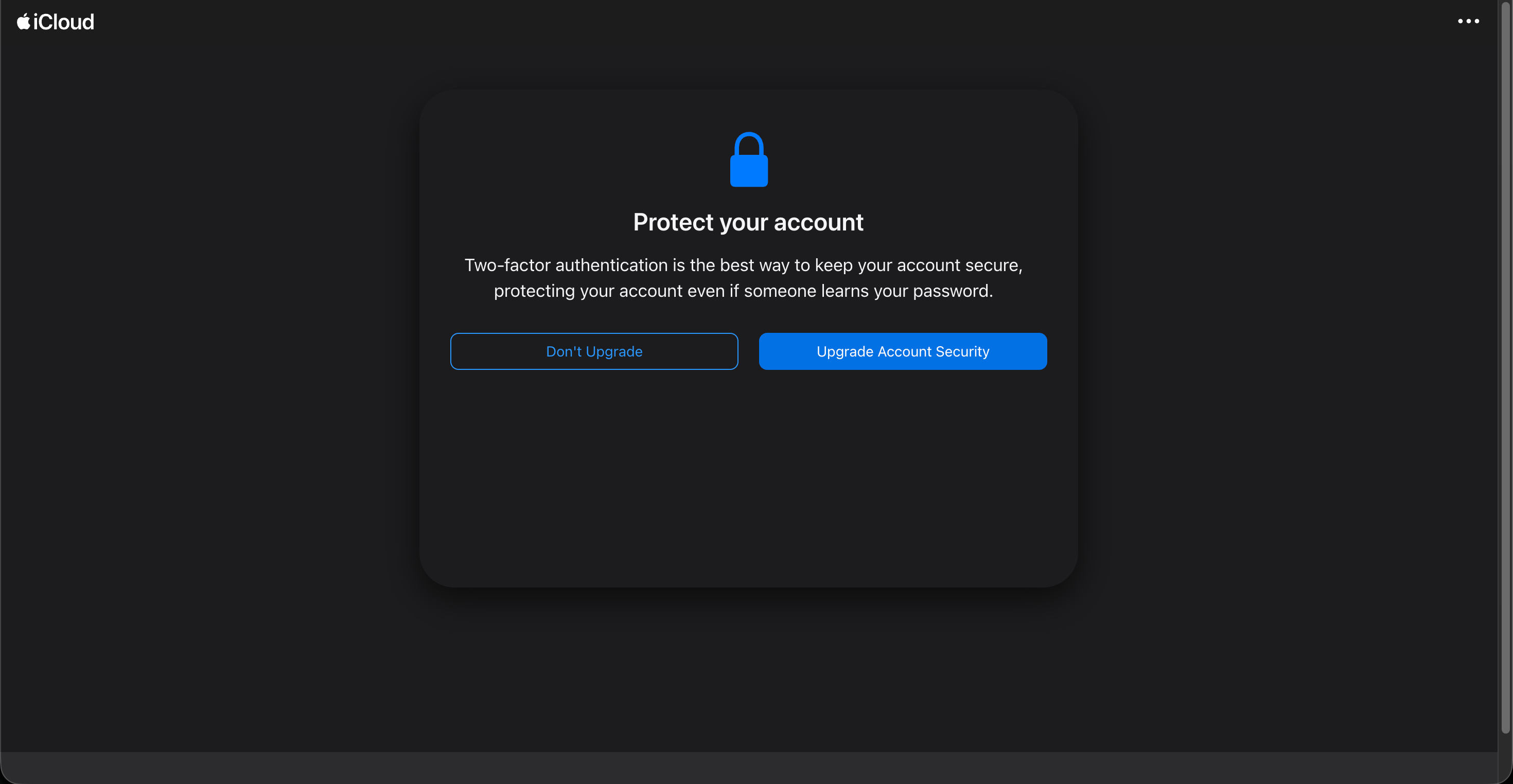
Image: Choosing whether to upgrade to two-factor authentication
Tip: If you have a phone number you’ll keep long-term, turn on two-factor authentication. If you skip it, follow sections 3 and 4 to record your security answers and add a rescue email. Without them, recovering the account later is hard.
1.4 Open the iCloud home page and Mail
You’re now on the iCloud home page, with your account name and tiles for Photos, Mail, Drive and more.
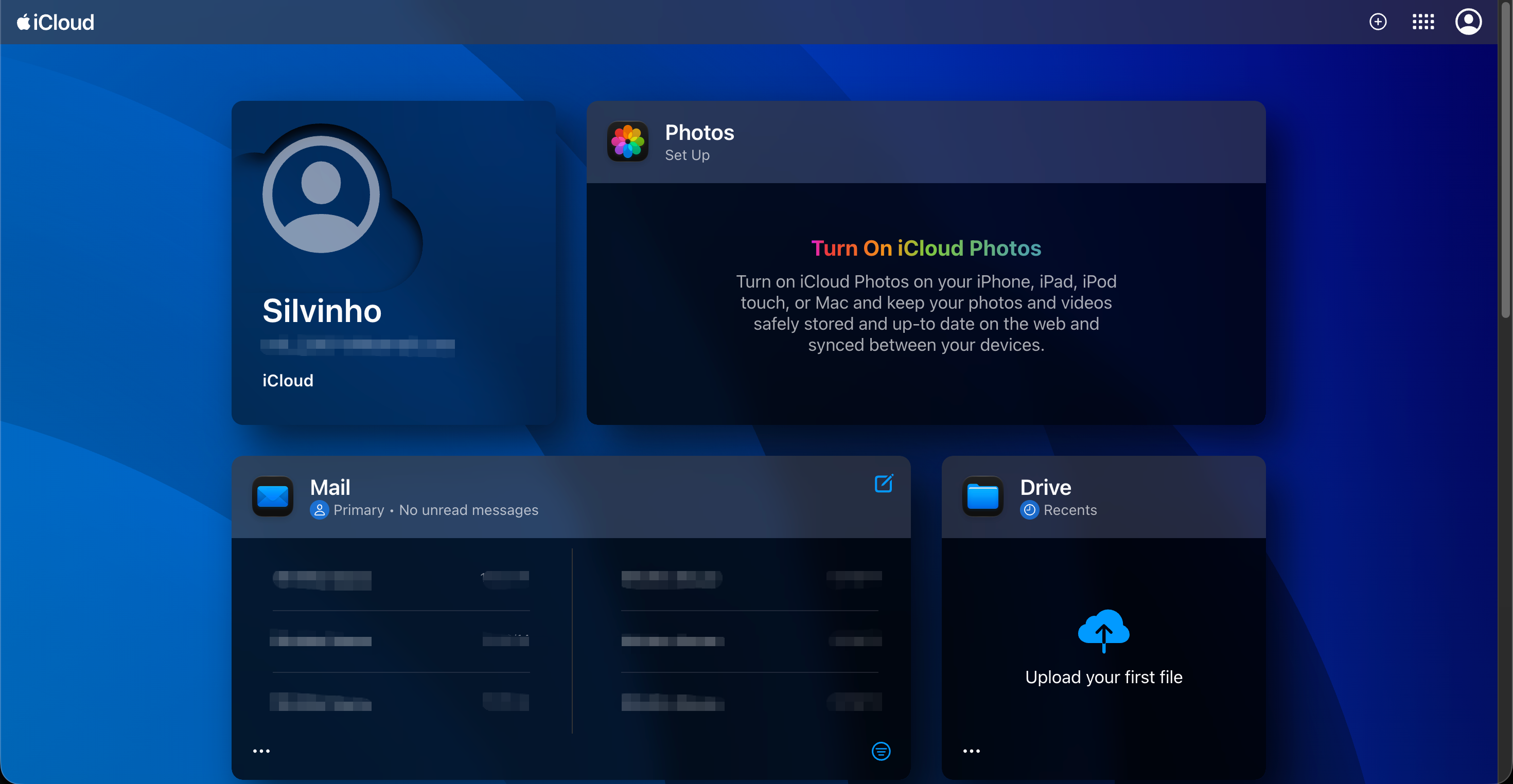
Image: The iCloud home page after signing in
Click the Mail tile to open your iCloud inbox. Sign-in links and verification codes from AI services such as ChatGPT and Claude land here.
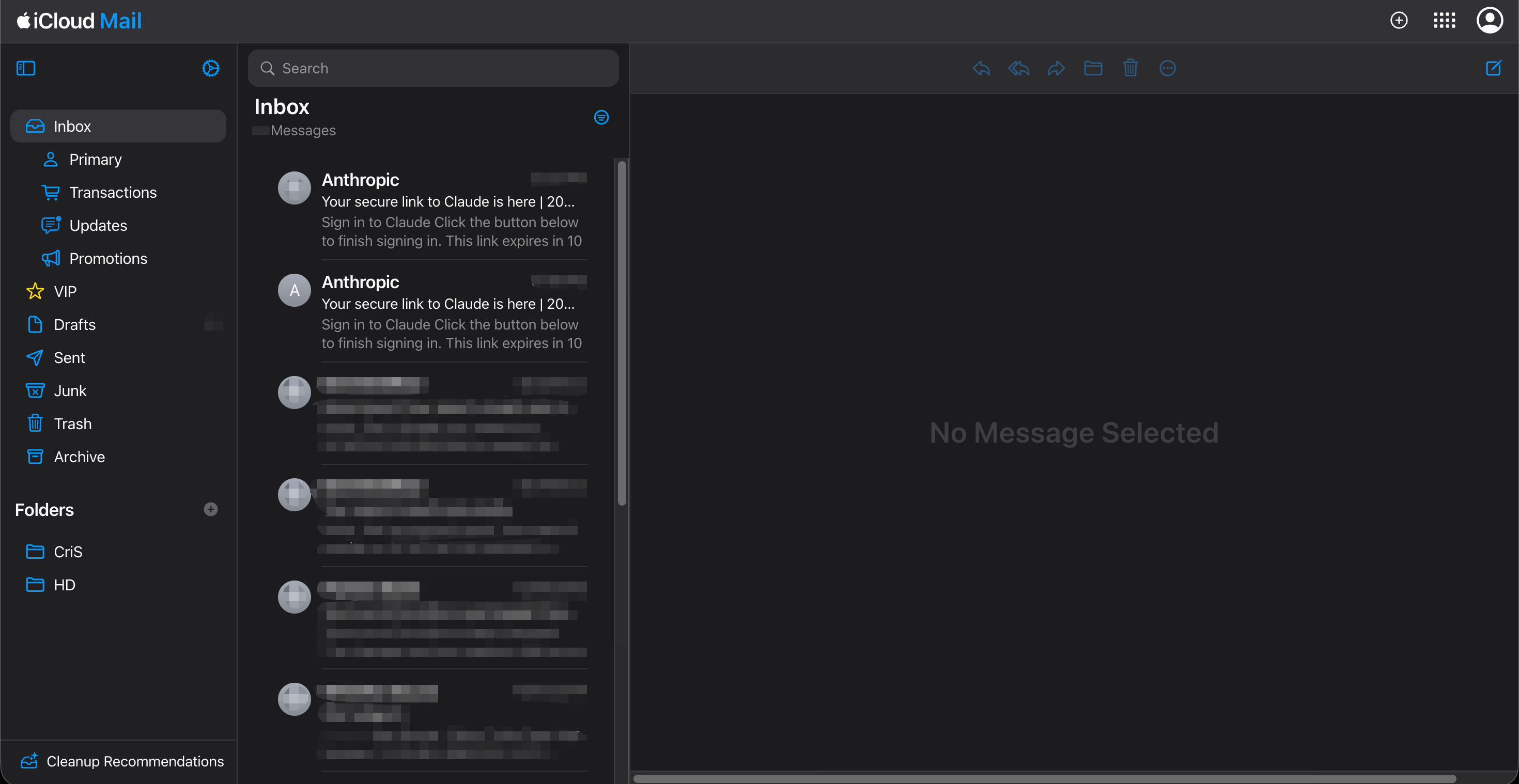
Image: The iCloud Mail inbox receiving AI service verification emails
2. Open your Apple Account settings
On the iCloud home page, click your profile icon in the top-right corner and choose Manage Apple Account. Your account settings open in a new page.
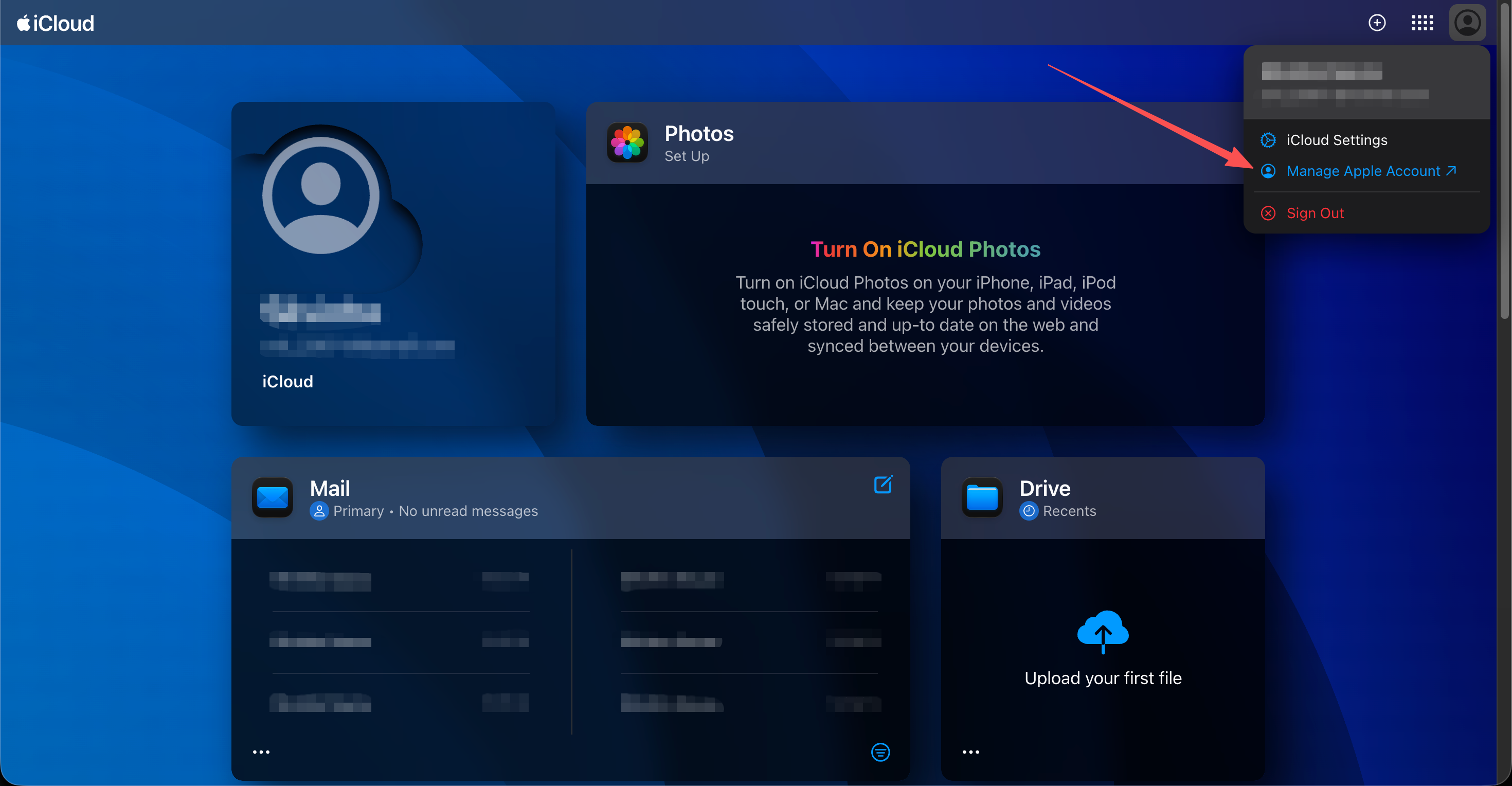
Image: Opening Manage Apple Account from the profile menu
If two-factor authentication is off, you’ll first need to answer two security questions. They appear in whatever language you used when you set them up. Enter your answers and click Continue.
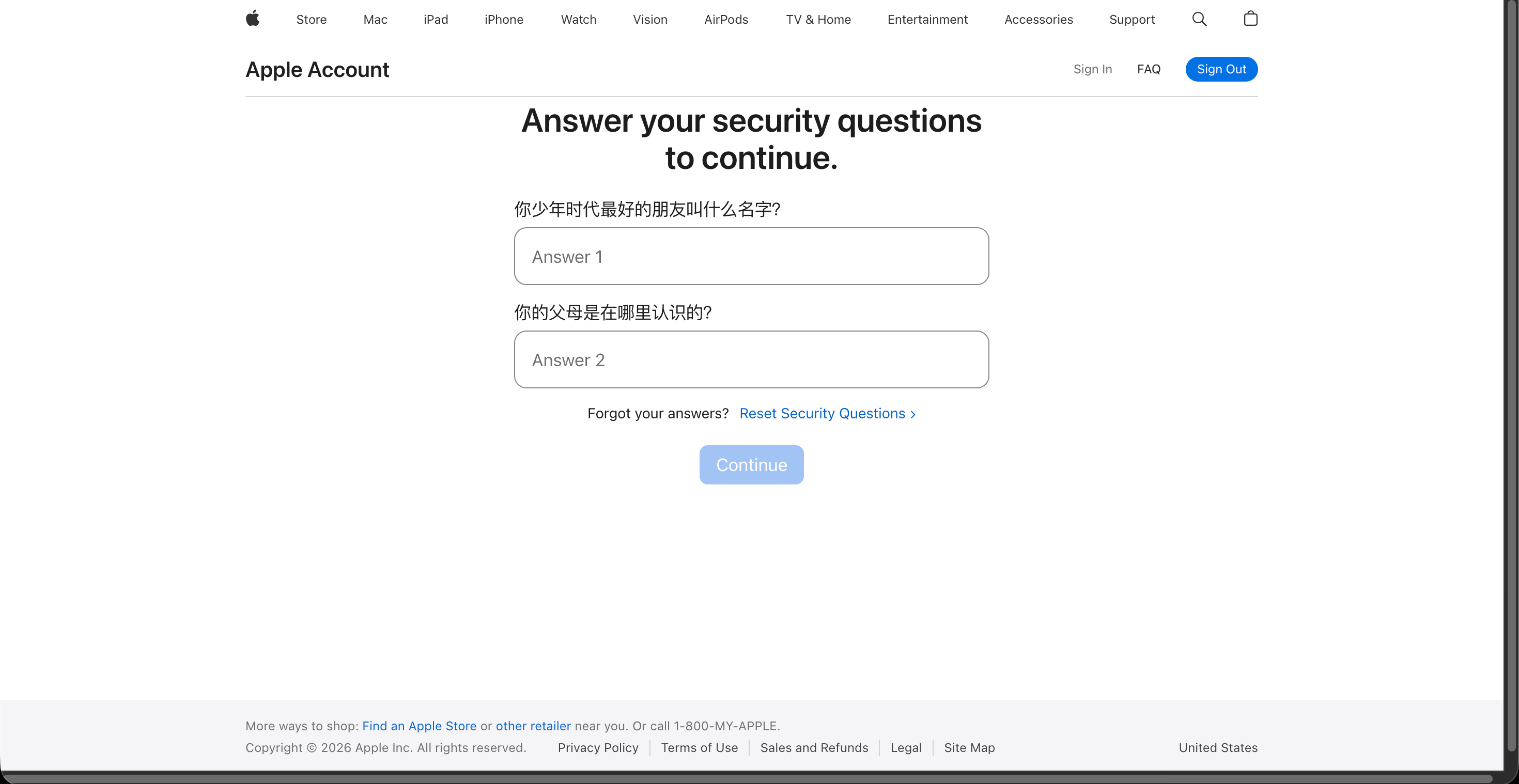
Image: Answering security questions before entering account settings
Answers must match exactly. Too many wrong attempts temporarily blocks security questions and can lock the account. If you’re unsure, stop and check your notes rather than guessing.
Once inside, the left-hand menu covers Personal Information, Sign-In & Security, Payment & Shipping, Subscriptions, Devices and more.
3. Change your security questions
The Sign-In & Security page shows four cards: Apple Account (your account email), Password, Account Security and Rescue Email.
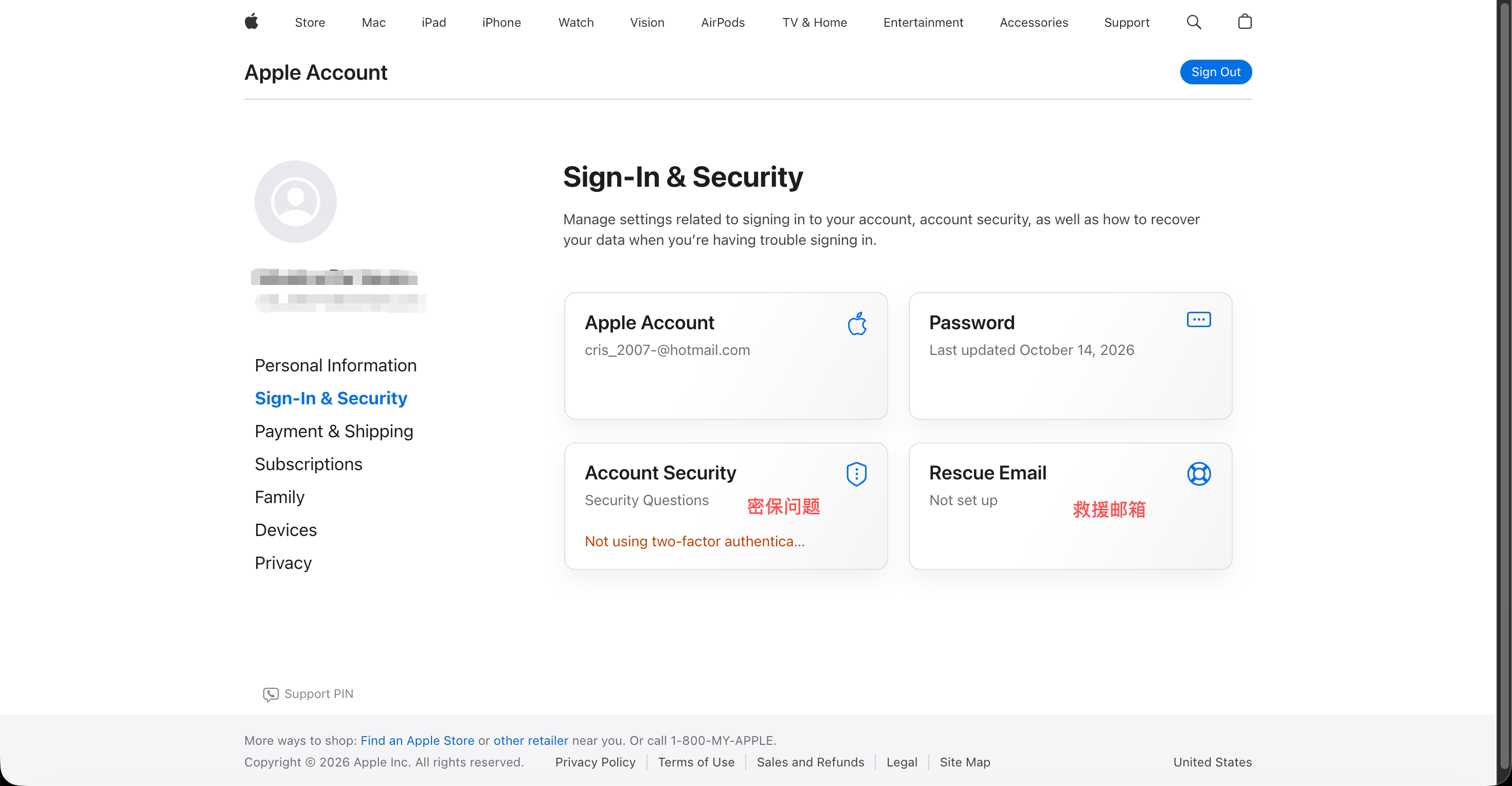
Image: The Sign-In & Security page, with security questions and rescue email highlighted
To change your security questions:
- Click the Account Security card (it shows “Security Questions”).
- Choose Change security questions.
- Pick three new questions from the drop-down lists and enter new answers.
- Click Update to save.
Tip: Your answers don’t have to be literally true, but they must be easy for you to remember and hard for others to guess. Store all three in a password manager right away.
4. Add a rescue email
A rescue email lets you reset your security questions if you forget the answers, and Apple sends account security notifications to it. The screenshot shows “Not set up,” meaning there isn’t one yet.
- On the Sign-In & Security page, click the Rescue Email card.
- Enter an inbox you check regularly. It can’t be the same as your Apple Account email.
- Find the verification code Apple sends to that address and enter it to confirm.
Note: Rescue email mainly applies to accounts that use security questions instead of two-factor authentication. With two-factor turned on, recovery relies on trusted phone numbers and devices. Exact labels and steps may vary; Apple’s official pages take precedence.
Add a rescue email while you still remember your security answers. If you’ve already forgotten them and have no rescue email, you’ll usually need Apple Support or the account recovery process, which can take a while.
5. How to unlock a locked Apple Account
Too many wrong passwords or security answers, or suspicious sign-in activity, can lock your account. On your browser you’ll see “This Apple Account has been locked for security reasons.”
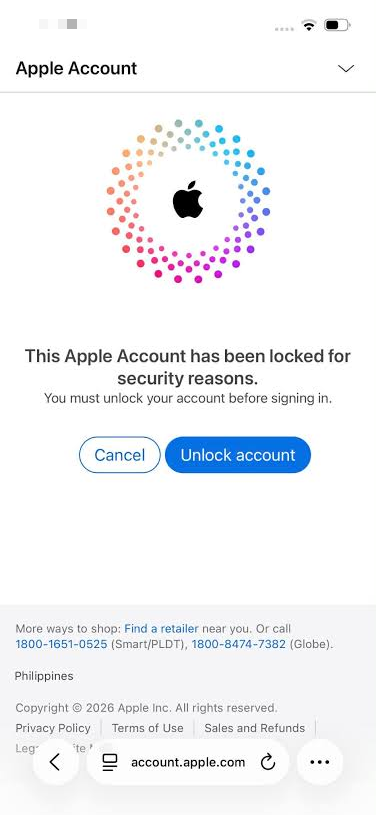
Image: The locked-account alert
To unlock it:
- Tap Unlock account on the alert, or type iforgot.apple.com/unlock into your browser yourself.
- Enter your Apple Account email, then unlock with your current password, or answer your security questions and reset the password.
- If two-factor authentication is on, you’ll need a code from your trusted phone number or device.
- Once unlocked, sign back in to iCloud and double-check your security questions and rescue email.
After several failed unlock attempts, the account stays locked and you’ll typically have to wait until the next day to try again. Only use the official apple.com domain, and never tap “unlock” links from unexpected texts or emails; these are usually phishing pages.
6. Quick reference
| Task | Where to go | Keep in mind |
|---|---|---|
| Sign in to iCloud | icloud.com → Sign In | Don’t stay signed in on shared computers |
| Read verification emails | iCloud home → Mail | Check the Junk folder too |
| Manage account info | Profile icon → Manage Apple Account | Security questions required without 2FA |
| Change security questions | Sign-In & Security → Account Security | Record the new answers immediately |
| Add a rescue email | Sign-In & Security → Rescue Email | Do it while you still remember your answers |
| Unlock the account | iforgot.apple.com/unlock | Official domain only; retry next day after repeated failures |
Screenshots reflect the iCloud website as of October 2026. Apple may change pages and flows at any time; always follow Apple’s official guidance.
Before you close this page, sign in to your Apple Account once and confirm two things: you still remember your security answers, and your rescue email is verified. With those in place, you can recover the account yourself if you forget your password or get locked out. Bookmark this guide so you can follow it step by step if a lock ever happens, and find more Apple Account tutorials on 5buyai.com.