
A common mistake after getting an Apple Account is signing in at the wrong place: at the top of the Settings app (which signs in to iCloud) instead of inside the App Store. That can trigger extra verification and tie the account to your device. This guide walks through the correct App Store sign-in, step by step.
The guide has three parts: the 6-step App Store sign-in, how to handle the two-factor authentication prompt, and the security settings you should finish right after signing in, with links to Apple's official pages.
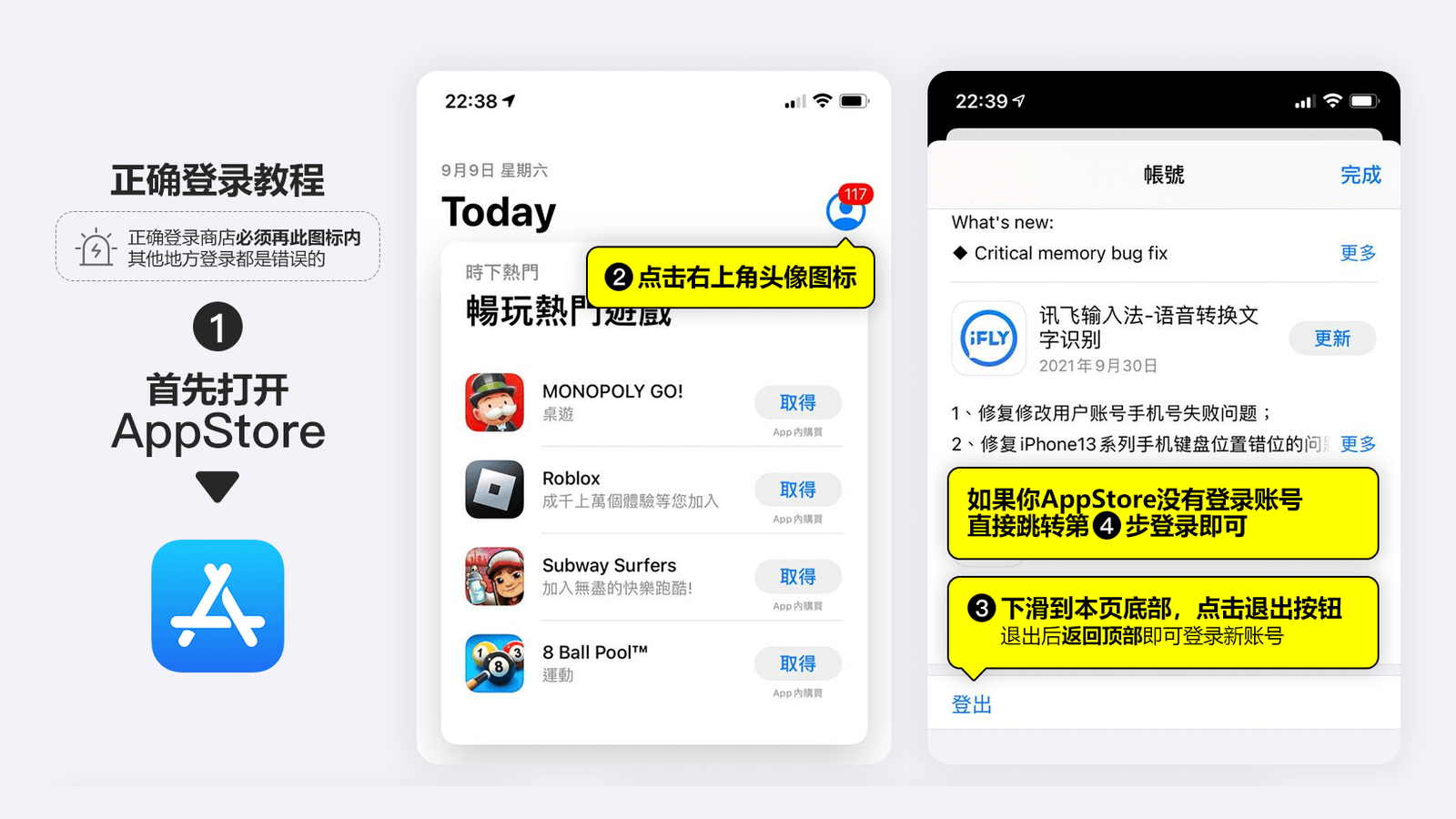
Image: overview of the correct App Store sign-in
1. Know where to sign in
An iPhone has two places to sign in: your name at the top of Settings (which also turns on iCloud, Find My and photo sync), and the profile icon in the App Store (used only for downloading and buying apps).
If you only want to download apps with this account, sign in through the App Store profile icon only. Signing in anywhere else is not what this guide recommends.
Do not sign in to iCloud in Settings with an account you have not secured yet. Once Find My is on, a problem with the account could leave your device stuck behind Activation Lock. Only consider signing in to iCloud after the account is fully under your control (new password, your own phone number).
2. Sign in to the App Store in 6 steps
Step 1: Open the App Store
Find the blue App Store icon on your iPhone or iPad home screen and open it.
Step 2: Tap the profile icon
On the Today tab, tap the round profile icon in the top-right corner to open the Account page.
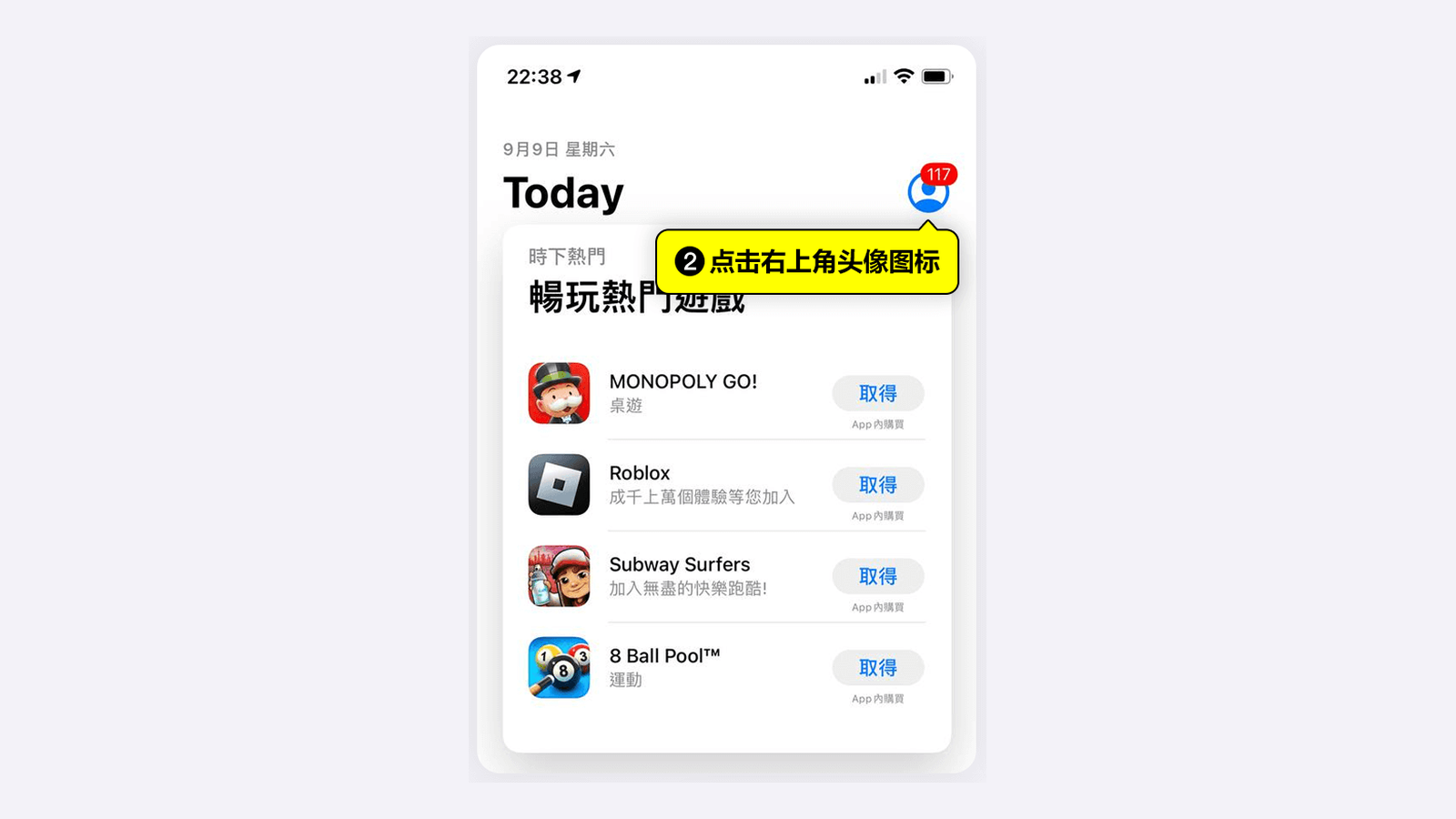
Image: tap the profile icon on the Today tab
Step 3: Sign out of the current account (skip if none)
If another account is already signed in, scroll to the very bottom of the Account page and tap the blue Sign Out button. Then scroll back to the top, where the sign-in fields appear.
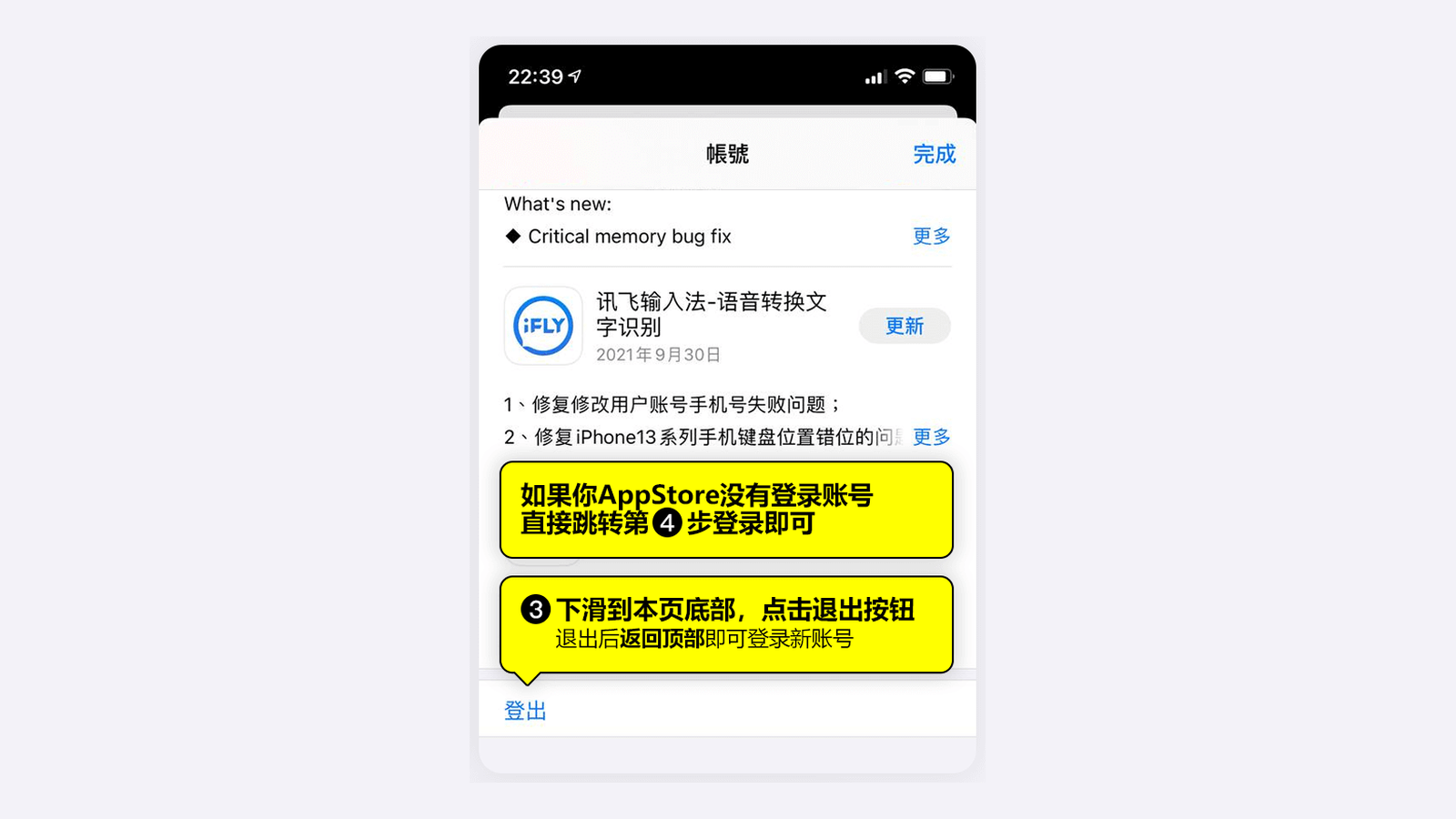
Image: Click "Log out" in the bottom-left corner of the Account page.
If no account was signed in to the App Store, go straight to Step 4.
Steps 4–6: Enter the account and password, then sign in
Type the Apple Account email into the Apple ID field and the password into the Password field, then tap Sign In.
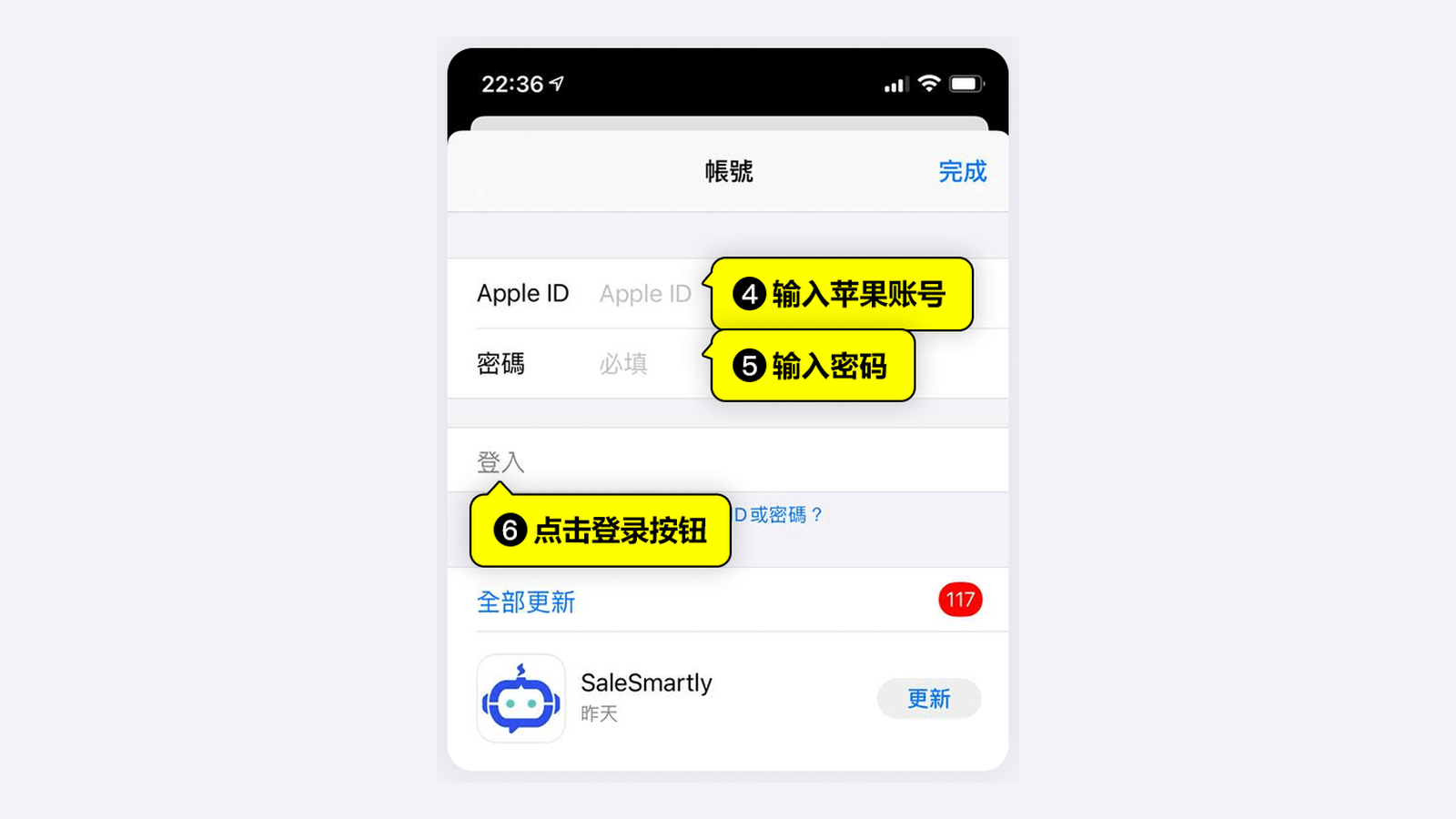
Image: enter the Apple ID and password, then tap Sign In
Tip: copy and paste the account and password, and make sure no spaces sneak in at the start or end. Too many wrong attempts can lock the account temporarily.
3. What to do with the "Apple Account Security" prompt
Since January 2022, signing in to an account with no phone number on file may bring up an Apple Account Security screen asking you to turn on two-factor authentication. You have two options:
| Option | What to tap | Best for |
|---|---|---|
| Add a phone number (recommended) | Tap Continue, enter your number and the verification code | Anyone planning to use the account long term |
| Skip for now | Tap Other Options → Don't Upgrade | Anyone who still needs to change the password and security questions first |
Your phone doesn't need a SIM card in it: tap Continue, pick your country code (for example +86 for mainland China) and enter any number you can receive texts on. Domestic and international numbers both work, and adding a mainland China number does not change the account's region.
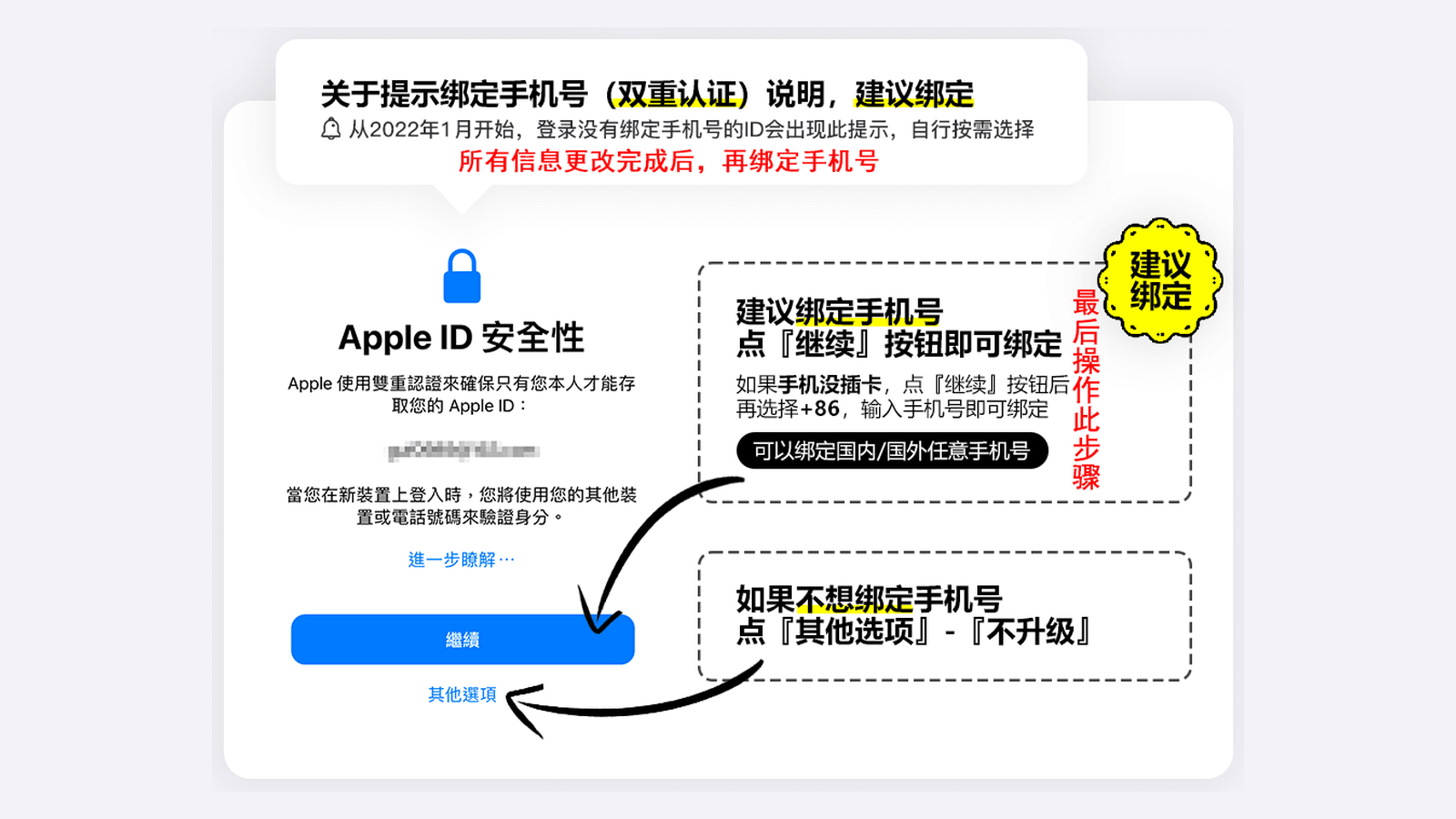
Image: Continue adds a phone number; Other Options lets you skip for now
Tip: add the phone number last, after you have changed the password, security questions and rescue email. Turning on two-factor authentication at the end is the safer order.
4. Four security settings to finish after signing in
Getting signed in is only the start. Try to finish these on the same day:
Change the password
For any account you plan to keep, set a new password that only you know. See Change your Apple Account password.
Update security questions and trusted phone number
Replace the security answers with your own and add a trusted phone number. See Change your trusted phone number. To swap a number that is already on the account, follow our guide How to change the phone number on your Apple ID (add the new number first, then remove the old one).
Add a rescue email
The sign-in email on the account may not be a real, working inbox, so it can't be used for recovery. Add a rescue email you can actually receive mail at, so you have a way back in if you forget the password.
Change the sign-in email if needed
For full control, switch the sign-in email to one you own. See Change your Apple Account email address. All of these settings can be managed in one place on the Apple Account management page.
Accounts with iCloud already activated use a real email address that receives mail, and can turn on two-factor authentication. Always follow Apple's latest official instructions.
5. Things to watch out for
About the email: for accounts without iCloud activated, the sign-in email may be randomly generated, may not exist, or may already belong to someone else, so you can't control the account through it. Make sure you complete the password, security question, phone number and rescue email steps in Section 4.
About gift cards: don't redeem gift cards on an account you've used for less than a month. New accounts are more exposed to Apple's risk controls and to hijacking, and if the account is disabled or lost, the balance goes with it.
If your phone was just reset or is brand new, setup will ask for an Apple Account before you reach the home screen. Tap "Forgot password or don't have an Apple Account?", then "Set Up Later in Settings" to skip it, and sign in through the App Store afterwards as described above.
If you forget the password or can't sign in, use Apple's account recovery page.
6. Summary
| Stage | Key point |
|---|---|
| Where to sign in | Only via the App Store profile icon, not at the top of Settings |
| Switching accounts | Scroll to the bottom to sign out, then sign in at the top |
| Security prompt | Tap Continue to add a number, or Other Options → Don't Upgrade to skip |
| Security settings | New password, new security answers, rescue email, then the phone number last |
| Usage risk | No gift cards during the first month |
Still can't sign in after following these steps? Contact 5buyai.com live support (9:00–21:00, UTC+8), and bookmark this guide for the next time you switch accounts.