
If you suspect your ChatGPT account is signed in on someone else's device, or you changed phones and can no longer use your authenticator, the steps below will lock the account down again.
Step 1: sign out of every ChatGPT device
Open ChatGPT, click your avatar in the bottom-left corner → Settings → Account Security & Login.
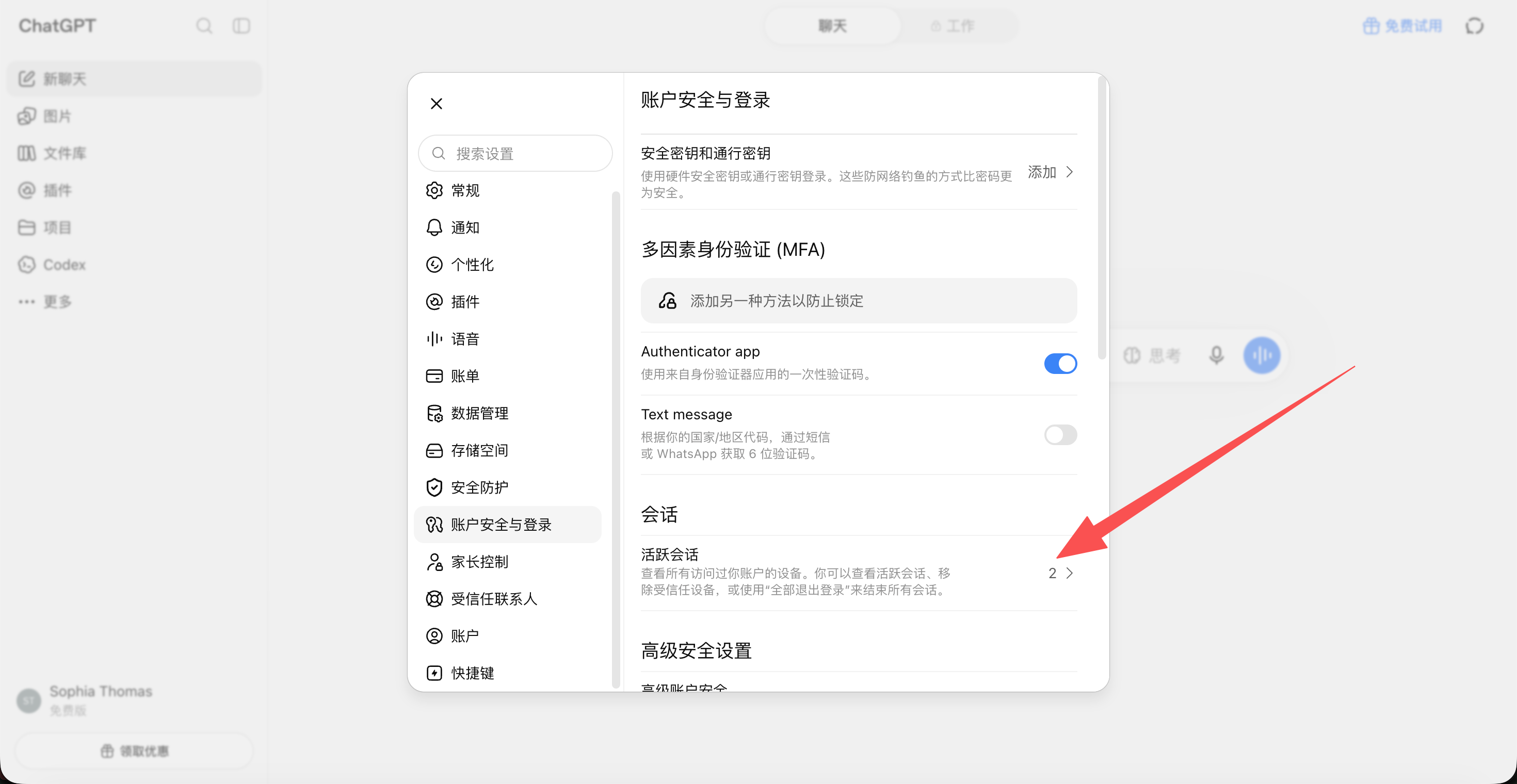
Find Active sessions, which lists the devices currently signed in.
If you see a device you do not recognise, or you simply want everything to sign in again, click Log out all.
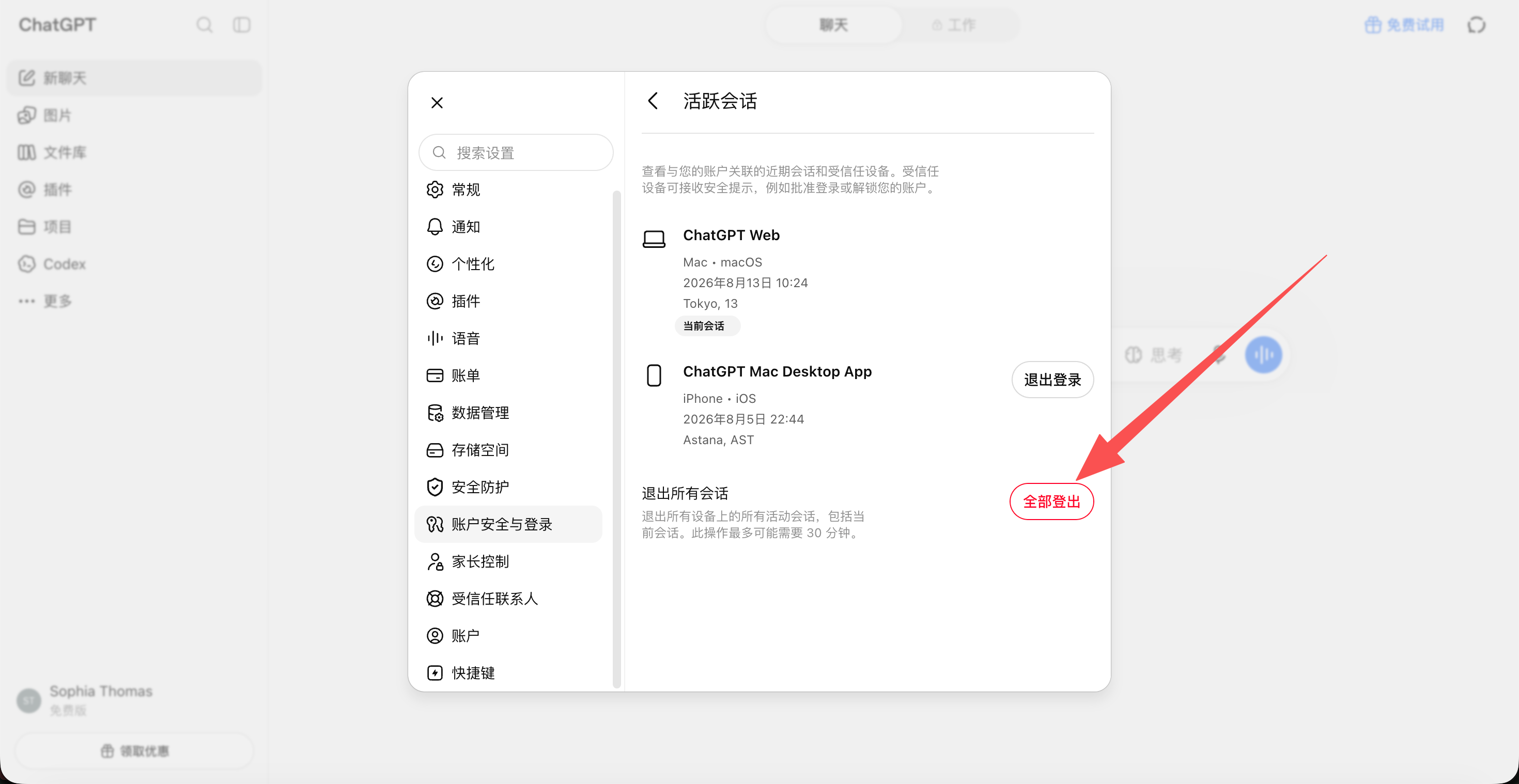
After that, every device has to sign in again.
Step 2: change your ChatGPT password
Once the devices are signed out, sign back in to ChatGPT. If you have forgotten the password, click Forgot password? on the sign-in page.
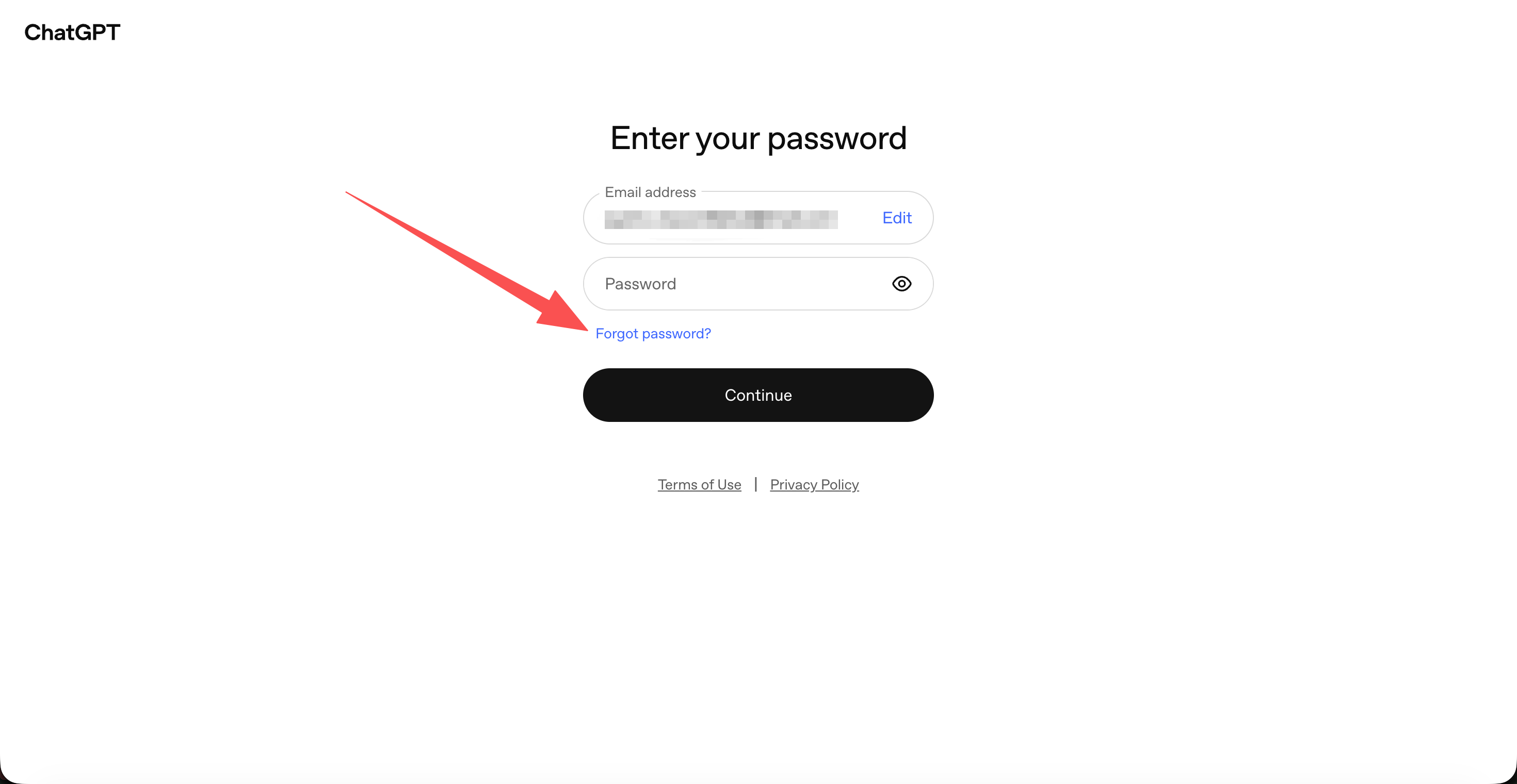
Follow the email instructions to set a new password.
Step 3: turn the authenticator app back on
Go back to Settings → Account Security & Login → Multi-factor authentication (MFA).
Turn on Authenticator app, then scan the QR code with any of these:
- Google Authenticator
- Microsoft Authenticator
- Authy
- The 5buyai.com authenticator
Once it is linked, every ChatGPT sign-in asks for the 6-digit code from your authenticator. For more detail, see "How to enable multi-factor authentication (MFA) for Codex".
Step 4: save your recovery codes (important)
After two-factor authentication is on, save the recovery codes.
Good places to keep them:
- a password manager
- an encrypted file
- a paper backup
Do not keep screenshots in your phone's photo library, and never send them to anyone.
Step 5: change your email password too (important)
Follow your email provider's own process for this.
Where the account stands afterwards
- ✅ every old device signed out
- ✅ password updated
- ✅ authenticator app re-linked
- ✅ sign-in security raised
Once all of this is done, someone who knows your password still cannot get into your ChatGPT account.