
Google Chrome supports a multi-user (also called “user profile”) feature, allowing you to create separate browser profiles for different users on the same device. Each user profile has its own browsing history, bookmarks, extensions, passwords, cache, and settings, making it ideal for multiple people sharing a device or for one person separating work and personal scenarios.
[Multi-User Browser]

How to Use Google Chrome's Multi-User Feature
Below are the detailed steps to set up and use the multi-user feature:
1. Create a New User Profile
- Steps:
- Open Google Chrome.
- Click the profile icon in the top-right corner of the browser (usually shown as your username, avatar, or a default icon).
- In the drop-down menu, select “Add” or “Manage users”.
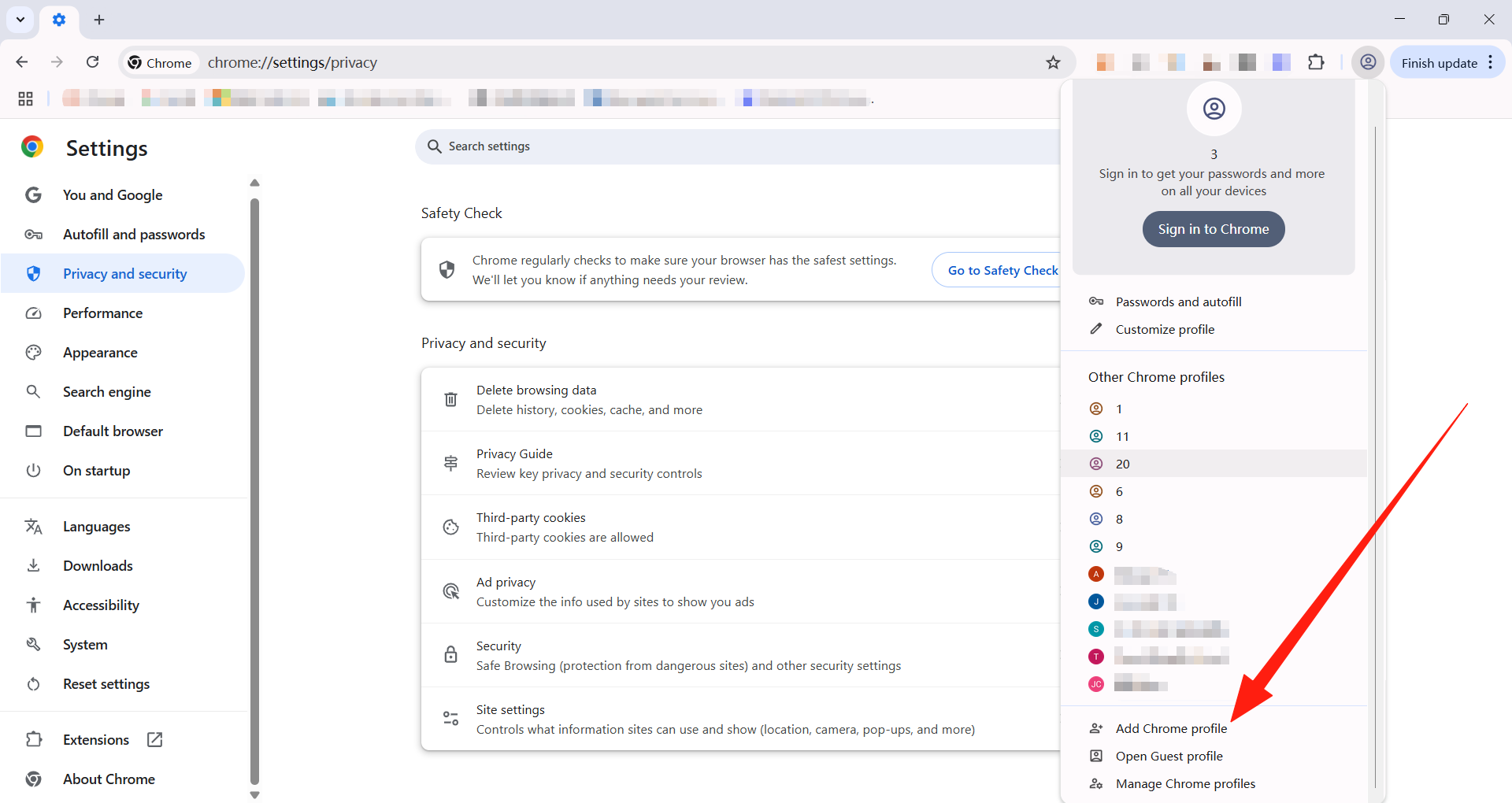
- Click “Add user” or “New user”.
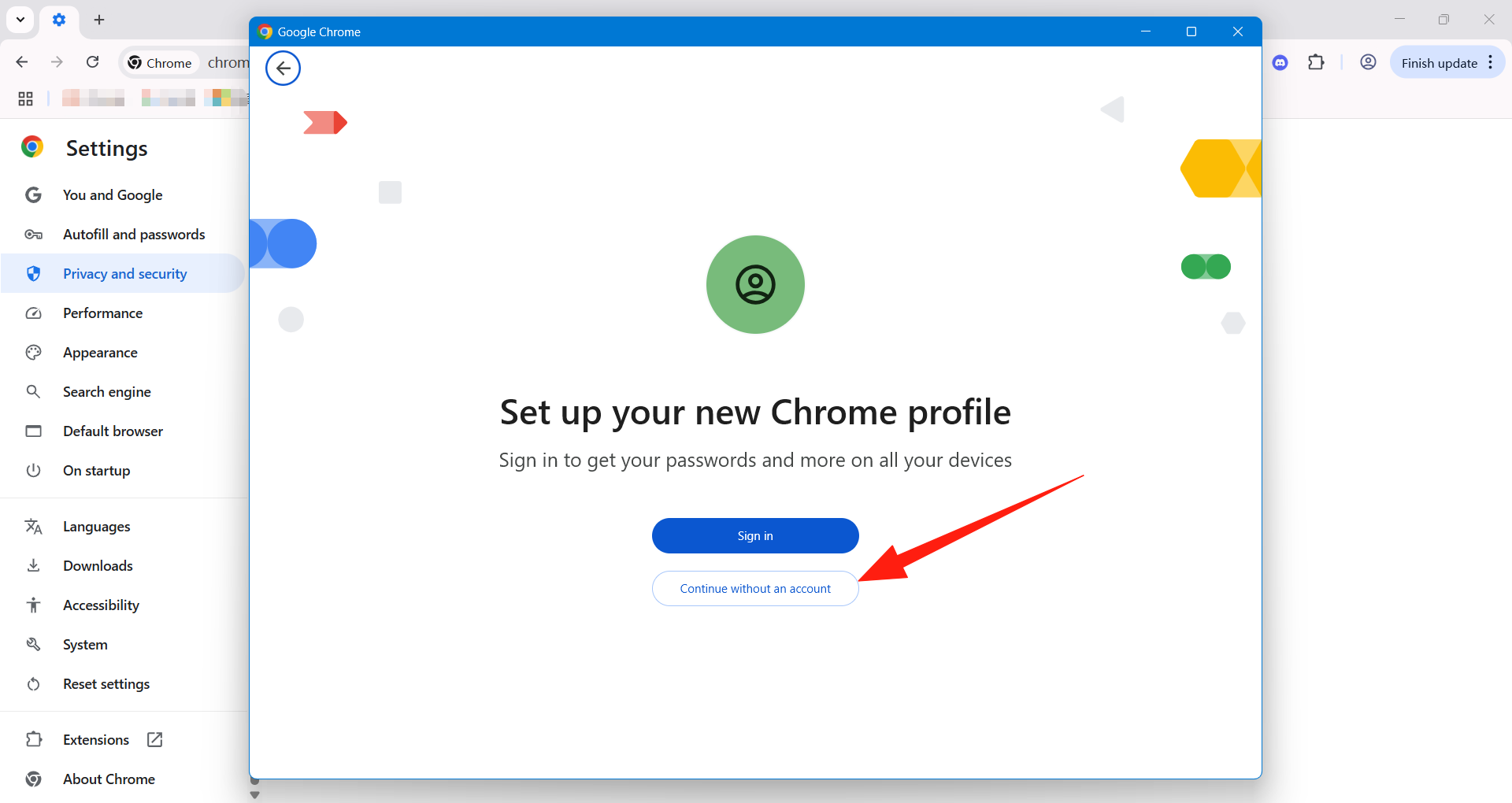
- Enter a name for the new user, and optionally choose an avatar to help distinguish it.
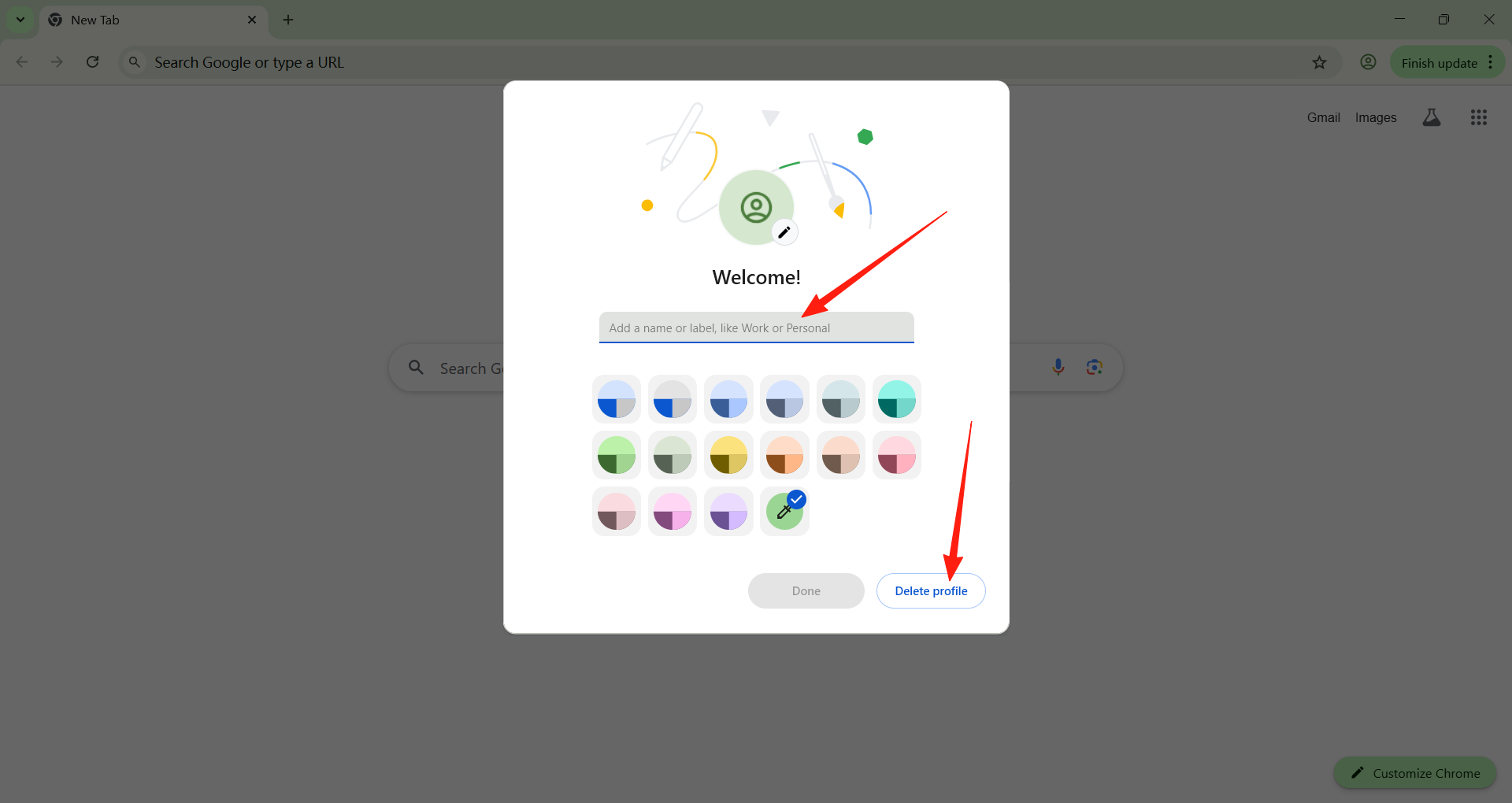
- Choose whether to create a desktop shortcut for this user (convenient for opening a specific user profile directly).
- Click “Confirm” or “Done” to create the new user profile.
- Result: The new user profile will have its own independent browser environment, isolated from other user profiles.
2. Switch Between User Profiles
- Steps:
- Click the profile icon in the top-right corner of the browser.
- In the drop-down menu, select the name of the user profile you want to switch to.
- The browser will switch to that user's personalized environment, including their bookmarks, history, extensions, and more.
- Note: If you created desktop shortcuts for different users, double-clicking the corresponding shortcut will open the matching user profile directly.
3. Manage User Profiles
- Edit user details:
- Click the profile icon and select “Manage users”.
- In the user management window, you can edit the username, change the avatar, or delete a user profile.
- Delete a user profile:
- In the “Manage users” window, find the user you want to delete.
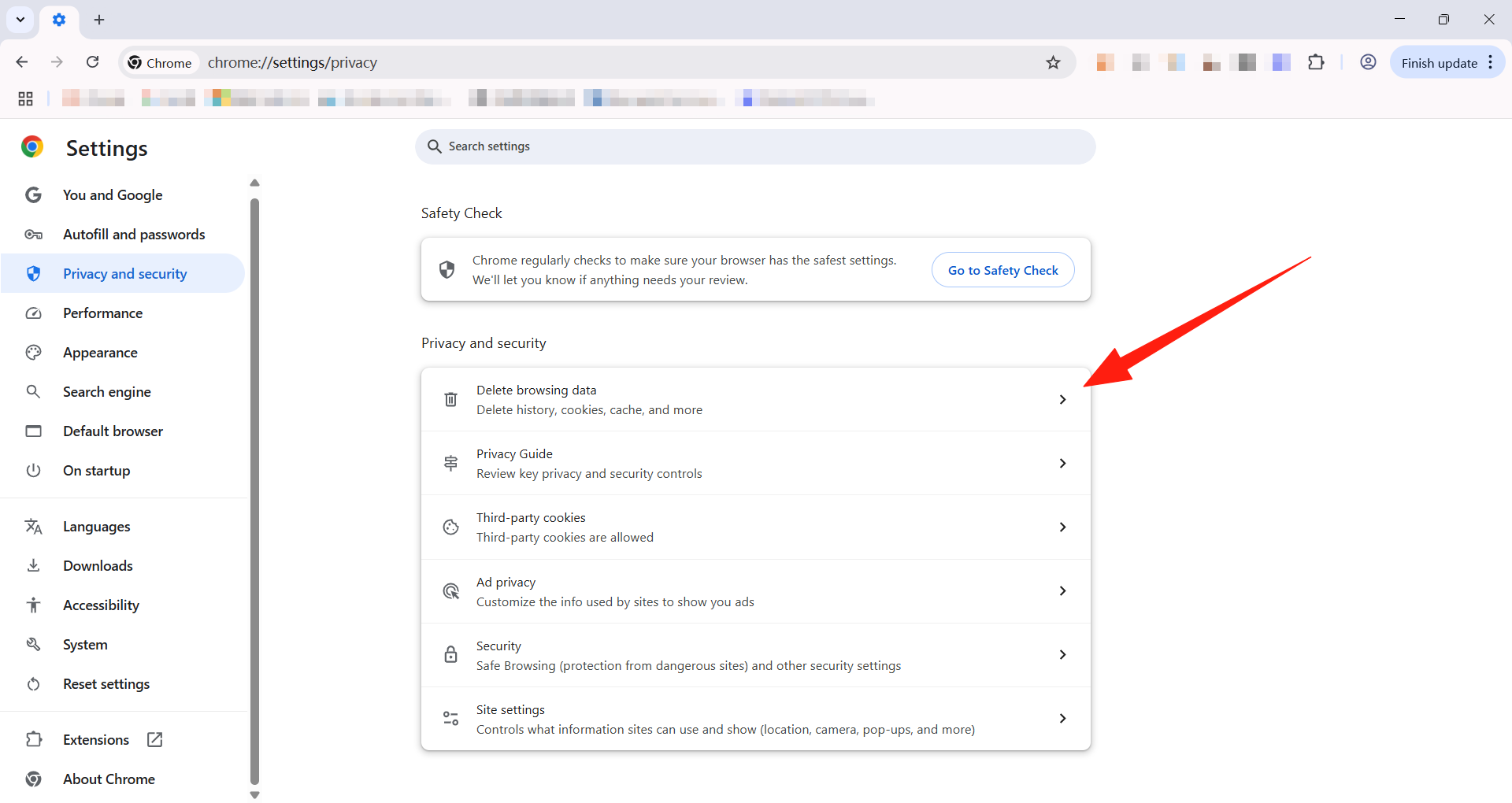
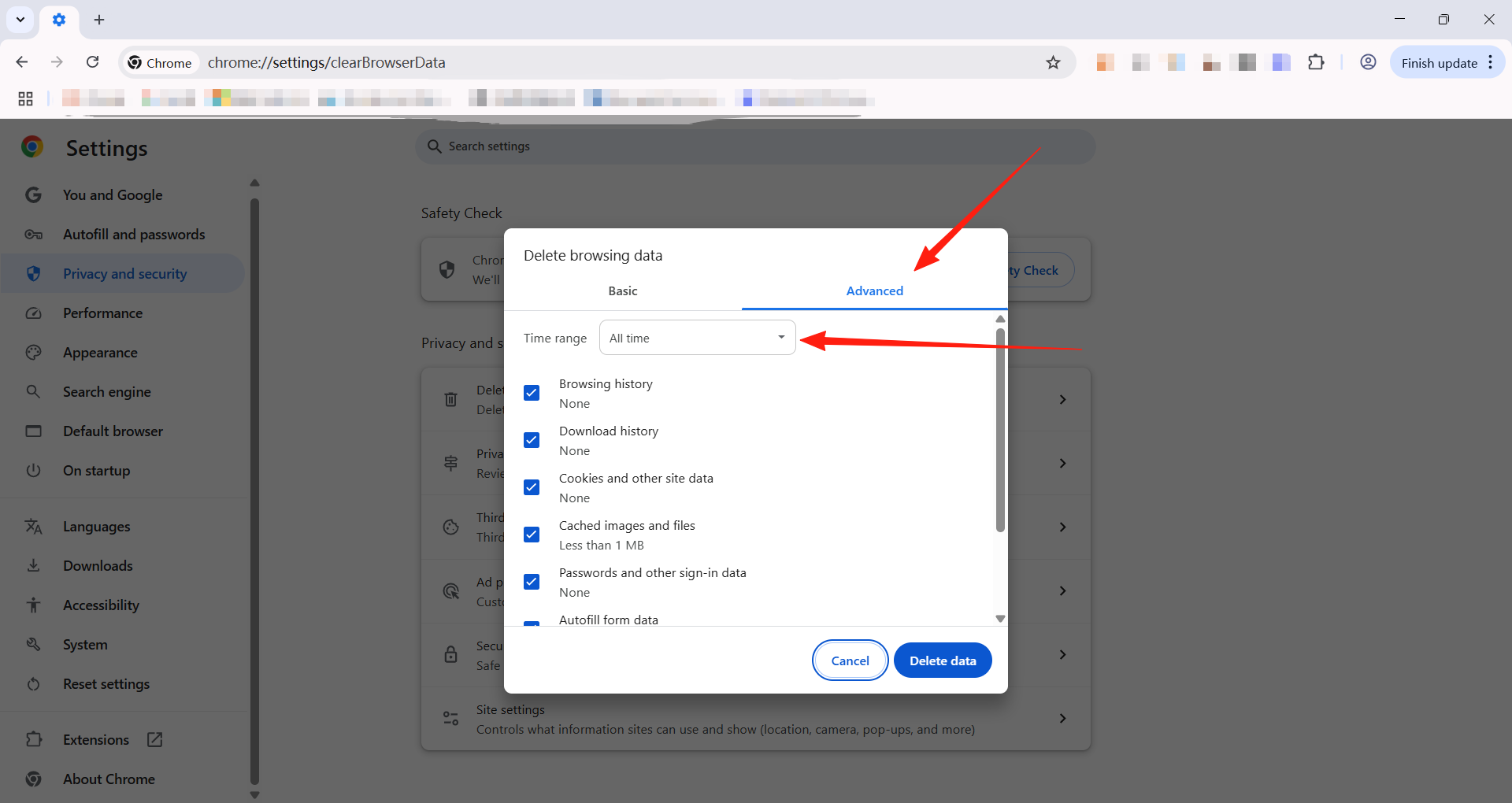
- Click the “Delete” button next to the user; after confirming, all of that user's data (including bookmarks, history, etc.) will be permanently deleted.Note: If your browser is not opening certain websites correctly (especially this site's AI mirror sites), you can refer to this feature and delete the cache and Cookies to restore your browser to healthy operation! Simply select the two options Cookies and other site-data and Cached images and files in the image below, then delete them. You may also need to flush your DNS—please see this article "DNS Cache Flushing Guide" Click to go directly
- In the “Manage users” window, find the user you want to delete.
- Sync feature:
- Each user profile can be linked to a different Google account to sync bookmarks, passwords, extensions, and other data.
- Sign in to a Google account within the user profile (Settings > Sync and Google services > Turn on sync) to sync data with the cloud, making it convenient to use across multiple devices.
4. Guest Mode
- Purpose: Guest mode is suitable for temporary users; there is no need to create a new user profile, and all browsing data is cleared after closing the browser.
- How to enable:
- Click the profile icon in the top-right corner.
- Select “Open Guest window”.
- In guest mode, you cannot access other users' data, and no browsing history is saved.
5. Privacy and Data Isolation
- The data of each user profile is isolated from one another, ensuring privacy. For example, User A's browsing history and saved passwords will not appear in User B's profile.
- If you need stronger privacy protection, you can combine this with guest mode or incognito mode (Ctrl+Shift+N).
Common Use Cases for the Multi-User Feature
- Shared family device: Family members can each have their own browser profile, avoiding confusion over bookmarks or browsing history.
- Separating work and personal use: Create different profiles for work and personal purposes, installing work-related extensions or saving bookmarks for personal entertainment sites separately.
- Temporary use: Guest mode is ideal for friends or visitors temporarily using your device, keeping your data secure.
Things to Note
- Storage space: Each user profile takes up additional disk space (for storing extensions, cache, etc.). Clean up unneeded profiles regularly.
- Sync requirements: If you need to sync data across multiple devices, make sure each user profile is linked to a Google account.
- Performance impact: Opening multiple user profiles at the same time may increase memory usage; use this feature judiciously based on your device's performance.
- Security: Although user profiles isolate data, this is not equivalent to operating-system-level user account isolation. Sensitive data still needs to be protected with a password or device lock.