
The Gemini app is Google's official Gemini app, and it works on phones and computers. This guide follows Google's official help documentation and walks you through downloading, installing, and signing in on Android, iPhone, Windows, and Mac. Fact-checked on 28 November 2026 (Singapore time); follow the steps and system requirements as shown on the official website and in your account on the day.
Download Gemini only from official sources: use the Google Play Store or the App Store on phones, and gemini.google/desktop or gemini.google/mac on computers. Do not download installers from third-party websites.
1. Before You Install: Device and Account Requirements
Before installing, check two things: whether your device meets the official system requirements, and whether your Google Account has access to Gemini. Availability of the Gemini mobile app varies by language, device, account, and location, and some features may not be available for work or school accounts.
| Device | System requirements (official) | Download source |
|---|---|---|
| Android phones and tablets | A personal or work/school Google Account with access to Gemini | Google Play Store: the Gemini app |
| iPhone and iPad | Same as above; a Google Account managed by Family Link cannot be used | App Store: the Gemini app |
| Windows PC | Windows 10 or later; 8 GB or more of RAM; at least 200 MB of disk space; a stable internet connection | gemini.google/desktop, download GeminiSetup.exe |
| Mac | macOS Sequoia 15.0 or later; Apple Silicon; 8 GB or more of RAM; at least 200 MB of disk space | gemini.google/mac, download the .dmg installer |

Caption: The Gemini logo (2025 version). Image source: Wikimedia Commons.

2. Installing on Mobile: Android and iPhone
Android Phones and Tablets
- Open the Google Play Store, search for "Gemini", and download and install the Gemini app; if it is already preinstalled on your device, just open it.
- Open the Gemini app.
- Sign in with a personal or work/school Google Account that has access to Gemini.
- If you are prompted to switch from Google Assistant, follow the prompts to complete the switch; after switching, Gemini becomes your primary mobile assistant.
iPhone and iPad
- Open the App Store, search for "Gemini", and download and install the Gemini app.
- Open the Gemini app.
- Sign in to your Google Account. Some features can be used without signing in, but to use more features or save your Gemini app activity, you need to sign in to a Google Account.
- Start a conversation by typing, by voice, or with Live, and you can also create images and get help on the go.
If you cannot find Gemini in the app store, it is usually because the language, device, account, or location is not yet supported; first check whether your account and location meet the official availability guidance.
3. Installing on Desktop: Windows and Mac
Windows PC
- Go to gemini.google/desktop and click Download.
- Save and open GeminiSetup.exe, then follow the instructions to finish installing.
- Double-click Gemini in the Start menu to open the app.
- Sign in with a personal or work/school Google Account that has access to Gemini.
After installing, press Alt + Space to open Gemini quickly; when you see an update prompt, click Restart to update.
Mac
- Go to gemini.google/mac and click Download for Mac.
- Open the downloaded .dmg file in the Downloads folder.
- Drag the Gemini icon to the Applications folder.
- Double-click Gemini to open the app and sign in with your Google Account.
After installing, press Option + Space to open Gemini quickly; when you see an update prompt, click Restart to update.
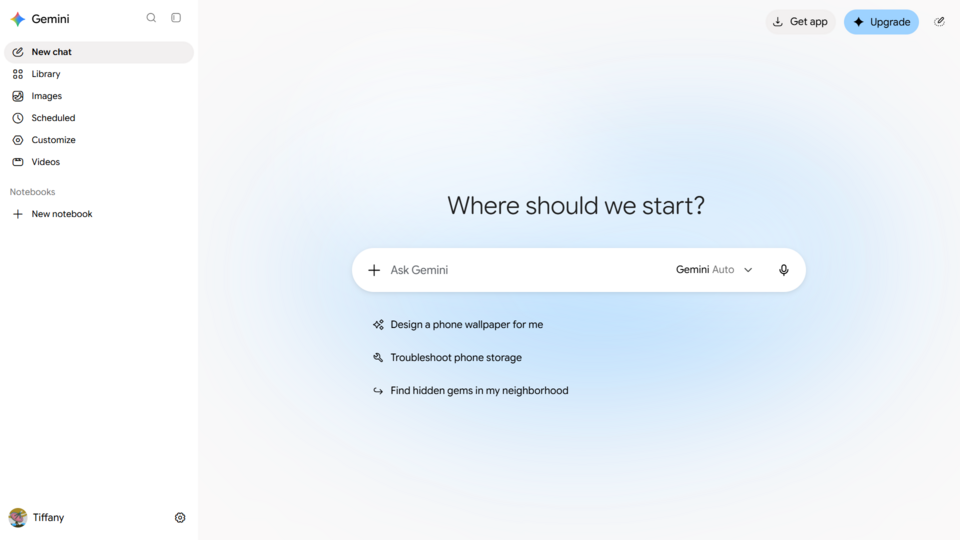
Caption: Screenshot of the Gemini interface, with a Get app button at the top right. Image source: Wikimedia Commons; the original image is from gemini.google.com.

4. Testing After Sign-In and Troubleshooting Failed Installs
After signing in, run a quick test: ask Gemini a simple question by typing, by voice, or with Live — for example, ask it to draft a short message or summarize an article — and confirm you get a reply. The desktop app can be used to ask quick questions, draft text, summarize, brainstorm, get coding help, or analyze images.
- Cannot open or install it: first check that your network is stable, then confirm your device meets the official system requirements in the table above.
- Sign-in fails: confirm you are using a Google Account with access to Gemini; for a work or school account, first confirm it includes access to Gemini Apps.
- Cannot find it in the app store, or features are missing: the language, device, account, or location may not be supported yet; follow the official availability guidance.
- Desktop app prompts you to update: click Restart to update as prompted; if problems persist, download and install it again from the official download page.
Do not download so-called Gemini installers or cracked versions from third-party websites. These installers may have been tampered with, and may fail to sign in or cause problems with your account. Use only the official sources listed in this guide.
If you need a Gemini account or membership, you can browse Gemini products on this site: View Gemini products.
Official sources: Get started with the Gemini mobile app (Gemini Apps Help), Use the Gemini app for Windows (Gemini Apps Help), Use the Gemini app on Mac (Gemini Apps Help).