
Logging in to ChatGPT with only a password means anyone who steals it can walk into your account. With two-step verification (multi-factor authentication, MFA) turned on, signing in takes one more check after your password, so a stolen password alone is not enough. This guide follows OpenAI's official help documentation. Facts were checked on 2026-11-28 (Singapore time); features and screens may vary — what the official website and your account show on the day is authoritative.
What two-step verification is, and what it protects
Two-step verification, also called multi-factor authentication (MFA), adds a second check on top of your password. Once it is on, every ChatGPT sign-in asks for your password first, then a second verification. The setting applies across OpenAI services, including ChatGPT and the API Platform. Even if your password leaks, no one can sign in without the second factor.
The official verification methods are listed below. Which ones you can use may vary by device, country, account tier, and how the account was created:
| Method | How you verify at sign-in | Best for |
|---|---|---|
| Authenticator app | Open Google Authenticator or Authy and enter the one-time code it shows | Most common, recommended first choice |
| SMS or WhatsApp | Enter the 6-digit code sent to your phone | Backup when you have no authenticator app |
| Push notification | Tap to approve the sign-in on a trusted device | Users who want the fastest option |
| Passkey | Use a passkey as an additional verification method | Users who already have a passkey set up |
Note: email is not available as a standard verification method. If you do not receive a code, first check whether your authenticator app has an entry named OpenAI or your account email. Admins cannot currently require workspace members to turn on two-step verification.
Turn on two-step verification in 6 steps
Using an authenticator app as an example, the whole setup takes just a few minutes:
- Open ChatGPT settings: sign in to ChatGPT and open Settings from your profile picture.
- Go to “Security and login”: find Security and login in Settings.
- Find multi-factor authentication: under Multi-factor authentication (MFA), choose the method you want to turn on.
- Install an authenticator app and scan the code: install Google Authenticator or Authy on your phone and scan the QR code shown on the page.
- Enter the one-time code: type the code shown in the authenticator app into the page to finish setup. From then on, each sign-in asks for a code.
- Add a backup method: turn on SMS or push notifications as a backup as well. If you enable more than one method, sign-in defaults to the most secure one first.
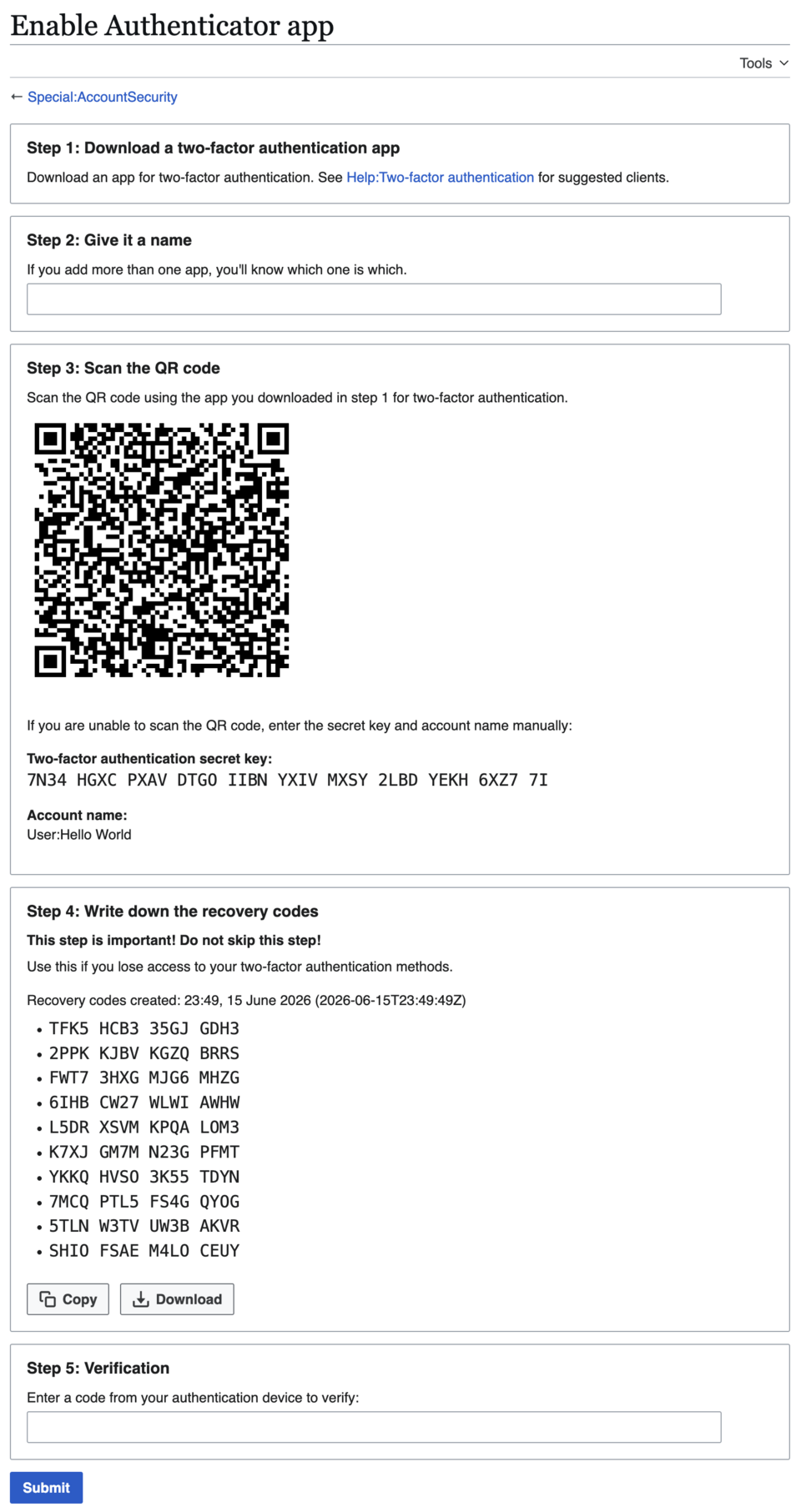
Caption: the general authenticator app setup flow — download the app, scan the code, and enter the verification code. The screenshot shows Wikimedia's account security page; ChatGPT's setup steps are similar. Image source: Wikimedia Commons, CC BY-SA 4.0.

How to recover access if you lose your verification method
Here is a common pitfall: ChatGPT does not provide recovery codes you can download and keep for yourself. If you lose your phone, switch phones without moving the authenticator app, or cannot receive codes at all, there is no self-service recovery code to fall back on — you need to go through the official recovery process:
- Contact OpenAI Support: submit a request through the official support channel and complete identity verification as instructed.
- Get a one-time email recovery login: once verified, Support provides a one-time email recovery login. It is a temporary sign-in opportunity, and it can be used only once.
- Fix it right after signing in: once you are in, immediately add a backup verification method, or turn off two-step verification first and set it up again.
If you are enrolled in Advanced Account Security and lose your passkey or security key, you can recover with the recovery key you saved when you enrolled.
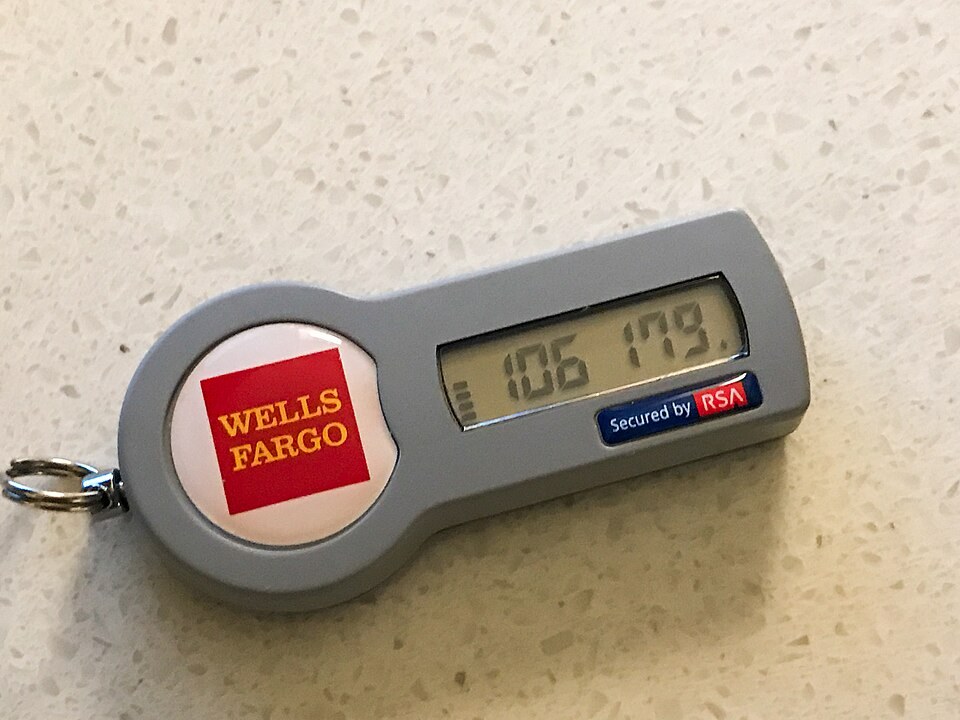
Caption: the 6-digit code you enter when signing in with two-step verification, shown here on a hardware token. Image source: Wikimedia Commons, Tony Webster, CC BY 2.0.

Everyday habits that keep your account safer
- Turn on at least two verification methods — one primary, one backup — so you are never left with a single way in.
- Before switching phones, move the authenticator app on your old phone or bind it again on the new one.
- Enter verification codes only on the sign-in page. Never share them with anyone or send screenshots of them to others.
- Turning on two-step verification does not sign out your other devices. If you suspect your account was compromised, choose to log out of all devices under “Security and login”; it can take up to 30 minutes to take effect.
Source: OpenAI's official help article Managing multi-factor authentication (MFA), facts checked on 2026-11-28 (Singapore time). Related reading: ChatGPT account security settings: sign out of all devices, change your password, and re-bind your authenticator.